
1. Introduction
The ZOYOSI GM65 is a compact and high-performance 1D and 2D barcode and QR code reader module. It integrates an advanced scan engine and image intelligent recognition algorithms to provide efficient and accurate decoding of various barcode symbols from both printed materials and digital displays. This module is designed for applications requiring reliable barcode scanning with low power consumption and flexible interface options.
2. Safety Information
- Eye Safety: Do not stare directly into the light source of the scanner. Although the light is not harmful under normal use, prolonged direct exposure should be avoided.
- Electrical Safety: Ensure the module is connected to a stable 5V power supply. Incorrect voltage may damage the device.
- Environmental Conditions: Operate and store the module within the specified temperature and humidity ranges to prevent damage. Avoid exposure to extreme temperatures, moisture, or corrosive substances.
- Handling: Handle the module with care to avoid physical damage to the circuit board or optical components.
3. Package Contents
Verify that all items are present in the package:
- 1 x ZOYOSI GM65 QR Code Reader Module
- 1 x USB Cable (for data and power)
- 1 x UART Cable (for serial communication)
4. Product Overview
The GM65 module features a compact design with integrated components for efficient barcode scanning. Key features include a high-performance scan engine, image recognition algorithms, and support for various barcode types.

Figure 4.1: Top-down view of the ZOYOSI GM65 Barcode Reader Module, showing the scanner head, buzzer, and connection ports.

Figure 4.2: Side view of the ZOYOSI GM65 Barcode Reader Module, highlighting its compact profile.
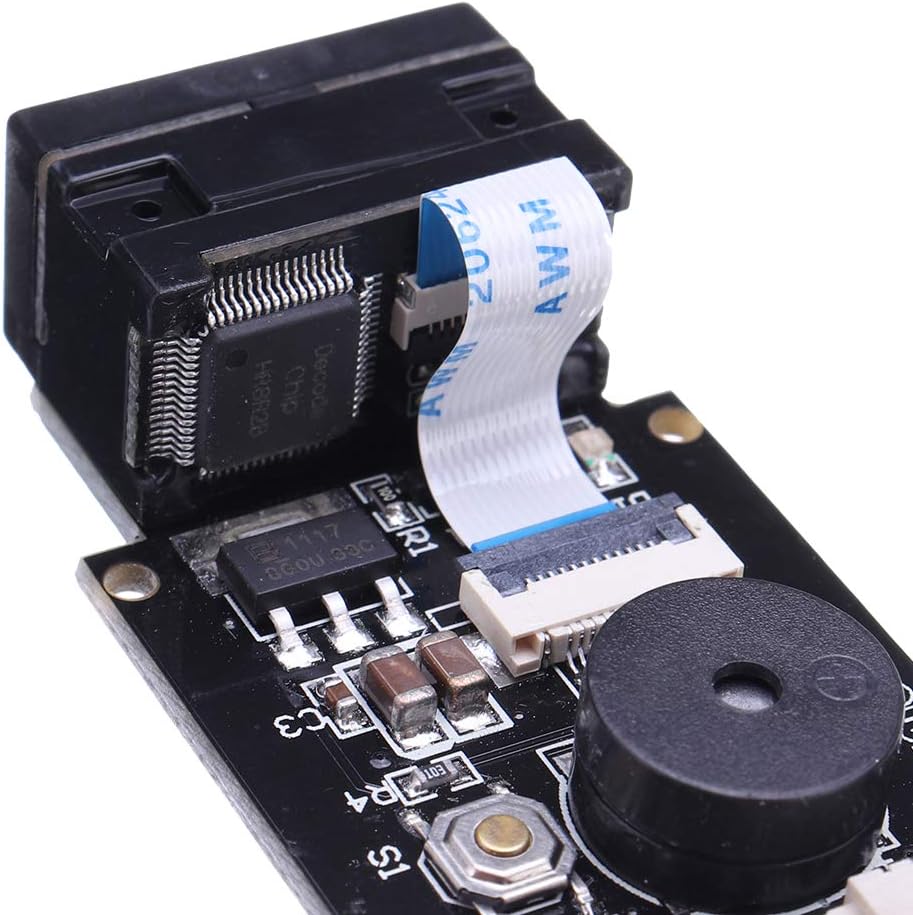
Figure 4.3: Close-up view of the module's electronic components, including the main chip and connectors.
5. Setup and Connection
The GM65 module supports both USB and TTL232 interfaces for connectivity. Choose the appropriate cable based on your application requirements.
5.1 USB Connection
- Connect the provided USB cable to the USB port on the GM65 module.
- Plug the other end of the USB cable into an available USB port on your computer or host device.
- The module will power on, and the operating system should automatically detect it as a Human Interface Device (HID) or a virtual COM port, depending on the module's configuration. For Windows systems, a 'Chinese free drive' is typically supported, meaning no specific driver installation is required for basic HID functionality.

Figure 5.1: The USB cable provided for connecting the module to a host device.
5.2 TTL232 (UART) Connection
- Connect the provided UART cable to the UART port on the GM65 module.
- Connect the other end of the UART cable to your host device's serial interface (e.g., via a USB-to-TTL converter, not included).
- Ensure proper wiring for GND, TX, and RX pins between the module and your host device.
- Configure your host device's serial port settings (baud rate, data bits, parity, stop bits) to match the module's default or configured settings.

Figure 5.2: The UART cable provided for serial communication with the module.

Figure 5.3: The GM65 module with both USB and UART cables connected, illustrating the connection points.
6. Operating Instructions
Once the module is properly connected and powered, it is ready for scanning.
6.1 Scanning a Barcode
- Aiming: Position the module's scanner head towards the barcode you wish to scan. The 617nm LED aimer will help you target the barcode accurately.
- Scanning: The module will automatically detect and decode the barcode. For some configurations, a trigger button (S1 on the module) might be present for manual scanning.
- Confirmation: Upon successful decoding, the module will emit a beep from the buzzer, and the blue LED indicator will light up.
- Data Output: The decoded barcode data will be transmitted to the connected host device via the USB or UART interface. If connected via USB in HID mode, the data will appear as keyboard input in any active text field (e.g., Notepad, Word, chat window).
The module is capable of scanning a wide range of 1D and 2D barcodes, including those on paper and digital displays (e.g., phone screens).
7. Maintenance
- Cleaning: Keep the scanner window clean. Use a soft, lint-free cloth to gently wipe any dust or smudges. Do not use abrasive cleaners or solvents.
- Storage: When not in use, store the module in a dry, cool place, away from direct sunlight and extreme temperatures.
- Firmware: Check the manufacturer's website periodically for any firmware updates that may improve performance or add new features.
8. Troubleshooting
- No Scan/No Read:
- Ensure the module is properly powered and connected. The red LED should indicate power.
- Check if the barcode is damaged, smudged, or poorly printed.
- Ensure the barcode is within the reading distance (25-250mm) and properly aimed.
- Verify that the barcode type is supported by the GM65 module (refer to Specifications).
- Adjust ambient lighting conditions if the barcode is too dark or too reflective.
- No Data Output:
- Confirm that the module successfully scanned the barcode (blue LED and beep).
- If using USB, ensure the host device recognizes the module. Try a different USB port.
- If using UART, verify serial port settings (baud rate, etc.) on your host device.
- Check if any application on your computer is ready to receive input (e.g., a text editor or terminal program).
- Incorrect Data:
- Rescan the barcode to ensure a clean read.
- Verify the barcode content manually if possible.
- Ensure the module's configuration (if any advanced settings are available) matches the expected barcode symbology.
9. Specifications
| Model | GM65 |
| Type | Barcode Scanner Module |
| Decoding Capability (1D) | EAN-8, EAN-13, UPC-A, UPC-E, Code39, Code93, Code128, EAN128, Codabar, Industrial 2/5, Interleave 2 of 5, Matrix 2 of 5, MSI, Postal Code, UPC/EAN with supplemental, BooklandEAN, ISSN, UCC Coupon Extended Code, ISBT 128, Code 39 Full ASCII, Trioptic Code 39, Code 32, Code 11, Discrete 2 of 5, Chinese 2 of 5, GS1 DataBar variants, Korean 3 of 5, ISBT Concat |
| Decoding Capability (2D) | PDF417, QR Code, Data Matrix |
| Interface | USB2.0, UART |
| Resolution | 0.10mm (4mil) |
| Operating Voltage | 5V |
| Operating Current | 120mA (less than 150mA) |
| Weight | 13g |
| Size | 46.8 x 27.5mm |
| Light Source Type | 617nm LED (Aimer), 6500K LED (Illumination) |
| LED Indicator | Buzzer and 2 color lights: Red (Power), Blue (Successful Scan) |
| Scan Angle (Roll) | 0-360° |
| Scan Angle (Pitch) | >±65° |
| Scan Angle (Yaw) | >±60° |
| Scan Angle Inclination | 34° |
| Scan Angle Elevation | 26° |
| Print Contrast | 30% minimum reflective difference |
| Reading Distance | 25~250mm |
| Operating Temperature | -20°C to 55°C |
| Storage Temperature | -40°C to 65°C |
| Humidity | 5% to 95% relative humidity, non-condensing |
| Light Level | 0-85000LUX |

Figure 9.1: The GM65 module displayed with a ruler, indicating its compact dimensions.
10. Warranty and Support
This product is covered by a standard manufacturer's warranty. For specific warranty terms and conditions, please refer to the documentation provided with your purchase or contact your retailer. For technical support, troubleshooting assistance, or inquiries about product functionality, please contact the vendor or manufacturer directly through their official support channels.