Introduction
The UMAX Air Mouse M1 is a versatile wireless controller designed to enhance your interaction with various devices. Featuring a built-in gyroscope for precise air mouse functionality, a full QWERTY keyboard for easy text input, and voice control capabilities, it offers a comprehensive solution for navigation and command. Its ergonomic design ensures comfortable handling, and the integrated Li-Ion battery provides extended usage time. This manual will guide you through the setup, operation, and maintenance of your Air Mouse M1.

Figure 1: Front view of the UMAX Air Mouse M1, showing the directional pad, OK button, volume controls, and voice button.
Package Contents
Please ensure all items are present in the package:
- UMAX Air Mouse M1
- USB Receiver
- Charging Cable
- User Manual (this document)
Setup
1. Charging the Device
The UMAX Air Mouse M1 comes with a built-in Li-Ion battery. Before first use, it is recommended to fully charge the device. Connect the charging cable to the charging port on the Air Mouse and the other end to a standard USB power source (e.g., computer USB port, USB wall adapter).
2. Connecting the USB Receiver
The Air Mouse M1 connects wirelessly via a USB receiver. Locate the USB receiver, typically stored within the battery compartment or a dedicated slot on the device itself. Insert the USB receiver into an available USB port on your target device (e.g., Smart TV, PC, Android TV Box).
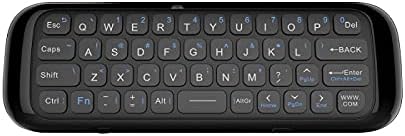
Figure 2: Back view of the UMAX Air Mouse M1, showing the full QWERTY keyboard.
3. Initial Pairing (Automatic)
Once the USB receiver is plugged in, the Air Mouse M1 should automatically pair with your device. No manual pairing steps are typically required. The device should be ready for use within a few seconds.
Operating Instructions
1. Air Mouse Function
The Air Mouse M1 utilizes a gyroscope for cursor control. Hold the remote in your hand and move your wrist to control the on-screen cursor. The cursor will follow your hand movements. Press the OK button to click.
2. Keyboard Input
Flip the Air Mouse M1 over to access the full QWERTY keyboard. Use the keys to type text as you would on a standard keyboard.
3. Voice Control
Press and hold the dedicated Voice button (often indicated by a microphone icon) to activate voice input. Speak clearly into the microphone located on the device. Release the button when you have finished speaking. This feature requires compatible software or operating system support on your connected device.
4. Button Functions
- Power Button: Turns the device on/off or puts it into sleep mode.
- OK Button: Confirms selection, acts as left-click.
- Directional Pad: Navigates menus and selections.
- Volume Buttons (V+/V-): Adjusts audio volume.
- Home Button: Returns to the home screen of the connected device.
- Back Button: Navigates back in menus or applications.
- Menu Button: Opens context-sensitive menus.
Maintenance
1. Battery Care
The UMAX Air Mouse M1 is equipped with a rechargeable Li-Ion battery. To prolong battery life:
- Avoid fully discharging the battery frequently.
- Charge the device when the low battery indicator appears.
- Store the device in a cool, dry place if not used for extended periods.
2. Cleaning
To clean the device, use a soft, dry cloth. For stubborn dirt, a slightly damp cloth can be used, but ensure no moisture enters the device's ports or openings. Do not use harsh chemicals or abrasive cleaners.
Troubleshooting
| Problem | Possible Cause | Solution |
|---|---|---|
| Device not responding | Low battery; USB receiver not connected; Device not paired. | Charge the device; Ensure USB receiver is securely plugged in; Re-insert USB receiver to re-establish connection. |
| Cursor erratic or not moving smoothly | Interference; Low battery. | Move closer to the USB receiver; Ensure no strong electromagnetic interference; Charge the device. |
| Keyboard not typing | Device in air mouse mode; Low battery. | Ensure the device is flipped to the keyboard side; Charge the device. |
| Voice control not working | Microphone blocked; No internet connection on host device; Host device does not support voice input. | Ensure microphone is clear; Check host device's internet connection; Verify host device's compatibility with voice input. |
Specifications
- Model: UMAX Air Mouse M1 (laishutin)
- Movement Detection Technology: Gyroscopic Stabilization
- Connectivity: Wireless (USB Receiver)
- Battery: 1 Lithium Ion battery (included)
- Color: Orange (Note: Product images show a black device, but specifications list 'Orange'.)
- Item Weight: 7 ounces (0.2 Kilograms)
- Package Dimensions: 7.09 x 3.94 x 0.79 inches
- Compatible Operating Systems: Android, Windows, Linux
Support and Warranty
For technical support or inquiries regarding your UMAX Air Mouse M1, please refer to the official UMAX website or contact their customer service. Specific warranty details may vary by region and retailer. Please retain your proof of purchase for warranty claims.
For more information, visit: UMAX Official Website


