Introduction
Welcome and thank you for choosing the Umax Webcam W5. This manual provides essential information for setting up, operating, maintaining, and troubleshooting your webcam. Please read it carefully before use to ensure proper functionality and longevity of your device.
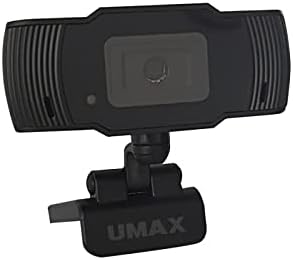
Image: Front view of the Umax W5 Webcam. This image displays the main unit of the webcam, highlighting its lens and overall design.
1. Setup
1.1 Package Contents
- Umax W5 Webcam
- Mirror
1.2 System Requirements
The Umax W5 Webcam is compatible with most operating systems that support standard USB webcams, including Windows, macOS, and Linux distributions.
1.3 Connecting the Webcam
- Unfold the webcam's integrated clip/stand.
- Place the webcam securely on top of your monitor, laptop screen, or a flat surface.
- Connect the USB cable from the webcam to an available USB port on your computer.
- The webcam should be automatically recognized by your operating system. No additional drivers are typically required for basic functionality.
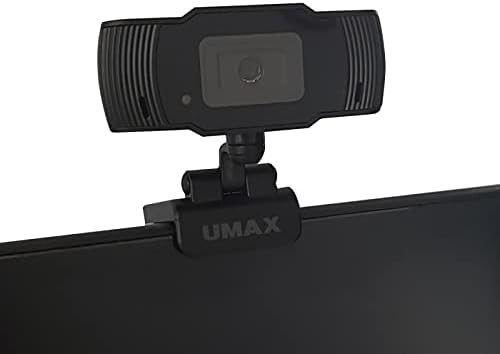
Image: Umax W5 Webcam mounted on top of a computer monitor. This image shows the webcam securely positioned on the upper edge of a computer monitor, demonstrating its typical mounting configuration.
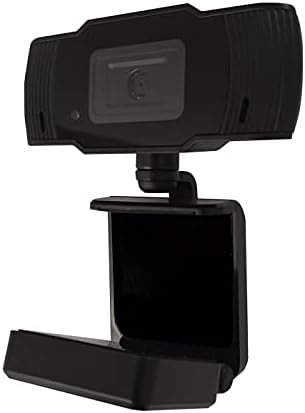
Image: Umax W5 Webcam with its adjustable clip/stand unfolded. This image displays the webcam with its integrated clip fully extended, illustrating how it can be adjusted to fit various monitor thicknesses or stand independently on a flat surface.
2. Operating the Webcam
2.1 Basic Functionality
Once connected, the Umax W5 Webcam is ready for use with various video conferencing applications, streaming software, and other programs that utilize a webcam.
2.2 Using with Applications
- Open your desired application (e.g., Zoom, Skype, OBS Studio).
- Navigate to the application's settings or preferences menu.
- Select "Umax W5 Webcam" as your primary video input device.
- Adjust video settings such as resolution or frame rate within the application if these options are available.
2.3 Manual Focus
The Umax W5 Webcam features manual focus. To adjust the focus, gently rotate the lens ring located around the camera lens until the image displayed on your screen appears clear and sharp.
3. Maintenance
3.1 Cleaning the Lens
To ensure optimal image quality, periodically clean the webcam lens.
- Use a soft, lint-free cloth specifically designed for optical surfaces.
- Avoid abrasive materials or harsh chemical cleaners, as these can damage the lens coating.
- Gently wipe the lens in a circular motion to remove dust or smudges.
3.2 Storage
When not in use, store the webcam in a clean, dry place away from extreme temperatures, high humidity, and direct sunlight to prevent damage.
4. Troubleshooting
4.1 Webcam Not Detected
- Ensure the USB cable is securely connected to both the webcam and an active USB port on your computer.
- Try connecting the webcam to a different USB port on your computer.
- Restart your computer.
- Check your operating system's Device Manager (Windows) or System Information (macOS) to see if the webcam is listed.
4.2 Poor Image Quality
- Adjust the manual focus ring on the webcam until the image is clear.
- Ensure adequate lighting in your environment. Poor lighting can significantly affect image quality.
- Clean the webcam lens as described in the Maintenance section.
- Check the video settings within your application (e.g., resolution, frame rate) to ensure they are set appropriately.
5. Specifications
| Feature | Detail |
|---|---|
| Brand | Umax |
| Model Name | W5 |
| Item Model Number | W5 |
| Color | Black |
| Package Dimensions | 6.18 x 3.43 x 1.89 inches |
| Item Weight | 5.6 ounces |
| Lens Type | Zoom |
| Focus Type | Manual Focus |
| Image Stabilization | No |
| Batteries | 2 AA batteries required. (included) |
| Included Components | Mirror |
| Date First Available | September 14, 2020 |
| Manufacturer | Umax |
6. Warranty and Support
For warranty information and technical support, please refer to the official Umax website or contact their customer service directly. It is recommended to keep your purchase receipt as proof of purchase for any warranty claims.
Manufacturer: Umax
Date First Available: September 14, 2020


