
BlueParrott B350-XT
BlueParrott B350-XT Noise Cancelling Bluetooth Headset User Manual
Model: B350-XT
Introduction
Thank you for choosing the BlueParrott B350-XT Noise Cancelling Bluetooth Headset. This manual provides essential information for setting up, operating, maintaining, and troubleshooting your device. The B350-XT is engineered for superior calls in high-noise environments, offering industry-leading noise cancellation and extended wireless range.
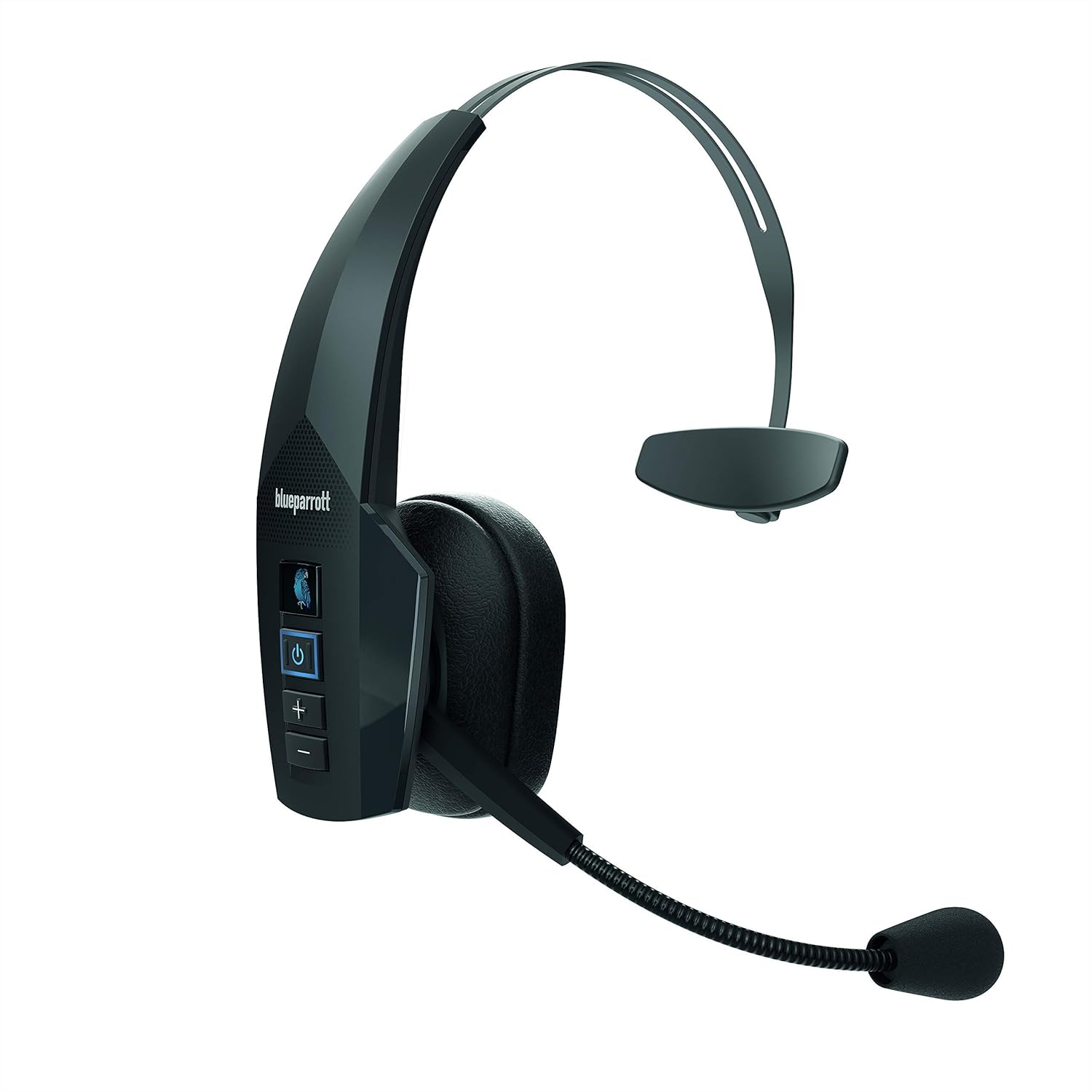
Figure 1: BlueParrott B350-XT Noise Cancelling Bluetooth Headset. This image shows the full headset from a front-side angle, highlighting its over-ear design and microphone boom.
Package Contents
Ensure all items are present in your package:
- BlueParrott B350-XT Headset
- USB Charging Cable
- Foam Ear Cushion (spare)
- Spare Microphone Windscreen
- Mobile Charger

Figure 2: Contents included in the BlueParrott B350-XT package. This image displays the headset, USB cable, foam ear cushion, spare mic windscreen, and mobile charger.
Setup
Charging the Headset
Before first use, fully charge your B350-XT headset. Connect the USB charging cable to the headset's charging port and plug the other end into the provided mobile charger or a compatible USB power source. The LED indicator will show charging status.
- A full charge provides up to 24 hours of talk time.
Pairing with a Bluetooth Device
The B350-XT uses Bluetooth 5.0 for wireless connectivity. Follow these steps to pair your headset:
- Ensure the headset is charged and turned off.
- Press and hold the Power button (⑂) for approximately 5 seconds until the LED indicator flashes blue and red, indicating pairing mode.
- On your mobile phone, tablet, or laptop, enable Bluetooth and search for new devices.
- Select "BlueParrott B350-XT" from the list of available devices.
- If prompted for a passcode, enter "0000" (four zeros).
- Once paired, the LED indicator will turn solid blue.
The headset supports Near-Field Communication (NFC) for streamlined pairing with compatible devices. Simply tap the headset to the NFC-enabled device to initiate pairing.

Figure 3: Close-up view of the BlueParrott B350-XT headset controls, including the power button and volume controls, alongside a smartphone screen demonstrating the Parrot Button customization options.
Operating Instructions
Power On/Off
- To power on: Press and hold the Power button (⑂) for 2 seconds.
- To power off: Press and hold the Power button (⑂) for 3 seconds.
Call Management
- Answer Call: Press the Power button (⑂) once.
- End Call: Press the Power button (⑂) once.
- Reject Call: Press and hold the Power button (⑂) for 2 seconds.
- Redial Last Number: Double-press the Power button (⑂).
Volume Control
- Increase Volume: Press the Volume Up button (+).
- Decrease Volume: Press the Volume Down button (-).
Parrot Button Customization
The customizable Parrot Button allows quick access to your preferred features. Use the BlueParrott app on your smartphone to configure its function, such as:
- Mute/Unmute microphone
- Speed Dial a contact
- Push-to-Talk (PTT) with compatible applications
- Launch a selected application

Figure 4: Detailed view of the BlueParrott B350-XT control panel, showing the Parrot Button, Power button, and Volume Up/Down buttons.
Maintenance
Cleaning
- Wipe the headset with a soft, damp cloth.
- Do not use harsh chemicals or abrasive cleaners.
- Ensure the charging port is dry before charging.
Storage
- Store the headset in a cool, dry place away from direct sunlight and extreme temperatures.
- If storing for an extended period, charge the headset periodically to maintain battery health.
Replacing Components
- The foam ear cushion and microphone windscreen are replaceable. Refer to the "Package Contents" section for spare parts.
- For replacement parts, visit the official BlueParrott support website.
Troubleshooting
| Problem | Possible Cause | Solution |
|---|---|---|
| Headset does not power on. | Low battery. | Charge the headset fully. |
| Cannot pair the headset. | Headset not in pairing mode; Bluetooth disabled on device; Device out of range. | Ensure headset is in pairing mode (flashing blue/red LED). Enable Bluetooth on your device. Move device closer to headset (within 100 meters). |
| No audio or poor audio quality. | Volume too low; Headset not selected as audio output; Interference. | Increase headset volume. Check device's audio settings to ensure B350-XT is selected. Move away from other wireless devices. |
| Microphone not working. | Microphone muted; Microphone boom not positioned correctly. | Unmute the microphone (via Parrot Button or device settings). Adjust the microphone boom closer to your mouth. |
| Short battery life. | Battery degradation; Frequent use at high volume. | Ensure full charge before use. Reduce volume if possible. Contact support if battery life significantly degrades. |
Specifications
| Feature | Detail |
|---|---|
| Model | B350-XT |
| Connectivity | Bluetooth 5.0, NFC |
| Wireless Range | Up to 100 meters (300 feet) |
| Talk Time | Up to 24 hours |
| Noise Cancellation | Blocks 96% of background noise |
| Durability | IP54-rated (dust and moisture protection) |
| Ear Placement | On-Ear |
| Weight | Approximately 4.7 ounces |
| Frequency Range | 20 Hz to 20,000 Hz |
| Compatible Devices | Cellphones, Tablets, Laptops |
| Control Type | Physical Buttons (Power, Volume, Parrot Button) |
Warranty and Support
This product is sold as "Renewed" by Amazon Renewed. Please refer to the Amazon Renewed Guarantee for specific warranty information and return policies. Typically, Amazon Renewed products come with a 90-day guarantee.
For technical support, product registration, or to purchase accessories, please visit the official BlueParrott website or contact their customer service. You may also refer to your Amazon order details for seller-specific support information.
- Amazon Renewed Guarantee: Learn More
- BlueParrott Official Website: www.blueparrott.com
Related documentsB350-XT


Ask a question about this manual
Ask about setup, troubleshooting, compatibility, parts, safety, or missing instructions. Manuals+ will review the question and use this page’s manual context to help answer it.