
Introduction
This manual provides detailed instructions for the installation, operation, and maintenance of your XENOCAM 16-Channel 5M-N/1080N Hybrid Digital Video Recorder. This DVR is designed for comprehensive security surveillance, supporting multiple camera technologies including AHD, TVI, CVI, Analog, and IP cameras. Please read this manual thoroughly before using the device to ensure proper setup and functionality.
Safety Information
- Ensure the power supply voltage matches the device's requirements.
- Do not expose the device to rain or moisture to prevent fire or electric shock.
- Avoid placing the device in direct sunlight or near heat sources.
- Do not block ventilation openings.
- Refer all servicing to qualified service personnel.
- Default login username is Admin. You must set a password for the device to access the system.
Package Contents
Verify that all items are present in your package:
- 1x XENOCAM 16CH 5M-N/1080N Hybrid DVR (Hard Drive Not Included)
- 1x Power Supply
- 1x USB Mouse
- 1x User Manual
- HDD Installation Cables (SATA data and power cables)
- Network Cable
- HDMI Cable
- Wall Sticker (24-Hour Video Surveillance)
Video: ANNKE 2MP Lite 16CH DVR Unboxing. This video demonstrates the unboxing process and contents typically found with a DVR unit, including the DVR, power supply, mouse, and cables.
Product Overview
Front and Rear Panels
Familiarize yourself with the ports and controls on your DVR unit.

Image: Front and rear view of the XENOCAM 16-Channel Hybrid DVR. The front panel features control buttons (ESC, MENU, OK, directional arrows), power/alarm/record indicators, and a USB port. The rear panel includes 16 BNC video input ports, HDMI and VGA video outputs, audio input/output, RJ-45 network interface, USB 2.0 ports, RS485 for PTZ, and the DC 12V power input.
Dimensions

Image: Diagram showing the dimensions of the XENOCAM 16-Channel Hybrid DVR. The unit measures approximately 253mm in width, 238mm in depth, and 41mm in height.
Setup
1. Hard Drive Installation
A hard drive (HDD) is required for recording video. If your DVR did not come with a pre-installed HDD, follow these steps:
- Ensure the DVR is powered off and unplugged.
- Remove the top cover of the DVR by unscrewing the screws on the sides and back panel.
- Connect the SATA data cable and power cable to the HDD.
- Align the HDD with the screw holes on the bottom of the DVR chassis and secure it with the provided screws.
- Replace the DVR cover and secure it with the screws.
- After installation, power on the DVR and format the new HDD through the system settings for proper recording.
Video: How to install hard drive - 8 Channel DVR. This video demonstrates the process of installing a hard drive into a DVR unit, including opening the casing, connecting cables, and securing the drive. The process is similar for 16-channel DVRs.
2. Initial Connections
Before powering on, connect the necessary peripherals:
- Monitor: Connect a monitor to the DVR using either the HDMI or VGA port.
- Mouse: Plug the USB mouse into one of the USB ports on the DVR.
- Network: Connect an Ethernet cable from your router/switch to the RJ-45 network interface on the DVR for remote access features.
- Power: Connect the 12V power adapter to the DVR's DC 12V input.
Video: Unboxing Digital Video Recorder. This video provides a visual guide to connecting essential peripherals like the monitor, mouse, and power supply to a DVR.
3. Camera Connection
This 16-channel hybrid DVR supports various camera types. Connect your cameras to the corresponding BNC video input ports (for AHD, TVI, CVI, Analog) or configure IP cameras via the network.
- Analog/AHD/TVI/CVI Cameras: Connect these cameras directly to the BNC video input ports (V1-V16) on the rear panel.
- IP Cameras: IP cameras are connected via your network. The DVR supports NVR mode for up to 8*1080P+8*960P or 4*5M IP cameras. Ensure your IP cameras are on the same network as the DVR and configured correctly.
Video: Will security camera work with TIGERSECU DVR? This video explains the compatibility of various camera formats (AHD, TVI, CVI, Analog, IP) with a DVR, which is relevant for connecting cameras to your XENOCAM DVR.
Video: How to connect RTSP IP Camera to NVR? This video demonstrates the process of connecting IP cameras to an NVR (similar to the NVR mode of this hybrid DVR) using RTSP protocols.
Operating Instructions
1. Basic System Settings
Upon first boot, you may be guided by a setup wizard. Access the main menu by right-clicking with the mouse and selecting "Main Menu". Navigate to "System" then "General" or "Basic" to configure essential settings:
- Language: Select your preferred language.
- Time Zone & Date/Time: Set the correct time zone, date, and time.
- Video Output Resolution: Adjust the display resolution to match your monitor's capabilities (e.g., 1920x1080). If you experience display issues, try a lower resolution.
- Password: Set a strong password for the 'Admin' user for security.
Video: ZOSI DVR Operation - Setup Menu. This video demonstrates navigating the DVR's setup menu to configure basic system settings such as language, time, and video output resolution.
Video: Xenocam AHD DVR Operation Introduction. This video provides an overview of the DVR's interface and basic operational steps, including accessing live view and settings.
2. Remote Access (P2P)
The DVR supports P2P remote access, allowing you to view live streaming or playback video from your smartphone or tablet (Android & iOS). Download the free XMeye app, connect your DVR to the internet, and scan the DVR's unique QR code to add the device.

Image: Illustration showing the steps for easy remote access using the XMeye app. It depicts downloading the app, registering an account, inputting the device serial number (or scanning a QR code), and successfully adding the device for remote monitoring.
3. Motion Detection & Instant Alerts
Configure motion detection to trigger recording and send instant alerts. When movement is detected, the DVR will record the event, and you can receive email alerts with snapshots or app notifications. You can customize the detection area according to your requirements.
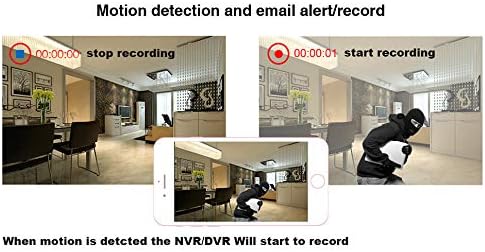
Image: Visual representation of motion detection functionality. It shows a comparison between a scene with no motion and a scene where motion is detected, triggering recording and alerts.
4. H.265 Video Compression
The DVR utilizes advanced H.265 video compression technology. This technology provides smoother video recordings and significantly reduces the required hard drive storage space compared to older compression standards like H.264, while maintaining high video quality.

Image: A comparison illustrating the benefits of advanced video compression. While labeled H.264, the principle applies to H.265, showing clearer image quality and less bandwidth usage compared to older methods.
Maintenance
- Hard Drive Management: Regularly check the status of your hard drive. Format the HDD periodically or when replacing it to ensure optimal performance.
- Firmware Updates: Check the XENOCAM official website for any available firmware updates. Keeping your DVR's firmware up-to-date can improve performance, add new features, and enhance security.
- Cleaning: Keep the DVR unit clean and free from dust. Use a soft, dry cloth for cleaning. Ensure ventilation openings are not obstructed.
Troubleshooting
- No Video Output:
- Check all video cables (HDMI/VGA) are securely connected.
- Ensure the monitor is powered on and set to the correct input source.
- Adjust the DVR's video output resolution to match your monitor's capabilities.
- No Recording:
- Verify that a hard drive is installed and properly connected.
- Check if the hard drive has been formatted.
- Ensure recording schedules or motion detection settings are correctly configured.
- Remote Access Issues:
- Confirm the DVR is connected to the internet via the Ethernet cable.
- Check your network settings (DHCP, IP address).
- Ensure the XMeye app is correctly configured with the DVR's serial number or QR code.
- Camera Compatibility:
- This DVR supports 5MP/4MP/1080P AHD, 1MP/2MP TVI, 1MP/2MP CVI, IP, and 960H CVBS cameras. Ensure your cameras are compatible.
- SDI cameras are NOT supported.
Specifications
| Video Input | 16ch BNC input |
| HDMI/VGA Output | Support up to 1080P |
| Audio Input/Output | 2CH/1CH RCA |
| Video Compression Standard | H.265 |
| Preview Quality | 16*5M-N@12fps (6 in 1); 16*4M-N@15fps (6 in 1); 16*1080N (6 in 1) |
| Record Resolution & Frame | 16*5M-N@8fps (6 in 1); 16*4M-N@8fps (6 in 1); 16*1080N@15fps (6 in 1) |
| Playback Quality | 8*5M-N@8fps (6 in 1); 16*4M-N@8fps (6 in 1); 16*1080N@15fps (6 in 1) |
| Record Mode | Manual, alarm, motion detection, timing |
| Backup Mode | Network, USB portable HDD, USB DVD-RW |
| HDD Interface | 1xSATA HDD interface (Max 6TB) |
| Network Interface | 1xRJ-45 10M/100Mbps |
| USB Interface | 2xUSB 2.0 interface |
| PTZ Control | 1xRS485 |
| DVR Mode | 16*5M-N; 16*1080N |
| Hybrid Mode | 8ch 1080N AHD + 8ch 1080P IP |
| NVR Mode | 8*1080P + 8*960P; 4*5M |
| PC Software | CMS, VMS |
| Mobile App | XMeye free APP |
| Item Weight | 2.92 pounds |
| Package Dimensions | 13.7 x 11.46 x 3.15 inches |
Warranty and Support
For warranty information and technical support, please refer to the XENOCAM official website or contact customer service. Keep your purchase receipt as proof of purchase.