
1. Introduction
Thank you for choosing the Gearlab G4550 Bluetooth Office Headset. This binaural headset is designed for professional use, offering clear communication with its noise-cancelling microphone and an integrated busylight to indicate your availability. This manual provides detailed instructions on how to set up, operate, and maintain your headset to ensure optimal performance.
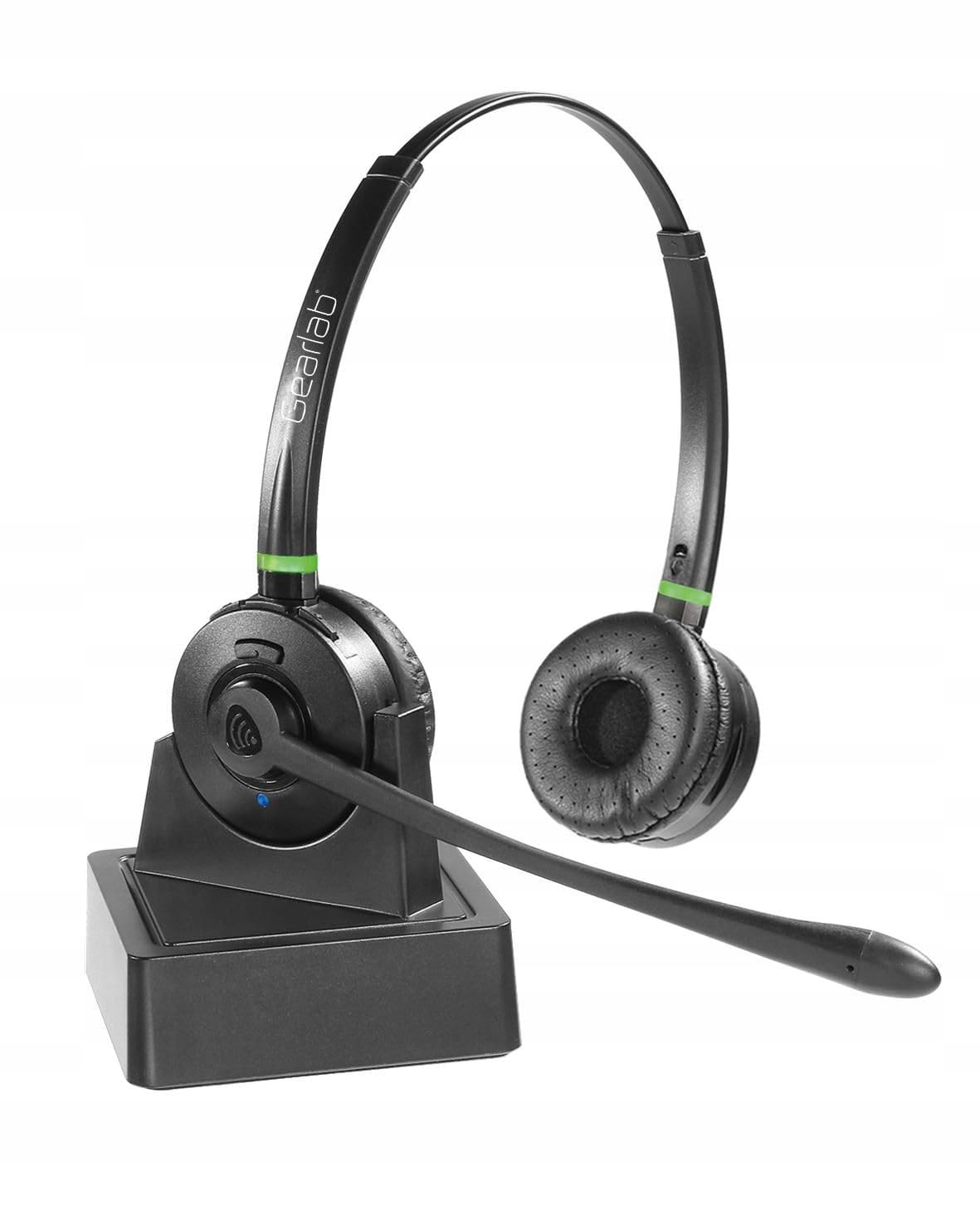
Image 1.1: Gearlab G4550 Bluetooth Office Headset. This image shows the binaural headset with earcups and microphone boom arm.
2. Package Contents
Please check the package contents upon unboxing. If any items are missing or damaged, please contact Gearlab support.
- Gearlab G4550 Bluetooth Office Headset
- USB Charging Cable
- User Manual (this document)
- (Other accessories, if applicable, not specified in product data)
3. Product Features
- Binaural headset for immersive audio experience.
- Advanced noise-cancelling microphone for clear voice transmission.
- Integrated busylight to signal availability to colleagues.
- Wireless Bluetooth connectivity.
- Durable plastic construction.
4. Setup
4.1 Charging the Headset
Before first use, fully charge your headset. Connect the USB charging cable to the headset's charging port and to a power source (e.g., computer USB port or wall adapter). The LED indicator will show charging status and turn off or change color when fully charged.
4.2 Pairing with a Bluetooth Device
- Ensure the headset is turned off.
- Press and hold the power button for approximately 5-7 seconds until the LED indicator flashes blue and red, indicating pairing mode.
- On your device (smartphone, computer, etc.), enable Bluetooth and search for new devices.
- Select "Gearlab G4550" from the list of available devices.
- Once paired, the LED indicator on the headset will flash blue periodically.
Note: The headset will automatically attempt to reconnect to the last paired device when powered on.
5. Operating Instructions
5.1 Power On/Off
- Power On: Press and hold the power button for 2 seconds.
- Power Off: Press and hold the power button for 3 seconds.
5.2 Call Management
- Answer/End Call: Press the Multi-function button once.
- Reject Call: Press and hold the Multi-function button for 2 seconds.
- Adjust Volume: Use the Volume Up (+) and Volume Down (-) buttons.
- Mute Microphone: Press the Mute button (if available, otherwise use software control).
5.3 Music Playback
- Play/Pause: Press the Multi-function button once.
- Next Track: Press and hold the Volume Up (+) button for 2 seconds.
- Previous Track: Press and hold the Volume Down (-) button for 2 seconds.
5.4 Busylight Function
The integrated busylight automatically activates during calls to indicate to others that you are busy. Some applications may allow manual control of the busylight.
6. Maintenance
- Cleaning: Use a soft, dry cloth to clean the headset. Do not use abrasive cleaners or solvents.
- Storage: Store the headset in a cool, dry place away from direct sunlight and extreme temperatures.
- Battery Care: To prolong battery life, avoid fully discharging the battery frequently. Charge the headset regularly, even if not in use for extended periods.
7. Troubleshooting
- Headset does not power on: Ensure the headset is fully charged.
- Cannot pair the headset:
- Ensure the headset is in pairing mode (LED flashing blue and red).
- Make sure Bluetooth is enabled on your device.
- Move the headset closer to your device.
- Try restarting both the headset and your device.
- No audio or poor audio quality:
- Check the volume levels on both the headset and your connected device.
- Ensure the headset is properly connected to your device.
- Move away from sources of interference (e.g., Wi-Fi routers, other Bluetooth devices).
- Microphone not working:
- Ensure the microphone is not muted.
- Check microphone settings on your connected device.
- Position the microphone boom arm correctly near your mouth.
8. Specifications
| Feature | Specification |
|---|---|
| Brand | Gearlab |
| Model | G4550 (W125742719, B08HXRPQ58) |
| Connectivity Technology | Wireless (Bluetooth) |
| Wireless Communication | Bluetooth |
| Material | Plastic |
| Cable Feature | Without Cable |
| Product Dimensions | 2.79 x 24.64 x 16.51 cm |
| Item Weight | 2.15 kg |
| Batteries Included | No (Internal rechargeable battery) |
| Age Range (Description) | Adult |
9. Warranty Information
Gearlab products are covered by a limited warranty from the date of purchase. Please refer to the warranty card included in your package or visit the official Gearlab website for detailed warranty terms and conditions. Keep your proof of purchase for warranty claims.
10. Support
For technical assistance, troubleshooting, or product inquiries, please contact Gearlab customer support:
- Website: www.gearlab.com/support (Example link, replace with actual if known)
- Email: support@gearlab.com (Example email, replace with actual if known)
- Phone: Refer to your regional Gearlab website for local contact numbers.
When contacting support, please have your product model (G4550) and purchase details ready.