
1. Introduction
Thank you for choosing the Trust Primo Smart Card Reader. This device is designed to provide a secure and convenient way to access online services requiring smart card authentication, such as government websites and digital signature applications. It is compliant with FIPS 201, FIPS TAA, and ISO 7816 Class A, B, C standards, ensuring reliable performance for your identification needs. This manual will guide you through the setup, operation, and maintenance of your new smart card reader.
2. Product Overview
2.1 Package Contents
- Trust Primo Smart Card Reader (Wired)
- User Manual (this document)
2.2 Device Features
- Smart Card Slot: For inserting your smart card.
- LED Indicator: Illuminates to indicate power and activity.
- USB Cable: Integrated cable for connecting to your computer.
- Plug & Play: No driver installation required for most operating systems.

Figure 2.1: Trust Primo Smart Card Reader with a smart card inserted.

Figure 2.2: Key features of the Smart Card Reader, including LED indicator and ISO 7816 compatibility.
3. Setup
3.1 System Requirements
- Operating System: macOS 10.15 (Catalina) or higher, Windows 10 / 8 / 7
- Available USB Type-A port
3.2 Connecting the Device
- Locate an available USB Type-A port on your computer (laptop or PC).
- Insert the USB connector of the Trust Primo Smart Card Reader into the USB port.
- The device is Plug & Play, meaning your operating system should automatically detect and configure it. A blue LED indicator on the reader will illuminate upon successful connection.
- For specific smart card applications (e.g., digital signature software, government ID software), you may need to install additional software provided by the smart card issuer or service provider.
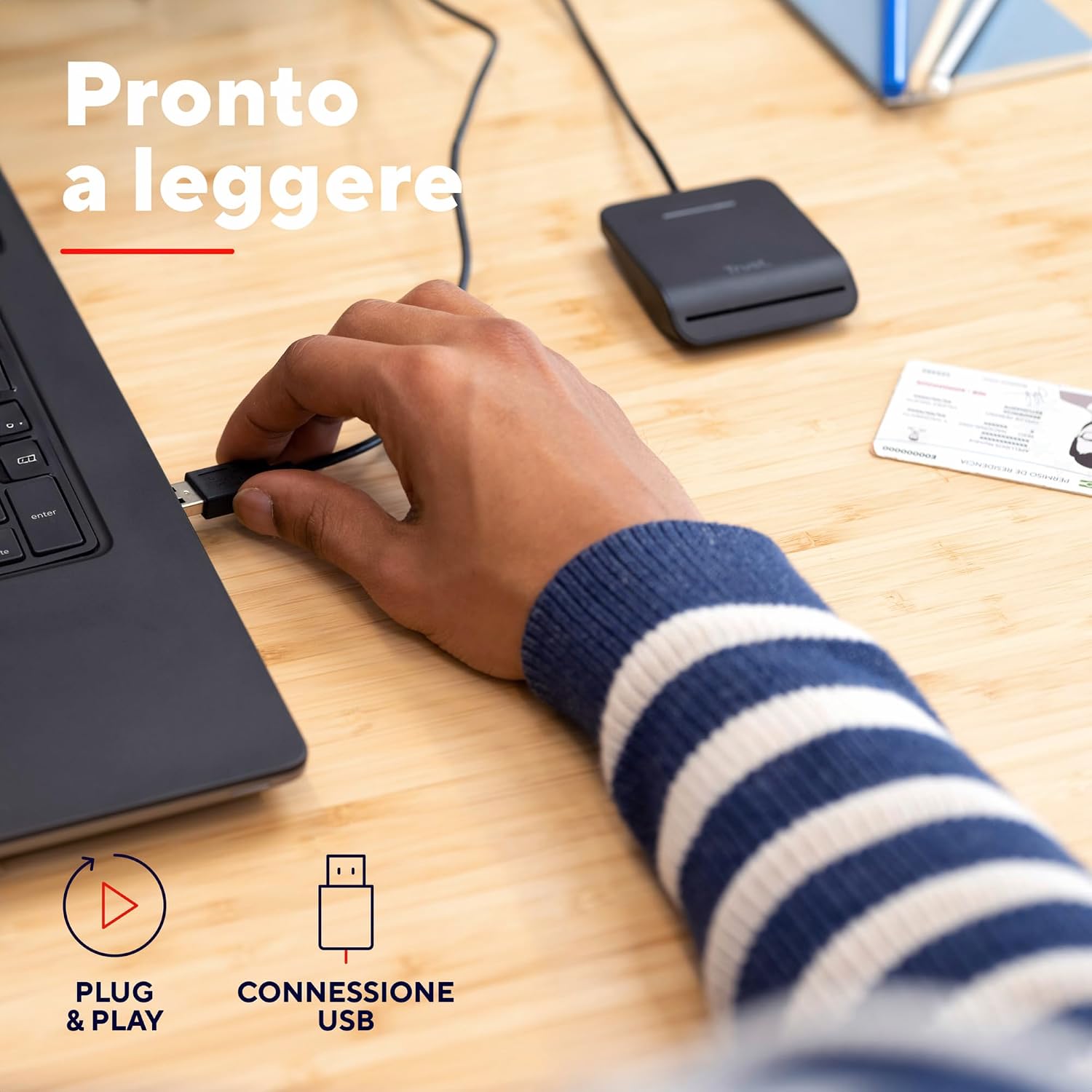
Figure 3.1: Connecting the Smart Card Reader to a computer.
4. Operating Instructions
4.1 Inserting a Smart Card
- Ensure the smart card reader is connected to your computer.
- Hold your smart card (e.g., DNI, CNS-TS, CRS, DNI 3.0) with the chip facing upwards and towards the reader.
- Gently slide the smart card into the designated slot on the front of the reader until it clicks into place. Do not force the card.
- The LED indicator may change or blink to show that the card has been detected.

Figure 4.1: Inserting a smart card into the reader.
4.2 Using the Smart Card Reader
Once the smart card is inserted and recognized, you can use it with compatible software or web applications for various purposes:
- Secure Login: Access government websites or online services that require smart card authentication.
- Digital Signature: Sign documents digitally using your smart card and appropriate software.
- Identification: Verify your identity for various online transactions.
Follow the on-screen prompts of the specific application or website you are using to complete your task. You may be asked to enter a PIN or password associated with your smart card.

Figure 4.2: User operating the smart card reader for secure access.
4.3 Removing a Smart Card
To remove the smart card, gently pull it out from the slot. Ensure that any ongoing operations involving the card are completed before removal to prevent data corruption.
5. Maintenance
5.1 Cleaning
- Disconnect the smart card reader from your computer before cleaning.
- Use a soft, dry, lint-free cloth to wipe the exterior of the device.
- Do not use liquid cleaners, aerosols, or abrasive solvents, as these may damage the device.
- Avoid getting moisture into any openings.
5.2 Storage
Store the smart card reader in a cool, dry place away from direct sunlight and extreme temperatures. Keep it away from dust and moisture when not in use.
6. Troubleshooting
If you encounter issues with your Trust Primo Smart Card Reader, please refer to the following common problems and solutions:
| Problem | Possible Cause | Solution |
|---|---|---|
| Device not recognized by computer. |
|
|
| Smart card not reading. |
|
|
| LED indicator not lighting up. |
|
|
7. Specifications
| Feature | Detail |
|---|---|
| Brand | Trust |
| Model Name | Primo |
| Model Number | 23890 |
| Dimensions (L x W x H) | 7.9 x 6.4 x 1.6 cm |
| Weight | 46 grams |
| Connectivity Technology | USB Type-A (Wired) |
| Operating System Compatibility | macOS 10.15 (Catalina) or higher, Windows 10 / 8 / 7 |
| Compatible Peripherals | Laptop, PC |
| Smart Card Compatibility | CNS-TS, CRS, DNI 3.0, ISO 7816 Class A, B, C, SLE4418, SLE4428, SLE4432, SLE4442, SLE4436, SLE5536, SLE6636, AT88SC1608, AT45D041 |
| Additional Features | Plug & Play |
8. Warranty and Support
Trust products are designed for reliability and performance. For information regarding warranty terms and conditions, please refer to the documentation included with your purchase or visit the official Trust website.
For technical support, frequently asked questions, and driver downloads (if applicable), please visit the Trust support page: www.trust.com/support.


