
1. Introduction
This manual provides instructions for the EBTOOLS Ultra Slim Bluetooth Keyboard with Touchpad. This device is designed for portability and compatibility with various operating systems, enhancing productivity across multiple devices.
2. Product Overview
2.1 Package Contents
- EBTOOLS Ultra Slim Bluetooth Keyboard with Touchpad
- USB Charging Cable
- User Manual (this document)
2.2 Key Features
- Ultra Slim Design: Measures 6.2mm (0.24 inches) thick for enhanced portability.
- Integrated Touchpad: Provides mouse functionality for navigation.
- Wide Compatibility: Supports Android, iOS, and Windows operating systems.
- Long Battery Life: Built-in 280mAh rechargeable Li-polymer battery offers up to 90 hours of continuous working time on a full charge.
- Effective Range: Operates wirelessly up to 10 meters (33 feet) via Bluetooth 3.0.
- "X" Scissor Switch Mechanism: Designed for quiet and comfortable typing with responsive keys.
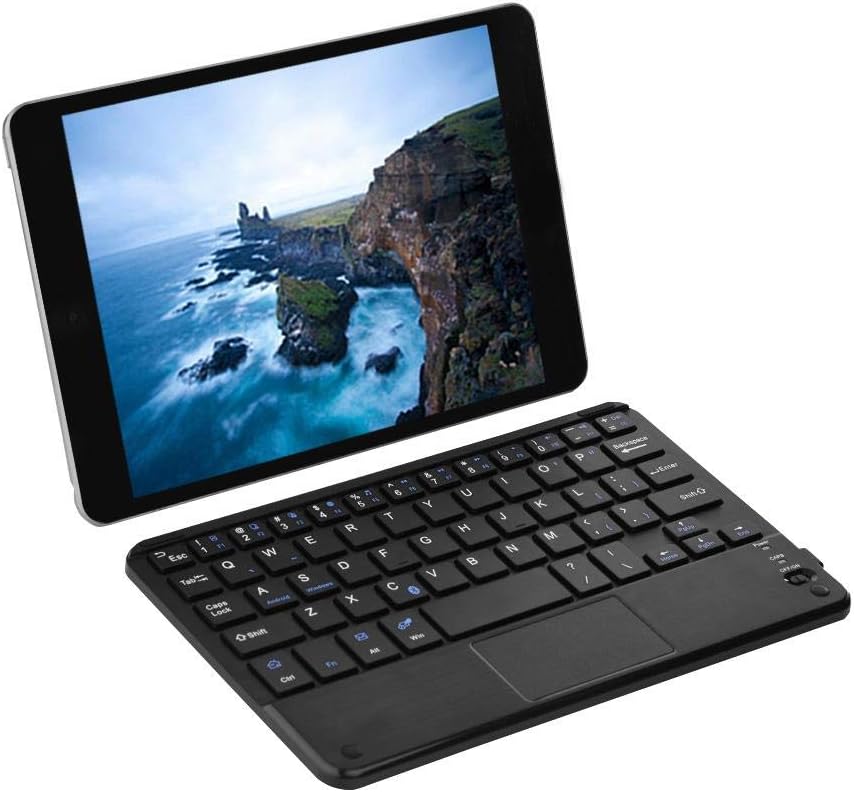
Figure 1: EBTOOLS Ultra Slim Bluetooth Keyboard paired with a tablet.
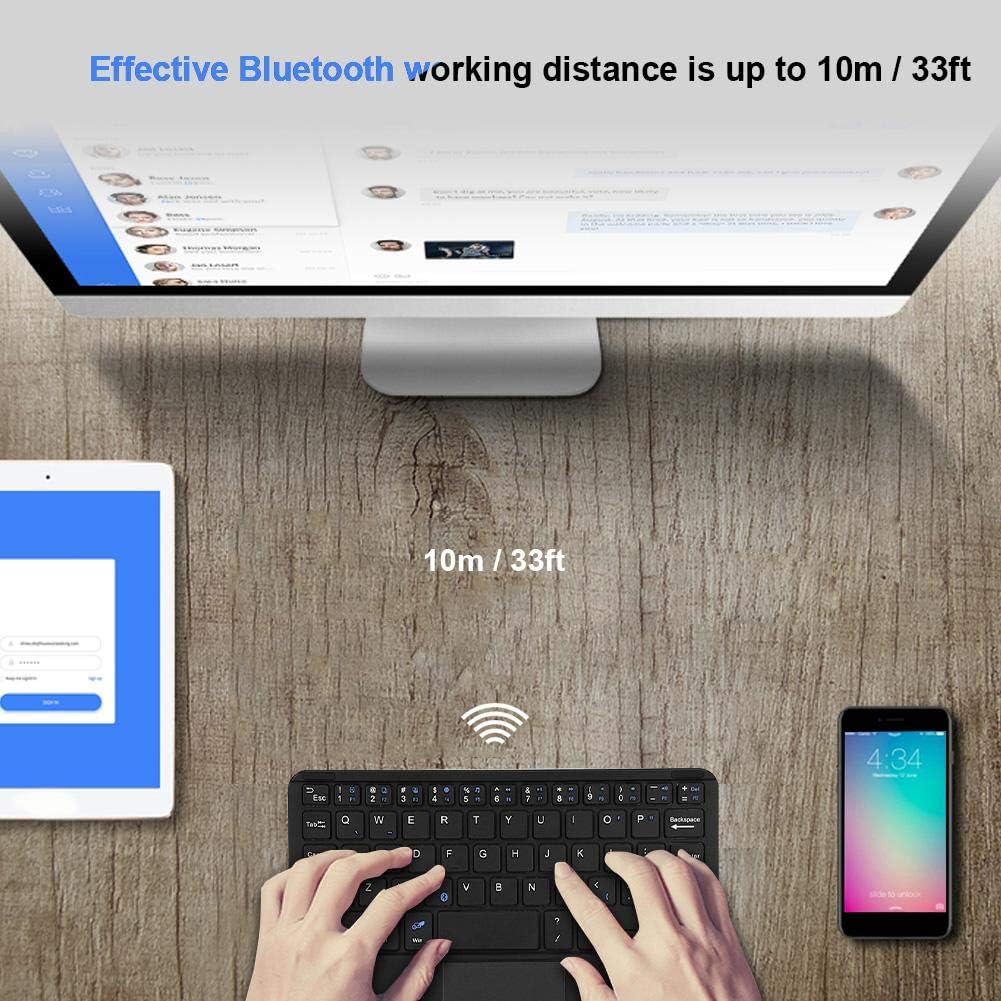
Figure 2: Top-down view of the EBTOOLS Bluetooth keyboard, highlighting the layout and integrated touchpad.

Figure 3: Side view of the EBTOOLS Bluetooth keyboard showing its ultra-thin 6.2mm profile.
3. Setup
3.1 Charging the Keyboard
- Locate the micro USB charging port on the keyboard.
- Connect the provided USB charging cable to the keyboard and a USB power source (e.g., computer USB port, USB wall adapter).
- The charging indicator light will illuminate. Once fully charged, the light will typically change color or turn off.
- A full charge provides approximately 90 hours of continuous use.
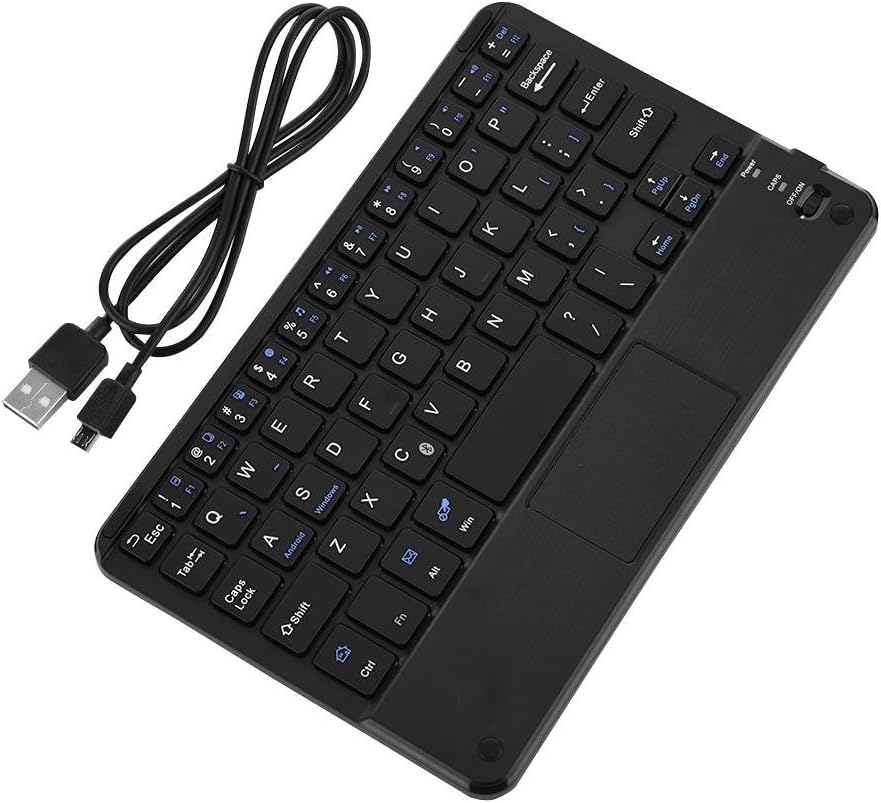
Figure 4: Keyboard battery and charging indication.
3.2 Bluetooth Pairing
Follow these steps to pair your EBTOOLS Bluetooth Keyboard with your device:
- Power On: Slide the power switch on the keyboard to the 'ON' position. The power indicator light will turn on briefly.
- Enter Pairing Mode: Press the Fn + C keys simultaneously. The Bluetooth indicator light will start blinking, indicating the keyboard is in pairing mode.
- Enable Bluetooth on Your Device: On your PC, tablet, or smartphone, go to the Bluetooth settings and ensure Bluetooth is enabled.
- Search for Devices: Your device will scan for available Bluetooth devices. Look for 'Bluetooth Keyboard' or a similar name in the list.
- Connect: Select the keyboard from the list. Your device may prompt you to enter a pairing code displayed on your screen. Type this code on the EBTOOLS keyboard and press Enter.
- Confirmation: Once successfully paired, the Bluetooth indicator light on the keyboard will stop blinking and turn off, and your device will show the keyboard as connected.

Figure 5: Keyboard in use, demonstrating effective Bluetooth range.
4. Operating Instructions
4.1 Basic Typing
The keyboard functions like a standard QWERTY keyboard. Simply type as you would on any other keyboard.
4.2 Touchpad Usage
The integrated touchpad allows for cursor control. Use standard gestures for navigation:
- Single Finger Tap: Left-click.
- Two Finger Tap: Right-click (functionality may vary by operating system).
- Two Finger Scroll: Scroll up or down.
4.3 Function Keys
The keyboard includes function keys (F1-F12) and multimedia keys. To activate the secondary functions printed in blue on the keys, press and hold the Fn key, then press the desired function key.
4.4 System Switching
The keyboard supports multiple operating systems. To optimize key functions for your specific OS, use the following combinations:
- Fn + Android: For Android devices.
- Fn + Windows: For Windows devices.
- Fn + iOS: For iOS devices (iPad, iPhone).

Figure 6: Compatibility with various operating systems and devices.
5. Specifications
| Feature | Specification |
|---|---|
| Model Number | EBTOOLSrua15pxtdg |
| Connectivity Technology | Bluetooth 3.0 |
| Operating Distance | Up to 10 meters (33 feet) |
| Battery Type | Rechargeable Li-polymer |
| Battery Capacity | 280mAh |
| Continuous Working Time | Approximately 90 hours |
| Compatible Systems | Android, iOS, Windows |
| Product Dimensions | 7.87 x 4.96 x 0.24 inches (20 x 12.6 x 0.62 cm) |
| Item Weight | 6.6 ounces (187 grams) |
| Material | Plastic |
6. Troubleshooting
6.1 Keyboard Not Connecting
- Check Power: Ensure the keyboard is powered on and has sufficient battery charge.
- Re-enter Pairing Mode: Turn off the keyboard, then turn it on and press Fn + C to re-enter pairing mode.
- Device Bluetooth: Verify that Bluetooth is enabled on your device and it is discoverable.
- Forget Device: If previously paired, try 'forgetting' or 'unpairing' the keyboard from your device's Bluetooth settings and then re-pair.
- Distance: Ensure the keyboard is within the 10-meter operating range of your device.
6.2 Keys Not Responding
- Battery Level: The battery might be low. Charge the keyboard fully.
- Reconnection: Disconnect and reconnect the Bluetooth connection.
- System Mode: Ensure the correct system mode (Android, Windows, iOS) is selected using Fn + OS key.
6.3 Touchpad Not Working
- System Compatibility: Touchpad functionality can sometimes be limited or behave differently on certain operating systems or applications.
- Reboot: Try restarting both the keyboard and the connected device.
7. Maintenance
- Cleaning: Use a soft, dry cloth to clean the keyboard surface. For stubborn dirt, slightly dampen the cloth with water or a mild cleaning solution. Avoid excessive moisture.
- Storage: Store the keyboard in a cool, dry place away from direct sunlight and extreme temperatures.
- Avoid Liquids: Do not expose the keyboard to liquids, as this can cause damage.
- Handle with Care: Avoid dropping or subjecting the keyboard to strong impacts.
8. Warranty and Support
EBTOOLS products are designed for reliability and performance. For any questions, technical support, or warranty inquiries, please refer to the contact information provided with your purchase or visit the official EBTOOLS website. Please retain your proof of purchase for warranty claims.