
Introduction
The Raymarine Axiom+ 12 RV is a next-generation multi-function chartplotter designed for marine navigation. It features an all-weather, high-resolution display that is 25 percent brighter than previous models, ensuring optimal visibility in various conditions. Powered by a robust quad-core processor, the Axiom+ 12 RV delivers industry-leading speed and responsiveness for seamless operation. This manual provides essential information for the proper installation, operation, and maintenance of your device.
Product Overview
The Axiom+ 12 RV is equipped with advanced features to enhance your boating experience, including RealVision 3D Sonar and HydroTough Technology for durable, impact-resistant, and smudge-repellent screens. It operates on the LightHouse OS and supports GPS satellite navigation.

Image: The Raymarine Axiom+ 12 RV display showcasing its RealVision 3D Sonar capabilities, with a 12-inch screen clearly visible. This image highlights the integrated sonar and chartplotter functions.
Setup and Installation
The Axiom+ 12 RV is designed for dashboard mounting. Ensure you have all necessary components before beginning installation.
Included Components:
- Axiom+ 12 RV Multi-Function Display Unit
- Dashboard Mount
- Power Cable (not explicitly listed but implied for operation)
- Documentation (this manual)
Mounting Instructions:
- Select a suitable location on your dashboard that provides clear visibility and easy access to the touchscreen.
- Use the provided dashboard mount as a template to mark drilling locations.
- Drill pilot holes as indicated by the template.
- Secure the dashboard mount using appropriate fasteners (not explicitly listed but implied).
- Attach the Axiom+ 12 RV display unit to the secured mount.
- Connect the power cable and any other necessary peripheral cables (e.g., for sonar transducer, Ethernet).
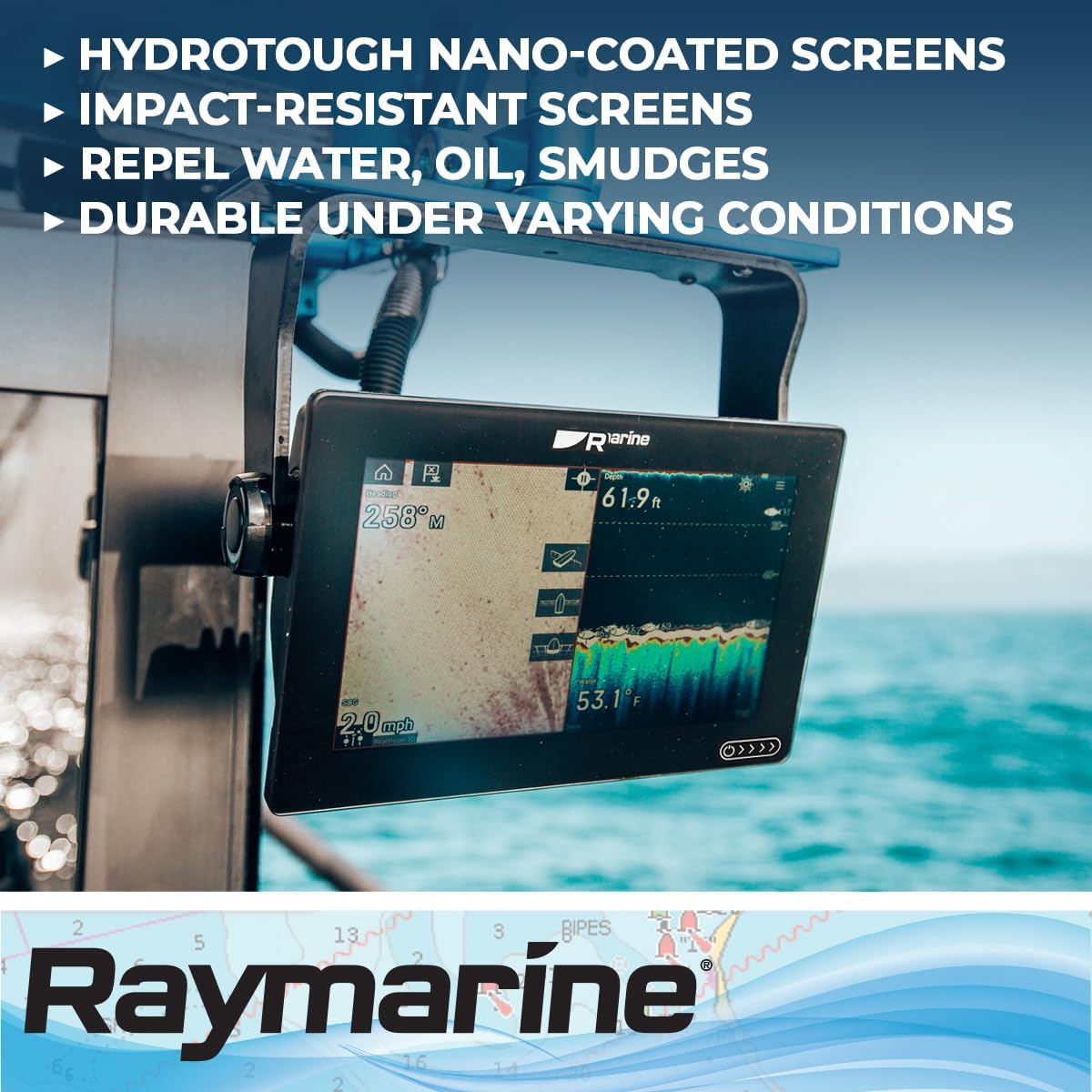
Image: The Raymarine Axiom+ 12 RV display installed on a boat's dashboard, demonstrating its typical mounting position and user interaction. The image shows a user interacting with the touchscreen.
Operating Instructions
The Axiom+ 12 RV operates on the LightHouse OS and features a capacitive touchscreen for intuitive control.
Powering On/Off:
- To power on, press and hold the power button (location typically on the side or front bezel) until the Raymarine logo appears.
- To power off, press and hold the power button until the shutdown options appear, then select "Power Off".
Basic Navigation:
- The LightHouse OS uses a tile-based interface. Tap on an application tile (e.g., Chart, Sonar, Radar) to open it.
- Swipe from the edge of the screen to access quick menus or settings.
- Use pinch-to-zoom gestures on charts for detailed viewing.
Key Features:
- RealVision 3D Sonar: Provides a lifelike, three-dimensional view of the underwater world, allowing you to easily identify structure and fish.
- Nautical Charting: Supports nautical map types for precise navigation.
- GPS: Integrated GPS for accurate positioning and route planning.
- Connectivity: Features Ethernet and Wi-Fi connectivity for network integration and smartphone/tablet compatibility.
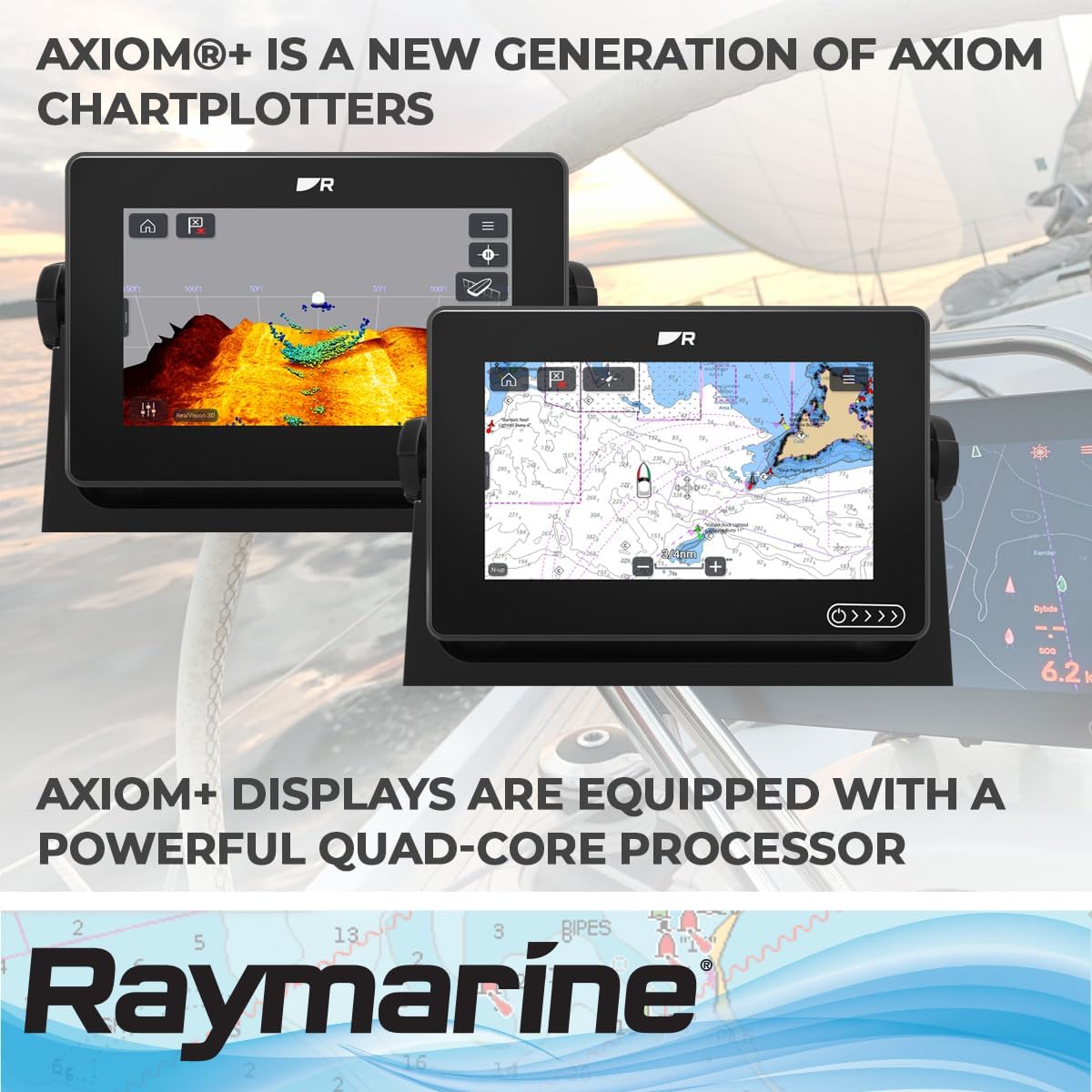
Image: Two Raymarine Axiom+ chartplotters side-by-side, illustrating the versatility of the display for showing both sonar data and detailed nautical charts simultaneously. This image emphasizes the multi-functionality.
Maintenance and Care
Proper maintenance ensures the longevity and optimal performance of your Axiom+ 12 RV display.
- Cleaning the Screen: The HydroTough nano-coated screen repels water, oil, and smudges. For cleaning, use a soft, lint-free cloth. If necessary, dampen the cloth with fresh water or a mild screen cleaner. Avoid abrasive materials or harsh chemicals.
- Environmental Protection: While designed for all-weather use, prolonged exposure to direct sunlight when not in use can be mitigated by using a protective cover (if available).
- Software Updates: Regularly check the Raymarine website for software updates to ensure you have the latest features and performance enhancements. Updates can typically be performed via Wi-Fi or USB.
- Cable Connections: Periodically inspect all cable connections for corrosion or damage. Ensure they are securely fastened.
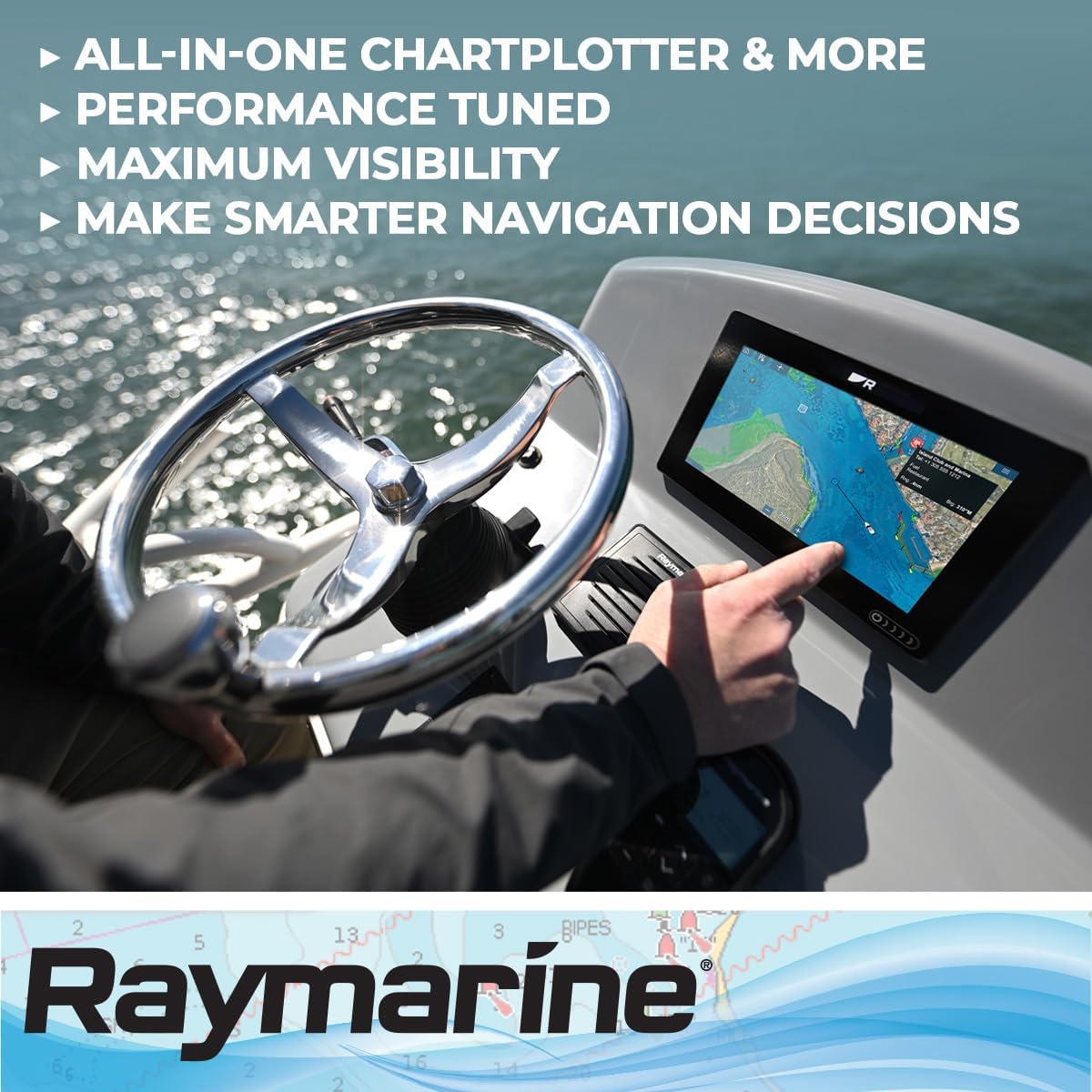
Image: The Raymarine Axiom+ 12 RV display in an outdoor marine environment, demonstrating its clear visibility and durability under varying conditions, thanks to its HydroTough technology.
Troubleshooting
This section addresses common issues you might encounter with your Axiom+ 12 RV.
| Problem | Possible Cause | Solution |
|---|---|---|
| Display does not power on. | No power supply; loose power connection. | Check power cable connections. Ensure the vessel's power supply is active. |
| Screen is unresponsive. | Temporary software glitch; screen calibration issue. | Perform a soft reset (refer to the full manual for specific steps). Ensure screen is clean and dry. |
| GPS signal lost or inaccurate. | Obstructed view of the sky; faulty GPS antenna. | Ensure the GPS antenna has a clear view of the sky. Check antenna connections. |
| Sonar not displaying data. | Transducer not connected; transducer fouled or damaged. | Verify transducer connection. Inspect transducer for marine growth or damage. |
Specifications
| Feature | Detail |
|---|---|
| Brand | Raymarine |
| Model Name | Axiom+ 12 RV |
| Model Number | E70639 |
| Screen Size | 12 Inches |
| Resolution | 1920 x 720 |
| Display Type | LCD or LED |
| Touch Screen Type | Capacitive |
| Operating System | LightHouse OS |
| Special Features | RealVision 3D Sonar, All-Weather HydroTough Technology |
| Connectivity Technology | Ethernet, Wi-Fi |
| Supported Satellite Navigation System | GPS |
| Map Type | Nautical |
| Mounting Type | Dashboard Mount |
| Item Dimensions (L x W x H) | 12.36"L x 8.5"W x 3.03"H |
| Item Weight | 3.2 Kilograms |
| UPC / GTIN | 723193836972 |
Warranty and Support
For warranty information and technical support, please refer to the official Raymarine website or contact their customer service directly.
- Warranty: Raymarine products typically come with a standard manufacturer's warranty. Details regarding the duration and coverage can be found on the Raymarine official website or by contacting their support.
- Technical Support: If you encounter issues not covered in this manual or require further assistance, please visit the Raymarine support portal or contact their authorized service centers.
- Online Resources: Additional manuals, FAQs, and software downloads are available on the official Raymarine website.


