
1. Introduction
This manual provides detailed instructions for the setup, operation, maintenance, and troubleshooting of your Lomiluskr K680T Wireless 60% Mechanical Keyboard. Please read this manual thoroughly before using the product to ensure optimal performance and longevity.
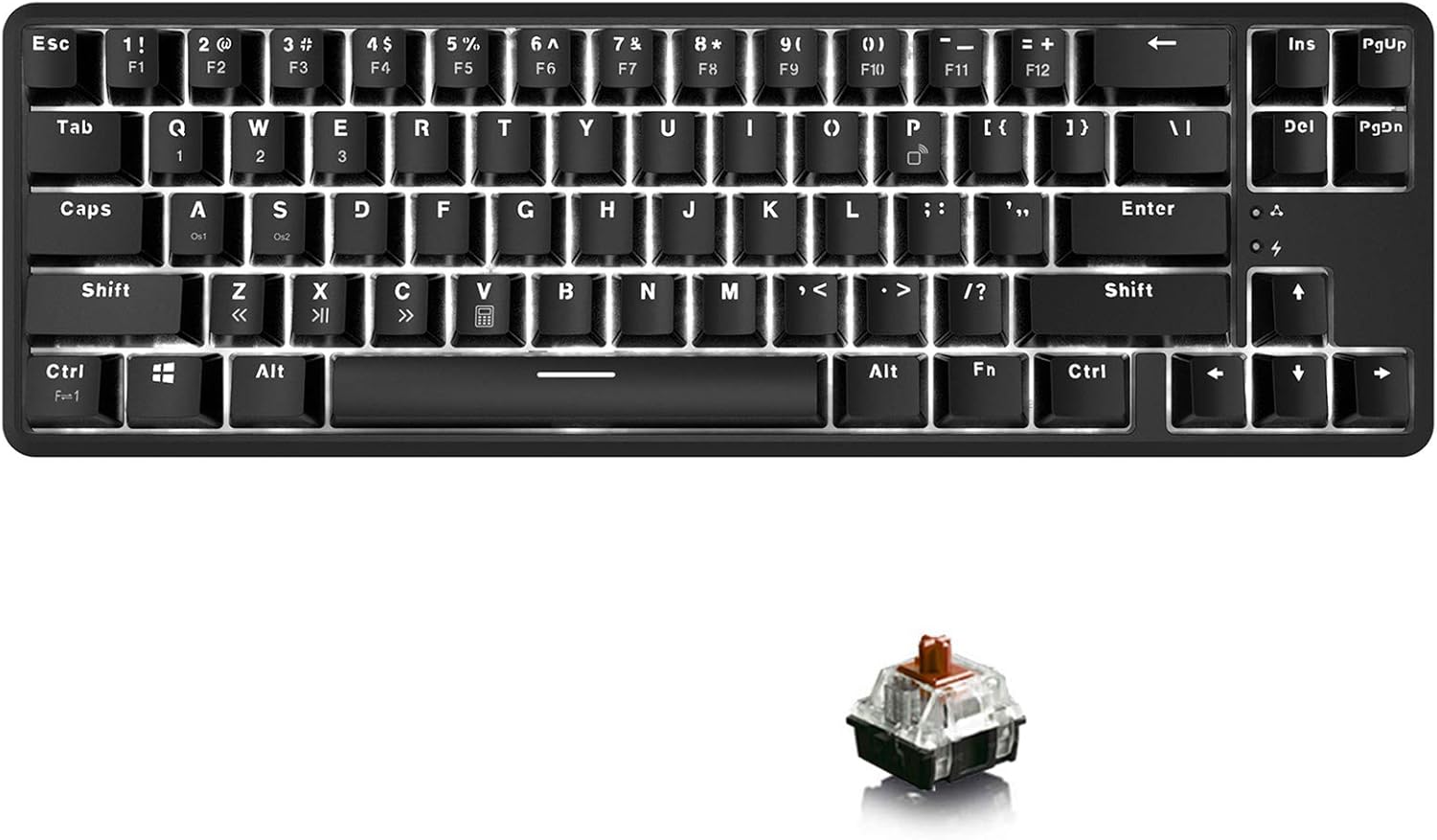
Image: The Lomiluskr K680T Mechanical Keyboard, featuring a compact 60% layout with white backlighting and brown switches.
2. Product Overview and Features
The Lomiluskr K680T is an ultra-compact 60% mechanical keyboard designed for versatility and performance. It offers both Bluetooth wireless and wired connectivity, making it suitable for various devices and environments.
- 68-Key Mini and Compact Layout: Optimized for space-saving while retaining essential keys for gaming and daily use. Dimensions: 13.4 x 4.25 x 1.4 inches.
- Bluetooth Wireless/Wired Dual Mode: Seamlessly switch between Bluetooth 3.0 wireless connection (up to 10 meters) and wired USB-C mode. The wired mode also charges the keyboard.
- Multi-Device Connection: Connects up to 3 devices simultaneously via Bluetooth, easily switchable with FN+Q/W/E.
- 1000mAh Built-in Large Capacity Battery: Provides extended usage time, approximately 10 hours with backlight on, and up to 60 hours with backlight off. Standby time is up to 360 hours with 3 hours fast charging time.
- 18 Light Effects: Features a white backlight with 18 customizable lighting modes (flashing, static, breathing, etc.). Brightness and speed are adjustable.
- Professional Mechanical Switches: Equipped with brown mechanical switches for a balanced typing and gaming experience, offering a lightweight, weak tactile, and audible feedback. Designed for over 50 million clicks.
- N-Key Rollover: In wired mode, all keys are registered simultaneously, preventing ghosting during intense use.

Image: An overview of the keyboard's key features, including N-Key Rollover, Wired/Bluetooth connectivity, White Backlight, Compact 68 Keys, and Double-Shot Injection Keycaps.
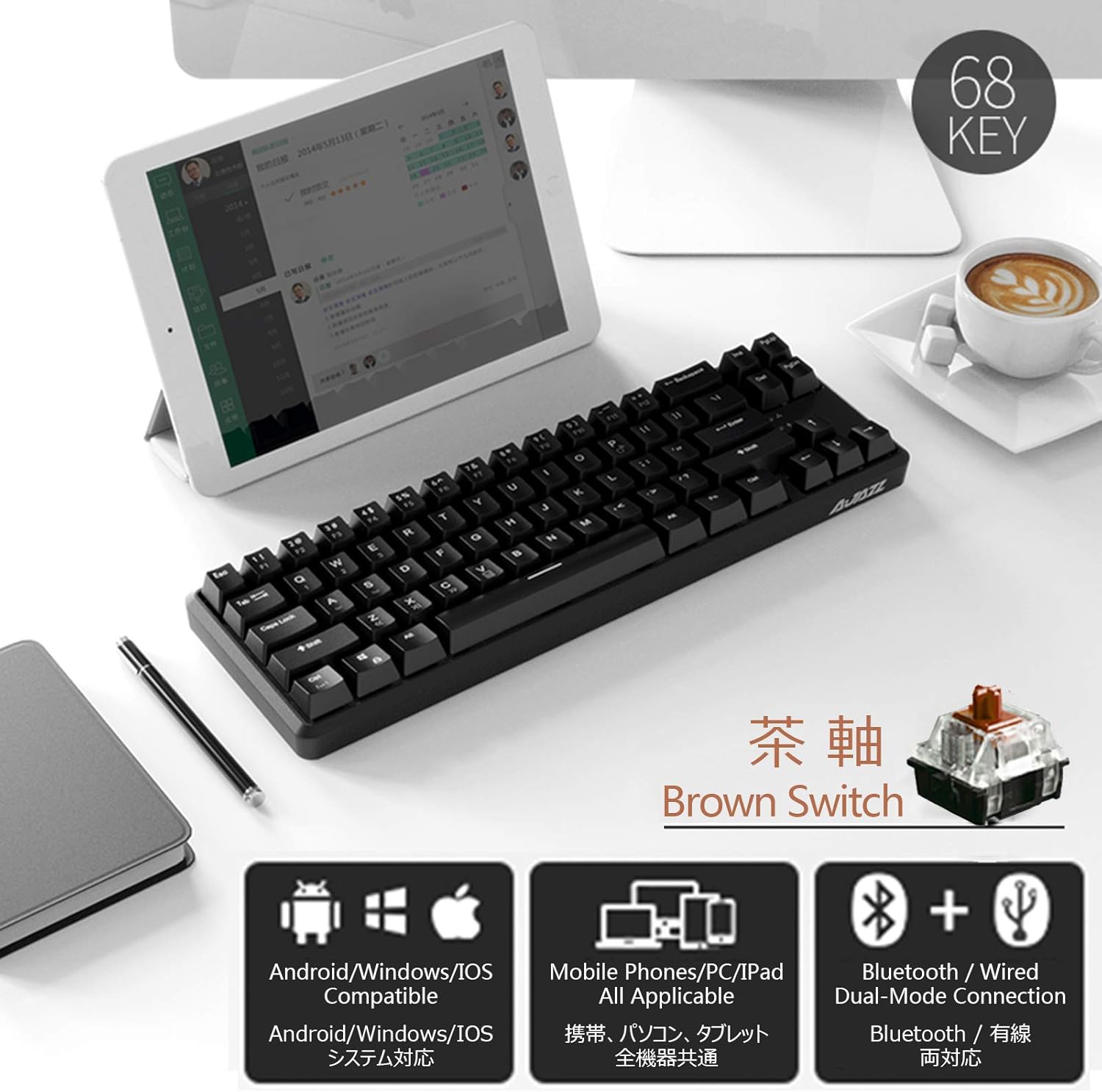
Image: Close-up of a brown mechanical switch and icons indicating compatibility with Android, Windows, iOS, mobile phones, PCs, tablets, and dual-mode Bluetooth/Wired connection.
3. Setup Guide
3.1 Wired Mode Setup
To use the keyboard in wired mode, simply connect the provided USB-C cable from the keyboard to an available USB port on your computer or device. The keyboard will be automatically recognized and will begin charging.
3.2 Bluetooth Mode Setup
The K680T keyboard supports connecting up to three Bluetooth devices. Follow these steps to pair your keyboard:
- Step 1: Locate the switch on the bottom of the keyboard and dial it to the "BT" position.
- Step 2: Select a device slot by pressing FN + Q (Device 1, indicator light red), FN + W (Device 2, indicator light green), or FN + E (Device 3, indicator light blue). This product can memorize 3 devices, stored in Q/W/E buttons.
- Step 3: Press and hold FN + P for 2 seconds. Release the keys when the indicator light flashes, indicating the keyboard is in pairing mode.
- Step 4: On your device (computer, tablet, smartphone), turn on its Bluetooth function and search for available devices.
- Step 5: Find the device named "AJAZZ K680T Keyboard" in the list and click "Connect" to complete the pairing process.

Image: Visual representation of the keyboard's Bluetooth and wired connectivity options, highlighting the 10m transmission distance for Bluetooth and USB-C for wired use and charging.

Image: Step-by-step guide for Bluetooth connection, showing the FN key combinations for device selection and pairing.
4. Operating Instructions
4.1 Key Functions and Combinations
The K680T keyboard utilizes an 'Fn' (Function) key to access secondary functions of certain keys. This allows for a compact layout while retaining full functionality.
- Switching Bluetooth Devices: Press FN + Q, FN + W, or FN + E to switch between the three paired Bluetooth devices.
- Backlight Control: Use FN + → (Right Arrow) to cycle through 18 different backlight effects. Use FN + ← (Left Arrow) to cycle backward.
- Adjusting Backlight Brightness: Press FN + ↑ (Up Arrow) to increase backlight brightness and FN + ↓ (Down Arrow) to decrease brightness.
- F-Keys (F1-F12): The F-keys are typically accessed by holding the Fn key and pressing the corresponding number key (e.g., Fn + 1 for F1).

Image: Illustration showing the keyboard connecting to and switching between a tablet, smartphone, and laptop, emphasizing the ease of switching between up to 3 devices.
5. Maintenance
To ensure the longevity and optimal performance of your Lomiluskr K680T keyboard, follow these maintenance guidelines:
- Cleaning: Regularly clean the keyboard with a soft, dry cloth. For deeper cleaning, use compressed air to remove dust and debris from between the keycaps. You may carefully remove keycaps for thorough cleaning, but ensure to reattach them correctly.
- Avoid Liquids: Keep liquids away from the keyboard to prevent damage to the internal electronics. In case of spills, immediately disconnect the keyboard and allow it to dry completely before reconnecting.
- Battery Care: To prolong battery life, avoid fully discharging the keyboard frequently. Charge the keyboard when the battery indicator is low. Store the keyboard in a cool, dry place when not in use for extended periods.
- Storage: Store the keyboard in a clean, dust-free environment. Avoid exposing it to extreme temperatures or direct sunlight.
6. Troubleshooting
If you encounter issues with your Lomiluskr K680T keyboard, please refer to the following common problems and solutions:
6.1 Bluetooth Connectivity Issues
- Keyboard not pairing: Ensure the switch on the bottom of the keyboard is set to "BT". Confirm the keyboard is in pairing mode (FN+P held for 2 seconds until indicator flashes). Make sure your device's Bluetooth is enabled and within the 10-meter range. Try restarting both the keyboard and your device.
- Intermittent connection or repeated key presses: This can sometimes occur with Bluetooth connections. Try re-pairing the keyboard with your device. Ensure there are no strong interferences (e.g., other wireless devices) nearby. If the issue persists, try using the keyboard in wired mode.
6.2 Key Input Problems
- Keys not responding: Ensure the keyboard is properly connected (either via Bluetooth or wired). Check the battery level if in Bluetooth mode. If in wired mode, ensure the USB-C cable is securely connected.
- F-keys (F1-F12) not working as expected: Remember that F-keys require the Fn key to be held down simultaneously (e.g., Fn + 1 for F1). Some devices or operating systems might require specific driver installations or settings adjustments for full compatibility with compact keyboards.
6.3 Backlight Issues
- Backlight not turning on: Ensure the keyboard has sufficient battery charge. Try adjusting the brightness using FN + ↑ (Up Arrow).
- Backlight not changing effects: Cycle through effects using FN + → (Right Arrow).
7. Specifications
| Feature | Specification |
|---|---|
| Model Number | K680T |
| Brand | Ajazz |
| Connectivity Technology | Bluetooth 3.0 & Wired (USB-C) |
| Keyboard Layout | 60% (68 Keys) |
| Switch Type | Brown Mechanical Switches |
| Backlight | White Backlight, 18 Effects |
| Battery Capacity | 1000mAh Lithium Ion |
| Battery Life (approx.) | 10 hours (backlight on), 60 hours (backlight off) |
| Standby Time | 360 hours |
| Charging Time | 3 hours (fast charging) |
| Product Dimensions | 13.39 x 4.25 x 1.39 inches (34.01 x 10.80 x 3.53 cm) |
| Item Weight | 1.87 pounds (0.85 kg) |
| Compatible Devices | Mac, PC, Laptop, Tablet, Smartphone, PS |
| Manufacturer | Lomiluskr |
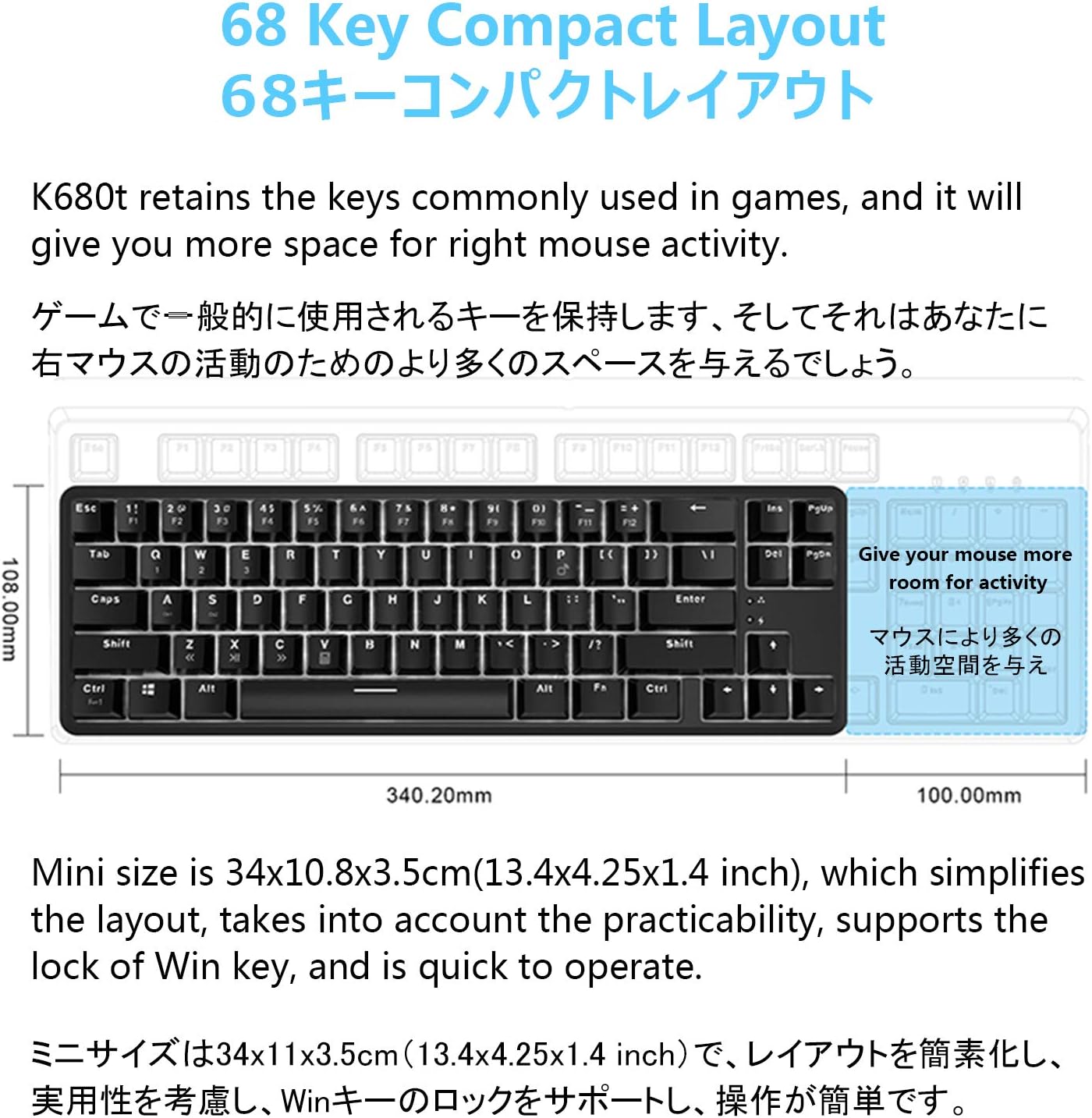
Image: Diagram illustrating the compact 68-key layout and dimensions of the K680T keyboard, highlighting its space-saving design.

Image: Graphic illustrating the 1000mAh battery capacity and its long battery life, with a visual of the keyboard and a pen holder with colored pencils.
8. Warranty and Support
For warranty information and customer support, please refer to the documentation included with your product packaging or contact the manufacturer, Lomiluskr, or the brand, Ajazz, directly through their official channels. Keep your purchase receipt as proof of purchase for any warranty claims.
For further assistance, you may also visit the Ajazz Store on Amazon.
