
1. Introduction
This user manual provides detailed guidance for the FOXWELL NT624 Elite Full System Diagnostic Scanner and the FOXWELL BT100 Pro 12V Battery Tester. The NT624 Elite is designed to perform comprehensive vehicle diagnostics and maintenance services across various systems. The BT100 Pro is a dedicated tool for analyzing the health and performance of 12V automotive batteries. Please read this manual thoroughly before operating the devices to ensure correct usage and optimal performance.
2. Product Overview
The FOXWELL NT624 Elite and BT100 Pro are essential tools for vehicle maintenance and diagnostics.
2.1 FOXWELL NT624 Elite Diagnostic Scanner
The NT624 Elite is an advanced diagnostic tool offering full system scanning and multiple reset functions. It provides in-depth insights into vehicle health.
- Full System Diagnosis: Scans all available electronic systems for fault codes.
- 8 Reset Functions: Includes DPF Regeneration, Injector Coding, Battery Registration, ABS Bleeding, SAS Calibration, Throttle Matching, EPB Reset, and Oil Reset.
- Lifetime Free Updates: Ensures access to the latest vehicle coverage and functions.
- Live Data Stream: Displays real-time sensor data in text and graph formats.
- Auto VIN: Automatically identifies vehicle information.
2.2 FOXWELL BT100 Pro Battery Tester
The BT100 Pro is a specialized battery analyzer designed for 12V batteries, providing quick and accurate test results.
- Comprehensive Battery Analysis: Tests internal resistance, CCA & AH capacity, state of health, voltage, and state of charge.
- Wide Compatibility: Supports 12V 100-1100 CCA regular flooded, AGM flat plate, AGM spiral, and GEL batteries.
- Fast Results: Delivers test results within 3 seconds.

Figure 2.1: An overview of the FOXWELL NT624 Elite diagnostic scanner and the BT100 Pro battery tester, showcasing both devices.
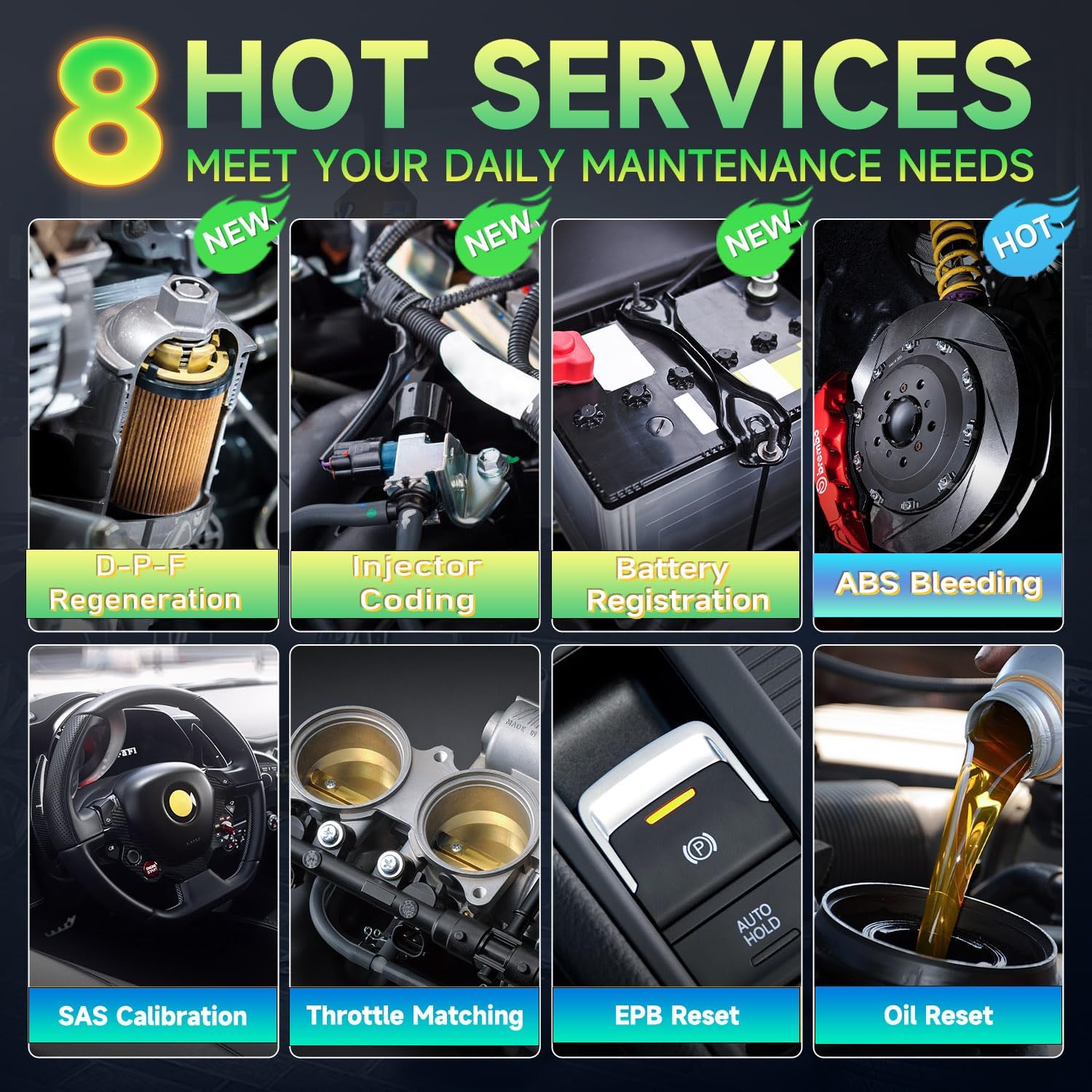
Figure 2.2: The main menu interface of the FOXWELL NT624 Elite diagnostic scanner, displaying options like History, Auto VIN, OBDII, Diagnostic, Maintenance, I/M, Battery Test, and DTC Lookup.

Figure 2.3: The FOXWELL BT100 Pro battery tester displaying a 'GOOD BATTERY' result with voltage, measured CCA, rated CCA, and State of Health (SOH).
3. Setup
3.1 NT624 Elite Diagnostic Scanner Initial Setup
- Power On: Connect the NT624 Elite to the vehicle's 16-pin OBD-II port. The device will power on automatically.
- Language Selection: Follow the on-screen prompts to select your preferred language.
- System Settings: Adjust date, time, and unit settings as required.
- Software Update: It is recommended to update the software regularly to ensure the latest vehicle coverage and functions. Updates are free for life and can be performed via an SD card using the FoxAssist tool on a computer. Refer to the FOXWELL website for detailed update instructions.
3.2 BT100 Pro Battery Tester Initial Setup
- Connect Clamps: Attach the red clamp to the positive (+) terminal of the 12V battery and the black clamp to the negative (-) terminal. Ensure a secure connection.
- Power On: The BT100 Pro will power on automatically once connected to the battery.
- Select Test Type: Choose between 'In-Vehicle Test' or 'Out-of-Vehicle Test' from the main menu, depending on your testing scenario.

Figure 3.1: The BT100 Pro battery tester demonstrating connection for both in-vehicle and out-of-vehicle battery testing.
4. Operating Instructions
4.1 Using the NT624 Elite Diagnostic Scanner
Navigate the NT624 Elite using the directional buttons and the 'ENTER' key. The 'ESC' key returns to the previous screen.
4.1.1 Full System Diagnosis
This function allows you to scan all available electronic control modules in the vehicle for Diagnostic Trouble Codes (DTCs) and view live data.
- From the main menu, select 'Diagnostic'.
- Choose your vehicle make, model, and year.
- Select 'Auto Scan' or manually select the system you wish to diagnose (e.g., Engine, ABS, SRS, Transmission, EPB, SAS, ESP, Suspension, Headlamp, Car Radio, Center Lock).
- The scanner will read DTCs and display them. You can then view code definitions or clear codes after repairs.

Figure 4.1: A visual representation of the NT624 Elite's ability to diagnose all vehicle systems, including Engine, Center Headlamp, ESP, SRS, Transmission, ABS, SAS, EPB, Suspension, and Car Radio.
4.1.2 Special Maintenance Services (8 Reset Functions)
Access these functions from the 'Maintenance' menu. Each function requires specific procedures; follow the on-screen instructions carefully.
- DPF Regeneration: Initiates the regeneration process for the Diesel Particulate Filter.
- Injector Coding: Codes new injector numbers into the ECU.
- Battery Registration: Registers a new battery replacement with the vehicle's system.
- ABS Bleeding: Performs brake bleeding procedures for the Anti-lock Braking System.
- SAS Calibration: Calibrates the Steering Angle Sensor.
- Throttle Matching: Relearns the throttle body position.
- EPB Reset: Resets the Electronic Parking Brake after brake pad replacement.
- Oil Reset: Resets the oil service light after an oil change.

Figure 4.2: An illustration highlighting the eight key maintenance services offered by the NT624 Elite: DPF Regeneration, Injector Coding, Battery Registration, ABS Bleeding, SAS Calibration, Throttle Matching, EPB Reset, and Oil Reset.
4.1.3 OBDII Diagnosis
Access standard OBDII functions such as Read Codes, Erase Codes, I/M Readiness, and Live Data for engine-related diagnostics.
4.1.4 Live Data Stream
View real-time sensor data from various vehicle systems. This data can be displayed in numerical or graphical format, aiding in diagnosis.
4.1.5 Auto VIN
The Auto VIN function automatically retrieves the vehicle identification number, streamlining the vehicle selection process.
4.1.6 Built-in DTC Library
When a Diagnostic Trouble Code (DTC) is displayed, the built-in DTC library can provide a detailed definition of the code, assisting in understanding the fault.

Figure 4.3: An image detailing additional features of the NT624 Elite, such as Lifetime Free Updates, Built-in DTC Library, Auto VIN function, and Live Data display, along with support for over 64 car brands.
4.2 Using the BT100 Pro Battery Tester
After connecting the BT100 Pro to the battery, follow the on-screen prompts to perform tests.
4.2.1 Battery Test Functions
- Select Battery Type: Choose the correct battery type (e.g., Regular Flooded, AGM Flat Plate, AGM Spiral, GEL) from the menu.
- Input CCA Rating: Enter the Cold Cranking Amps (CCA) rating of the battery, usually found on the battery label.
- Perform Test: The BT100 Pro will conduct the test and display results including:
- Internal Resistance Test: Measures the battery's internal resistance.
- CCA & AH Capacity Test: Evaluates the battery's cranking power and ampere-hour capacity.
- State of Health (SOH) Display: Indicates the overall health of the battery.
- Voltage Test: Shows the current battery voltage.
- State of Charge (SOC) Display: Indicates the current charge level of the battery.

Figure 4.4: A user performing a battery test with the BT100 Pro, showing the device's ability to display internal resistance, CCA & AH capacity, state of health, voltage, and state of charge.
4.2.2 Supported Battery Types
The BT100 Pro is compatible with 12-volt batteries ranging from 100-1100 CCA, including:
- Regular Flooded Batteries
- AGM Flat Plate Batteries
- AGM Spiral Batteries
- GEL Batteries
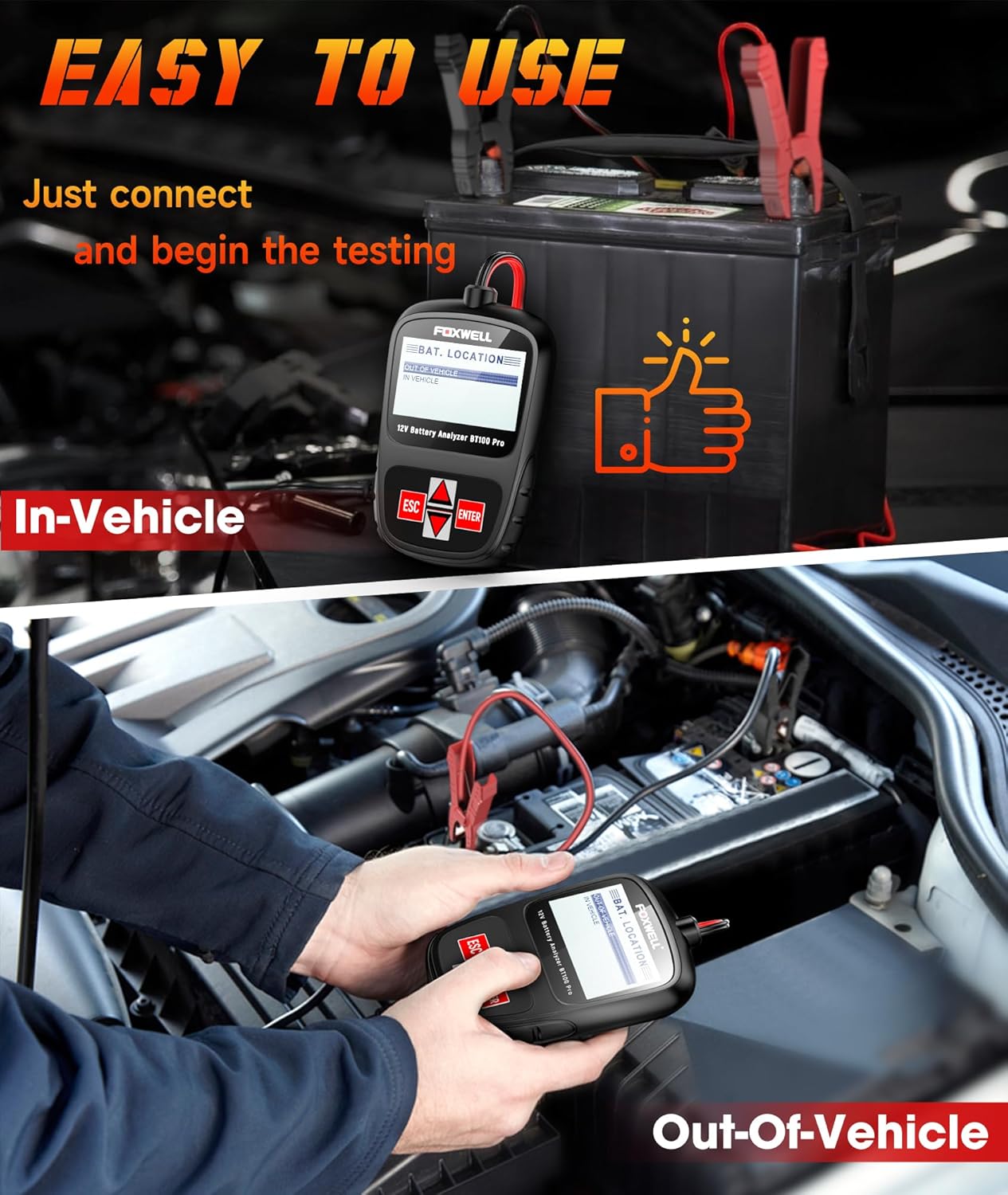
Figure 4.5: An image illustrating the types of 12V batteries supported by the BT100 Pro, including Regular Flooded, AGM Flat Plate, AGM Spiral, and GEL batteries.
4.2.3 Supported Vehicle Types
The BT100 Pro can be used to test batteries in a wide range of vehicles:
- Cars
- Motorcycles
- Trucks
- Yachts
- Mountain Bikes (with 12V battery systems)
- SUVs
5. Maintenance
Proper maintenance ensures the longevity and accuracy of your FOXWELL devices.
- Cleaning: Use a soft, damp cloth to clean the device casings. Avoid abrasive cleaners or solvents.
- Storage: Store the devices in a dry, cool environment, away from direct sunlight and extreme temperatures. Keep them in their original case or a protective pouch when not in use.
- Software Updates (NT624 Elite): Regularly check for and install software updates via the FOXWELL website and FoxAssist tool. These updates provide new features, vehicle coverage, and bug fixes.
- Cable Inspection: Periodically inspect all cables and connectors for damage. Replace any damaged components immediately.
6. Troubleshooting
If you encounter issues with your FOXWELL devices, refer to the following common troubleshooting steps:
- Device Not Powering On:
- NT624 Elite: Ensure the OBD-II connector is securely plugged into the vehicle's port. Check the vehicle's battery for sufficient charge.
- BT100 Pro: Verify that the red and black clamps are correctly and securely attached to the positive and negative battery terminals, respectively. Ensure the battery has some charge.
- Communication Error with Vehicle (NT624 Elite):
- Check the OBD-II connection.
- Verify the ignition is in the 'ON' position (engine off or running, as required by the test).
- Ensure the vehicle's battery voltage is adequate.
- Confirm the vehicle make, model, and year are correctly selected in the scanner.
- Update the scanner software to the latest version.
- Inaccurate Battery Test Results (BT100 Pro):
- Ensure battery terminals are clean and free of corrosion.
- Verify the correct battery type and CCA rating are entered into the tester.
- Ensure the battery is fully charged before testing for most accurate results.
- Software Update Issues (NT624 Elite):
- Ensure a stable internet connection during the update process.
- Verify the SD card is properly inserted and recognized by the computer and the device.
- Follow the FoxAssist software instructions precisely.
If these steps do not resolve the issue, please contact FOXWELL customer support for further assistance.
7. Specifications
7.1 FOXWELL NT624 Elite Diagnostic Scanner
- Display: 4.3-inch Color Screen
- Operating System (for PC software): Windows 7/8/10
- Functions: Full System Diagnosis, 8 Reset Functions, OBDII Diagnosis, Live Data Stream, Auto VIN, Built-in DTC Library.
- Update: Lifetime Free Update
- Vehicle Coverage: Supports over 10,000 vehicle models.
7.2 FOXWELL BT100 Pro Battery Tester
- Voltage: 12V
- CCA Range: 100-1100 CCA
- Supported Battery Types: Regular Flooded, AGM Flat Plate, AGM Spiral, GEL batteries.
- Test Functions: Internal Resistance, CCA & AH Capacity, State of Health (SOH), Voltage, State of Charge (SOC).
- Test Time: Approximately 3 seconds.
8. Warranty and Support
8.1 Warranty Information
FOXWELL products typically come with a manufacturer's warranty covering defects in materials and workmanship. Please refer to the warranty card included with your product or visit the official FOXWELL website for specific warranty terms and conditions.
8.2 Customer Support
For technical assistance, software update inquiries, or any questions regarding the operation of your NT624 Elite or BT100 Pro, please contact FOXWELL customer support. You can typically reach support via the messaging system on the platform where you purchased the product, or through the official FOXWELL website's contact section. When contacting support, please provide your product model and a detailed description of the issue.
Visit the official FOXWELL Store for more information and support resources: FOXWELL Store


