
1. Introduction
This user manual provides detailed instructions for the installation, setup, operation, and maintenance of your Elsys ESF-DE4000B Wi-Fi Digital Lock. Please read this manual thoroughly before using the product to ensure proper function and safety. The Elsys ESF-DE4000B offers secure access via biometrics, numeric passwords, and remote control through the Elsys Casa+ application, enhancing the security and convenience of your home or office.
2. Product Overview
The Elsys ESF-DE4000B Wi-Fi Digital Lock is designed to simplify your daily life with multiple access options and smart home integration capabilities. It combines advanced technology with a sleek design to provide both security and aesthetic appeal.

Image: Front view of the Elsys ESF-DE4000B Wi-Fi Digital Lock, showcasing its modern design and numeric keypad.
Key Features:
- Multiple Access Methods: Unlock using biometrics (fingerprint), numeric passwords, or remotely via the Elsys Casa+ smartphone application.
- Elsys Casa+ App Integration: Manage access history, create temporary passwords, and control the lock from anywhere.
- Smart Home Compatibility: Integrate with other Elsys Smart Home products for advanced automation, such as lighting control upon entry.
- High-Quality Construction: Made with durable metal and a sleek glass finish, available in black and silver to complement various decors.
- Emergency Power & Access: Operates on batteries, with a USB port for emergency charging and two mechanical keys for backup access during power outages or low battery.
- Security Features: Includes automatic locking, anti-spy password function, and a violation attempt lockout mechanism.

Image: Visual representation of the lock's primary features including biometric, numeric, and app access.
Product Video Overview:
Video: A brief overview demonstrating the design, technology, and security features of the Elsys ESF-DE4000B digital lock.
3. Included Components
Please ensure all the following components are present in your package before proceeding with installation:
- 1 Internal Unit
- 1 External Unit
- 1 Lock Mechanism
- 1 Finish Kit
- 1 Installation Kit
- 2 Emergency Keys
- 4 AAA Alkaline Batteries
- 1 Installation Guide
- 1 Drilling Template
4. Installation
Proper installation is crucial for the optimal performance and security of your digital lock. It is highly recommended to seek professional installation services, especially if replacing a conventional lock, as additional drilling may be required.
General Guidelines:
- Refer to the included 'Installation Guide' and 'Drilling Template' for precise measurements and steps.
- Ensure the door thickness and frame are compatible with the lock mechanism.
- Install the internal and external units according to the guide, ensuring all cables are correctly connected.
- Test the mechanical operation of the lock before closing the door.
Professional Installation Service:
For a guaranteed and hassle-free installation, consider using Elsys's authorized installation service. Scan the QR code below or visit the provided link to schedule an appointment.

Image: A technician installing the Elsys digital lock. Scan the QR code to access the official installation service.
For installation service, visit: https://lp.loja.elsys.com/instalacao-amazon
5. Initial Setup and App Integration
After physical installation, proceed with the digital setup of your Elsys ESF-DE4000B lock.
5.1. Download Elsys Casa+ App:
Download the Elsys Casa+ application from your smartphone's app store (Google Play Store for Android or Apple App Store for iOS).

Image: The Elsys Casa+ application interface, displaying lock status, remote unlock option, and access history.
5.2. Pair the Lock with the App:
- Open the Elsys Casa+ app and create an account or log in.
- Follow the in-app instructions to add a new device. Select your ESF-DE4000B digital lock.
- Ensure your smartphone is connected to a 2.4GHz Wi-Fi network during the pairing process.
- The app will guide you through connecting the lock to your home Wi-Fi network.
5.3. Initial User and Password Setup:
Once paired, use the app to set up your administrator password and register your primary fingerprints. You can also create additional user profiles and temporary passwords as needed.
6. Operating the Lock
The Elsys ESF-DE4000B offers several convenient ways to unlock your door.
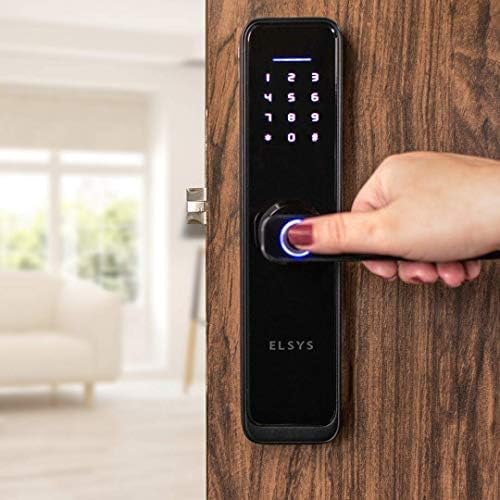
Image: Overview of the three primary methods to open the Elsys digital lock: via the Elsys Casa+ app, numeric password, or biometric fingerprint.
6.1. Biometric (Fingerprint) Access:
- Place your registered finger on the fingerprint sensor located on the handle.
- The lock will verify your fingerprint and unlock if recognized.
- Push down the handle to open the door.

Image: A user activating the biometric sensor on the lock's handle for fingerprint recognition.
6.2. Numeric Password Access:
- Touch the keypad to activate it.
- Enter your registered numeric password.
- Press '#' to confirm. The lock will unlock.
- Push down the handle to open the door.
Anti-Spy Password Function:
To prevent others from guessing your password, you can enter random numbers before or after your actual password. For example, if your password is '12345', you can enter '6781234590' and the lock will still recognize it.

Image: Details on the secure password feature, allowing random digits before or after the actual code, and the lock's response to violation attempts.
6.3. Elsys Casa+ App Remote Access:
- Open the Elsys Casa+ app on your smartphone.
- Select your ESF-DE4000B lock from the device list.
- Tap the unlock icon to remotely open the door.
- The app also allows you to view access history and create temporary passwords for guests.
6.4. Mechanical Key Access (Emergency):
In case of battery depletion or electronic malfunction, use the provided mechanical keys for emergency access. The keyhole is typically located at the bottom of the external unit.
6.5. Reversible Handle:
The lock features a reversible handle for comfortable use, allowing it to be configured for left or right-hand opening during installation.

Image: Features for emergency access including mechanical keys and a micro USB port for power, alongside the reversible handle design.
7. Alexa Integration
Integrate your Elsys ESF-DE4000B digital lock with Amazon Alexa for voice control and enhanced smart home automation.

Image: The Elsys digital lock integrated with Alexa, allowing voice commands to open the door.
Steps for Alexa Integration:
- Configure in Elsys Casa+ App: Ensure your lock is fully configured and operational within the Elsys Casa+ app.
- Download Alexa App: Download and set up the Amazon Alexa app on your smartphone.
- Enable Elsys Skill: In the Alexa app, search for and enable the 'Elsys Casa+' skill. Link your Elsys account when prompted.
- Create a Routine: Create a routine in the Alexa app. For example, set a voice command like "Alexa, open the door" to trigger an action in the Elsys Casa+ app that unlocks your door.
- Visitor Notification: You can also set up routines to receive voice notifications from Alexa when a visitor arrives and presses the doorbell (if integrated with other Elsys smart devices).

Image: Step-by-step guide for setting up voice commands with Alexa for your Elsys digital lock.
Alexa Integration Video:
Video: A demonstration of how to integrate your Elsys digital lock with Amazon Alexa for voice control.
8. Maintenance
8.1. Battery Replacement:
The lock is powered by 4 AAA alkaline batteries. When the battery indicator shows low power, replace all four batteries promptly. The lock will provide warnings when the battery level is low. Use only high-quality alkaline batteries for optimal performance.
8.2. Emergency Power:
If the batteries completely drain, you can temporarily power the lock using a power bank connected to the micro USB port on the external unit. This will allow you to enter your password or use a registered fingerprint to unlock the door.
8.3. Cleaning:
Clean the lock's surface with a soft, dry cloth. Avoid using abrasive cleaners, solvents, or harsh chemicals, as these can damage the finish and electronic components. Regularly wipe the fingerprint sensor to ensure accurate readings.
9. Troubleshooting
Here are solutions to common issues you might encounter:
- Lock Not Responding: Check battery levels. If low, replace batteries or use emergency USB power.
- Fingerprint Not Recognized: Ensure your finger is clean and dry. Try re-registering your fingerprint in the app. The biometric sensor will lock out for several minutes after 3 consecutive failed attempts. During this time, use a numeric password or the app.
- Numeric Password Not Working: Ensure you are entering the correct password. If using the anti-spy function, ensure the correct password sequence is embedded. The lock will block access for 1 minute after 5 consecutive incorrect password attempts or a violation attempt.
- Remote Unlock Not Working: Verify that the lock is connected to Wi-Fi and your smartphone has an internet connection. Check the Elsys Casa+ app for any error messages or connectivity issues.
- Mechanical Key Not Working: Ensure the key is fully inserted and turned correctly. Do not force the key.
- Door Not Locking Automatically: Check if the automatic lock function is enabled in the Elsys Casa+ app settings. Ensure the door is properly closed and aligned.
10. Specifications

Image: Detailed dimensions of the Elsys ESF-DE4000B digital lock.
| Feature | Detail |
|---|---|
| Brand | Elsys |
| Model Number | ESF-DE4000B |
| Product Type Name | Digital Lock |
| Color | Black |
| Style | Black with Glass finish |
| Material | Metal |
| Finish Type | Glass |
| Item Shape | Rectangular |
| Item Dimensions (L x W x H) | 6 x 2.1 x 26 centimeters |
| Item Weight | 2.22 Kilograms |
| Connectivity Type | Wi-Fi |
| Lock Type | App, Biometric, Numeric Password |
| Control Type / Method | Touch |
| Special Features | Automatic lock, Fingerprint, Battery indicator, Anti-spy password |
| Recommended Product Uses | Protect and lock the main door of a residence |
11. Warranty and Support
11.1. Warranty Information:
This Elsys ESF-DE4000B Digital Lock comes with a 12-month warranty from the date of purchase. The warranty covers manufacturing defects under normal use. Please retain your proof of purchase for warranty claims. Note that the warranty may not cover devices installed without authorized installers.
11.2. Customer Support:
For technical assistance, troubleshooting, or any questions regarding your Elsys digital lock, please contact Elsys customer support. Refer to the official Elsys website or the product packaging for the most up-to-date contact information.
Online Resources: Visit the Elsys website for FAQs, video tutorials, and additional support documents.


