
1. Introduction
Thank you for choosing PowerLocus P6 Wireless Bluetooth Headphones. This manual provides essential information for setting up, operating, and maintaining your headphones to ensure optimal performance and longevity. Please read this manual thoroughly before using the product.

Image: PowerLocus P6 Wireless Bluetooth Headphones in Black/Silver Line Collection.
2. Product Overview
2.1. Included Components
- PowerLocus P6 Wireless Bluetooth Headphones
- 3.5mm Audio Cable
- USB Charging Cable
- Premium Carry Pouch
- User Manual (this document)

Image: Contents of the PowerLocus P6 headphone package.
2.2. Key Features
- Bluetooth 5.3: Ensures stable and low-latency wireless connection up to 12m/39ft.
- Hi-Fi Audio & Deep Bass: Equipped with upgraded dynamic audio speakers for immersive sound.
- 50 Hours Playtime: Extended battery life for long listening sessions.
- Soft Earmuffs & Foldable Design: Premium, lightweight design with comfortable eco-leather earmuffs and a portable, foldable structure.
- Built-in HD Microphone: For clear hands-free calls in both wireless and wired modes.
- Voice Assistant Support: Activate Siri/Google Assistant with a single click.

Image: PowerLocus P6 headphones showcasing key features.
2.3. Product Video
Video: An official product video demonstrating the PowerLocus P6 headphones and their features.
3. Setup
3.1. Initial Pairing
- Ensure your headphones are charged (refer to section 4.2 for charging instructions).
- Turn on the headphones by pressing and holding the power button until the indicator light flashes.
- On your device (smartphone, tablet, PC), enable Bluetooth and search for available devices.
- Select "PowerLocus P6" from the list of devices.
- Once connected, the indicator light will show a steady blue light or stop flashing.
3.2. Multi-Point Connection
The PowerLocus P6 headphones support multi-point pairing, allowing you to connect to two devices simultaneously. This is useful for switching between a phone and a computer without re-pairing.
- Pair the headphones with your first device as described in section 3.1.
- Disable Bluetooth on the first device. The headphones will enter pairing mode again.
- Pair the headphones with your second device.
- Re-enable Bluetooth on the first device. The headphones should automatically connect to both devices.
- To switch between devices, simply pause audio on one and start playing on the other.

Image: Multi-point connection feature of PowerLocus P6 headphones.
4. Operating Instructions
4.1. Controls
The PowerLocus P6 headphones feature intuitive button controls for various functions. These controls are typically located on the earcup.
- Power On/Off: Press and hold the power button.
- Play/Pause: Single press the multi-function button.
- Volume Up/Down: Press the volume + or - buttons.
- Next/Previous Track: Long press the volume + or - buttons.
- Answer/End Call: Single press the multi-function button during an incoming call.
- Reject Call: Long press the multi-function button during an incoming call.
- Activate Voice Assistant (Siri/Google Assistant): Single press the dedicated voice assistant button.
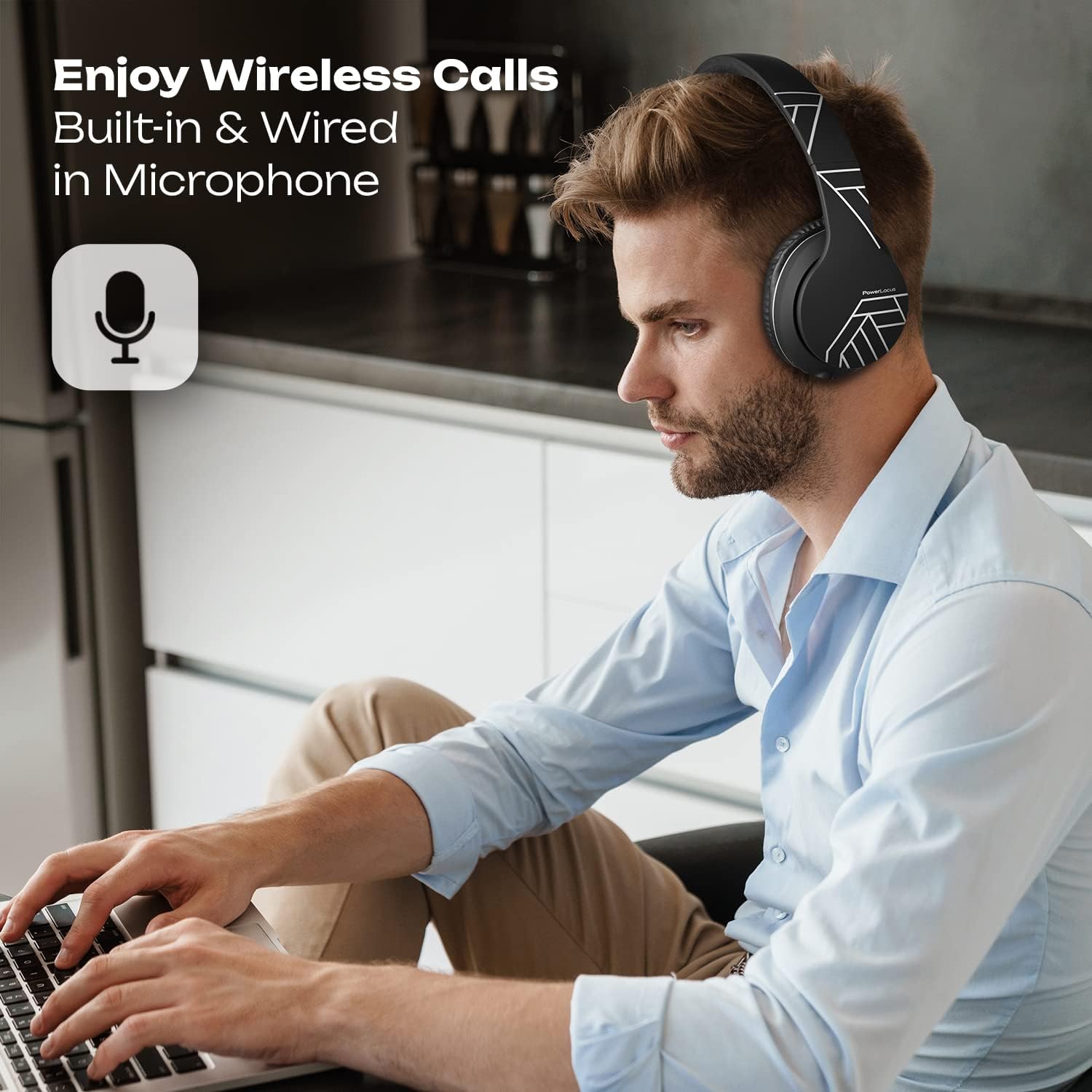
Image: User demonstrating hands-free calling with PowerLocus P6 headphones.
4.2. Charging
To charge your PowerLocus P6 headphones:
- Connect the USB charging cable to the charging port on the headphones.
- Connect the other end of the USB cable to a compatible USB power source (e.g., computer, wall adapter).
- The LED indicator will typically show a red light during charging and turn off or change color when fully charged.
- A full charge takes approximately 2.5 hours and provides up to 50 hours of playtime.
4.3. Wired Mode
You can use your PowerLocus P6 headphones in wired mode even when the battery is depleted. This is ideal for situations where wireless connectivity is not available or preferred, such as on an airplane.
- Connect the included 3.5mm audio cable to the audio jack on the headphones.
- Connect the other end of the 3.5mm audio cable to your audio source.
- In wired mode, the headphone's battery is not used for audio playback, but the built-in microphone remains functional for calls.
5. Maintenance
5.1. Cleaning
- Wipe the headphones with a soft, dry cloth.
- Do not use abrasive cleaners, alcohol, or chemical solvents.
- Keep the charging port and audio jack free from dust and debris.
5.2. Storage
When not in use, store your PowerLocus P6 headphones in the provided premium carry pouch. The foldable design allows for compact storage, protecting them from damage.

Image: PowerLocus P6 headphones demonstrating their foldable design for easy storage.
6. Troubleshooting
- No Power: Ensure the headphones are fully charged.
- Cannot Pair: Make sure Bluetooth is enabled on your device and the headphones are in pairing mode. Try restarting both devices.
- No Sound: Check volume levels on both the headphones and your connected device. Ensure the headphones are correctly paired or the 3.5mm cable is securely connected.
- Poor Sound Quality: Move closer to your device to reduce interference. Ensure there are no obstructions between the headphones and the device.
- Microphone Not Working: Check if the microphone is enabled in your device's settings for calls or voice commands.
If you encounter persistent issues, please refer to the Warranty and Support section for assistance.
7. Specifications
| Feature | Detail |
|---|---|
| Model Name | P6 |
| Connectivity Technology | Bluetooth 5.3 |
| Wireless Range | Up to 12m / 39ft |
| Ear Placement | Over Ear |
| Audio Driver Size | 40 Millimeters |
| Noise Control | Sound Isolation |
| Battery Life | Up to 50 Hours (Playtime) |
| Charging Time | 2.5 Hours |
| Headphones Jack | 3.5 mm Jack |
| Control Type | Voice Control, Button Control |
| Special Features | Foldable, Lightweight, Microphone Included, Multipoint Pairing |
| Compatible Devices | iPhone, iPad, Macbook, Android, Samsung Galaxy, S10, Laptop, TV, PS4, iOS, Nintendo Switch, Xbox S |
| Item Weight | 181 Grams (approx. 6.4 ounces) |
| Material | Eco-leather (earmuffs), Durable Aluminum Frame (headband) |
8. Warranty and Support
PowerLocus P6 Wireless Bluetooth Headphones come with a 24-month warranty covering manufacturing defects. We also offer USA-based customer service to assist you with any questions or issues.
For warranty claims or technical support, please contact PowerLocus customer service through the retailer where you purchased the product or visit the official PowerLocus website for contact information.
Additionally, a Free 30-Day Return policy is available for your convenience.


