
1. Introduction
This manual provides essential information for the installation, operation, maintenance, and troubleshooting of your MSI Gaming GeForce RTX 3080 GAMING X TRIO 10G graphics card. Please read this guide thoroughly before installation to ensure proper setup and optimal performance.
2. Product Overview
The MSI Gaming GeForce RTX 3080 GAMING X TRIO 10G is a high-performance graphics card designed for demanding gaming and creative applications. It features NVIDIA's Ampere architecture, 10GB of GDDR6X memory, and MSI's advanced cooling solutions.
Key Features:
- TRI FROZR 2 Thermal Design: Engineered for efficient heat dissipation and quiet operation.
- ZERO FROZR: Stops the fans under low load conditions, providing silent operation when not gaming.
- MYSTIC LIGHT: Customizable RGB lighting to personalize your system's aesthetics.
- Graphene Backplate: Reinforces the card structure and aids in cooling.
- High-Performance Memory: 10GB GDDR6X with a 320-bit memory interface.
- Display Outputs: Multiple DisplayPort 1.4a and HDMI 2.1 ports for versatile display connectivity.
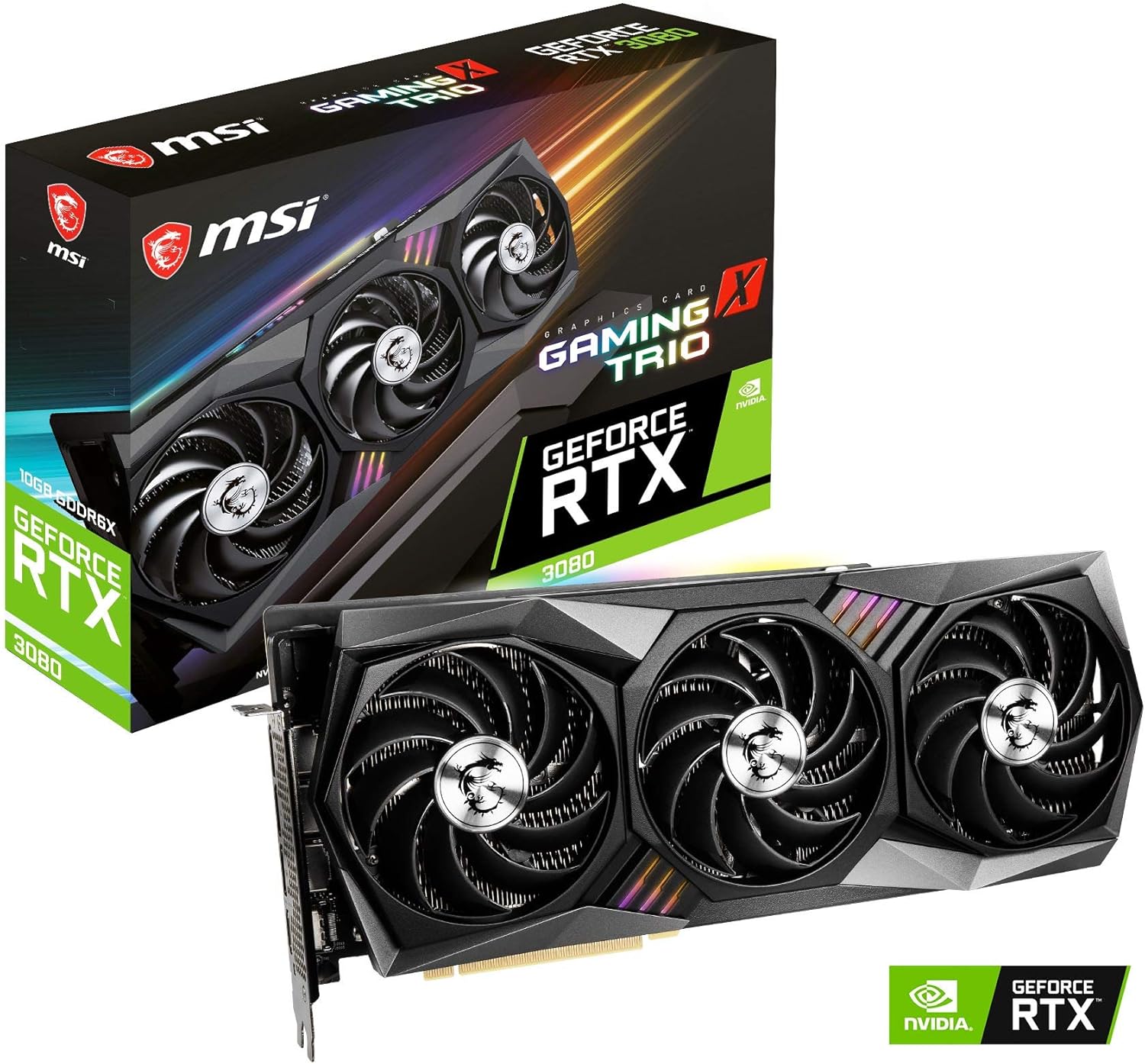
Image: MSI Gaming GeForce RTX 3080 GAMING X TRIO 10G Graphics Card and its retail packaging.

Image: The MSI RTX 3080 GAMING X TRIO 10G showcasing the TRI FROZR 2 thermal design, which maintains cool temperatures and quiet fan speeds.

Image: Exploded view illustrating the internal components: 1. TRI FROZR 2 Thermal design, 2. Massive Heatsink, 3. Anti-bending plate, 4. Custom design PCB, 5. Backplate.

Image: The ZERO FROZR feature, which stops the fans under low load for silent operation.

Image: The MYSTIC LIGHT RGB feature, illuminating the card with customizable colors.

Image: The Graphene Backplate, designed to reinforce the card and improve cooling efficiency.

Image: Rear view of the card showing the display output ports: 1. DisplayPort 1.4a (x3), 2. HDMI 2.1 (x1).
3. Setup and Installation
3.1 Pre-Installation Checklist
- Ensure your power supply unit (PSU) has sufficient wattage (recommended 750W or higher) and provides three 8-pin PCIe power connectors.
- Verify your computer case has adequate space for the card's dimensions (approximately 12.7 x 2.2 x 5.1 inches).
- Turn off your computer and disconnect the power cable before proceeding.
- Ground yourself to prevent electrostatic discharge (ESD).
3.2 Hardware Installation
- Open your computer case.
- Locate an available PCI Express x16 slot on your motherboard.
- Remove any expansion slot covers that obstruct the installation.
- Carefully align the graphics card with the PCIe slot and press down firmly until it is securely seated.
- Secure the card to the case with screws.
- Connect three 8-pin PCIe power cables from your PSU to the corresponding power connectors on the graphics card.
- Install the included support bracket to prevent GPU sag, if desired.
- Close your computer case.
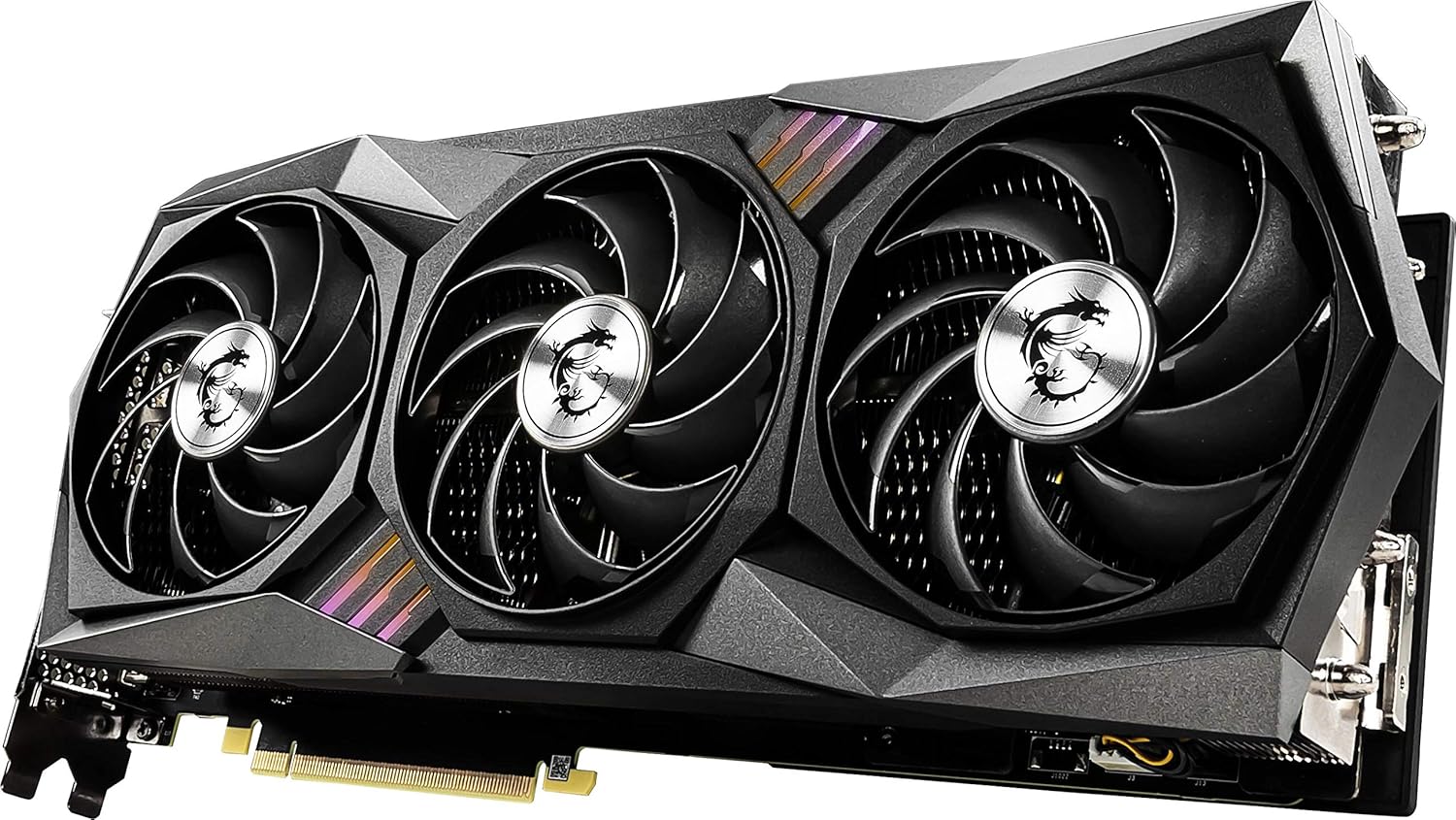
Image: Contents of the product box, including the graphics card, a support bracket to prevent sag, and various documentation such as a quick setup guide.
3.3 Driver Installation
- Connect your display to one of the graphics card's output ports (DisplayPort or HDMI).
- Power on your computer.
- Once your operating system loads, download the latest graphics drivers from the official NVIDIA website (www.nvidia.com/drivers) or the MSI website (www.msi.com/Graphics-Card/GeForce-RTX-3080-GAMING-X-TRIO-10G/support).
- Follow the on-screen instructions to complete the driver installation. A restart may be required.
4. Operating the Graphics Card
4.1 Display Connectivity
Connect your monitor(s) to the DisplayPort 1.4a or HDMI 2.1 ports on the graphics card. The card supports resolutions up to 7680x4320.
4.2 Software Utilities
MSI provides several software utilities to enhance your experience:
- MSI Afterburner: A widely recognized utility for overclocking, monitoring, and customizing fan curves for your graphics card.
- MSI Dragon Center: A comprehensive software suite for system monitoring, performance tuning, and controlling features like MYSTIC LIGHT RGB. You can download it from MSI's official website.
Use these tools to optimize performance, manage temperatures, and personalize the card's appearance.
5. Maintenance
Regular maintenance helps ensure the longevity and optimal performance of your graphics card.
- Dust Removal: Periodically clean dust from the heatsink fins and fan blades using compressed air. Ensure the fans are held stationary during cleaning to prevent damage.
- Software Updates: Keep your graphics drivers updated to the latest version for performance improvements and bug fixes.
- Temperature Monitoring: Use MSI Afterburner or Dragon Center to monitor GPU temperatures, especially during heavy loads, to ensure it operates within safe limits.
6. Troubleshooting
If you encounter issues with your graphics card, refer to the following common troubleshooting steps:
6.1 No Display Output
- Ensure the display cable is securely connected to both the graphics card and the monitor.
- Verify that the monitor is powered on and set to the correct input source.
- Check that the graphics card is fully seated in the PCIe slot and all three 8-pin power connectors are properly attached.
- Test with a different display cable or monitor if possible.
6.2 Performance Issues or Instability
- Ensure you have the latest graphics drivers installed.
- Monitor GPU temperatures. High temperatures can lead to throttling and instability. Ensure adequate case airflow.
- Verify your PSU meets the recommended wattage and provides stable power.
- If overclocking, revert to default settings to check for stability.
6.3 RGB Lighting Not Working
- Ensure MSI Dragon Center or Mystic Light software is installed and running.
- Check software settings to ensure RGB lighting is enabled and configured as desired.
For further assistance, consult the MSI support website or contact MSI customer service.
7. Specifications
| Feature | Specification |
|---|---|
| Chipset | NVIDIA GeForce RTX 3080 |
| Video Memory | 10GB GDDR6X |
| Memory Interface | 320-bit |
| Memory Speed | 1.71 GHz |
| Max Screen Resolution | 7680x4320 |
| Output Ports | 3x DisplayPort 1.4a, 1x HDMI 2.1 |
| Thermal Design | TRI FROZR 2 |
| Dimensions (LxWxH) | 12.7 x 2.2 x 5.1 inches |
| Item Weight | 4.7 pounds |
| Model Number | G3080GXT10 |
8. Warranty and Support
Your MSI Gaming GeForce RTX 3080 GAMING X TRIO 10G graphics card is covered by a manufacturer's warranty. Please refer to the warranty information included with your product or visit the official MSI website for details regarding warranty terms and conditions.
For technical support, driver downloads, FAQs, and additional resources, please visit the MSI support page:
- MSI Support: www.msi.com/support
- MSI Dragon Center Download: www.msi.com/Landing/dragon-center-download
- MSI Promotions: www.msi.com/Promotions/redirect/current_list/all
Always ensure you are downloading software and drivers from official MSI or NVIDIA sources to maintain system security and stability.


