
1. Introduction
The NVIDIA GeForce RTX 3090 Founders Edition is a high-performance graphics processing unit designed for demanding gaming, content creation, and professional applications. Powered by the Ampere architecture, it features enhanced Ray Tracing (RT) Cores, Tensor Cores, and new streaming multiprocessors, alongside a substantial 24 GB of GDDR6X memory. This manual provides essential information for the installation, operation, and maintenance of your RTX 3090 graphics card.
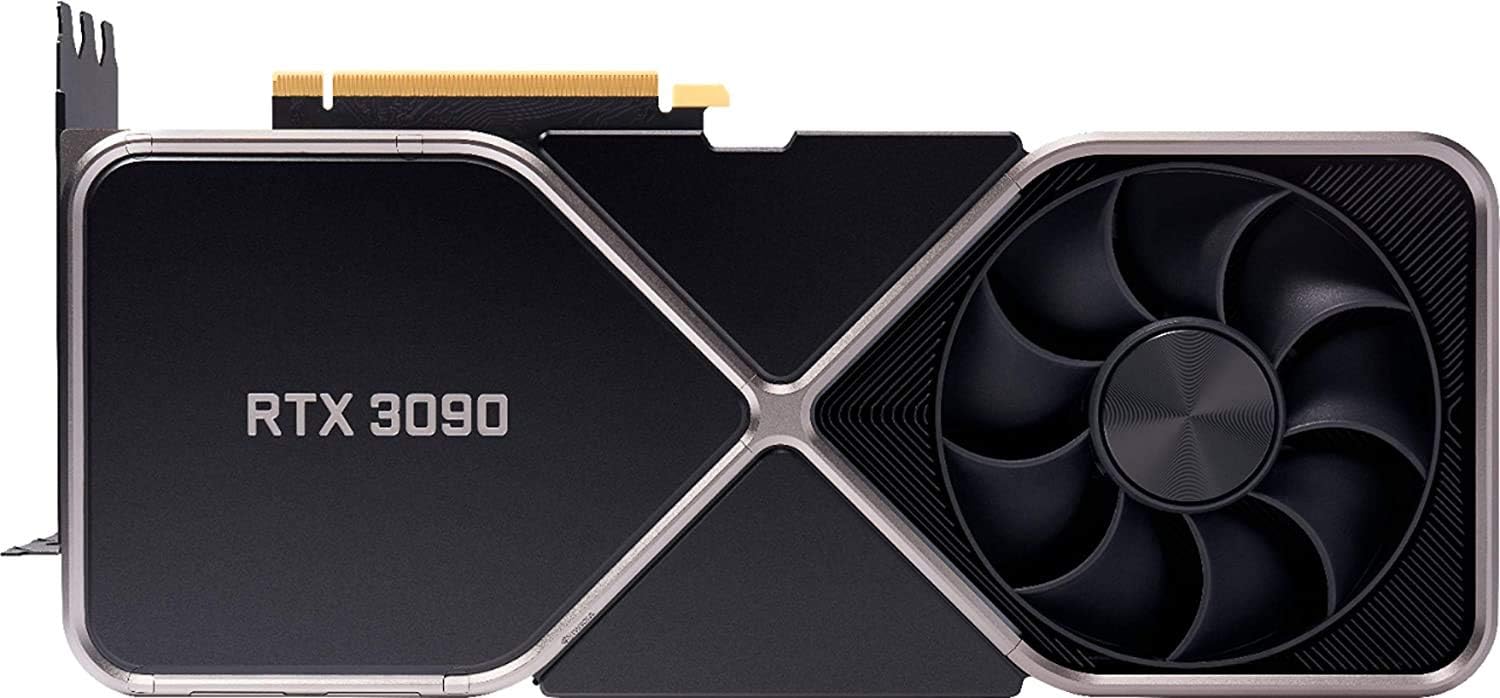
Figure 1: Front view of the NVIDIA GeForce RTX 3090 Founders Edition graphics card.
2. What's in the Box
Upon opening the product packaging, verify that all components are present and undamaged. The standard package for the NVIDIA GeForce RTX 3090 Founders Edition includes:
- NVIDIA GeForce RTX 3090 Founders Edition Graphics Card
- Converter cable (for power connection)
- Quick Start Guide (this document serves as the comprehensive manual)

Figure 2: The NVIDIA GeForce RTX 3090 Founders Edition graphics card packaged in its retail box.
3. Setup and Installation
Proper installation is crucial for optimal performance and system stability. Follow these steps carefully:
- System Preparation:
- Turn off your computer and disconnect the power cable from the wall outlet.
- Open your computer case.
- Discharge any static electricity by touching a grounded metal object, such as the unpainted metal of your computer case.
- Remove Existing Graphics Card (if applicable):
- Unscrew any retaining screws or release clips holding the current graphics card in place.
- Carefully disconnect any power cables connected to the card.
- Press the PCIe retention clip at the end of the slot and gently pull the card straight out.
- Install the RTX 3090:
- Locate an available PCIe x16 slot on your motherboard. The RTX 3090 is a large card and may require two or three expansion slots.
- Remove the corresponding slot covers from your computer case.
- Align the RTX 3090 with the PCIe slot and press down firmly until it is fully seated and the retention clip locks into place.
- Secure the card to the case with screws.
- Connect Power:
- The RTX 3090 requires significant power. Connect the provided converter cable to your power supply's PCIe power connectors and then to the graphics card. Ensure all connections are secure.
- Note: A high-quality power supply with sufficient wattage (minimum 750W recommended) is essential for stable operation.
- Close Case and Connect Peripherals:
- Close your computer case.
- Connect your display cable (HDMI or DisplayPort) from your monitor to the RTX 3090.
- Reconnect the power cable to your computer and wall outlet.
- Driver Installation:
- Turn on your computer.
- Once Windows (or your operating system) loads, download the latest NVIDIA drivers from the official NVIDIA website (www.nvidia.com/drivers).
- Follow the on-screen instructions to complete the driver installation. A restart may be required.

Figure 3: Angled view highlighting the cooling solution of the RTX 3090.
4. Operating the Graphics Card
Once installed and drivers are updated, your RTX 3090 is ready for use. It will automatically handle graphics processing for your applications and games.
- Gaming: The RTX 3090 is designed for high-resolution and high-refresh-rate gaming. Ensure your game settings are optimized for your display and desired performance.
- Content Creation: Leverage the powerful Tensor Cores for AI-accelerated tasks in applications like video editing, 3D rendering, and graphic design.
- NVIDIA GeForce Experience: Install NVIDIA GeForce Experience software from the NVIDIA website for automatic driver updates, game optimization, and access to features like NVIDIA ShadowPlay for recording gameplay.
- Display Outputs: The card features 3x DisplayPort 1.4a and 1x HDMI 2.1 outputs, supporting resolutions up to 7680x4320.

Figure 4: Top view of the RTX 3090, showing its sleek design.
5. Maintenance
Regular maintenance helps prolong the life and maintain the performance of your graphics card:
- Dust Removal: Periodically clean dust from the fans and heatsink using compressed air. Ensure the computer is powered off and unplugged before cleaning. Hold the fan blades gently to prevent them from spinning too fast during cleaning.
- Driver Updates: Keep your graphics drivers updated to the latest version from the official NVIDIA website. New drivers often include performance improvements, bug fixes, and support for new games and applications.
- Monitor Temperatures: Use monitoring software (e.g., MSI Afterburner, HWMonitor) to keep an eye on your GPU temperatures, especially during heavy loads. Ensure adequate airflow within your PC case.

Figure 5: Detailed view of the cooling fan and heatsink fins on the RTX 3090.
6. Troubleshooting
If you encounter issues with your graphics card, consider the following common troubleshooting steps:
- No Display/Black Screen:
- Ensure the display cable is securely connected to both the graphics card and the monitor.
- Verify that the monitor is powered on and set to the correct input source.
- Check that the graphics card is fully seated in its PCIe slot and all power cables are connected.
- Try connecting your display to the motherboard's integrated graphics (if available) to rule out other system issues.
- Performance Issues/Low FPS:
- Ensure you have the latest NVIDIA drivers installed.
- Check in-game graphics settings; reduce resolution or quality settings if necessary.
- Monitor GPU temperatures to ensure the card is not overheating and throttling performance. Improve case airflow if needed.
- Verify your power supply unit (PSU) meets the minimum wattage requirements for the RTX 3090.
- Crashes/Freezes:
- Update your graphics drivers.
- Check for system stability issues (e.g., RAM, CPU).
- Ensure the card is not overheating.
- If overclocking, revert to default settings.
7. Specifications
Key technical specifications for the NVIDIA GeForce RTX 3090 Founders Edition:
| Chipset | NVIDIA GeForce RTX 3090 |
| Video Memory | 24GB GDDR6X |
| Memory Interface | 384-bit |
| GPU Clock Speed | 1.7 GHz |
| Max Screen Resolution | 7680x4320 |
| Output Ports | 3x DisplayPort (v1.4a), 1x HDMI 2.1 |
| Hardware Platform | PC |
| Item Model Number | RTX 3090 |
| Product Dimensions (LxWxH) | 12 x 6 x 3 inches |
| Item Weight | 0.01 ounces (Note: This weight seems incorrect for a GPU, likely a data entry error in source. Actual weight is typically several pounds.) |
| Manufacturer | NVIDIA |

Figure 6: Close-up of the "RTX 3090" branding on the card's shroud.
8. Warranty and Support
The NVIDIA GeForce RTX 3090 Founders Edition comes with a 3-Year Warranty from NVIDIA India. For specific warranty terms and conditions, please refer to the official NVIDIA warranty policy documentation or contact NVIDIA support directly.
For further assistance, technical support, or to access the latest drivers and software, please visit the official NVIDIA support website:


