
Salange HY300US
Salange Mini Projector User Manual
Model: HY300US
Introduction
Thank you for purchasing the Salange Mini Projector. This portable projector is designed to provide a versatile and immersive viewing experience for various applications, from home entertainment to outdoor movie nights. Featuring Full HD support, high brightness, and multiple connectivity options, it offers a convenient solution for projecting content from smartphones, gaming consoles, and other media devices. This manual provides detailed instructions for setup, operation, maintenance, and troubleshooting to ensure optimal performance and longevity of your device.
Safety Information
Please read all safety instructions carefully before using the projector. Keep this manual for future reference.
- Do not block the ventilation openings. Ensure adequate airflow around the projector to prevent overheating.
- Do not look directly into the projector lens when the lamp is on. The bright light can cause eye damage.
- Use only the power adapter supplied with the projector. Using an unauthorized adapter may cause damage or fire.
- Do not expose the projector to rain, moisture, or extreme temperatures.
- Avoid placing the projector on unstable surfaces.
- Disconnect the power cord during lightning storms or when unused for long periods.
- Do not attempt to repair the projector yourself. Refer all servicing to qualified personnel.
What's in the Box
Verify that all items are present upon unboxing:
- 1 x Salange Mini Projector (Model P62H / HY300US)
- 1 x Remote Control
- 1 x HDMI Cable
- 1 x AV Signal Cable
- 1 x Power Cable
- 1 x User Manual (This document)

Figure 1: Salange Mini Projector with remote control.
Product Overview
Familiarize yourself with the main components and ports of your Salange Mini Projector.

Figure 2: Top-down view of the Salange Mini Projector, highlighting its compact design.
Front Panel
- Projection Lens: Emits the image onto the screen or wall.
- Focus Ring: Adjusts the clarity of the projected image.
- Keystone Correction: Corrects trapezoidal distortion of the image.
Rear Panel (Connectivity)

Figure 3: Rear view of the projector, illustrating its multiple connection ports.
- HDMI Port: Connects to devices like laptops, gaming consoles (PS5), Fire TV Stick, Roku, etc.
- USB Ports (USB-1, USB-T): Connects USB drives for media playback.
- AV Port: Connects to older devices using an AV cable.
- VGA Port: Connects to computers with VGA output.
- Audio Out (3.5mm): Connects to external speakers or headphones.
- Power Input: Connects the power adapter.
Setup
1. Placement
Place the projector on a stable, flat surface. Ensure there are no obstructions to the projection path or the ventilation openings. The ideal projection distance ranges from 2.6 ft to 18.0 ft, yielding screen sizes from 30 inches to 176 inches. For optimal viewing, a darker environment is recommended.

Figure 4: Recommended projection distances and screen sizes for the projector.
3. Power Connection
Connect the power cable to the projector's power input port, then plug the other end into a power outlet.
3. Focus and Keystone Adjustment
After powering on, adjust the focus ring on the top of the projector until the image is clear. If the image appears trapezoidal, use the keystone correction dial to square the image.
4. Connecting Devices
The projector supports various input sources:
- HDMI: Connect your laptop, gaming console, or streaming device (e.g., Fire TV Stick) using an HDMI cable.
- USB: Insert a USB flash drive into one of the USB ports for direct media playback.
- AV: Use the provided AV cable to connect to devices with AV output.
- VGA: Connect to a computer using a VGA cable.
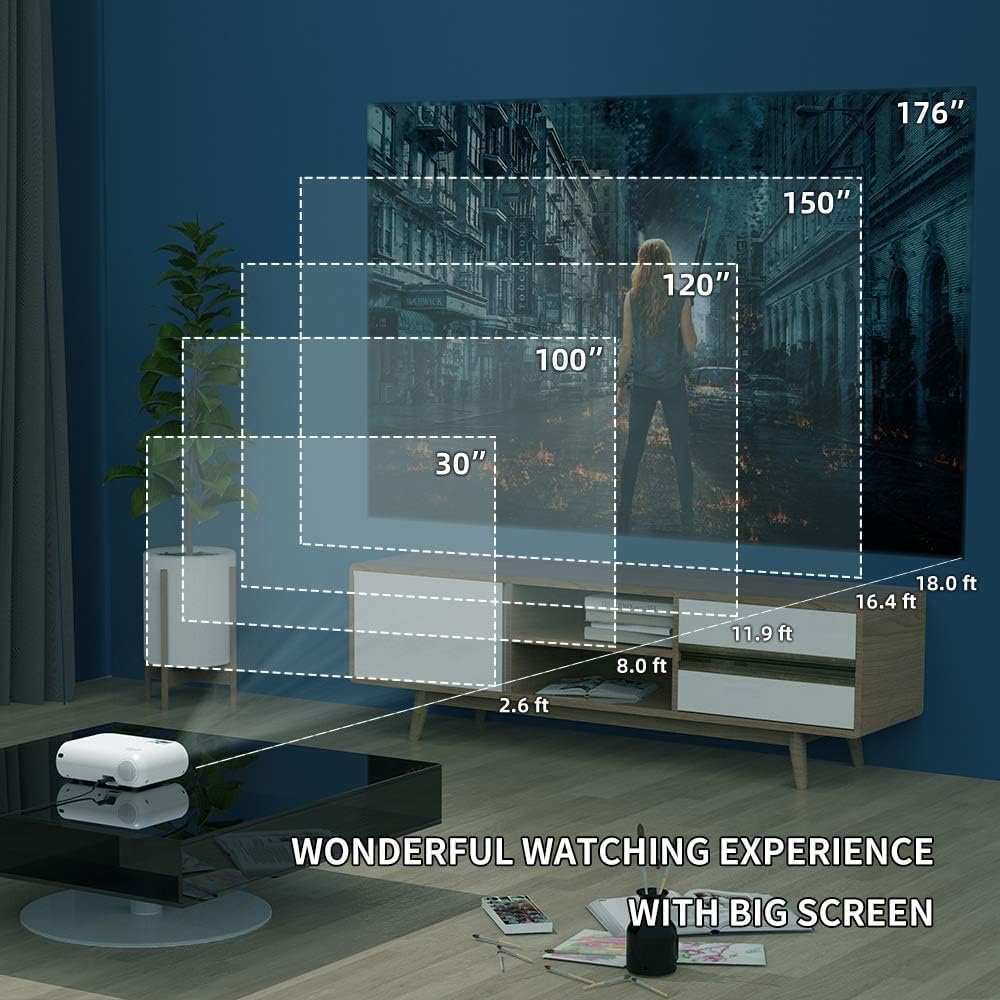
Figure 5: The projector's compatibility with multiple devices, including laptops, smartphones, and gaming consoles.
Operating Instructions
1. Powering On/Off
Press the power button on the projector or the remote control to turn the unit on or off.
2. Input Source Selection
Use the "Source" button on the remote or projector to cycle through available input sources (HDMI, USB, AV, VGA, WiFi).
3. Wireless Screen Mirroring (WiFi)
The Salange Mini Projector supports wireless screen mirroring for both iOS and Android devices via WiFi connection.

Figure 6: Wireless screen mirroring in action, showing a smartphone's display projected.
For iOS Devices:
- Select "Screen Mirroring for iOS System" on the projector's input menu.
- Connect your iOS device to the projector's WiFi network (e.g., "RKcast-xxxxxx"). The password is usually displayed on the projector screen.
- On your iOS device, open Control Center and tap "Screen Mirroring" (or "AirPlay Mirroring").
- Select the projector's name (e.g., "RKcast-xxxxxx") from the list to begin mirroring.
For Android Devices:
- Select "Screen Mirroring for Android System" on the projector's input menu.
- On your Android device, enable "Wireless Display," "Multi-screen," "Smart View," or similar function (names vary by device).
- Select the projector's name from the detected devices to connect.
Note: Due to copyright restrictions, direct screen mirroring of certain streaming services like Netflix, Amazon Prime Video, and Hulu is not supported. For these services, it is recommended to use an external streaming device like an Amazon Fire TV Stick connected via HDMI.
Video 1: Official demonstration of the Salange Mini Projector's wireless screen mirroring capabilities and general usage.
4. Audio Output
The projector has built-in Hi-Fi dual stereo speakers. For enhanced audio, connect external speakers or headphones to the 3.5mm audio out port.
Maintenance
1. Cleaning the Lens
Use a soft, lint-free cloth specifically designed for optical lenses. Do not use abrasive cleaners or cloths that could scratch the lens.
2. Cleaning the Projector Body
Wipe the exterior with a soft, dry cloth. For stubborn marks, a slightly damp cloth can be used, followed by a dry wipe.
3. Storage
When not in use, store the projector in a cool, dry place, away from direct sunlight and excessive dust. It is recommended to use the original packaging for storage.
Troubleshooting
| Problem | Possible Cause | Solution |
|---|---|---|
| No image projected | Power not connected; Incorrect input source; Lens cap on. | Check power connection; Select correct input source; Remove lens cap. |
| Image is blurry | Out of focus; Incorrect projection distance. | Adjust the focus ring; Adjust projection distance. |
| Image is trapezoidal | Projector not perpendicular to screen. | Adjust keystone correction dial. |
| No sound | Volume too low; Muted; External audio device not connected or configured. | Increase volume; Unmute; Check external audio connections and settings. |
| Wireless mirroring not working | Incorrect WiFi connection; Device compatibility; App restrictions. | Ensure correct WiFi network and password; Verify device compatibility; Use HDMI for restricted content. |
Specifications
| Feature | Detail |
|---|---|
| Brand | Salange |
| Model Number | HY300US |
| Supported Resolution | 1920x1080P |
| Brightness | 9600L |
| Contrast Ratio | 10000:1 |
| Connectivity Technology | WIFI, HDMI, USB, AV, VGA |
| Speaker Type | Built-In Hi-Fi Dual Stereo Speakers |
| Lamp Life | Up to 60,000 hours |
| Product Dimensions | 6.69 x 3.74 x 3.74 inches |
| Item Weight | 3.08 pounds |

Figure 7: Visual representation of the projector's upgraded brightness (9600 Lux) and color contrast.
Warranty and Support
Salange provides lifetime professional technical support for this product. For any questions, issues, or warranty claims, please contact Salange customer service through the retailer's platform or the official Salange website. Please have your model number (HY300US) and purchase details ready when contacting support.
For more information, visit the Salange Store on Amazon.
Related documentsHY300US


Ask a question about this manual
Ask about setup, troubleshooting, compatibility, parts, safety, or missing instructions. Manuals+ will review the question and use this page’s manual context to help answer it.