

1. Introduction
The TP-Link USB Type-C to Gigabit Ethernet Adapter (UE300C) provides fast and reliable wired connectivity for your USB-C enabled devices. This compact and portable adapter delivers network speeds up to 1 Gbps, ideal for high-bandwidth activities such as streaming HD videos, transferring large files, online gaming, and video conferencing. It offers broad compatibility across various operating systems and devices, ensuring a stable and efficient internet connection when Wi-Fi is insufficient or unavailable.
2. Product Features
- High-Speed USB-C Ethernet Adapter: Instantly converts your device's USB-C port into a 10/100/1000 Mbps RJ45 Ethernet port for a stable wired connection.
- USB-C 3.0 for Faster, More Stable Connections: Experience full Gigabit Ethernet performance over your laptop’s USB-C 3.0 port. (To achieve 1Gbps, use CAT6 or higher Ethernet cables).
- Ultra-Compact and Foldable Design: Measuring just 2.8 x 1.0 x 0.6 inches, the UE300C is lightweight and features a foldable USB-C connector for easy portability and storage.
- Plug and Play: No driver installation is required for Windows 11/10/8.1/8/7, macOS (10.9 and later), Chrome OS, and Linux (Ubuntu). Simply connect and use.
- Broad Device Compatibility: Works seamlessly with most USB-C devices, including MacBook Pro/Air, iPad Pro, Dell XPS, Surface Laptop, Chromebook, Asus ZenBook, and Lenovo ThinkPad X1 Carbon/Yoga series.
- Cybersecurity Commitment: Designed and maintained with advanced security as a core requirement, adhering to the U.S. Cybersecurity and Infrastructure Security Agency’s (CISA) Secure-by-Design pledge.

Image: The compact and foldable design of the TP-Link UE300C adapter, held in a hand.
3. Package Contents
- 1 x USB Type-C to RJ45 Gigabit Ethernet Network Adapter UE300C
- 1 x User Guide
4. Setup Guide
- Connect to Device: Plug the USB-C connector of the UE300C adapter into an available USB-C port on your laptop, tablet, or smartphone.
- Connect Ethernet Cable: Insert an Ethernet cable (CAT6 or higher recommended for optimal Gigabit speeds) from your router, modem, or network switch into the RJ45 port on the UE300C adapter.
- Automatic Recognition: For most modern operating systems (Windows 11/10/8.1/8/7, macOS 10.9 and later, Chrome OS, and Linux Ubuntu), the adapter is plug-and-play and will be recognized automatically without requiring driver installation.
- Driver Installation (if needed): If your operating system is older or does not automatically recognize the adapter, please visit the official TP-Link support website to download and install the appropriate drivers.
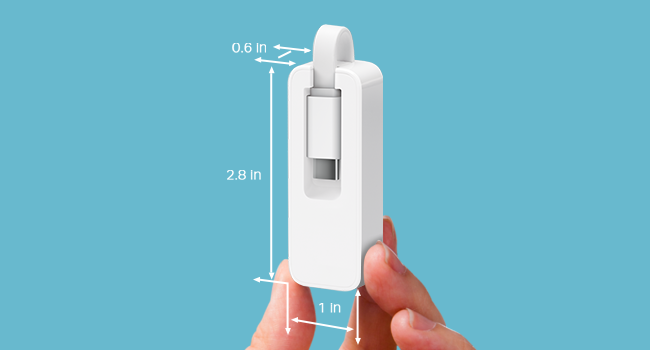
Image: A diagram illustrating the connection points of the TP-Link UE300C adapter, highlighting the USB-C connector and the Gigabit Ethernet port.
5. Operating Instructions
Once the adapter is connected to your device and an active Ethernet cable, it will automatically establish a wired network connection. The adapter supports data transfer rates up to 1 Gigabits Per Second, providing a stable and fast connection for all your online activities. A small LED indicator on the adapter may illuminate or flash to confirm active network status and data transmission.

Image: The TP-Link UE300C adapter connected to a laptop via its USB-C port, with an Ethernet cable plugged into the adapter.
6. Compatibility
The TP-Link UE300C is designed for broad compatibility with various devices and operating systems:
- Operating Systems: Windows 11/10/8.1/8/7, macOS (version 10.9 and later for plug-and-play functionality), Chrome OS, and Linux (Ubuntu).
- Compatible Devices: Laptops such as MacBook Pro/Air (2017-2020 models and newer), Dell XPS, Surface Laptop, Chromebook, Asus ZenBook, Lenovo ThinkPad X1 Carbon, Yoga 720/910/920. Also compatible with tablets like iPad Pro and various smartphones equipped with a USB-C port.
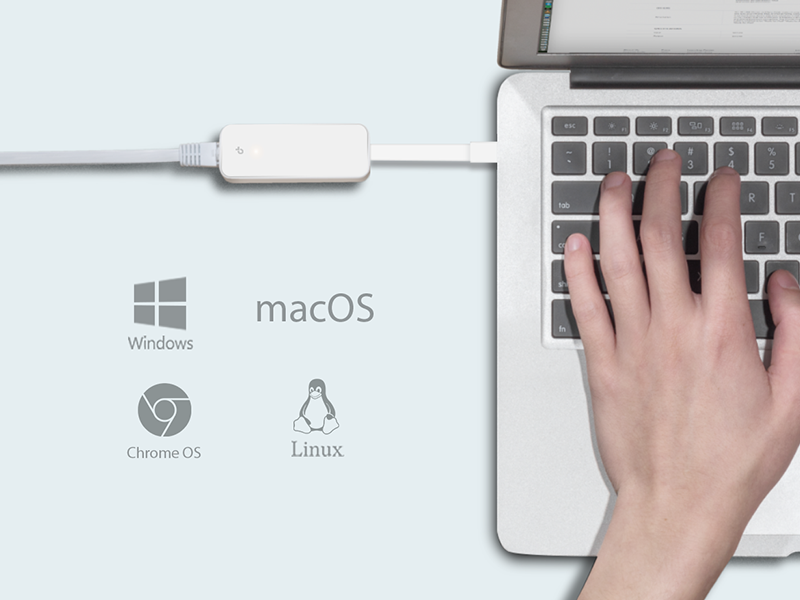
Image: An illustration showcasing the universal compatibility of the TP-Link UE300C adapter with a range of devices including PCs, Macs, and tablets.
7. Troubleshooting
No Internet Connection:
- Ensure the USB-C connector is fully inserted into your device's port.
- Verify the Ethernet cable is securely connected to both the adapter and your router/modem.
- Check if your router/modem is functioning correctly and providing internet access.
- Restart your computer and network devices.
- If using an older operating system, confirm that the necessary drivers are installed from the TP-Link support website.
Slow Connection Speed:
- Ensure you are using a CAT6 or higher Ethernet cable to achieve Gigabit speeds.
- Verify your internet service plan supports Gigabit speeds.
- Test your internet speed directly from your router/modem to rule out ISP issues.
- Ensure your device's USB-C port supports USB 3.0 or higher for optimal performance.
Ethernet Cable Difficult to Remove:
- Press down firmly on the release tab of the RJ45 connector while gently pulling the cable out. Avoid forcing the cable to prevent damage to the port or cable.
8. Specifications
| Feature | Detail |
|---|---|
| Product Dimensions | 2.8 x 1 x 0.64 inches |
| Item Weight | 0.64 ounces (0.04 Pounds) |
| Model Number | UE300C |
| Hardware Interface | USB Type C |
| Color | White |
| Data Link Protocol | Gigabit Ethernet |
| Data Transfer Rate | 1 Gigabits Per Second |
| UPC | 840030701511 |
| Manufacturer | TP-Link |
| First Available Date | August 11, 2020 |
9. Maintenance
To ensure the longevity and optimal performance of your TP-Link UE300C adapter, follow these maintenance guidelines:
- Cleaning: Keep the adapter clean and free from dust. Use a soft, dry cloth for cleaning. Avoid liquid cleaners.
- Storage: Store the adapter in a cool, dry place when not in use. The foldable USB-C connector helps protect it during transport and storage.
- Environmental Conditions: Avoid exposing the adapter to extreme temperatures, direct sunlight, or high humidity.
- Handling: Do not attempt to disassemble or repair the adapter yourself. Unauthorized modifications may void your warranty.
10. Warranty and Support
The TP-Link USB C to Ethernet Adapter (UE300C) typically comes with a 2-year warranty. For detailed warranty terms, technical support, or further assistance, please refer to the official TP-Link website or contact their customer service using the information below:
TP-Link Support:
- Phone: (866) 225-8139
- Website: myproducts.tp-link.com/us
- Email: support.USA@tp-link.com
11. Product Videos
Ethernet to USB-C for Faster, Reliable Speeds
Video demonstrating how the TP-Link USB-C to Ethernet adapter provides faster and more reliable internet speeds compared to Wi-Fi.
Review of the TP-Link Ethernet to USB-C Adapter
A detailed review highlighting the features and performance of the TP-Link USB-C to Ethernet adapter.
Speed Test with TP-Link USB-C Ethernet Adapter
A video demonstrating a speed test using the TP-Link USB-C to Ethernet adapter, showcasing its performance.
Overview of the USB to Ethernet Connector
An overview of the TP-Link USB to Ethernet connector, discussing its functionality and benefits.


