
1. Introduction
This instruction manual provides essential information for the safe and efficient use of your Dell S2421HS 24-inch Full HD IPS monitor. Please read this manual thoroughly before operating the device and retain it for future reference. This monitor is designed to deliver a high-quality visual experience for various applications, including business and gaming.
2. Safety Information
- Power Source: Use only the power cord and adapter supplied with the monitor. Ensure the power outlet is properly grounded.
- Placement: Place the monitor on a stable, flat surface. Avoid placing it in direct sunlight, near heat sources, or in areas with excessive dust or humidity. Ensure adequate ventilation around the monitor.
- Cleaning: Disconnect the power cord before cleaning. Use a soft, dry cloth to clean the screen and exterior. Avoid using liquid cleaners or aerosol sprays directly on the monitor.
- Ventilation: Do not block ventilation openings. Overheating can cause damage to the monitor.
- Liquid and Foreign Objects: Do not allow liquids or foreign objects to enter the monitor. If this occurs, immediately disconnect the power cord and contact Dell support.
- Servicing: Do not attempt to service the monitor yourself. Refer all servicing to qualified service personnel.
3. Package Contents
Verify that all components are present in the package:
- Dell S2421HS Monitor Panel
- Stand Riser
- Stand Base
- Power Cable
- HDMI Cable
- Documentation (including this manual)
4. Setup
4.1. Assembling the Monitor Stand
- Place the stand base on a flat surface.
- Align the stand riser with the slot on the stand base and press down until it clicks into place.
- Carefully attach the assembled stand to the back of the monitor panel. Ensure the mounting tabs align with the slots on the monitor and push until it locks securely.

Figure 4.1: Dell S2421HS monitor fully assembled, front view. The monitor features an ultra-thin bezel and a silver stand.

Figure 4.2: Side profile of the Dell S2421HS monitor, highlighting its slim design and the adjustable stand.
4.2. Connecting the Monitor
Connect the monitor to your computer and power source:
- Connect the power cable to the power port on the back of the monitor and then to a wall outlet.
- Connect the HDMI cable from your computer's HDMI port to the HDMI port on the monitor. Alternatively, use a DisplayPort cable if your computer supports it.
- Ensure all connections are secure.

Figure 4.3: Rear view of the Dell S2421HS monitor, showing the power input, HDMI port, and DisplayPort.
5. Operating the Monitor
5.1. Power On/Off
Press the power button, usually located on the bottom right side of the monitor, to turn the monitor on or off. The power indicator light will illuminate when the monitor is on.
5.2. On-Screen Display (OSD) Menu Navigation
The OSD menu allows you to adjust various monitor settings. Buttons for OSD navigation are typically located on the back or bottom edge of the monitor. Refer to the on-screen prompts for specific menu options.
5.3. Adjusting Display Settings
Through the OSD menu, you can adjust settings such as:
- Brightness/Contrast: Adjust the overall luminance and difference between light and dark areas.
- Color Settings: Modify color temperature, hue, and saturation.
- Input Source: Manually select between HDMI and DisplayPort inputs.
- Response Time: Optimize for faster pixel response, useful for gaming.
- AMD FreeSync: Enable or disable FreeSync for smoother gaming visuals (requires a compatible AMD graphics card).
5.4. Dell EasyArrange
Utilize Dell EasyArrange software (downloadable from Dell's support website) to organize multiple applications, emails, and windows on your screen for enhanced productivity.
5.5. Physical Adjustments
The Dell S2421HS monitor offers ergonomic adjustments for comfortable viewing:
- Height Adjustment: Raise or lower the monitor to your preferred eye level.
- Tilt: Adjust the screen angle forward or backward.
- Swivel: Rotate the monitor horizontally left or right on its base.
- Pivot: Rotate the screen 90 degrees to switch between landscape and portrait orientation.

Figure 5.1: The Dell S2421HS monitor demonstrating its range of tilt and pivot adjustments for ergonomic viewing.

Figure 5.2: Top-down view of the Dell S2421HS monitor, illustrating its ability to swivel horizontally on its stand.
6. Maintenance
6.1. Cleaning the Monitor
To clean your monitor, ensure it is powered off and unplugged from the electrical outlet. Use a soft, lint-free cloth lightly dampened with water or a non-abrasive screen cleaner. Do not spray cleaner directly onto the screen. Avoid using benzene, thinner, ammonia-based cleaners, or abrasive materials.
6.2. Storage
If storing the monitor for an extended period, disconnect all cables and pack it in its original packaging or a suitable protective box to prevent damage from dust and impacts. Store in a cool, dry place.
7. Troubleshooting
If you encounter issues with your Dell S2421HS monitor, refer to the following common troubleshooting steps:
- No Power: Ensure the power cable is securely connected to both the monitor and the electrical outlet. Check if the power outlet is functioning.
- No Image/Black Screen: Verify that the video cable (HDMI or DisplayPort) is securely connected to both the monitor and your computer. Ensure the correct input source is selected via the OSD menu. Try restarting your computer.
- Poor Image Quality: Adjust brightness, contrast, and color settings through the OSD menu. Ensure the display resolution on your computer is set to the monitor's native resolution (1920x1080).
- Buttons Not Responding: Power cycle the monitor by unplugging it for a few seconds and then plugging it back in.
- Flickering Screen: Check the video cable connections. Ensure the refresh rate is set correctly (e.g., 75 Hz). If using AMD FreeSync, ensure your graphics card drivers are up to date.
For more detailed troubleshooting or persistent issues, consult the Dell support website or contact customer service.
8. Specifications
| Feature | Specification |
|---|---|
| Brand | Dell |
| Model Number | S2421HS |
| Screen Size | 24 Inches |
| Resolution | FHD 1080p (1920 x 1080 Pixels) |
| Display Type | LED-backlit LCD, IPS |
| Aspect Ratio | 16:9 |
| Refresh Rate | 75 Hz |
| Response Time | 8 Milliseconds |
| Brightness | 250 cd/m² |
| Contrast Ratio | 1000:1 |
| Viewing Angle | 178 Degrees (Horizontal/Vertical) |
| Connectivity | 1x HDMI, 1x DisplayPort |
| Adaptive Sync | AMD FreeSync |
| Additional Features | Flicker-Free, Frameless, Height/Tilt/Swivel/Pivot Adjustable Stand |
| Mounting Type | VESA |
| Item Weight | 7.5 Pounds |
| Color | Black |
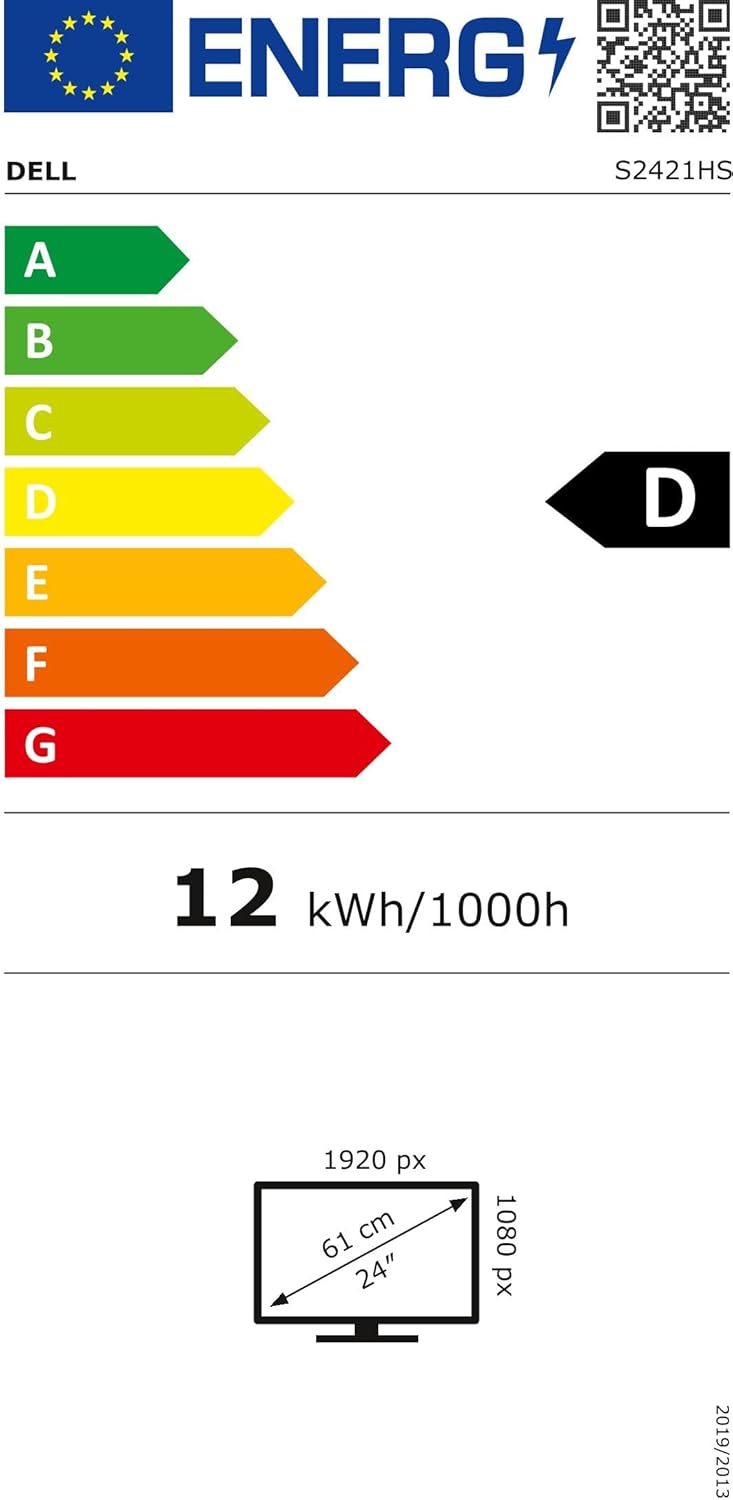
Figure 8.1: Dell S2421HS Energy Label, indicating energy efficiency class D and 12 kWh/1000h consumption. For more details, visit the EPREL database.
9. Warranty and Support
9.1. Warranty Information
Your Dell S2421HS monitor comes with a 3-year Advanced Exchange Service & Premium Panel Exchange warranty. This service allows for a replacement monitor to be shipped to you the next business day if a warranty issue cannot be resolved remotely, minimizing downtime. The Premium Panel Exchange ensures a free panel replacement during the limited hardware warranty period even if only one bright pixel is found.
9.2. Customer Support
For technical assistance, warranty claims, or further information, please visit the official Dell support website. You can find drivers, manuals, and troubleshooting guides specific to your model.
- Dell Support Website: www.dell.com/support
- EPREL Database Link: https://eprel.ec.europa.eu/qr/345961


