
SanDisk SDSSDE61-2T00-G25
SanDisk Extreme Portable SSD User Manual
Model: SDSSDE61-2T00-G25 | Brand: SanDisk
1. Product Overview
The SanDisk Extreme Portable SSD is a high-capacity external solid state drive designed for fast and reliable data storage. It offers NVMe solid state performance with impressive read and write speeds, making it ideal for demanding tasks such as video editing, large file transfers, and gaming. Its rugged design provides enhanced durability against drops, water, and dust, ensuring your data remains secure in various environments.
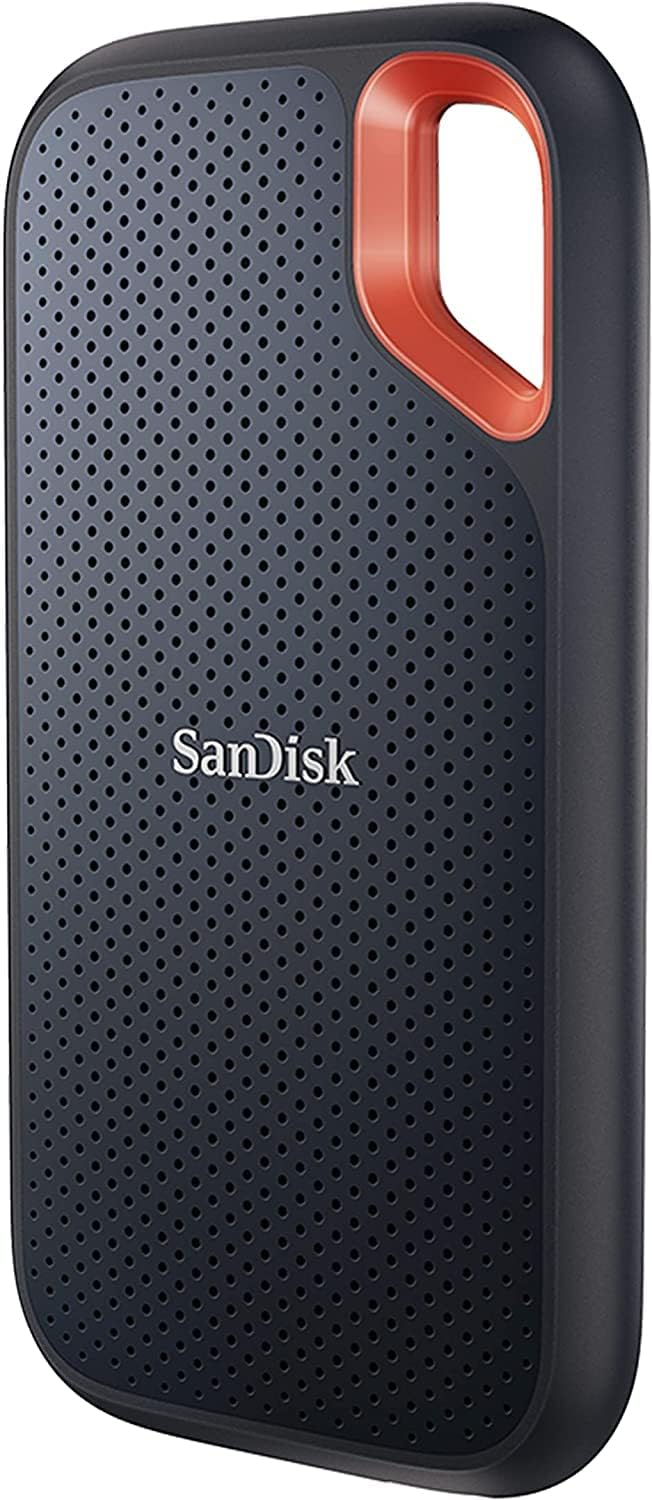
Figure 1.1: SanDisk Extreme Portable SSD (Black 2TB model).
Key Features:
- NVMe Solid State Performance: Up to 1050MB/s read and 1000MB/s write speeds for rapid data transfer.
- Enhanced Durability: Up to 3-meter drop protection and IP65 water and dust resistance.
- Portable Design: Compact and lightweight with a handy carabiner loop for secure attachment.
- Advanced Security: Includes 256-bit AES hardware encryption for password protection.
- SanDisk Memory Zone App: Facilitates easy file management and space optimization.
2. Setup and Installation
2.1 Package Contents
Before you begin, ensure all items are present in the package:
- 1 x SanDisk Extreme Portable SSD
- 1 x USB-C to USB-C cable
- 1 x USB-C to USB-A adapter

Figure 2.1: Package contents including the SSD, USB-C cable, and USB-A adapter.
2.2 Connecting the SSD
The SanDisk Extreme Portable SSD offers universal compatibility with USB-C and USB-A ports. Use the provided cable and adapter to connect it to your computer or compatible device.
- For USB-C Ports: Connect the USB-C end of the cable directly to the SSD and the other USB-C end to your device's USB-C port.
- For USB-A Ports: Attach the USB-C to USB-A adapter to the USB-C cable, then connect the USB-A end to your device's USB-A port and the USB-C end to the SSD.
Video 2.1: Demonstrates easy installation on Windows, highlighting the plug-and-play functionality of the SSD.

Figure 2.2: Compact dimensions of the SanDisk Extreme Portable SSD for easy portability.
2.3 Initial Setup (Software)
Upon first connection, the SSD may prompt you to install the SanDisk software. This software is recommended for managing files, enabling password protection, and optimizing performance. Follow the on-screen instructions to complete the installation.
- For Mac users, download the .dmg file.
- For Windows users, download the .exe file.
3. Operation
3.1 Transferring Files
Once connected, the SSD will appear as an external drive on your computer. You can drag and drop files to and from the drive just like any other storage device. The NVMe technology ensures high-speed transfers, making large file operations quick and efficient.

Figure 3.1: Illustrates the high-speed data transfer capabilities of the SSD.
3.2 Password Protection
To protect your private content, utilize the included password protection feature with 256-bit AES hardware encryption. This feature is managed through the SanDisk software. Ensure you remember your password, as incorrect entries may lead to data loss.

Figure 3.2: The SSD next to a padlock, symbolizing its password protection feature.
3.3 SanDisk Memory Zone App
The SanDisk Memory Zone app allows you to easily manage files on your SSD and automatically free up space. This app is particularly useful for organizing photos, videos, and other media.

Figure 3.3: A smartphone displaying the SanDisk Memory Zone app interface.
4. Maintenance and Care
4.1 Durability Features
The SanDisk Extreme Portable SSD is built to withstand harsh conditions:
- Drop Protection: Engineered to withstand drops from up to 3 meters.
- Water and Dust Resistance: IP65 rated, meaning it is protected against water jets and dust ingress. Ensure the device is clean and dry before use if exposed to water or dust.

Figure 4.1: The SSD demonstrating its IP65 water and dust resistance.

Figure 4.2: The carabiner loop allows for secure attachment to bags or belt loops.
4.2 General Care
- Keep the SSD clean by wiping it with a soft, dry cloth.
- Avoid exposing the SSD to extreme temperatures outside its operating range (-20°C to 85°C non-operating).
- Always safely eject the drive from your computer before disconnecting to prevent data corruption.
5. Troubleshooting
Common Issues and Solutions:
- Drive Not Recognized:
- Ensure the USB cable is securely connected to both the SSD and your device.
- Try a different USB port on your computer.
- Test with a different USB cable or adapter if available.
- Restart your computer.
- Check Disk Management (Windows) or Disk Utility (Mac) to see if the drive is detected but not assigned a drive letter or mounted.
- Slow Transfer Speeds:
- Ensure you are using a USB 3.2 Gen 2 compatible port and cable for optimal speeds.
- Close any unnecessary applications running in the background.
- Check your computer's drivers for USB ports are up to date.
- Password Issues:
- If you forget your password, refer to the SanDisk software's help section for recovery options. Be aware that repeated incorrect entries may lead to data wipe.
6. Technical Specifications
| Feature | Detail |
|---|---|
| Brand | SanDisk |
| Model Number | SDSSDE61-2T00-G25 |
| Digital Storage Capacity | 2 TB |
| Hard Drive Interface | USB 3.2 Gen 2 (USB-C) |
| Read Speed | Up to 1050MB/s |
| Write Speed | Up to 1000MB/s |
| Drop Protection | Up to 3 meters |
| Water & Dust Resistance | IP65 |
| Hardware Encryption | 256-bit AES |
| Item Weight | 1.76 ounces |
| Product Dimensions | 0.38 x 2.07 x 3.97 inches |
| Operating Temperature | 0°C to 45°C |
| Non-Operating Temperature | -20°C to 85°C |
| Compatible Devices | Laptop, Desktop, Tablet (Windows 8+, macOS v10.9+) |
7. Warranty and Support
7.1 Warranty Information
The SanDisk Extreme Portable SSD comes with a limited warranty. Please refer to the warranty card included in your product packaging or visit the official SanDisk website for detailed terms and conditions.
7.2 Data Recovery Plans
Optional data recovery plans are available for purchase to protect against accidental data loss. These plans offer professional data recovery services. Options include:
- 2-Year Data Recovery Plan
- 3-Year Data Recovery Plan
- Complete Protect: One plan covers all eligible past and future purchases (monthly billing)
For more information on these plans, please visit the SanDisk website or contact customer support.
7.3 Customer Support
For technical assistance, product inquiries, or warranty claims, please contact SanDisk Customer Support through their official website or the contact information provided in your product documentation. Always have your product model number and serial number ready when contacting support.
Related documentsSDSSDE61-2T00-G25


Ask a question about this manual
Ask about setup, troubleshooting, compatibility, parts, safety, or missing instructions. Manuals+ will review the question and use this page’s manual context to help answer it.