
cable XR15
XR15 Voice Control Remote Instruction Manual
Model: XR15 | Brand: cable
1. Introduction
This manual provides instructions for the XR15 Voice Control Remote, designed for use with Xfinity and Comcast X1, Xi6, Xi5, and XG2 systems. The remote allows users to control their television and compatible TV box, offering features such as voice commands, backlit keypad, and direct access to accessibility options.

Image 1.1: The XR15 Voice Control Remote, a replacement remote for Xfinity Comcast systems.
2. Package Contents
Verify that all items are present in the package:
- 1 x XR15 Voice Control Remote
- 2 x AA Batteries
- 1 x User's Guide (this document)
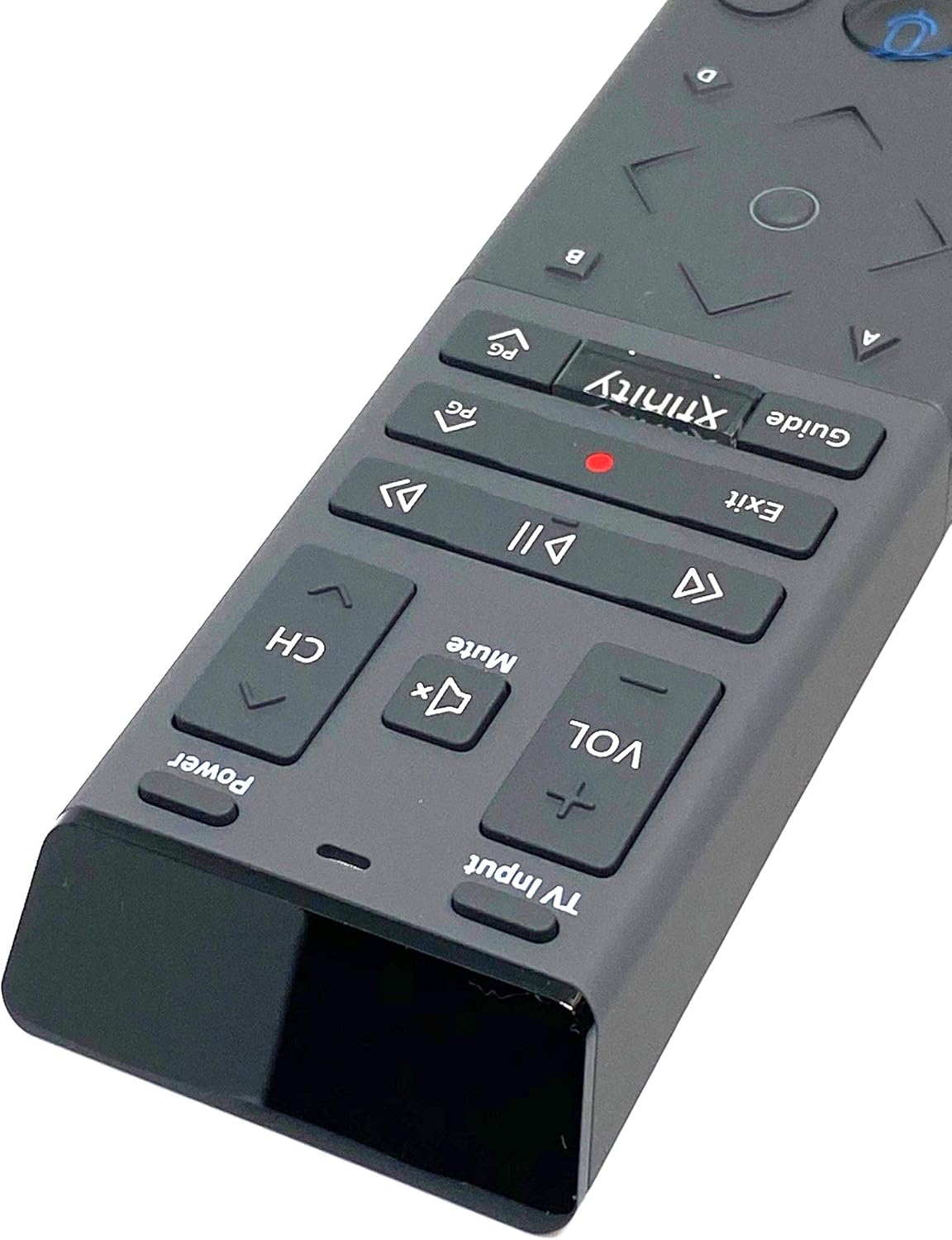
Image 2.1: The XR15 Voice Control Remote as received in its protective packaging.
3. Key Features
The XR15 Voice Control Remote offers several advanced features for an enhanced user experience:
- Voice Control: Use voice commands to change channels, search for content, and get recommendations.
- Backlit Keypad: Buttons illuminate for visibility in low-light conditions.
- Aim Anywhere Feature: Operates without needing to point directly at the device.
- Automatic Pairing: Simplifies the setup process with compatible devices.
- Accessibility Features: Quick access to Closed Captioning, video description, and voice guidance.
- TV Input Control: Manage TV power and input settings.
4. Setup
4.1 Battery Installation
To power your remote, install the two AA batteries provided:
- Locate the battery compartment on the back of the remote.
- Slide the battery cover downwards to open.
- Insert two AA batteries, ensuring the positive (+) and negative (-) terminals align correctly with the indicators inside the compartment.
- Slide the battery cover back into place until it clicks securely.

Image 4.1: Rear view of the XR15 remote, highlighting the battery compartment area.
4.2 Pairing Instructions
The XR15 remote can be paired with your Xfinity X1 TV Box and television for full functionality. Follow these steps:
- Pairing with X1 TV Box:
- Ensure your TV Box is powered on.
- Point the remote at the TV Box.
- Press and hold the Xfinity button and the Info (i) button simultaneously for five seconds until the status light on the remote changes from red to green.
- Follow the on-screen prompts to complete the pairing process.
- Pairing with Television (for TV Power and Volume):
- After pairing with the TV Box, the remote may automatically attempt to pair with your TV.
- If not, or if it fails, press and hold the Setup button (usually a small, recessed button on the side or back, or a combination of buttons like Xfinity and Mute) until the status light turns green.
- Enter the TV brand code. Refer to your TV's user manual for specific codes if the Xfinity codes do not work.
- Test the Power and Volume buttons. If they work, the pairing is successful.
5. Operating Instructions
The XR15 remote features a clear layout for intuitive control. Below is a guide to its primary buttons and their functions:

Image 5.1: Close-up view of the upper section of the XR15 remote, showing TV Input, Volume, Mute, Power, and Channel buttons.
5.1 Button Functions
| Button | Function |
|---|---|
| Power | Turns the TV and compatible TV Box on or off. |
| TV Input | Cycles through available TV input sources. |
| VOL+ / VOL- | Increases or decreases the volume. |
| Mute | Turns sound off or on. |
| CH+ / CH- | Selects the next or previous channel. |
| Play/Pause (►▮▮) | Plays or pauses live TV, Xfinity On Demand, or DVR content. |
| FF (►►) | Fast forwards Xfinity On Demand or DVR content. |
| Rew (◄◄) | Rewinds Xfinity On Demand or DVR content. |
| Exit | Exits on-screen guides; stops and exits Xfinity On Demand and DVR content. Returns to "Live" point during live TV replay. |
| Record (Red Dot) | Records the current program. |
| Xfinity | Displays the main menu of the guide, providing access to DVR and Xfinity On Demand. |
| Guide | Displays TV listings. |
| Voice Control (Microphone icon) | Activates voice command functionality. Press and speak into the remote. |
| Directional Pad (Up, Down, Left, Right, OK) | Navigates through menus and selects options. |
| Info (i) | Displays information about the current program or selected item. |
| Number Pad (0-9) | Directly enters channel numbers or other numerical inputs. |

Image 5.2: Close-up view of the lower section of the XR15 remote, featuring the voice control button, directional pad, and numeric keypad.
6. Maintenance
To ensure the longevity and optimal performance of your XR15 Voice Control Remote, follow these maintenance guidelines:
- Cleaning: Wipe the remote with a soft, dry cloth. For stubborn dirt, slightly dampen the cloth with water or a mild, non-abrasive cleaner. Avoid excessive moisture.
- Battery Replacement: Replace batteries when the remote's performance degrades or the status LED indicates low power. Always use new AA batteries and dispose of old batteries responsibly.
- Storage: Store the remote in a cool, dry place away from direct sunlight and extreme temperatures.
- Avoid Drops: Protect the remote from physical impact, as drops can damage internal components.
7. Troubleshooting
If you encounter issues with your XR15 Voice Control Remote, refer to the following common problems and solutions:
- Remote Not Responding:
- Check battery orientation and ensure they are fresh.
- Verify the remote is paired correctly with your X1 TV Box and TV (refer to Section 4.2).
- Ensure there are no obstructions between the remote and the TV Box/TV.
- Voice Commands Not Working:
- Ensure the remote is paired for voice control (refer to Section 4.2).
- Speak clearly and directly into the microphone.
- Check your Xfinity X1 system settings for voice control activation.
- TV Power/Volume Not Working:
- Confirm the remote is programmed with the correct TV code (refer to Section 4.2).
- Try re-programming the TV code, potentially using codes from your TV's original manual.
- Backlight Not Illuminating:
- The backlight activates when the remote is moved or a button is pressed. If it doesn't, check batteries.
- Ensure the remote is not in a power-saving mode if such an option exists in your Xfinity settings.
8. Specifications
| Feature | Detail |
|---|---|
| Model Number | XR15 |
| Brand | cable |
| Product Dimensions | 12 x 3 x 1 inches |
| Item Weight | 5.9 ounces |
| Batteries Required | 2 AA batteries |
| Special Features | Backlit, Voice Search |
| Max Number of Supported Devices | 1 (TV Box + TV) |
| Compatible Devices | Set Top Box, Television (Xfinity X1, Xi6, Xi5, XG2) |
| Connectivity Technology | Radio Frequency (RF) |
| Date First Available | September 7, 2020 |
9. Warranty and Support
For warranty information or technical support, please refer to the documentation provided by your service provider (Xfinity/Comcast) or contact the product manufacturer directly. Keep your purchase receipt for warranty claims.
Related documentsXR15


Ask a question about this manual
Ask about setup, troubleshooting, compatibility, parts, safety, or missing instructions. Manuals+ will review the question and use this page’s manual context to help answer it.