
Introduction
The SCRIB3D Advanced 3D Printing Pen is designed for creating accurate and creative 3D models and structures. It features variable speed control and a large LCD screen for monitoring heat and settings, ensuring a smooth and precise doodling experience. This manual provides essential information for setting up, operating, and maintaining your 3D printing pen.
What's in the Box
Your SCRIB3D Advanced 3D Printing Pen kit includes the following components:
- SCRIB3D Advanced 3D Printing Pen
- Power Adapter (100-240V)
- 2 colors (15 meters) of PLA plastic filament
- Step-by-step User Manual
- Free Stencil Guide

This image displays the SCRIB3D Advanced 3D Printing Pen alongside its packaging, showcasing the pen's sleek design and several colorful 3D models created with it, such as a hot air balloon, a ship, and origami-like figures. The box lists the included items: the pen, power adapter, PLA filament, user manual, and stencil guide.
Setup
Follow these steps to prepare your SCRIB3D Advanced 3D Printing Pen for first use:
- Plug the power adapter into the back of the pen and into a power outlet. The red light on the LCD screen will illuminate, indicating the pen is warming up.
- Wait approximately 2-3 minutes for the pen to reach the optimal operating temperature. The red light will turn green when it is ready.
- Once the light is green, double-click the forward button to activate the filament feeding mechanism.
- Carefully insert the PLA filament into the back of the pen. The pen will automatically draw the filament in.
- Once the filament has reached the nozzle and begins to extrude, click the forward button once to stop the feeding. Your pen is now ready for use.

This image shows the unfolded Quick Start Guide, illustrating the initial setup steps for the SCRIB3D pen. It visually guides the user through plugging in the power adapter, waiting for the indicator light to change, and inserting the filament into the pen's loading port.
Operating Instructions
The SCRIB3D Advanced Pen offers intuitive controls for a seamless 3D drawing experience.
Adjusting Temperature and Speed
The pen features an LCD display with buttons for adjusting temperature and speed. You can select from 8 different speed options to regulate flow and line thickness. Use the temperature adjustment buttons to fine-tune the heat based on the filament type (PLA or ABS) and desired extrusion consistency.
This official SCRIB3D video provides a comprehensive guide on how to use the Advanced 3D Printing Pen. It covers the process of loading filament, adjusting temperature and speed settings using the LCD display and buttons, and demonstrates the pen's extrusion capabilities for creating 3D designs. The video highlights the ease of use and control offered by the pen's features.
Drawing in 3D
To begin drawing, press the forward button once to start the filament extrusion. Click it again to stop. For optimal results, start by drawing 2D shapes on a flat, heat-resistant surface (like the provided stencil guide or a laminated sheet). Once the plastic cools and hardens, you can peel it off and connect multiple 2D shapes together using the pen to build 3D structures.
This official SCRIB3D video highlights the creative possibilities with the Advanced 3D Printing Pen. It shows examples of intricate 3D models being drawn and assembled, emphasizing the pen's ability to 'Create in a new Dimension'. The video demonstrates the fluidity of the pen's operation and the diverse range of objects that can be brought to life.
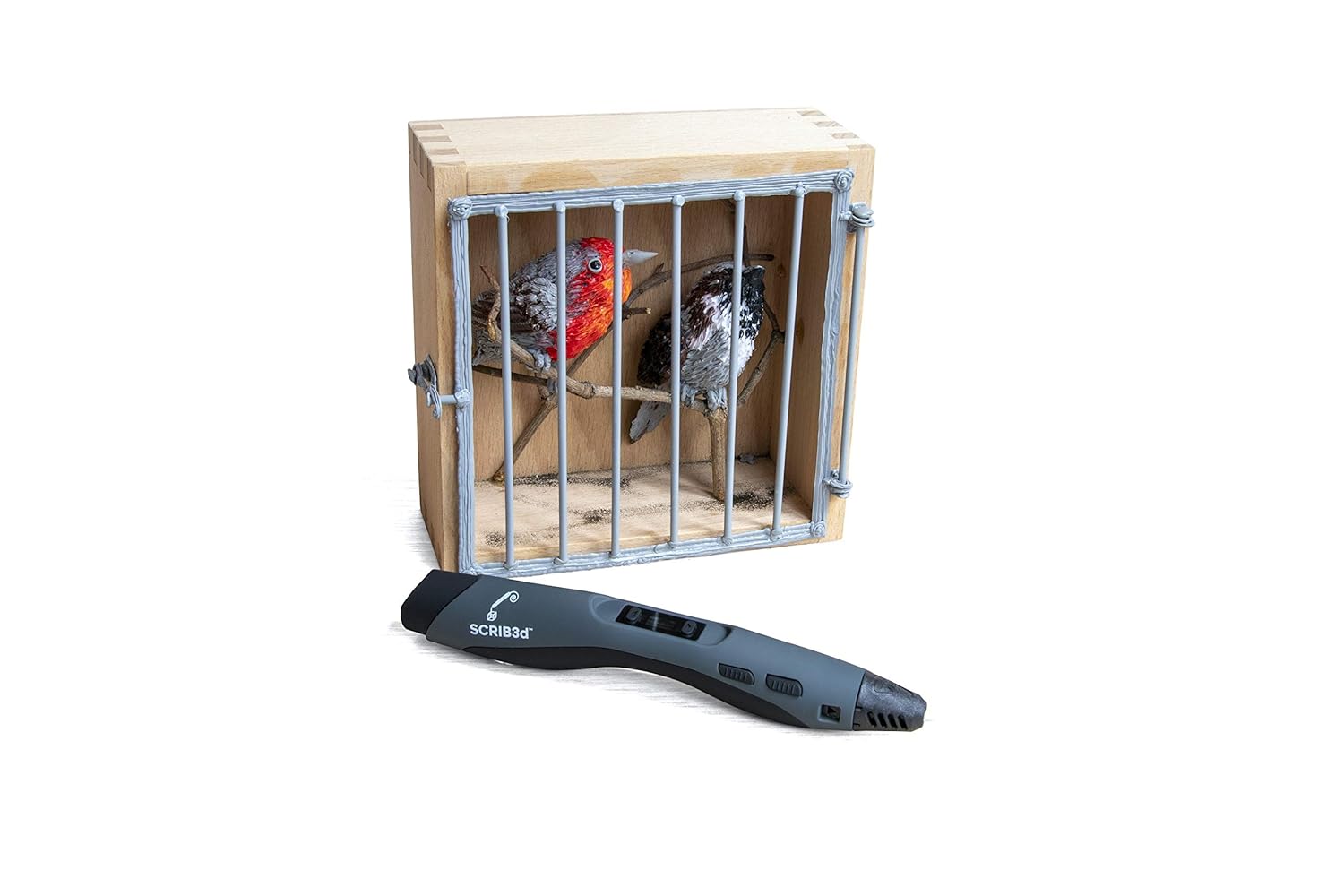
The SCRIB3D Advanced 3D Printing Pen is positioned next to a detailed 3D-printed birdcage, complete with two small bird figures inside. This image illustrates the pen's capability to create more intricate and multi-component designs.

The SCRIB3D Advanced 3D Printing Pen is shown alongside a miniature 3D-printed house model, surrounded by small trees and green landscaping. This image highlights the pen's potential for creating detailed architectural models and dioramas.
Maintenance
Proper maintenance ensures the longevity and optimal performance of your SCRIB3D Advanced 3D Printing Pen.
Changing Filament
To retract the current filament and change colors, hold the reverse button for approximately 5 seconds. The pen will begin to pull the filament back. Once fully retracted, you can insert a new color following the setup instructions.
Clearing Clogs
In case of a filament jam or clog, refer to the detailed instructions in the included user manual. Exercise caution as the tip can be hot.
Troubleshooting
If you encounter issues with your SCRIB3D Advanced 3D Printing Pen, consider the following common problems and solutions:
- Filament not extruding or extruding slowly: Ensure the pen has reached its optimal temperature (green light). Check if the filament is properly loaded and not tangled. Adjust the speed setting.
- Pen making unusual noises: This could indicate a partial clog or an issue with the internal feeding mechanism. Try retracting and re-inserting the filament. If the issue persists, consult the user manual for detailed troubleshooting steps.
- Plastic not adhering: Ensure you are drawing on a suitable surface, such as the provided stencil guide or a laminated sheet, which allows the plastic to cool and detach easily.
For any quality issues or further assistance, please contact customer service.
Specifications
| Feature | Detail |
|---|---|
| Brand | SCRIB3D |
| Model Number | SCRIB_PEN_ADV |
| Product Dimensions | 4.06 x 7.8 x 2.48 inches |
| Item Weight | 11.7 Ounces |
| Material | Plastic |
| Color | Multi-color |
| Country of Origin | China |
| Date First Available | September 4, 2020 |
Warranty and Support
The SCRIB3D Advanced 3D Printing Pen comes with a 1-year guarantee. It includes built-in safety features, anti-clogging features, and intuitive controls for a seamless doodling experience. For any quality issues, getting started tips, or responsive customer service, please feel free to contact SCRIB3D directly.