
Sonos ONESLUS1-cr
Sonos One SL Model S38 Wireless Speaker User Manual
Your guide to setting up, operating, and maintaining your Sonos One SL speaker.
1. Introduction and Overview
The Sonos One SL is a compact, microphone-free wireless speaker designed for rich, room-filling sound. It integrates seamlessly into the Sonos ecosystem, allowing you to build a home sound system over Wi-Fi. This manual provides essential information for its proper use and care.
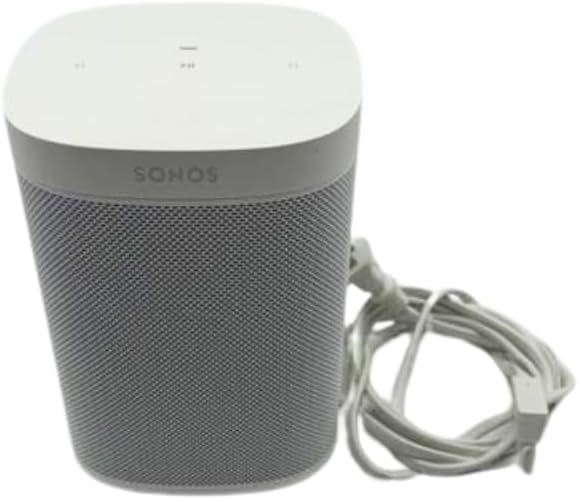
Figure 1.1: Front and side view of the Sonos One SL Wireless Speaker in white, showing the top control panel and power cable.

Figure 1.2: Rear and side view of the Sonos One SL Wireless Speaker, highlighting the power input and Ethernet port.
2. Product Features
- Brilliant Sound: Delivers rich, room-filling audio quality.
- Compact Design: Fits into various spaces, including kitchen countertops or office bookshelves. Humidity resistant for bathroom use.
- Apple AirPlay 2: Stream audio directly from Apple devices and use Siri for Apple Music control.
- Stereo Pairing: Combine with another Sonos One or One SL for stereo separation and enhanced sound. Can also be used as rear home theater surrounds with Playbar, Playbase, or Beam.
- Expandable System: Easily connect multiple Sonos speakers over Wi-Fi to create a multi-room home sound system.
- Easy Setup and Control: Quick setup process and simple control via the Sonos app and Apple AirPlay 2.
3. Setup Instructions
3.1 Unpacking and Placement
- Carefully remove the Sonos One SL speaker from its packaging.
- Place the speaker in your desired location. Ensure it is on a stable surface and within reach of a power outlet.
- For optimal sound, avoid placing the speaker in enclosed cabinets or directly against walls, unless specifically configured for such placement in the Sonos app.
3.2 Power Connection
- Connect the power cable to the power port on the back of the Sonos One SL.
- Plug the other end of the power cable into a wall outlet. The speaker will automatically power on.
3.3 Sonos App Installation and Configuration
- Download the Sonos app from your device's app store (iOS or Android).
- Open the Sonos app and follow the on-screen instructions to set up your Sonos system.
- The app will guide you through connecting your Sonos One SL to your home Wi-Fi network. You may need to press the Join button on the back of the speaker during this process.
- Once connected, you can name your speaker and configure additional settings within the app.
4. Operating Instructions
4.1 Basic Controls
The Sonos One SL features touch controls on its top panel:
- Play/Pause: Tap the Play/Pause button once to play or pause audio.
- Volume Up: Tap the right side of the volume bar to increase volume.
- Volume Down: Tap the left side of the volume bar to decrease volume.
- Next Track: Swipe right across the touch controls to skip to the next track.
- Previous Track: Swipe left across the touch controls to go back to the previous track.
4.2 Using the Sonos App
The Sonos app is the primary interface for controlling your speaker and entire Sonos system:
- Music Services: Add and manage various music streaming services.
- Browse and Play: Select music from your services, local library, or radio stations.
- Group Speakers: Group multiple Sonos speakers to play the same audio in different rooms, or play different audio on each speaker.
- Trueplay Tuning: Use the app to optimize the speaker's sound for your room's acoustics (iOS devices only).
- Settings: Adjust EQ, room settings, and other preferences.
4.3 Apple AirPlay 2
With AirPlay 2, you can stream audio directly from your iPhone, iPad, or Mac to your Sonos One SL. Simply open the Control Center on your Apple device, tap the AirPlay icon, and select your Sonos One SL from the list of available speakers.
5. Maintenance
- Cleaning: Use a soft, dry cloth to clean the speaker. Do not use cleaning fluids or abrasive materials.
- Software Updates: Ensure your Sonos app and speaker firmware are kept up-to-date. The Sonos app will notify you when updates are available. Regular updates provide new features and performance improvements.
- Placement: Avoid placing the speaker in direct sunlight or near heat sources.
6. Troubleshooting
| Issue | Possible Solution |
|---|---|
| Speaker not powering on | Ensure the power cable is securely connected to both the speaker and a working wall outlet. Try a different outlet. |
| No sound from speaker | Check the volume level in the Sonos app and on the speaker. Ensure the correct audio source is selected. Verify the speaker is not muted. |
| Speaker not connecting to Wi-Fi | Restart your router and the Sonos speaker. Ensure your Wi-Fi network is active and you have entered the correct password in the Sonos app. Move the speaker closer to your router. |
| Audio dropouts or interruptions | Check for Wi-Fi interference (e.g., from other wireless devices). Ensure your Wi-Fi signal is strong. Consider using a wired Ethernet connection if available. |
| Sonos app not finding speaker | Ensure your mobile device is connected to the same Wi-Fi network as your Sonos speaker. Restart the Sonos app and your mobile device. |
7. Specifications
| Feature | Detail |
|---|---|
| Model Name | Smart |
| Speaker Type | Bookshelf |
| Recommended Uses | Music, Home Theater |
| Compatible Devices | Smartphones, Tablets, Desktops, Laptops |
| Surround Sound Channel Configuration | 2.0 |
| Color | White |
| Product Dimensions (DxWxH) | 4.69"D x 4.69"W x 6.36"H |
| Item Weight | 4.08 Pounds |
| Waterproof | No |
| Control Method | App |
| Wireless Communication Technology | Wi-Fi |
| Speaker Size | 1 Inches |
| Power Source | Corded Electric |
| Audio Driver Type | Dynamic Driver |
| Subwoofer Connectivity Technology | Wireless |
| Speaker Maximum Output Power | 25 Watts |
| Connectivity Technology | Wi-Fi |
| Audio Output Mode | Stereo |
| Mounting Type | Tabletop |
| Item Model Number | ONESLUS1-cr |
| UPC | 649661084907 |
8. Warranty and Support
8.1 Warranty Information
This Sonos One SL speaker comes with a 90-day limited warranty. Please refer to the official Sonos website or your purchase documentation for full warranty terms and conditions.
8.2 Customer Support
For further assistance, technical support, or warranty claims, please visit the official Sonos support website or contact their customer service. Keep your proof of purchase handy when contacting support.
Related documentsONESLUS1-cr


Ask a question about this manual
Ask about setup, troubleshooting, compatibility, parts, safety, or missing instructions. Manuals+ will review the question and use this page’s manual context to help answer it.