
Introduction
Thank you for choosing the Docooler HXSJ A876 Wired Gaming Mouse. This manual provides detailed instructions for setting up, operating, and maintaining your new gaming mouse. Please read this manual carefully before use to ensure optimal performance and longevity of your device.
Product Features
- Adjustable DPI: Supports 800, 1600, 3200, and 6400 DPI settings for precise control.
- 7-Color Breathing Light: Synchronized lighting provides a dynamic visual effect.
- Ergonomic Design: Engineered for comfort during extended use, fitting naturally in the palm.
- Durable Switches: Equipped with high-performance mechanical micro-switches rated for 10 million clicks.
- Anti-slip Scroll Wheel: Designed for smooth and precise scrolling.
- Wired USB Connectivity: Ensures stable and reliable performance.
Package Contents
- 1 x Docooler HXSJ A876 Wired Gaming Mouse
- 1 x User Manual
Setup
- Unpack the Docooler HXSJ A876 Wired Gaming Mouse and its accessories from the packaging.
- Locate an available USB port on your computer (PC or laptop).
- Plug the USB connector of the mouse into the USB port.
- The mouse is plug-and-play and should be automatically recognized by your operating system. No additional drivers are typically required.
Operating Instructions
DPI Adjustment
The HXSJ A876 mouse features adjustable DPI settings, allowing you to switch sensitivity on the fly. Use the dedicated DPI buttons (DPI Loop + and DPI Loop -) located near the scroll wheel to cycle through the available DPI levels.
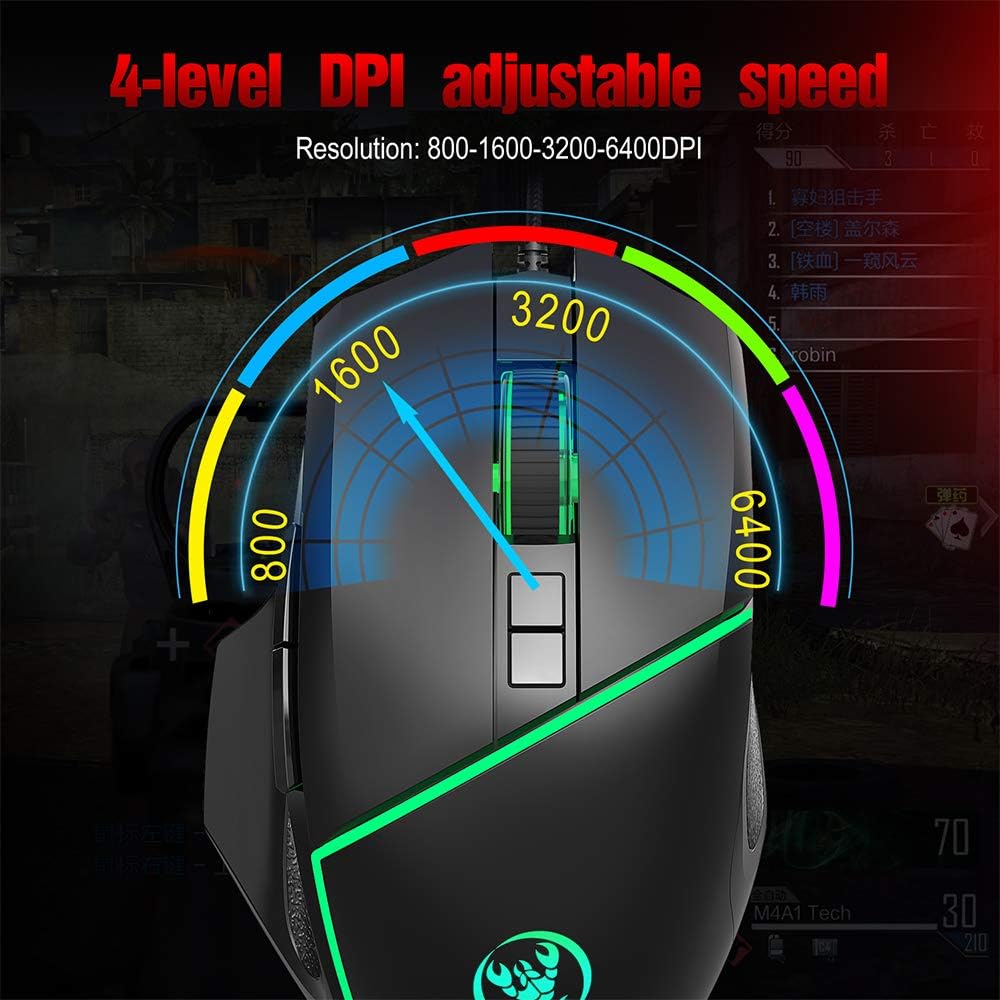
Visual representation of the 4-level adjustable DPI settings on the HXSJ A876 gaming mouse. The graphic indicates how the DPI can be cycled through different resolutions for varied gaming and work needs.
- 800 DPI: Suitable for precise tasks.
- 1600 DPI: A balanced setting for general use.
- 3200 DPI: Increased sensitivity for faster cursor movement.
- 6400 DPI: High sensitivity for rapid movements in gaming.
DPI Indicator Feedback
The mouse provides visual feedback for the current DPI setting:

This image demonstrates the HXSJ A876 gaming mouse on a desk, detailing how to turn the lights on and off by pressing the Mid button + DPI +. It also explains the DPI indicator feedback: red light flashes once for 800 DPI, twice for 1600 DPI, three times for 3200 DPI, and four times for 6400 DPI.
- When 800 DPI is selected, the DPI indicator flashes red once.
- When 1600 DPI is selected, the DPI indicator blinks red twice.
- When 3200 DPI is selected, the DPI indicator blinks red three times.
- When 6400 DPI is selected, the DPI indicator flashes red four times.
Button Functions
The HXSJ A876 mouse features a seven-button design for enhanced functionality:

A clear diagram labeling the seven buttons on the HXSJ A876 gaming mouse: Left Button, Right Button, Mid Button (scroll wheel), DPI Loop +, DPI Loop -, Forward Button, Backward Button, and Fire Key. This helps users identify each control.
- Left Button: Primary click function.
- Right Button: Secondary click function (context menu).
- Mid Button (Scroll Wheel): Scrolls pages up/down; click for middle-click function.
- DPI Loop +: Increases DPI sensitivity.
- DPI Loop -: Decreases DPI sensitivity.
- Forward Button: Navigates forward in web browsers or file explorers.
- Backward Button: Navigates backward in web browsers or file explorers.
- Fire Key: Programmable button, often used for rapid firing in games.
Lighting Control
To toggle the synchronized 7-color breathing light on or off, press the Mid button and the DPI + button simultaneously.

This image displays the HXSJ A876 wired gaming mouse, emphasizing its 6400 DPI high precision capability for stable transmission and accurate analysis. The mouse features a sleek black design with red accents.
Maintenance
- Cleaning: Use a soft, dry cloth to clean the surface of the mouse. For stubborn dirt, slightly dampen the cloth with water. Avoid using harsh chemicals or abrasive materials.
- Storage: Store the mouse in a clean, dry environment away from extreme temperatures and direct sunlight.
- Cable Care: Avoid bending or twisting the USB cable excessively to prevent damage.
Troubleshooting
- Mouse not responding:
- Ensure the USB cable is securely plugged into a working USB port.
- Try plugging the mouse into a different USB port on your computer.
- Restart your computer.
- DPI not changing:
- Ensure you are pressing the correct DPI adjustment buttons.
- Check if the DPI indicator light provides feedback when buttons are pressed.
- Lights not working:
- Ensure the mouse is properly connected to your computer.
- Try toggling the lights using the Mid button + DPI + combination.
Specifications
| Brand | Docooler |
| Model | A876 |
| Type | Wired Gaming Mouse |
| Material | ABS |
| Lighting Mode | 7-color synchronized breathing light |
| DPI Settings | 800-1600-3200-6400DPI (Adjustable) |
| Switch Life | 10 million cycles |
| Cable Length | Approximately 150 cm |
| Operating Voltage/Current | DC 5V/100mA |
| Dimensions (L x W x H) | 12.5 x 8 x 4 cm |
| Item Weight | Approximately 138g |
| Connectivity Technology | USB |
| Movement Detection Technology | Optical |
| Hand Orientation | Ambidextrous |
| Recommended Use | Office, Video Gaming |
| Compatible Devices | Personal Computer, Laptop |

This image shows a hand comfortably gripping the HXSJ A876 gaming mouse, highlighting its ergonomic design. The text indicates that the design is made for a better fit in the palm, ensuring comfort and reducing fatigue during long-term use.

An image depicting the HXSJ A876 gaming mouse in use on a desk, with an overlay indicating a '10,000,000 Times Click Test'. This illustrates the mouse's durability and the longevity of its mechanical switches.
Warranty and Support
For warranty information or technical support, please refer to the documentation provided at the time of purchase or contact your retailer. Keep your proof of purchase for any warranty claims.
