
1. Introduction
Thank you for choosing the LeadsaiL Wireless Slim 2.4G USB Mouse. This manual provides essential information for the proper setup, operation, and maintenance of your device. Please read it thoroughly before use.
2. Package Contents
Ensure all items are present in your package:
- LeadsaiL Wireless Slim 2.4G USB Mouse
- Mini USB Receiver
- User Manual (this document)
- 1 AA Battery (included)
3. Product Overview
Familiarize yourself with the components of your LeadsaiL wireless mouse.

Image: Overview of the LeadsaiL Wireless Mouse, highlighting the ON/OFF switch, battery cover, optical sensor, and Nano Receiver storage.
- Left Button: Standard click function.
- Right Button: Context menu function.
- Scroll Wheel: For scrolling up and down. Also functions as a middle click.
- DPI Switch Button: Adjusts cursor sensitivity (800, 1200, 1600 DPI).
- ON/OFF Switch: Located on the bottom of the mouse to conserve battery.
- Battery Compartment: Houses one AA battery.
- Nano USB Receiver Storage: A dedicated slot on the bottom for storing the USB receiver when not in use.
- Optical Sensor: For precise tracking on various surfaces.
4. Setup Instructions
- Insert Battery:
Open the battery cover on the bottom of the mouse. Insert one AA battery (included) into the compartment, ensuring correct polarity. Close the battery cover securely.
Image: The underside of the mouse with the battery compartment open, showing where to insert the AA battery.
- Retrieve USB Receiver:
Locate the Mini USB receiver stored in its dedicated slot next to the battery compartment on the bottom of the mouse. Gently pull it out.
Image: The underside of the mouse, indicating the storage location of the Nano USB receiver.
- Connect USB Receiver:
Plug the Mini USB receiver into an available USB port on your computer (laptop, desktop, or MacBook). Your computer should automatically detect and install the necessary drivers.
Video: Demonstrates plugging the USB Nano Receiver into a laptop and turning on the mouse. This video is provided by LeadsaiL-US.
- Power On Mouse:
Flip the ON/OFF switch on the bottom of the mouse to the "ON" position. The optical sensor light will illuminate, indicating the mouse is active.
Image: The ON/OFF switch on the bottom of the mouse in the "ON" position.
The mouse should now be ready for use. If it does not connect immediately, try restarting your computer or plugging the USB receiver into a different port.
5. Operating Instructions
5.1 Adjusting DPI Sensitivity
The LeadsaiL mouse features 3 adjustable DPI levels (800, 1200, 1600) to suit your preference for cursor speed and precision.
- Press the DPI Switch Button (located below the scroll wheel) to cycle through the available DPI settings.
- Each press will change the sensitivity, allowing you to find the optimal speed for your tasks.
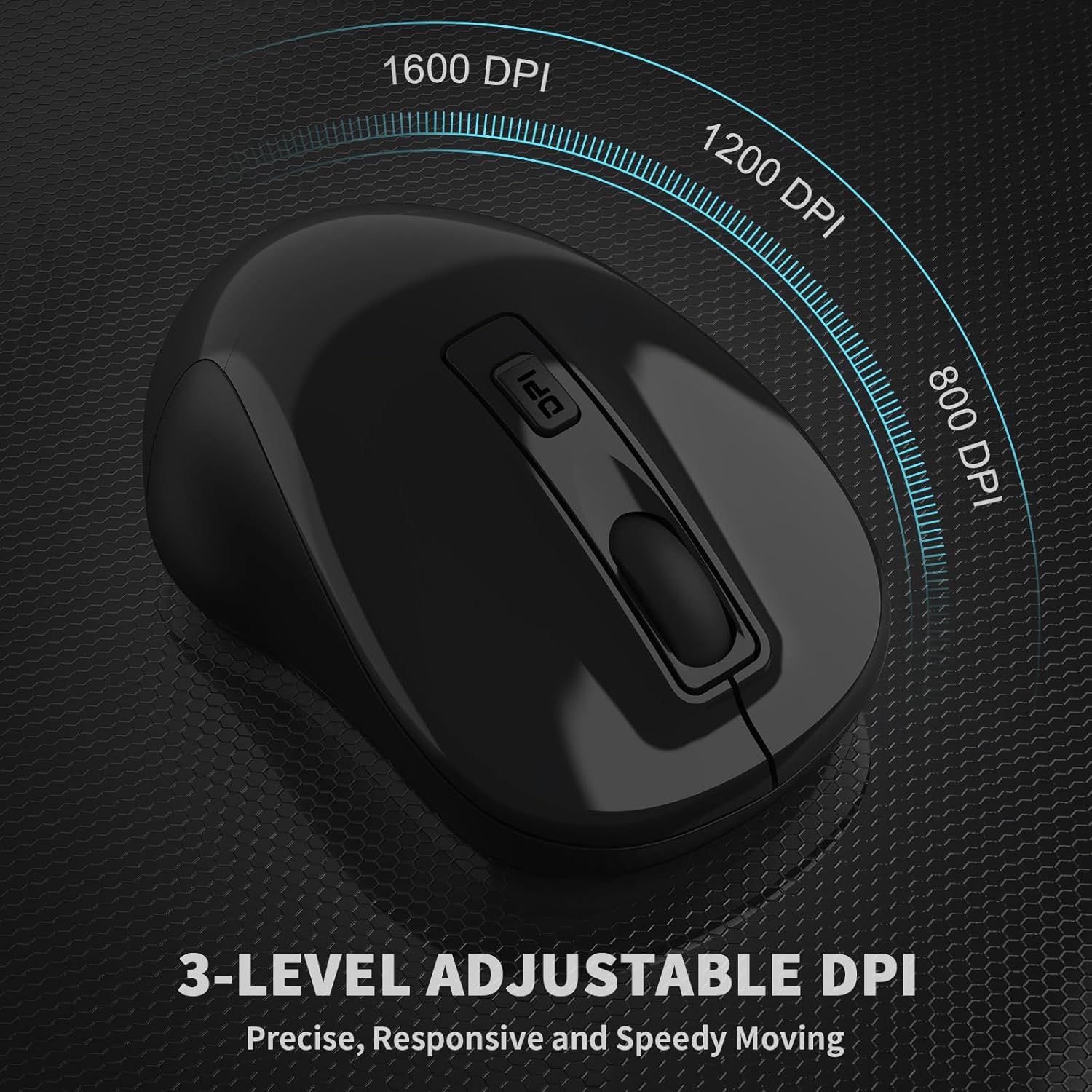
Image: The LeadsaiL mouse illustrating the 3 adjustable DPI levels (800, 1200, 1600).
5.2 Silent Click Feature
The mouse is designed with silent click buttons to minimize noise, making it suitable for quiet environments like libraries, offices, or late-night use.
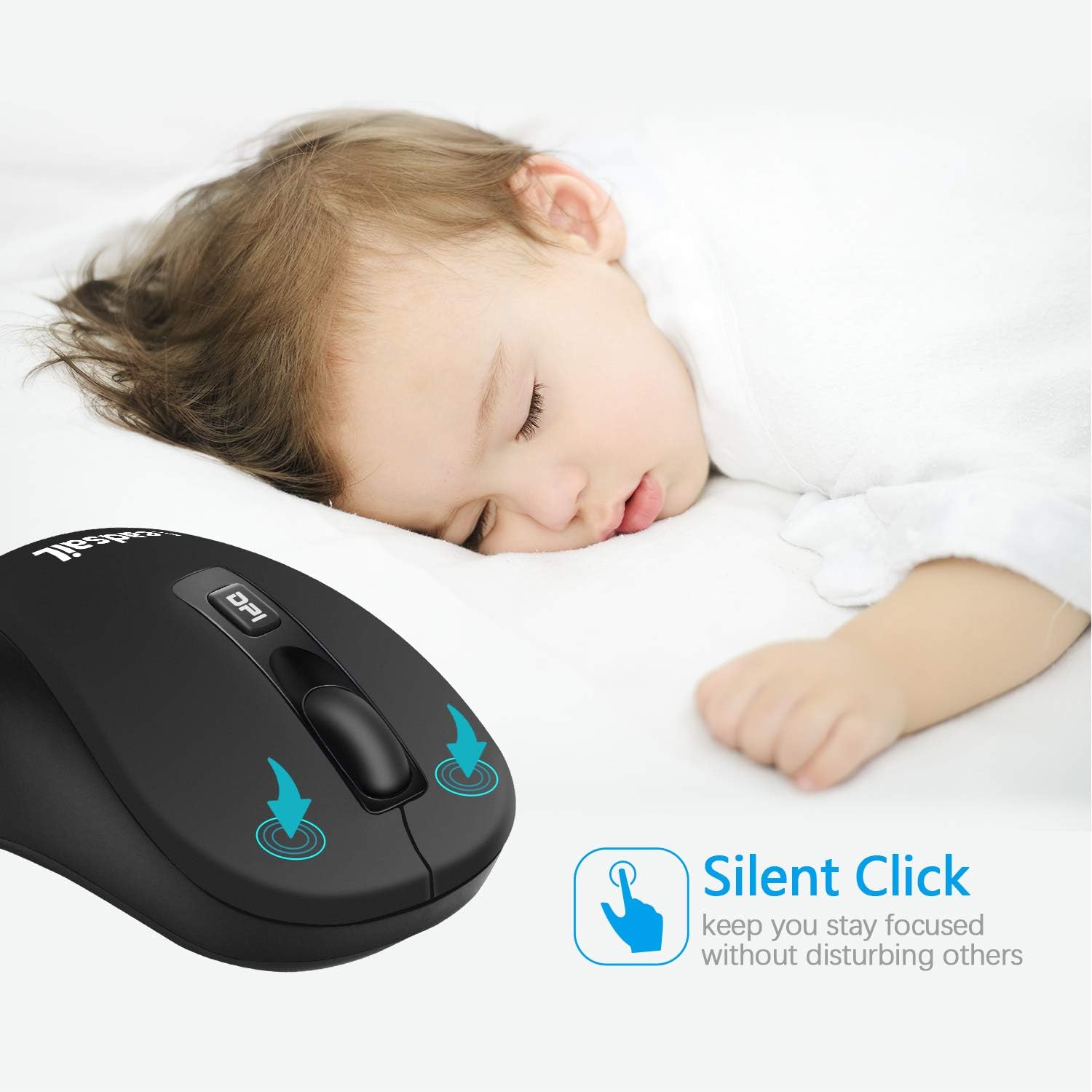
Image: A visual representation of the silent click feature of the LeadsaiL mouse, showing minimal sound waves.
5.3 Ergonomic Design
The slim, sweat-resistant, and skin-friendly finish provides maximum comfort and support during extended use. The thoughtful ring and little finger rest enhance the ergonomic grip.

Image: A hand comfortably gripping the LeadsaiL mouse, illustrating its ergonomic design.
6. Power Management
- Automatic Sleep Mode: The mouse will enter sleep mode after 15 minutes of inactivity to conserve battery power.
- Waking Up the Mouse: To wake the mouse from sleep mode, simply press any button.
- Manual Power Off: For extended periods of non-use, switch the ON/OFF button on the bottom of the mouse to "OFF" to maximize battery life.
7. Compatibility
The LeadsaiL Wireless Slim 2.4G USB Mouse is compatible with a wide range of operating systems, including:
- Windows XP
- Windows Vista
- Windows 7/8/10/11
- Mac OS X
- Windows 2000 Server
It is suitable for use with laptops, desktops, and netbook PCs.
8. Maintenance and Care
- Cleaning: Use a soft, dry cloth to clean the mouse. Avoid using harsh chemicals or abrasive materials.
- Battery Replacement: Replace the AA battery when the mouse performance degrades or stops working.
- Storage: When not in use, especially during travel, store the Mini USB receiver in its dedicated slot on the mouse to prevent loss. Turn off the mouse to conserve battery.
- Durability: The mouse is designed for durability, having passed 5,000,000 keystroke tests. However, avoid dropping or subjecting it to excessive force.
9. Troubleshooting
| Problem | Solution |
|---|---|
| Mouse not responding |
|
| Cursor movement is erratic or slow |
|
| Wireless connection issues |
|
10. Specifications
| Feature | Detail |
|---|---|
| Model Number | LX-002 |
| Connectivity Technology | 2.4G Wireless (USB Receiver) |
| Movement Detection Technology | Optical |
| Adjustable DPI | 800, 1200, 1600 DPI |
| Buttons | 4 (Left, Right, Scroll Wheel/Middle, DPI Switch) |
| Special Features | Ergonomic Design, Silent Click, Automatic Sleep Mode |
| Power Source | 1 x AA Battery |
| Item Weight | 2.39 ounces |
| Dimensions | 3.98 x 2.76 x 1.73 inches |
| Transmission Distance | Up to 50ft/15M |
| Keystroke Lifespan | 5,000,000 times |
11. Warranty and Support
For warranty information or technical support, please refer to the contact details provided with your purchase or visit the official LeadsaiL website. Keep your purchase receipt for warranty claims.
Manufacturer: LeadsaiL
12. Safety Information
- Do not expose the mouse to extreme temperatures or humidity.
- Avoid disassembling the device, as this may void the warranty and cause damage.
- Keep out of reach of children.
- Dispose of batteries according to local regulations.


