
1. Introduction
The Oculus Quest 2 is an advanced all-in-one virtual reality system designed to deliver immersive experiences without the need for a PC or console. This manual provides essential information for setting up, operating, and maintaining your Quest 2 headset.
Experience breathtaking games and virtual environments with enhanced performance and next-generation graphics. The headset features a screen with 50% more pixels than the original Quest, offering superior visual clarity. New Touch controllers provide improved ergonomics and intuitive controls for precise interaction within VR. The Quest 2 also supports PC VR experiences via an Oculus Link cable (sold separately).
2. Package Contents
Upon unboxing your Oculus Quest 2, ensure all the following items are present:
- Oculus Quest 2 All-in-One Virtual Reality Headset (64 GB)
- Two Touch Controllers (Left and Right)
- Charging Cable
- Power Adapter
- Glasses Spacer

Figure 2.1: Contents of the Oculus Quest 2 box. Includes the headset, two Touch controllers, charging cable, power adapter, and a glasses spacer.
3. Initial Setup
Follow these steps to set up your Oculus Quest 2 headset for the first time:
- Charge the Headset: Connect the charging cable to the headset and the power adapter, then plug it into a power outlet. The LED indicator on the headset will show charging status.
- Install Oculus App: Download the Oculus mobile app on your smartphone (available on iOS and Android app stores). Create or log in to your Facebook account, which is required for using the Quest 2.
- Pair Controllers: Follow the on-screen instructions in the Oculus app to pair your Touch controllers with the headset. Ensure batteries are inserted correctly.
- Adjust Headset Fit: Place the headset on your head and adjust the straps for a comfortable and secure fit. The top strap should rest on the crown of your head, and the side straps should be snug but not too tight.
- Adjust Lens Spacing (IPD): Gently move the lenses left or right until the image appears clear and comfortable. This adjusts the Interpupillary Distance (IPD) to match your eyes.
Video 3.1: Demonstrates how to adjust the lens spacing (IPD) on the Oculus Quest 2 headset for optimal visual clarity and comfort.
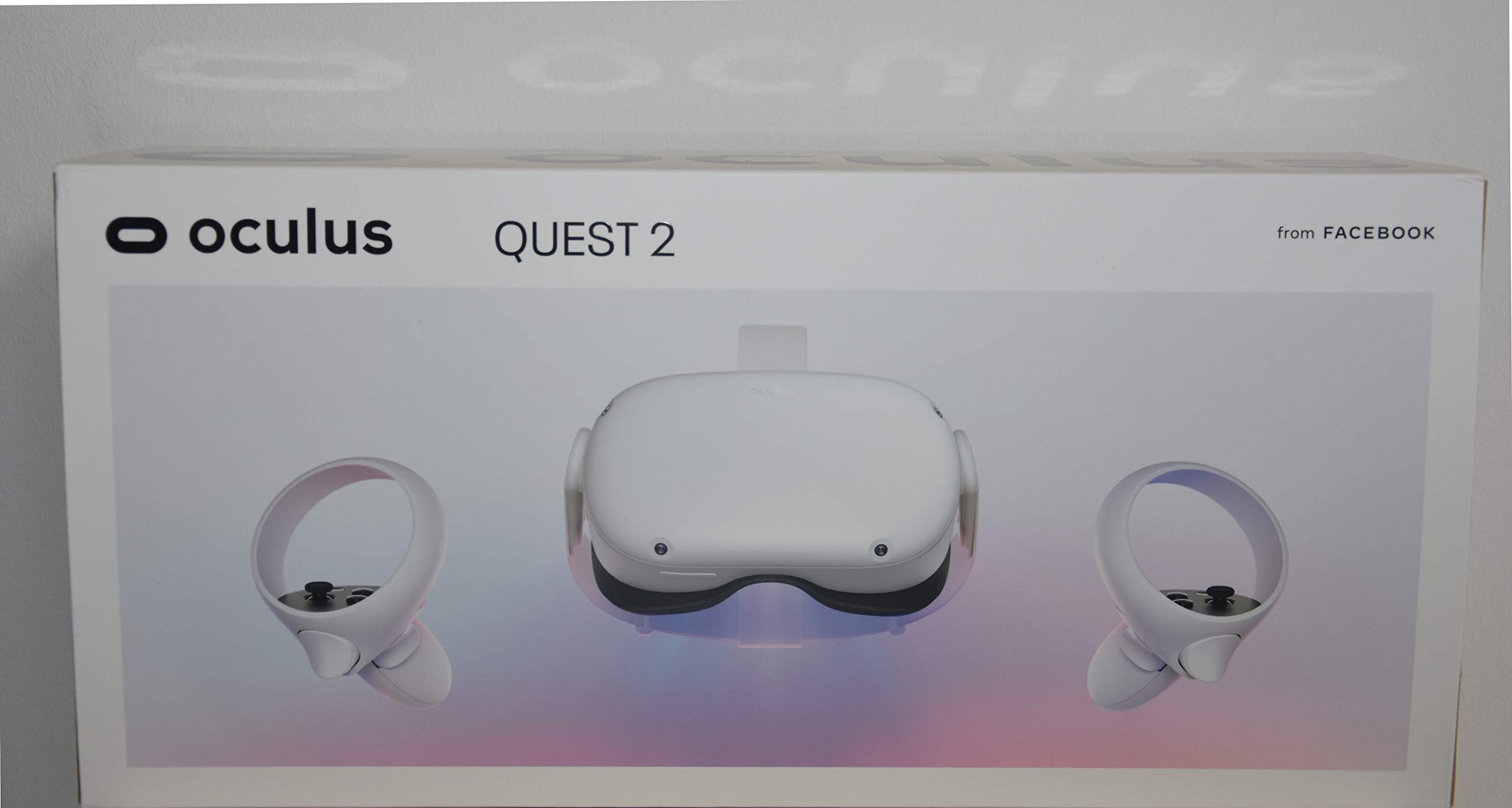
Figure 3.1: The Oculus Quest 2 headset, showing the adjustable head strap for a customized fit.
4. Operating Instructions
4.1 Powering On/Off
- To Power On: Press and hold the power button on the side of the headset until the Oculus logo appears.
- To Power Off: Press and hold the power button until a power-off menu appears in VR, then select "Power Off". Alternatively, hold the power button for several seconds until the headset shuts down.
4.2 Navigating in VR
Use the Touch controllers to interact with the virtual environment:
- Thumbstick: Move around in virtual spaces.
- Trigger Buttons: Select items, fire weapons, or interact with objects.
- Grip Buttons: Grab or hold objects.
- Oculus Button: Press to open the Universal Menu, which provides access to your library, settings, and other features.

Figure 4.1: A detailed view of the Oculus Quest 2 headset and its ergonomic Touch controllers, highlighting the buttons and thumbsticks for interaction.
4.3 Guardian System
The Guardian system helps you define a safe play area and alerts you if you approach its boundaries. Set up your Guardian boundary during the initial setup process in a clear, open space.
4.4 Oculus Link (PC VR)
To play PC VR games, connect your Quest 2 to a compatible gaming PC using an Oculus Link cable (sold separately). Ensure your PC meets the minimum system requirements for Oculus Link.
5. Key Features
- Next-Generation Performance: Equipped with an ultra-fast processor and high-resolution display for smooth and responsive VR experiences.
- All-in-One Gaming: Access a vast library of Quest content and enjoy backward compatibility with previous Quest titles.
- Immersive Entertainment: Experience live concerts, groundbreaking films, exclusive events, and more in virtual reality.
- Easy Setup: Quick and straightforward setup via the Oculus mobile app, requiring no PC or console. Wireless internet access is necessary for initial setup.
- Premium Display: Features a stunning screen with 50% more pixels than the original Quest, providing optimal clarity and resolution.
- Absolute Control: New Oculus Touch controllers translate your movements into VR with realistic and intuitive precision.
- PC VR Compatibility: Connect to a compatible gaming PC with an Oculus Link cable (sold separately) to access Oculus Rift titles.
- 3D Immersive Audio: Integrated speakers deliver cinematic 3D positional sound.
- Live Streaming: Share your VR experience directly to the Oculus app or a compatible TV.
Video 5.1: An overview of the Oculus Quest 2's key features, including enhanced performance, immersive content, and wireless freedom.
6. Technical Specifications
| Model Number | Quest 2 |
| Storage Capacity | 64 GB (usable storage may be less due to system software) |
| Processor | Qualcomm Snapdragon XR2 Platform |
| Display Resolution | 50% increase in pixel resolution compared to original Quest |
| Audio | Integrated 3D positional audio speakers |
| Connectivity | Wireless Internet (Wi-Fi), Oculus Link compatible (cable sold separately) |
| Controllers | Oculus Touch Controllers (2) |
| Package Dimensions | 41.4 x 20 x 12.7 cm |
| Weight | 1.75 kg (package weight) |
| Country of Origin | China |
| Release Date | October 13, 2020 |
7. Maintenance and Care
- Cleaning Lenses: Use a dry microfiber cloth specifically designed for lenses. Do not use liquid cleaners, alcohol, or abrasive cloths, as they can damage the lenses.
- Cleaning Headset: Wipe the headset and straps with a dry or slightly damp cloth. Avoid getting moisture into any openings.
- Storage: Store the headset in a cool, dry place away from direct sunlight. Prolonged exposure to sunlight can cause permanent damage to the lenses and display.
- Battery Care: For optimal battery life, avoid fully discharging the headset frequently. Charge it regularly.
8. Troubleshooting
8.1 Headset Not Powering On
- Ensure the headset is fully charged. Connect it to the power adapter and wait for the charging indicator.
- Perform a hard reset by holding the power button for at least 30 seconds.
8.2 Controllers Not Pairing
- Check the batteries in the controllers and replace them if necessary.
- Restart the headset and try pairing again through the Oculus mobile app.
8.3 Blurry Vision / Image Not Clear
- Adjust the IPD (Interpupillary Distance) by gently moving the lenses until the image is clear.
- Ensure the headset is properly positioned on your head and the straps are adjusted for a snug fit.
- Clean the lenses with a microfiber cloth.
8.4 Guardian System Issues
- Recalibrate your Guardian boundary in a well-lit, open space.
- Ensure there are no reflective surfaces or strong light sources interfering with tracking.
9. Safety Information
Please read and follow all safety warnings and instructions provided with your Oculus Quest 2 headset to reduce the risk of injury, discomfort, or property damage.
- Always ensure you have adequate clear space around you before and during VR use.
- Be aware of your physical surroundings and avoid obstacles.
- Take regular breaks to avoid eye strain, discomfort, or motion sickness.
- Do not use the headset if you are feeling unwell, fatigued, or under the influence of substances.
- Keep the headset away from direct sunlight to prevent lens and display damage.
10. Warranty and Support
For detailed warranty information, please refer to the warranty card included in your product packaging or visit the official Oculus support website. If you encounter issues not covered in this manual, please contact Oculus customer support for assistance.
Official Support Website: www.oculus.com/support/


