
1. Overview
The Google Pixel 5 is an advanced 5G Android smartphone designed for efficient communication and multimedia. It features a durable, water-resistant design, an advanced camera system with Night Sight and an ultrawide lens, and an all-day battery with Extreme Battery Saver capabilities. This device is an unlocked smartphone, offering flexibility in carrier and data plan selection.
1.1 Included Components
- Google Pixel 5 Smartphone
- 18W USB-C Power Adapter
- USB-C to USB-C Cable
- SIM Tray Ejector Tool
- USB-C to USB-A Quick Switch Adapter
- Google Pixel USB-C earbuds (availability may vary by region)
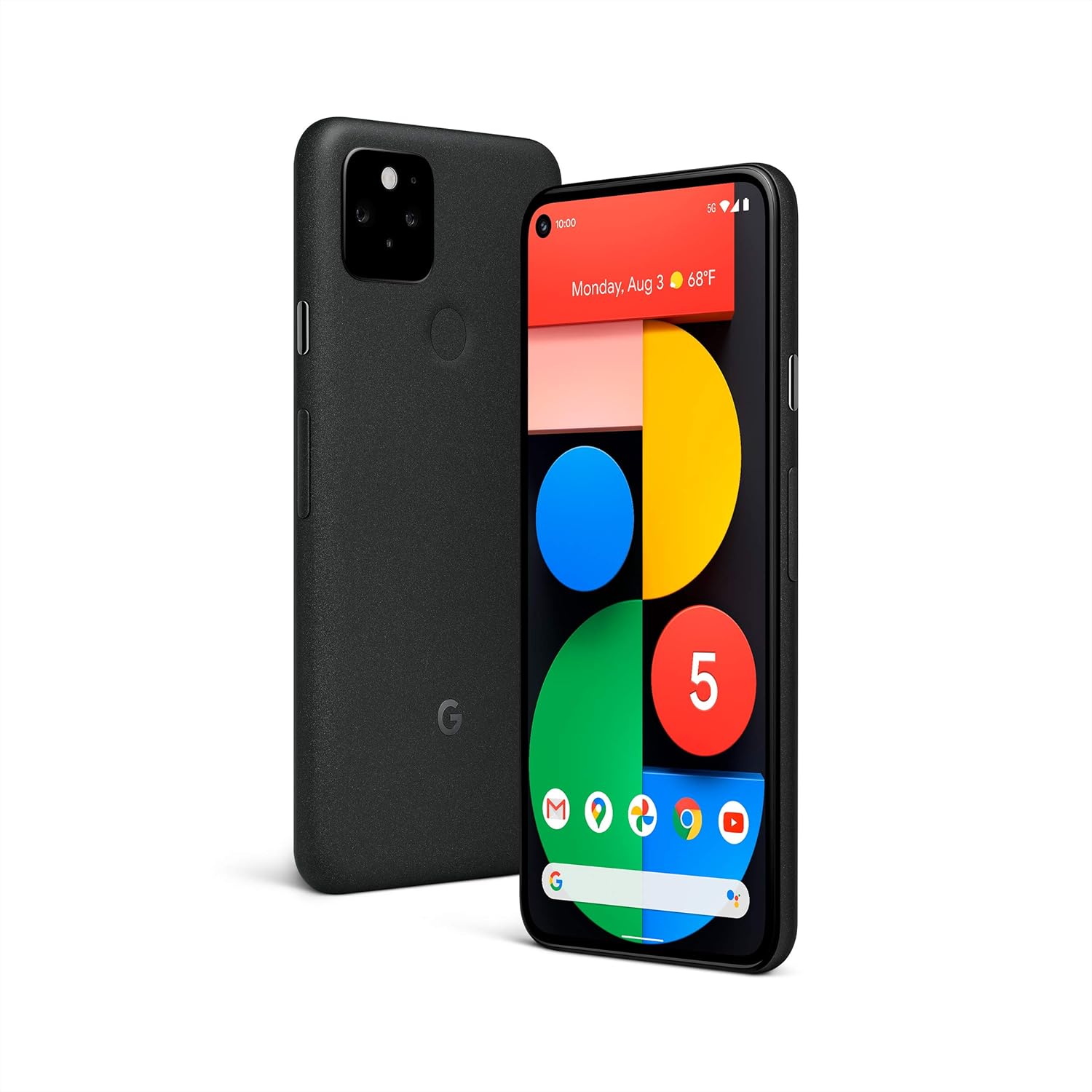
Image: Front and back view of the Google Pixel 5 smartphone in Just Black.
2. Setup
2.1 SIM Card Installation
- Locate the SIM card tray on the side of your Pixel 5.
- Insert the SIM tray ejector tool into the small hole next to the tray and press firmly until the tray pops out.
- Place your nano-SIM card into the tray with the gold contacts facing down.
- Carefully reinsert the tray into the phone until it clicks into place.
2.2 Initial Power On and Configuration
- Press and hold the power button on the side of the phone until the Google logo appears.
- Follow the on-screen prompts to select your language, connect to a Wi-Fi network, and sign in with your Google Account.
- You will be guided through setting up security features like fingerprint unlock and screen lock.
2.3 Data Transfer from an Old Phone
Use the included USB-C to USB-A Quick Switch Adapter to transfer data from your old phone to your new Pixel 5. Connect your old phone to the adapter, and the adapter to your Pixel 5. Follow the on-screen instructions to select the data you wish to transfer.

Image: A Google Pixel 5 connected to an older smartphone using the Quick Switch Adapter for data transfer.
3. Operating Instructions
3.1 Basic Navigation
- Home Screen: Swipe up from the bottom to access the app drawer. Swipe left or right to navigate between home screens.
- Back: Swipe from the left or right edge of the screen.
- Recent Apps: Swipe up from the bottom of the screen and hold, then release.
- Notifications & Quick Settings: Swipe down from the top of the screen.
3.2 5G Connectivity
The Pixel 5 supports 5G networks, enabling faster download speeds and smoother streaming. A 5G data plan and compatible network coverage are required for 5G service. Performance may vary based on carrier, location, and network conditions.

Image: A Google Pixel 5 screen showing a video streaming, illustrating the speed of 5G connectivity.
3.3 Camera Features
The Pixel 5 camera includes advanced features for various lighting conditions:
- Night Sight: Captures clear and vibrant photos in low-light environments.
- Ultrawide Lens: Allows for a wider field of view, ideal for landscapes and group photos.
- Portrait Light: Adjusts the lighting on subjects in portrait photos for studio-quality results.

Image: A man's face illuminated by soft light, showcasing the camera's ability to capture detail in challenging lighting conditions.

Image: A wide landscape photo, demonstrating the ultrawide lens capability of the Google Pixel 5.
3.4 Wireless Charging and Battery Share
The Pixel 5 supports Qi-compatible wireless charging. Place the phone on a compatible wireless charger to begin charging. Additionally, the Pixel 5 can wirelessly charge other Qi-certified devices using Battery Share. To activate Battery Share, navigate to Settings > Battery > Battery Share.

Image: A Google Pixel 5 wirelessly charging a pair of Pixel Buds on its rear surface.
3.5 Battery Management
The Pixel 5 features an all-day battery. For extended battery life, enable Extreme Battery Saver mode, which can extend usage up to 48 hours by limiting active apps to essential functions. Access this feature in Settings > Battery.

Image: A family taking a selfie with a Google Pixel 5, symbolizing the phone's long-lasting battery for extended use.
3.6 Security Features
The Pixel 5 incorporates the Titan M security chip to protect your operating system and sensitive data. The device receives guaranteed Android OS and security updates for at least three years from its initial release.

Image: A man interacting with his Google Pixel 5, representing the device's integrated security features.
3.7 Call Screen and Google Duo
- Call Screen: Google Assistant can filter out detected spam calls and provide information about unrecognized callers before you answer. This feature is available in the US and English only.
- Google Duo Screen Sharing: Share your screen during HD video calls to read articles, watch live sports, or browse content with friends and family. Requires Wi-Fi or 5G internet connection.
4. Maintenance
4.1 Cleaning Your Device
To clean your Pixel 5, use a soft, lint-free cloth. For stubborn marks, slightly dampen the cloth with water. Avoid using harsh chemicals, abrasive cleaners, or compressed air, as these can damage the device's finish or internal components.
4.2 Water and Dust Resistance
The Pixel 5 has an IP68 dust and water protection rating under IEC standard 60529, meaning it can withstand submersion in up to 1.5 meters of fresh water for 30 minutes. This resistance is not a permanent condition and may decrease over time with normal wear and tear, repair, disassembly, or damage. Chargers and accessories are not water or dust resistant. Avoid exposing the phone to saltwater, chlorinated water, or other liquids.

Image: A close-up side view of the Google Pixel 5 with water droplets on its surface, demonstrating its water resistance.
4.3 Software Updates
Your Pixel 5 will automatically receive the latest Android OS and security updates. Ensure your device is connected to Wi-Fi and has sufficient battery charge to download and install updates.
5. Troubleshooting
5.1 Common Issues and Solutions
- Device Unresponsive: Press and hold the power button for about 30 seconds to force a restart.
- Poor Battery Life: Check for background apps consuming power (Settings > Battery). Enable Extreme Battery Saver. Reduce screen brightness.
- Connectivity Problems (Wi-Fi/Cellular): Toggle Wi-Fi or cellular data off and on. Restart the device. Check network settings.
- App Crashing: Clear the app's cache (Settings > Apps > [App Name] > Storage & cache > Clear cache). If the issue persists, uninstall and reinstall the app.
5.2 Factory Reset
If persistent issues occur, a factory reset may be necessary. Warning: This will erase all data on your phone. Back up important data before proceeding. Go to Settings > System > Reset options > Erase all data (factory reset).
6. Specifications
| Feature | Detail |
|---|---|
| Model Number | GA01316-US |
| Operating System | Android 11.0 (at launch) |
| Display Size | 6 Inches |
| Resolution | 1080 x 2340 pixels |
| RAM | 8 GB |
| Memory Storage Capacity | 128 GB |
| CPU Model | Qualcomm Snapdragon 765G |
| Battery Capacity | 4080 Milliamp Hours |
| Product Dimensions | 5.7 x 2.8 x 0.3 inches |
| Item Weight | 5 ounces (143 Grams) |
| Water Resistance | IP68 |
| Wireless Charging | Qi-compatible |

Image: A comparison chart highlighting key features like 5G, water resistance, wireless charging, and camera specifications across Pixel 5, Pixel 4a with 5G, and Pixel 4a models.
7. Warranty and Support
7.1 Product Warranty
For detailed warranty information regarding your Google Pixel 5, please refer to the official Google support website or the warranty card included with your purchase. Warranty terms and conditions may vary by region.
7.2 Customer Support
If you require further assistance or encounter issues not covered in this manual, please visit the official Google Pixel Help Center online or contact Google customer support directly. Contact information can typically be found on the Google support website.
8. Official Product Videos
No official product video URLs were provided in the product data for embedding in this manual.


