
1. Introduction
The ICOMTOFIT G3 Bluetooth Headset is a wireless earpiece designed for hands-free communication and audio playback. Featuring Bluetooth 5.0 technology and a QCC chipset, it offers stable connectivity and clear sound quality, making it suitable for driving, business, and office use. This manual provides detailed instructions for setting up, operating, and maintaining your headset.

Image: The ICOMTOFIT G3 Bluetooth Headset, showcasing its sleek design.
2. What's in the Box
Please check the package contents upon unboxing:
- ICOMTOFIT G3 Bluetooth Headset
- USB Type-C Charging Cable
- Multiple Sizes of Ear Gels (S, M, L)
- Carrying Case
- User Manual
3. Setup and Pairing
3.1 Initial Pairing
- Power On: Press and hold the Multi-Function Button (MFB) on the headset until the LED indicator flashes blue and red, indicating pairing mode.
- Activate Bluetooth: On your smartphone or device, go to Bluetooth settings and turn on Bluetooth.
- Search and Connect: Look for "ICOMTOFIT G3" in the list of available devices and select it to connect. Once connected, the LED indicator will flash blue slowly.
3.2 Dual-Device Pairing
The headset supports connecting to two Bluetooth devices simultaneously:
- Pair the headset with the first device as described in Section 3.1.
- Disable Bluetooth on the first device.
- Put the headset back into pairing mode (LED flashes blue and red).
- Pair the headset with the second device.
- Re-enable Bluetooth on the first device. The headset should automatically connect to both devices.

Image: The headset connected to two devices, illustrating dual Bluetooth functionality.
4. Operating the Headset
4.1 Basic Functions
- Power On/Off: Press and hold the MFB for 3 seconds to power on, 7 seconds to power off.
- Answer/End Call: Press the MFB once.
- Reject Call: Press and hold the MFB for 2 seconds.
- Play/Pause Music: Press the MFB once.
- Volume Up/Down: Use the dedicated volume buttons on the headset.
- Next/Previous Track: Long press the volume up/down buttons.
4.2 Mute Function
During a call, press the dedicated mute button to mute or unmute your microphone. This feature helps protect your privacy and ensures clear communication.
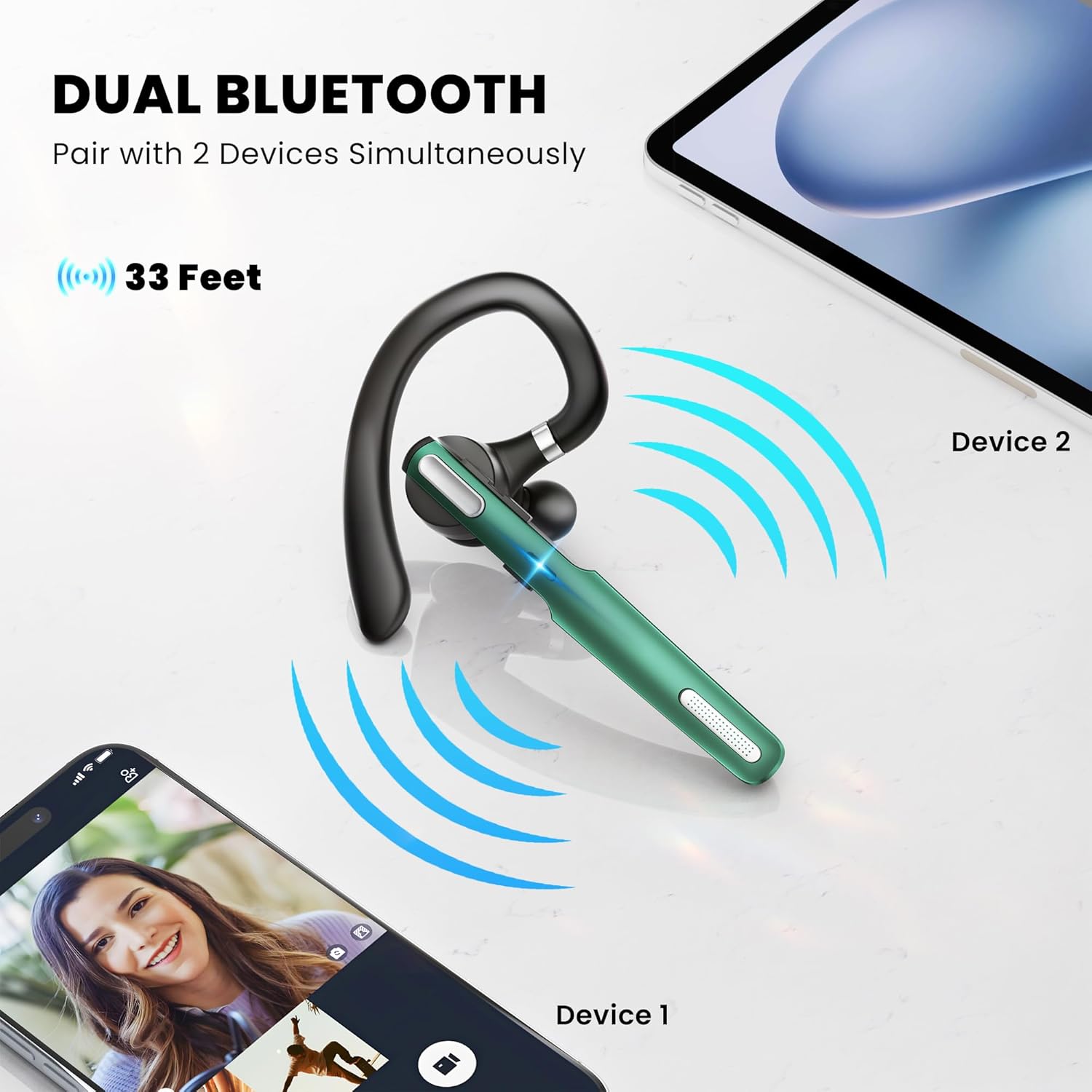
Image: The headset highlighting the one-button mute functionality for calls.
4.3 Voice Assistant
Double-click the mute switch in standby mode to activate your device's voice assistant (e.g., Siri, Google Assistant).
4.4 Voice Prompts
The headset provides voice alerts for battery level, connection status, and mute/unmute status. It can also announce the phone number of incoming callers.
5. Comfort and Fit
The ICOMTOFIT G3 is designed for ergonomic comfort and a secure fit. The retractable ear hook and flip-boom arm swivel and rotate, allowing you to wear the headset on either ear. Three different sizes of ear gels (S, M, L) are included to ensure a snug and tailored fit for extended wear.

Image: Diagrams illustrating the 180° and 360° rotation of the ear hook and the three ear gel sizes.
6. Charging and Battery Life
The headset features a long-lasting battery and charges via a Type-C port.
- Talk Time: Up to 8-10 hours
- Music Play Time: Up to 8 hours
- Standby Time: Up to 180 hours
- Charging Time: Approximately 1.5 hours
Connect the provided USB Type-C cable to the headset's charging port and a compatible USB power source. The LED indicator will show charging status.

Image: The headset being charged via its Type-C port, with battery life indicators.
7. Specifications
| Brand | ICOMTOFIT |
| Model Number | G3 |
| Bluetooth Version | 5.0 |
| Bluetooth Range | 10 Meters (33 feet) |
| Noise Control | Active Noise Cancellation (CVC6.0) |
| Ear Placement | In Ear |
| Form Factor | In Ear |
| Control Type | Button Control (Push Button) |
| Battery Life (Talk) | 8-10 Hours |
| Battery Life (Music) | 8 Hours |
| Battery Life (Standby) | 180 Hours |
| Charging Time | 1.5 Hours |
| Charging Port | Type-C |
| Compatible Devices | Cellphones (iOS and Android), Tablets, Laptops, MP3 Players |
| Material | Plastic |
8. Troubleshooting
8.1 Headset Not Powering On
- Ensure the headset is fully charged. Connect it to a power source using the Type-C cable.
- Press and hold the MFB for at least 3 seconds.
8.2 Cannot Pair with Device
- Make sure the headset is in pairing mode (LED flashing blue and red).
- Ensure Bluetooth is enabled on your device and it is within 10 meters of the headset.
- Forget/remove previous pairings on your device and try pairing again.
- Restart both the headset and your device.
8.3 Poor Sound Quality or Microphone Issues
- Ensure the headset is fully charged.
- Check the connection stability; move closer to your paired device.
- Verify that the microphone boom is positioned correctly near your mouth.
- Clean the ear gels and speaker mesh to remove any debris.
- Confirm that the mute function is not activated during calls.
9. Maintenance
- Cleaning: Use a soft, dry cloth to clean the headset. For ear gels, remove them and clean with mild soap and water, then dry thoroughly before reattaching.
- Storage: Store the headset in its carrying case when not in use to protect it from dust and damage.
- Avoid Moisture: Keep the headset away from water and excessive humidity.
- Temperature: Do not expose the headset to extreme temperatures.
10. Warranty and Support
10.1 Warranty Information
The ICOMTOFIT G3 Bluetooth Headset comes with a 1-Year Warranty from the date of purchase. This warranty covers manufacturing defects and workmanship under normal use. It does not cover damage caused by misuse, accidents, unauthorized modifications, or normal wear and tear.
10.2 Customer Support
For technical assistance, warranty claims, or any questions regarding your ICOMTOFIT G3 Bluetooth Headset, please contact ICOMTOFIT customer support through the retailer where you purchased the product or visit the official ICOMTOFIT store on Amazon: ICOMTOFIT Amazon Store.