
1. Introduction
This user manual provides comprehensive instructions for the CANMORE HG200 Golf GPS. The HG200 is a water-resistant, full-color 2-inch display GPS device designed to enhance your golf game by providing accurate course data, hazard distances, shot distances, and a digital scorecard. It comes preloaded with over 41,000 golf courses worldwide and offers free course updates.

Figure 1: The CANMORE HG200 Golf GPS device, displaying front, middle, and back distances to the green on a vibrant color screen.
2. Safety Information
Please read and understand the following safety precautions before using your CANMORE HG200 Golf GPS:
- Charging: Only charge the device using a 5V USB power source. Higher voltages may damage the battery.
- Water Resistance: The device is IPX7 rated waterproof, meaning it can withstand immersion in water up to 1 meter for 30 minutes. However, for optimal performance and longevity, avoid prolonged submersion and store the product in a cool, dry place. Clean the device after exposure to sweat and dirt.
- GPS Signal: For accurate GPS location, ensure the device is in an open area with no obstructions that could hinder the GPS signal. Do not cover the GPS receiver when locating.
- Battery Life: If the distance measurement displays "---" instead of figures, connect the device to power to recharge. Low battery levels can initiate power reserve mode, reducing GPS range and affecting location accuracy.
3. Package Contents
Verify that all items are present in your CANMORE HG200 package:
- CANMORE HG200 Golf GPS Device
- USB Charging Cable
- Powerful Magnet (for attachment)
- Windshield Mount (if included in specific package)
- Lithium Polymer Battery (pre-installed)
4. Product Overview
The CANMORE HG200 features a compact design with a 2-inch full-color display, designed for easy readability even in bright sunlight. Its robust construction includes a rubberized coating for enhanced grip and shock absorption.

Figure 2: Dimensions of the CANMORE HG200, highlighting its 2-inch full-color display and compact size.
The device is equipped with spacious buttons for easy operation, even when wearing golf gloves. A powerful magnet is integrated for convenient attachment to your belt, pants pocket, or golf cart uprights.

Figure 3: The CANMORE HG200 can be easily attached to a golf cart, belt, or golf bag using its strong clip and powerful magnet.
5. Setup
5.1. Charging the Device
Before first use, fully charge your CANMORE HG200. Connect the provided USB charging cable to the device's charging port and plug the other end into a 5V USB power adapter. A full charge typically takes several hours.

Figure 4: The CANMORE HG200 charging cable connected to the device's charging port.
5.2. Initial Power On
Press and hold the power button (usually located on the front or side) until the screen illuminates. The device will then begin searching for GPS satellites and preloaded golf courses.
5.3. Course Data Updates
To ensure the most accurate course data, it is recommended to regularly update the course maps. Elements of each hole can change over time. You can update course data from the official Canmore website. Refer to the product's Quick Start Guide for the specific link and method. Course data is typically updated every two weeks.

Figure 5: The CANMORE HG200 supports weekly global course updates, with over 41,000 preloaded course maps in more than 30 countries.
5.4. Firmware Updates
For the best GPS accuracy and overall performance, regularly update the device's firmware. Information and instructions for firmware updates are available on the Canmore Official Website.
6. Operating Instructions
The CANMORE HG200 is designed for user-friendly operation with intuitive button controls.
Video 1: Demonstrates the ease of use and various features of the CANMORE Golf GPS, showing how it can be used on the golf course.
6.1. Basic Navigation
Use the arrow buttons to navigate through menus and adjust settings. The central button typically serves as a selection or confirmation button.

Figure 6: Close-up view of the CANMORE HG200's control buttons, including power, up, down, and select.
6.2. Selecting a Course
Once powered on and GPS signal is acquired, the device will automatically detect nearby golf courses. Select your desired course from the list.
6.3. Using GPS Features
- Distance to Green (F/M/B): The main display shows distances to the front, middle, and back of the green.
- Hazard Distance: Navigate to the hazard screen to view distances to various course hazards (e.g., bunkers, water).
- Shot Distance: Use the shot distance feature to measure the length of your shots.
- Auto Hole Advance: The GPS automatically updates your distance and advances to the next hole as you move on the course.

Figure 7: The user-friendly interface of the CANMORE HG200, illustrating screens for distance to green, scorecard, hazard distances, and shot distance.
6.4. Scorecard Function
The device includes a digital scorecard feature. Access this function to input and track your scores during a round.
6.5. Changing Units
The default display unit is yards. To change the unit to meters, go to the "Setting" menu, select "Unit," and choose between YARD or METER.
7. Maintenance
7.1. Cleaning
Regularly clean the charging port with brushes and a soft cloth, as sweat and dirt may affect charging performance. Wipe the device exterior with a damp cloth as needed.
7.2. Storage
For the best performance and longevity, store the CANMORE HG200 in a cool, dry place when not in use.
7.3. Water Resistance
The device is IPX7 rated waterproof, providing protection against accidental immersion. However, it is not designed for continuous underwater use. Ensure the charging port cover is securely closed to maintain water resistance.
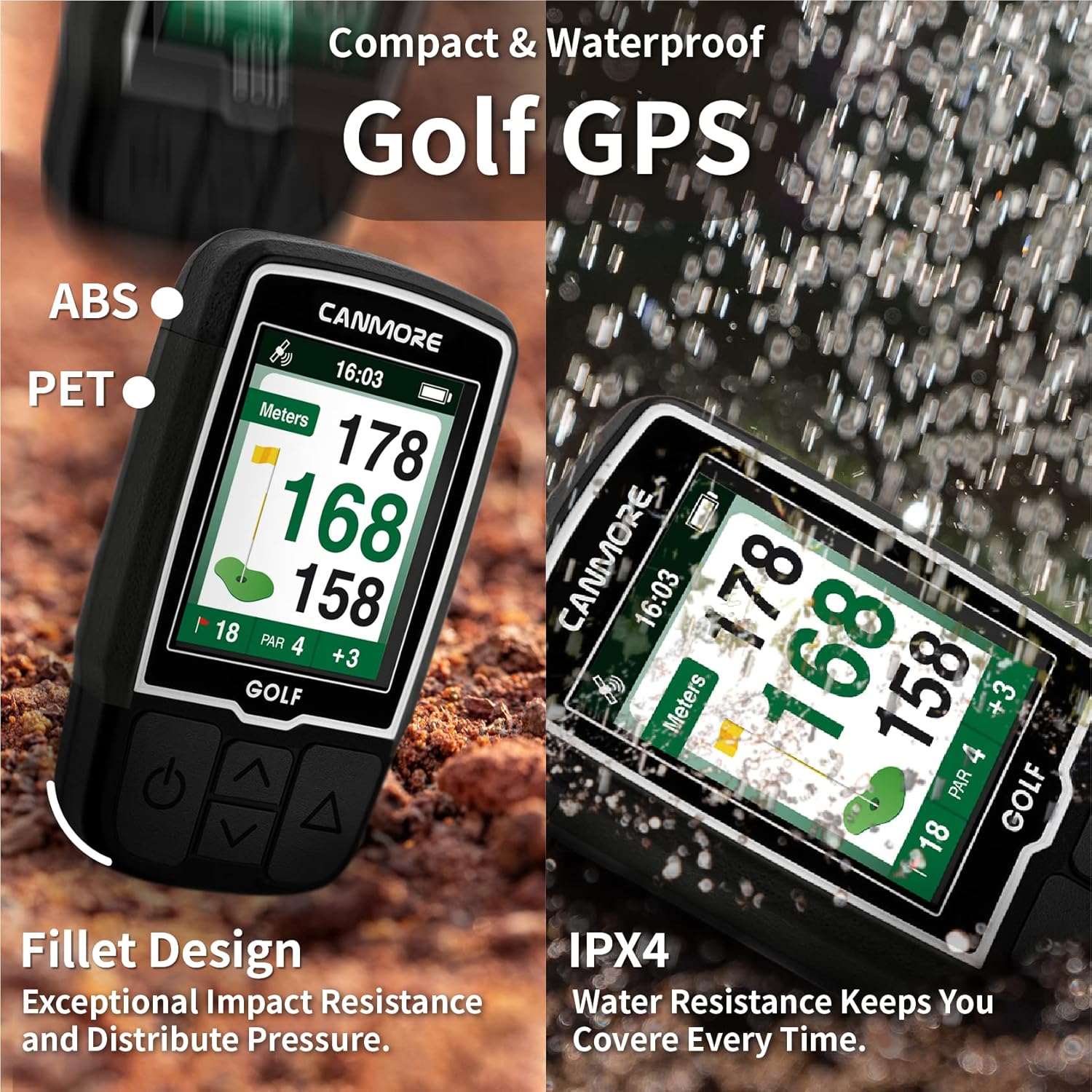
Figure 8: The CANMORE HG200 is designed to be compact and waterproof (IPX7). Its fillet design provides exceptional impact resistance.
8. Troubleshooting
If you encounter issues with your CANMORE HG200, refer to the following common problems and solutions:
| Problem | Possible Cause / Solution |
|---|---|
| Distance measurement displays "---" | This indicates a low battery level. Connect the device to power to recharge. The watch enters power reserve mode at low battery, reducing GPS range. |
| GPS not locating positions accurately | Ensure the device is in an open area with no obstructions. Update to the latest firmware for improved GPS accuracy. |
| Device not charging | Verify you are using a 5V USB power source. Clean the charging connectors to remove any sweat or dirt that might be obstructing the connection. |
| Automatic hole advance not working | Ensure you have the latest course maps and firmware installed. Sometimes, manual advancement may be required if the GPS signal is weak or obstructed. |
For further assistance, please refer to the support section on the Canmore Official Website.
9. Specifications
| Feature | Detail |
|---|---|
| Product Dimensions | 1.57 x 0.59 x 2.19 inches |
| Item Weight | 2.65 ounces |
| Display | 2-inch Full Color LCD |
| Water Resistance | IPX7 Rated Waterproof |
| Battery | 1 Lithium Polymer battery (included) |
| Connectivity | USB |
| Preloaded Courses | Over 41,000 worldwide |
| Model Name | HG200 |
| Manufacturer | CANMORE |
10. Warranty and Support
CANMORE offers a "One Time Purchase, Lifetime Service" commitment for the HG200 Golf GPS. This includes free weekly course updates with no subscription fees, and troubleshooting support for GPS connection, charging, shutdown, and other issues.
Benefit from regular firmware updates and stay informed with the latest product information on the Canmore Official Website.

Figure 9: Screenshot of the CANMORE support page, highlighting the "One Time Purchase, Lifetime Service" commitment.


