
Introduction
This manual provides comprehensive instructions for the HyperX Alloy Origins Mechanical Gaming Keyboard. It covers product features, setup procedures, operational guidelines, maintenance tips, troubleshooting solutions, and detailed specifications. Please read this manual thoroughly to ensure optimal performance and longevity of your keyboard.

Image: The HyperX Alloy Origins Mechanical Gaming Keyboard, showcasing its full layout and vibrant RGB backlighting.
Package Contents
Verify that all items are present in your product package:
- HyperX Alloy Origins Mechanical Gaming Keyboard
- Detachable USB Type-C to Type-A Cable
- Quick Start Guide
- Warranty Card
- Welcome Card from HyperX
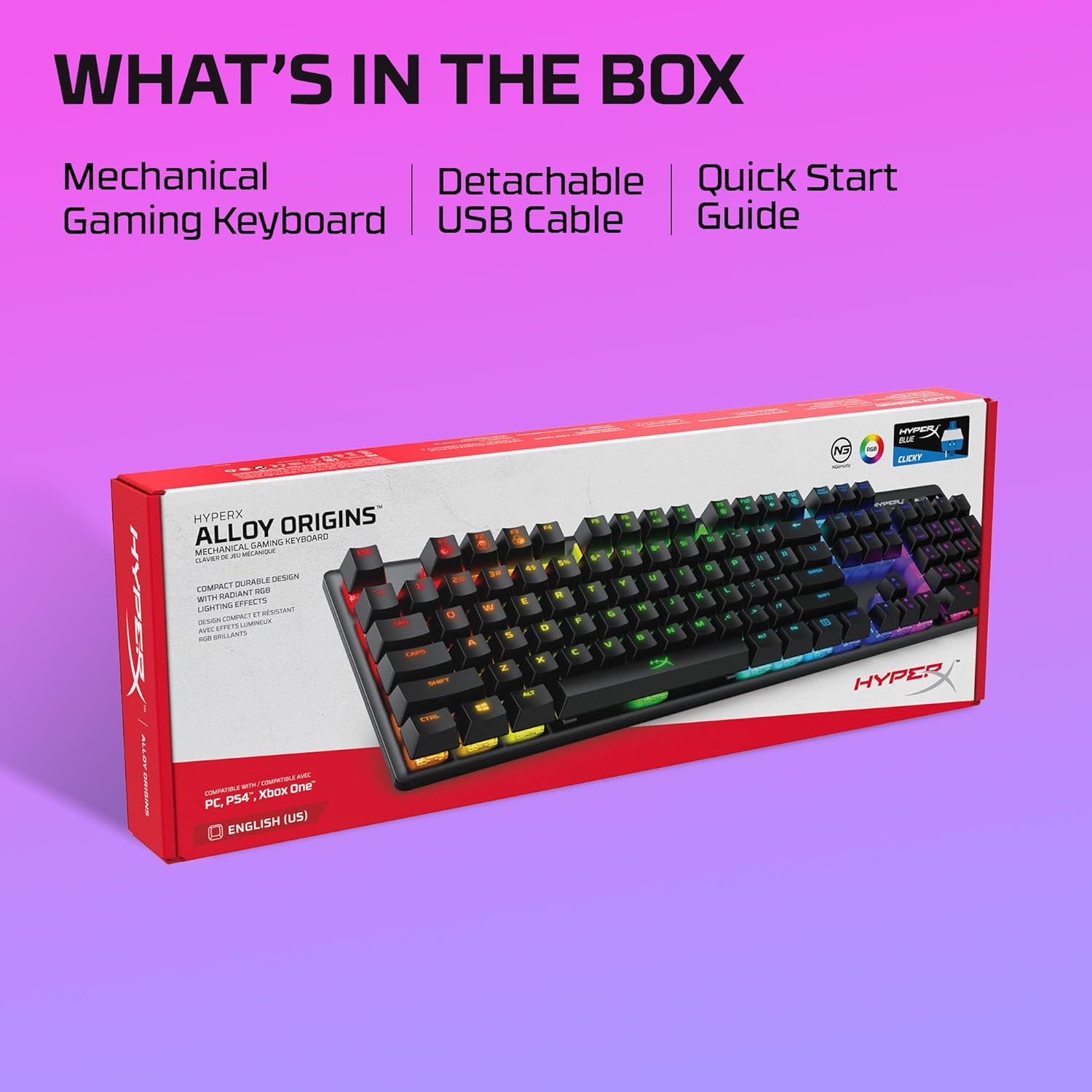
Image: The retail box for the HyperX Alloy Origins keyboard, indicating the included mechanical gaming keyboard, detachable USB cable, and quick start guide.
Setup
- Connect the Keyboard: Connect the detachable USB Type-C end of the provided cable to the keyboard and the USB Type-A end to an available USB port on your computer or compatible gaming console.
- Driver Installation: The keyboard is plug-and-play. For advanced customization, download the HyperX NGENUITY Software from the official HyperX website.
- Compatibility: The keyboard is compatible with Windows® 10, 8.1, 8, 7; PS4; and Xbox One.

Image: A close-up view of the HyperX Alloy Origins keyboard's USB Type-C port and the detachable braided cable, highlighting its easy connectivity.
Operating Instructions
Key Functions and Features
- HyperX Mechanical Switches: The keyboard features custom-designed HyperX Blue mechanical switches, known for their clicky tactile feedback and durability, rated for 80 million keypresses.
- RGB Backlighting: Enjoy per-key RGB lighting with radiant effects. The exposed LED design of the switches enhances brightness. There are 5 adjustable brightness levels.
- Onboard Memory: Save up to three custom profiles directly to the keyboard's onboard memory, allowing you to carry your personalized settings wherever you go.
- Adjustable Tilt Angles: Customize your typing or gaming posture with three adjustable keyboard tilt angles (3°, 7°, or 11°) using the two-step keyboard feet.
- Game Mode: Activate Game Mode to prevent accidental interruptions during gameplay, such as minimizing the game by pressing the Windows key.
- 100% Anti-Ghosting and N-Key Rollover: These features ensure that every keypress is registered accurately, even during rapid, simultaneous inputs.

Image: The HyperX Alloy Origins keyboard displaying its vibrant RGB lighting effects, alongside a screenshot of the HyperX NGENUITY software interface for customization.
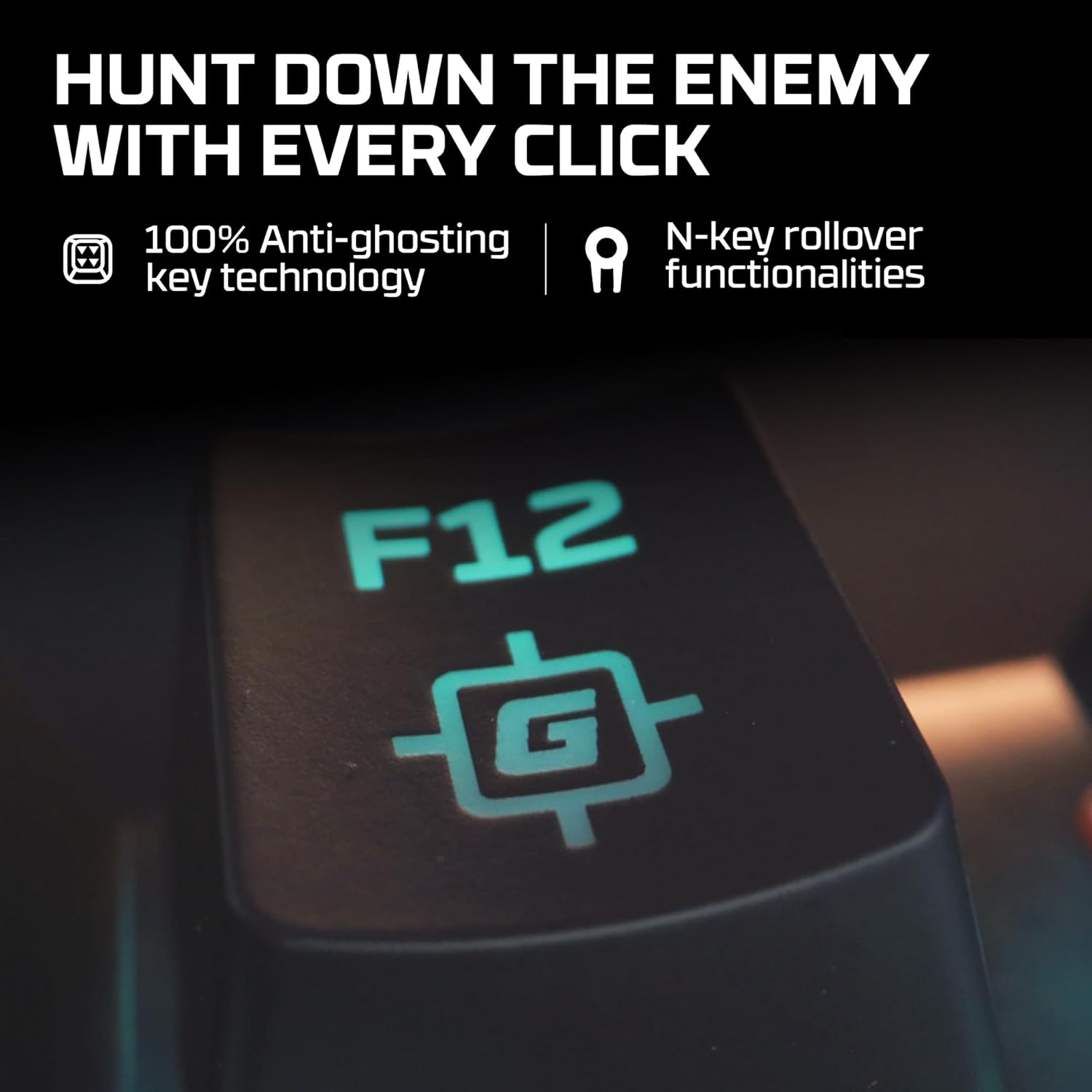
Image: A close-up of the F12 key on the HyperX Alloy Origins keyboard, featuring a gaming icon, symbolizing the 100% anti-ghosting and N-key rollover technologies.

Image: The HyperX Alloy Origins keyboard in use, demonstrating its compatibility with PlayStation and Xbox consoles, as well as Windows PC.
Customization with HyperX NGENUITY Software
The HyperX NGENUITY software provides advanced customization options for your keyboard:
- Lighting Effects: Create and apply custom RGB lighting patterns and effects for individual keys or zones.
- Macro Creation: Program complex key sequences and assign them to single keys for quick execution.
- Game Mode Settings: Configure which keys are disabled in Game Mode to prevent accidental presses.
- Profile Management: Manage and save your custom settings as profiles, which can be stored on the keyboard's onboard memory.
Download the latest version of HyperX NGENUITY from the official HyperX website for the full range of customization features.
Maintenance
To maintain the performance and appearance of your HyperX Alloy Origins keyboard, follow these guidelines:
- Cleaning: Use a soft, lint-free cloth to wipe the keyboard surface. For deeper cleaning, use compressed air to remove dust and debris from between the keycaps. Avoid using harsh chemicals or abrasive materials.
- Keycap Removal: If necessary, keycaps can be carefully removed using a keycap puller for thorough cleaning. Exercise caution to avoid damaging the switches.
- Cable Care: Ensure the detachable USB cable is not bent sharply or subjected to excessive strain to prevent damage.
Troubleshooting
If you encounter issues with your HyperX Alloy Origins keyboard, refer to the following common solutions:
- Keyboard Not Responding:
- Ensure the USB cable is securely connected to both the keyboard and the computer/console.
- Try connecting the keyboard to a different USB port.
- Test the keyboard on another computer or console to rule out system-specific issues.
- RGB Lighting Not Working/Incorrect:
- Check the brightness settings on the keyboard (usually via function keys).
- Ensure the HyperX NGENUITY software is updated to the latest version.
- Reset the keyboard to factory defaults (refer to the Quick Start Guide for specific instructions).
- Keys Not Registering:
- Clean around the affected key to ensure no debris is obstructing the switch.
- If using NGENUITY, ensure no macros or key reassignments are interfering with the key's function.
- Software Issues:
- Reinstall the HyperX NGENUITY software.
- Ensure your operating system is up to date.
For further assistance, visit the official HyperX support website or contact customer service.
Specifications
| Brand | HyperX |
| Model Name | HyperX Alloy Origins |
| Model Number | HX-KB6BLX-US (4P5P0AA#ABA) |
| Keyboard Type | Mechanical Gaming Keyboard |
| Switch Type | HyperX Blue Mechanical Switches (Clicky) |
| Connectivity | USB Type-C to Type-A (Detachable Cable) |
| Material | Full Aircraft-Grade Aluminum Body |
| Dimensions (LxWxH) | 44.2 x 13.2 x 3.8 cm (17.4 x 5.2 x 1.5 inches) |
| Weight | 1.09 kg (2.4 lbs) |
| Backlighting | Per-key RGB LED |
| Onboard Memory | 3 Profiles |
| Special Features | Ergonomic design, Game Mode, 100% Anti-Ghosting, N-Key Rollover, Adjustable Tilt Angles |
| Compatible Devices | Windows® 10, 8.1, 8, 7; PS4; Xbox One |

Image: A diagram illustrating the dimensions (width, depth, height) and weight of the HyperX Alloy Origins keyboard.

Image: A detailed view of a HyperX Blue mechanical switch, highlighting its click-style mechanism and design.
Warranty and Support
The HyperX Alloy Origins Mechanical Gaming Keyboard comes with a 2-year warranty. This warranty covers manufacturing defects and ensures free technical support during the warranty period.
For warranty claims, technical assistance, or additional product information, please visit the official HyperX support website or contact their customer service department. Keep your proof of purchase for warranty validation.


