
Introduction
The Jansite 10'' Mirror Dash Cam is designed to provide comprehensive front and rear vehicle surveillance, enhancing driving safety and recording important moments on the road. This manual provides detailed instructions for setup, operation, and maintenance of your new dash cam.
Key Features
- Dual 1080P Front and Rear Camera: High-definition streaming technology for ultra-clear video capture, including license plates from a distance.
- 33ft Long Camera Cable: Unique extended cable to solve short camera cable issues during installation.
- 10'' IPS Streaming Media Full Touch Screen: Provides a wider view than traditional rearview mirrors with intuitive touch controls for various operations.
- Super Night Vision: Upgraded 6-layer glass lens for clear videos in low light conditions.
- Parking Assistance: Auto-display of backup camera image with park assist lines for safer parking.
- Loop Recording & G-Sensor: Automatically overwrites old files when the SD card is full, and locks important video files during collisions.
- Supports 128G SD Card Max: Allows for recording more important moments (SD card not included).
- Parking Monitor Functions: Acts as a surveillance system when the vehicle is off (requires optional hardwire kit).
Setup and Installation
Package Contents
- Jansite 10'' Mirror Dash Cam (Front Camera Integrated)
- Rear Camera with 33ft Cable
- Car Charger
- Mounting Straps (Bandage)
- User Manual

Image: The main mirror DVR unit with the car charger, rear camera, mounting straps, and user manual.
Installation Steps
- Mount the Mirror Dash Cam: Securely attach the 10'' mirror dash cam over your existing rearview mirror using the provided rubber straps. Ensure the front camera lens is unobstructed.
- Install the Rear Camera: Mount the IP68 waterproof rear camera at the rear of your vehicle. Connect it to the main dash cam unit using the 33ft cable. This cable is designed to reach the back of most vehicles.
- Power Connection: Connect the car charger to the dash cam and plug it into your vehicle's cigarette lighter socket. For 24-hour parking monitoring, an optional Jansite hardwire kit (ASIN: B09B92KRXL) is required.
- Route Cables: Carefully route all cables along the vehicle's interior trim to keep them tidy and out of the way, ensuring they do not interfere with driving.
- Insert SD Card: Insert a Class 10 or higher MicroSD card (maximum 128GB, not included) into the designated slot on the dash cam. Format the SD card before first use via the dash cam's settings.

Image: Examples of the dash cam installed in different car interiors, showing the mirror unit and cable routing.
Important Note: Before purchasing, confirm your original rearview mirror size and weight capacity, as the mirror dash cam weighs 0.72lb (326g) and has specific dimensions (9.06inch/230mm wide at top, 10.24inch/260mm wide at bottom).
Operating Instructions
Basic Operations
- Power On/Off: The dash cam will automatically turn on and start recording when power is supplied (e.g., when the car starts). To manually turn it off, push the power button for a few seconds.
- Touch Screen Controls: The 10-inch full touch screen allows for easy navigation and control.
Touch Screen Gestures
- Switch Camera Views: Slide your finger left or right on the screen to switch between front camera view, rear camera view, or a split-screen display of both.
- Adjust Viewing Angle: Slide your finger up or down on the screen to adjust the vertical viewing angle of the displayed camera feed.
- Access Menu/Settings: Tap the screen to reveal icons for video recording, playback, exposure adjustment, screen brightness adjustment, date/time settings, and more.
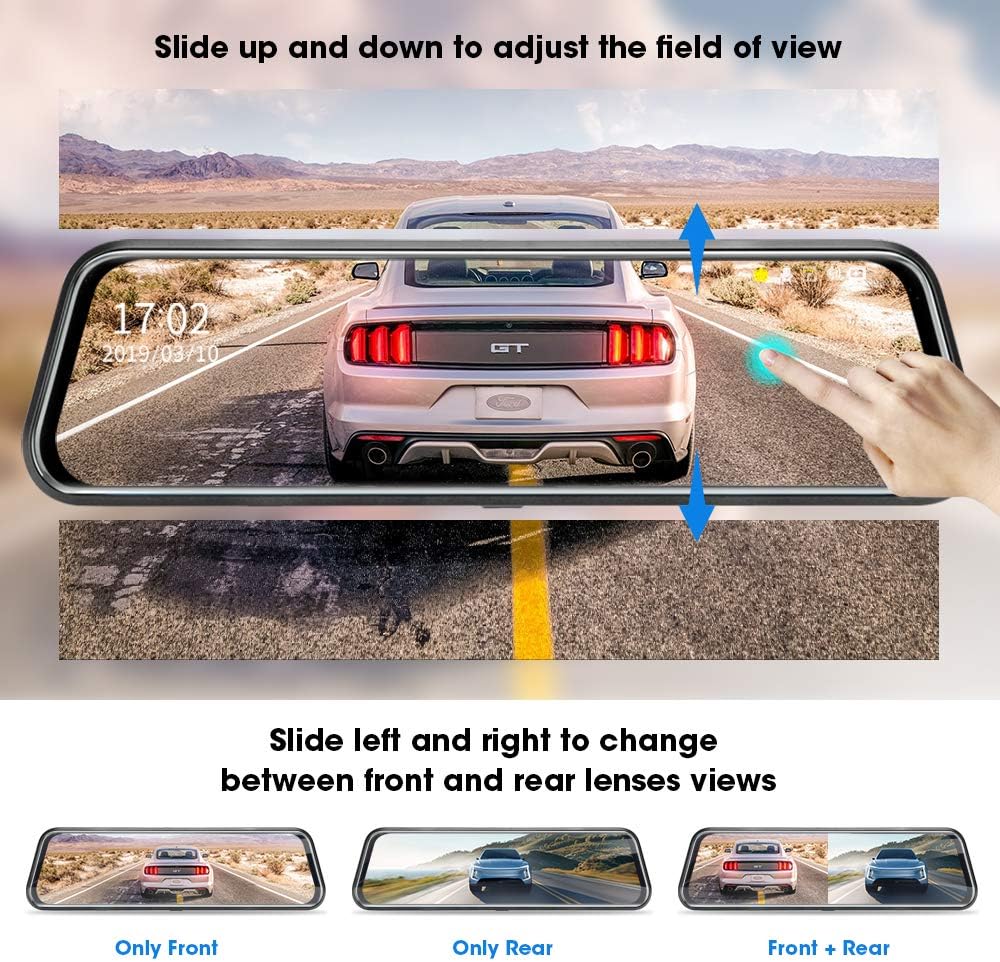
Image: Demonstrates sliding up/down to adjust field of view and sliding left/right to change between front, rear, or combined views.
Driving and Parking Features
- Loop Recording: When the SD card is full, the dash cam will automatically overwrite the oldest video files to continue recording, ensuring continuous operation.
- G-Sensor: In the event of a collision, the built-in G-Sensor will automatically detect the impact and lock the current video file, preventing it from being overwritten by loop recording.
- Parking Monitor: When enabled (with optional hardwire kit), the dash cam acts as a surveillance camera system, recording events while the vehicle is parked and off.
- Reverse Image with Parking Assistance: When reversing, the mirror dash cam automatically displays the backup camera image in full screen with adjustable park assist lines to guide you.
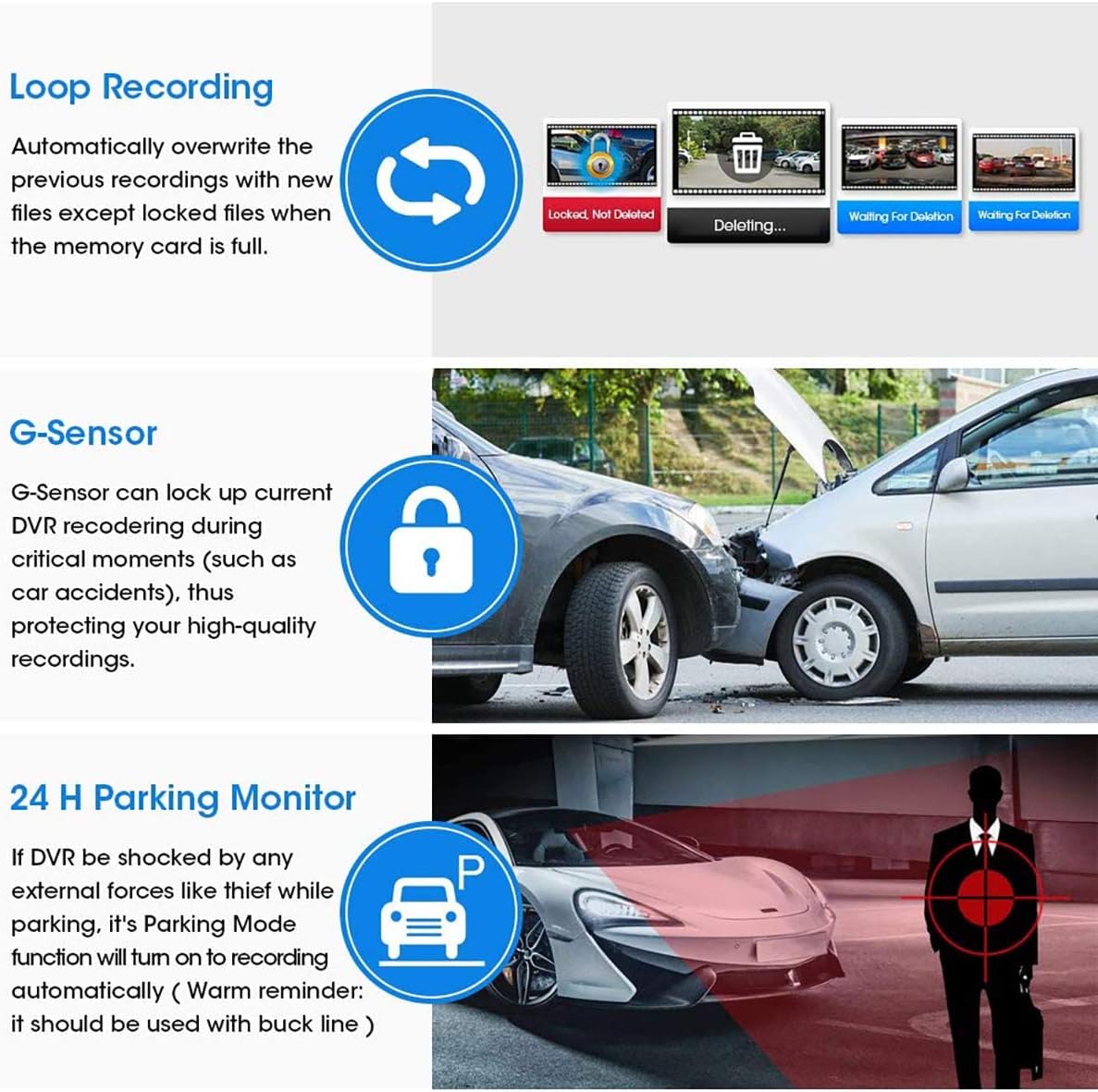
Image: Shows the full-screen reverse image with colored parking assist lines for easy parking.
Maintenance
- SD Card Formatting: It is recommended to format the MicroSD card regularly (e.g., once a month) to maintain optimal recording performance and prevent data corruption. Always format the card using the dash cam's menu.
- Cleaning: Use a soft, dry cloth to clean the dash cam screen and lenses. Avoid using abrasive cleaners or solvents that could damage the device.
- Firmware Updates: Check the official Jansite website periodically for any available firmware updates to ensure your dash cam has the latest features and bug fixes.
Troubleshooting
- Screen Glare/Reflection at Night: The display's reflectivity has been optimized to reduce glare from headlights of cars behind you at night. When the display is turned off, it cannot be used as a traditional mirror due to this optimization.
- Short Rear Camera Cable: The dash cam is equipped with a unique 33ft rear view camera cable to address common short cable issues during installation in larger vehicles.
- Display Not Working/Freezing: Ensure the power connection is stable. Try restarting the device by pushing the power button for a few seconds. If the issue persists, try formatting the SD card or using a different compatible SD card.
- Backup Camera Offset/Useless in Reverse: Some users have reported the camera image being offset. Ensure the camera is mounted as centrally as possible. The display range can be manually adjusted up or down to achieve the best field of view.
- Daytime Glare on Screen: In bright daylight, the screen may be difficult to view. Adjust the screen brightness via the touch screen controls.
Product Specifications
| Product Dimensions | 2 x 10.2 x 3 inches |
| Item Weight | 4.5 ounces |
| Model Number | Dash cam |
| Batteries | 1 Lithium Polymer batteries required (included) |
| Connectivity Technology | USB |
| Special Features | Crash sensor, Simultaneous recording |
| Color | Black |
| Manufacturer | Jansite |
| Field Of View | 140 Degrees |
| Video Capture Resolution | 1080p |
Warranty and Support
For warranty information and technical support, please refer to the documentation included with your product packaging or visit the official Jansite website. Keep your purchase receipt as proof of purchase for any warranty claims.


