
1. Introduction
Thank you for choosing the LIANGSTAR Laptop Cooling Pad. This device is designed to enhance your laptop's performance and longevity by providing efficient cooling and an ergonomic setup. Featuring two quiet fans with dynamic RGB lighting, a slim profile for portability, and a versatile USB design, this cooling pad is suitable for notebooks ranging from 11 to 15.6 inches.
2. Product Features
- Dual Quiet Fans: Equipped with two large 125mm fans operating quietly to prevent laptop overheating.
- RGB Lighting: Features 7-color changing RGB lights for an enhanced visual experience.
- Slim & Portable Design: Weighing approximately 1.43 lbs and only 0.98 inches thick, it is easy to carry in a bag or backpack.
- Unique USB Port Design: Includes a composite USB power interface with one port for powering the cooler and another for connecting other devices.
- Integrated Cable Storage: A hidden storage design on the back keeps the USB cable neatly tucked away.
- Ergonomic Adjustments: Offers two levels of height adjustment for comfortable use and improved posture.
- Non-Slip Holders: Two adjustable non-slip holders prevent your laptop from sliding on inclined surfaces. Four thickened anti-skid pads on the back ensure stability.
- Metal Mesh Surface: A large metal mesh surface facilitates better airflow and faster cooling.
- Wide Compatibility: Compatible with most 11-inch to 15.6-inch notebooks, including popular brands like Dell, MacBook Pro, Alienware, ThinkPad, Lenovo, HP, and ASUS.
3. Setup Instructions
- Unpack the Cooling Pad: Carefully remove the LIANGSTAR Laptop Cooling Pad from its packaging.
- Extend Non-Slip Holders: Locate the two non-slip holders at the front of the cooling pad. Gently pull them out to secure your laptop.
- Adjust Height (Optional): On the underside of the cooling pad, extend the adjustable feet to select one of the two available height levels for your preferred ergonomic angle.
- Connect USB Power: Retrieve the integrated USB cable from its storage compartment on the back of the cooling pad. Plug the USB-A connector into an available USB port on your laptop. The fans will begin to spin, and the RGB lights will illuminate.
- Place Your Laptop: Carefully place your 11-inch to 15.6-inch laptop onto the cooling pad, ensuring it rests securely against the extended non-slip holders.

Figure 1: Adjustable height settings on the cooling pad.

Figure 2: USB port design with integrated cable storage.
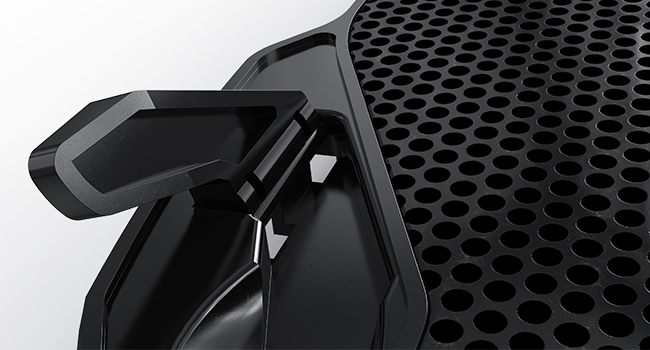
Figure 3: Non-slip baffle to secure the laptop.
4. Operating Instructions
- Power On: Once the USB cable is securely connected to your laptop, the cooling pad will automatically power on. The fans will start rotating, and the RGB lights will illuminate.
- Fan Operation: The two large fans operate at a fixed speed of approximately 1200 RPM to provide consistent cooling. There is no manual speed adjustment.
- RGB Lighting: The cooling pad features dynamic RGB lighting that cycles through 7 different colors automatically. There is no manual control for the lighting patterns or colors.
- Additional USB Port: The cooling pad includes an additional USB port. You can use this port to connect other USB devices, such as a mouse, keyboard, or external drive, without losing a port on your laptop.

Figure 4: LIANGSTAR Cooling Pad in operation with RGB fans.
5. Maintenance
To ensure optimal performance and longevity of your LIANGSTAR Laptop Cooling Pad, follow these maintenance guidelines:
- Regular Cleaning: Periodically clean the metal mesh surface and fan blades to prevent dust accumulation, which can hinder airflow and cooling efficiency. Use a soft, dry cloth or a can of compressed air.
- Avoid Liquids: Do not use liquid cleaners directly on the fans or any electrical components. If necessary, slightly dampen a cloth with water or a mild cleaner and wipe the exterior surfaces.
- Cable Care: When not in use, store the USB cable in its designated hidden compartment to prevent damage.
- Storage: Store the cooling pad in a cool, dry place away from direct sunlight and extreme temperatures.
6. Troubleshooting
- Fans Not Spinning / Lights Not On:
- Ensure the USB cable is securely connected to both the cooling pad and a powered USB port on your laptop.
- Try connecting the cooling pad to a different USB port on your laptop or another USB power source (e.g., a wall adapter) to rule out a faulty port.
- Verify that the USB cable itself is not damaged.
- Insufficient Cooling:
- Check that your laptop's intake and exhaust vents are not blocked by the cooling pad or other objects.
- Ensure the cooling pad's fans are free from obstructions and dust. Refer to the Maintenance section for cleaning instructions.
- Confirm that the cooling pad is placed on a flat, stable surface to allow for proper airflow.
- Laptop Sliding Off the Pad:
- Ensure the two non-slip holders at the front of the cooling pad are fully extended and properly supporting the front edge of your laptop.
- Verify that the four thickened anti-skid pads on the back of the cooling pad are intact and providing sufficient grip on your surface.
- Loose USB Connection:
- If the USB connection feels loose, try a different USB port on your laptop.
- Ensure the USB cable is fully inserted into both the cooling pad and the laptop port.
7. Specifications
| Feature | Specification |
|---|---|
| Product Dimensions | 14.2 x 10.4 x 0.98 inches |
| Item Weight | 1.43 pounds |
| Fan Dimensions | 125mm x 125mm x 15mm (each fan) |
| Fan Speed | 1200 ± 15% RPM |
| Power Supply | USB 5V DC |
| Material | Metal (surface) |
| Compatibility | 11" - 15.6" notebooks |
8. Warranty and Support
For any questions or concerns regarding your LIANGSTAR Laptop Cooling Pad, please contact the seller or manufacturer directly. While specific warranty details are not provided in this manual, the manufacturer is committed to customer satisfaction.