1. Introduction
Thank you for choosing the PICTRON ULANZI ST-14 Cell Phone Tripod Mount. This all-aluminum smartphone holder is designed for durability and versatility, offering secure phone mounting with a 360° rotatable ball head, cold shoe, and integrated desktop support legs. This manual provides essential information for proper setup, operation, and maintenance to ensure optimal performance.

Figure 1: PICTRON ULANZI ST-14 Cell Phone Tripod Mount
2. Product Overview
The ULANZI ST-14 features a robust aluminum construction for enhanced stability and longevity. Key components and features include:
- Adjustable Phone Clamp: Securely holds smartphones with widths up to 3.93 inches (10cm), accommodating various models even with cases.
- 360° Rotatable Ball Head: Allows for flexible positioning of your phone in landscape or portrait mode and various shooting angles without removing the device.
- Cold Shoe Mount: Located on top, it enables attachment of accessories like microphones or LED lights.
- 1/4" Screw Ports: Multiple 1/4" screw ports on the back and bottom for connecting to tripods, magic arms, or other peripherals.
- Integrated Desktop Support Legs: Magnetic, hidden legs provide stable desktop support for hands-free use, ideal for live streaming or video calls.
- Arca-Swiss Compatible Base: Standard square Arca quick release plate port for quick installation on compatible tripods.

Figure 2: Detailed view of the ULANZI ST-14 components
3. Setup
- Attaching Your Smartphone:
- Locate the red lock switch on the side of the phone clamp. Slide it to the 'unlock' position.
- Extend the phone clamp by pulling the top section upwards.
- Place your smartphone between the non-slip silicone pads of the clamp.
- Gently push the top section down until it securely holds your phone. Slide the red lock switch to the 'lock' position to prevent accidental release.
- For finer adjustment, use the red knob at the top to tighten the clamp further, ensuring a snug fit.
- Attaching to a Tripod/Monopod:
- The base of the ST-14 features a standard 1/4" screw port. Screw this onto your tripod or monopod's 1/4" screw.
- Alternatively, if your tripod has an Arca-Swiss compatible quick release plate, the ST-14's base can be directly inserted and locked into place.
- Using the Desktop Support Legs:
- The ST-14 has magnetic, hidden desktop support legs. Gently pull out the small leg from the bottom of the mount.
- Insert the leg into the designated slot on the base to create a stable stand for desktop use.
- When not in use, the leg magnetically snaps back into its storage position.
- Attaching Accessories (Microphone/LED Light):
- The top of the phone clamp features a cold shoe mount. Slide your compatible microphone or LED light into this mount.
- Ensure the accessory is securely seated in the cold shoe.
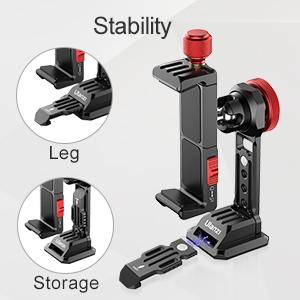
Figure 3: Phone clamp extension for various phone sizes
4. Operating Instructions
- Adjusting Phone Orientation and Angle:
- The ST-14 features a 360° rotatable ball head. Loosen the red ball head adjustment knob on the side.
- Adjust your phone to the desired landscape or portrait orientation, or any other angle.
- Tighten the red ball head adjustment knob to secure the phone in position.
- Using with Arca-Swiss Tripods:
- The integrated Arca-Swiss compatible base allows for quick attachment and detachment from compatible tripod heads.
- Ensure the quick release mechanism on your tripod head is properly engaged to secure the mount.

Figure 4: 360° Ballhead Rotation
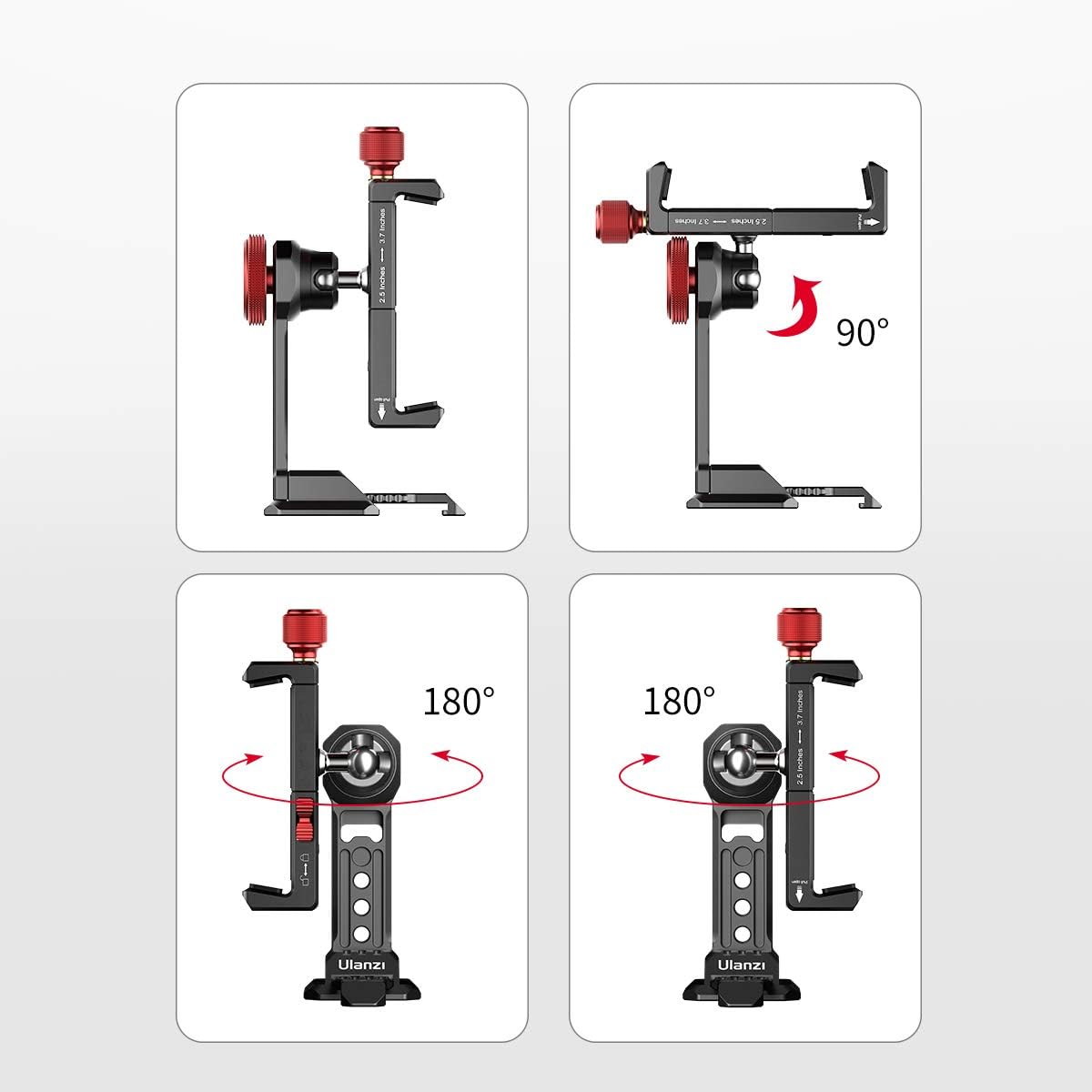
Figure 5: Various angle adjustments
5. Maintenance
- Cleaning: Use a soft, dry cloth to wipe the mount. Avoid abrasive cleaners or solvents that may damage the finish.
- Storage: Store the mount in a dry, cool place away from direct sunlight and extreme temperatures.
- Inspection: Periodically check all knobs and screws to ensure they are tight and secure.
6. Troubleshooting
- Phone not holding securely:
- Ensure the red lock switch is in the 'lock' position.
- Tighten the red knob at the top of the clamp to apply more pressure.
- Verify your phone's width is within the 3.93" (10cm) maximum capacity.
- Ball head is loose/not holding angle:
- Ensure the red ball head adjustment knob is fully tightened after positioning.
- Desktop stand is unstable:
- Ensure the magnetic support leg is fully extended and inserted into the base slot.
- Place the mount on a flat, stable surface.
7. Specifications
| Feature | Detail |
|---|---|
| Product Dimensions | 10 x 2 x 2.7 inches |
| Item Weight | 5.3 ounces (150g) |
| Material | Aluminum Alloy |
| Phone Size Range | 6-10cm (2.36-3.93 inches) |
| Rotation | 360° (Ballhead) |
| Mounting Type | Tripod (1/4" screw), Arca-Swiss compatible |
| Special Features | Cold Shoe Mount, Magnetic Desktop Support Legs |
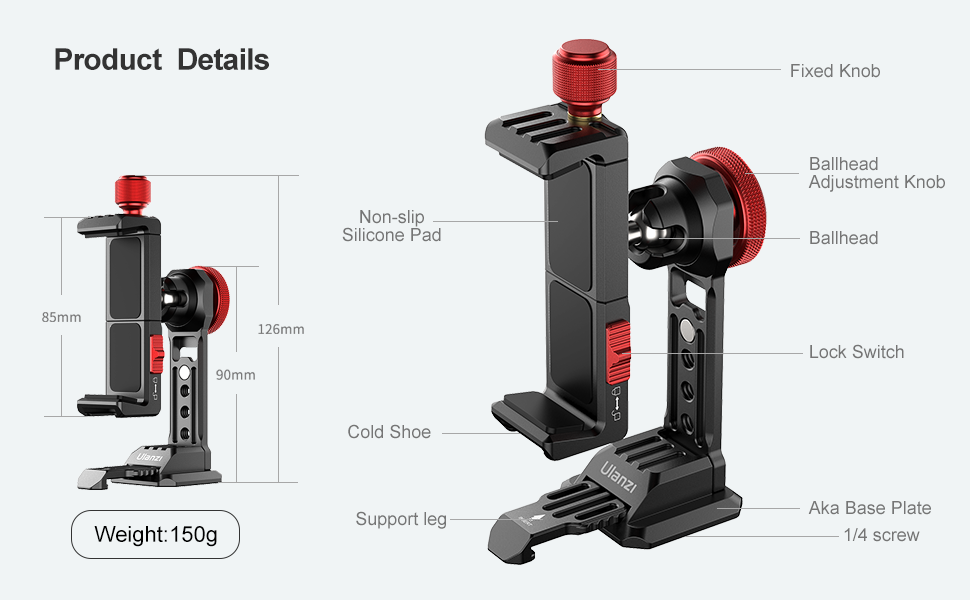
Figure 6: Product Specifications
8. Warranty and Support
This product comes with a standard manufacturer's warranty. For detailed warranty information, technical support, or service inquiries, please refer to the contact information provided with your purchase or visit the official PICTRON website. Please retain your proof of purchase for warranty claims.


