
Introduction
The GENBOLT 2.5K WiFi Outdoor Surveillance Camera (Model GB213K) is designed to provide comprehensive security for your home or property. Featuring 2.5K resolution, dual-band WiFi (2.4GHz & 5GHz), and Power over Ethernet (PoE) capabilities, this camera offers versatile installation options and high-quality monitoring. Key functionalities include color night vision, advanced humanoid detection with auto-tracking, active alarm defense, and two-way audio communication. This manual provides detailed instructions for setup, operation, maintenance, and troubleshooting to ensure optimal performance of your surveillance system.

Figure 1: GENBOLT 2.5K WiFi Outdoor Surveillance Camera (Model GB213K).
Setup
Package Contents
Before beginning installation, please verify that all components are present in the package:
- GENBOLT 2.5K WiFi Outdoor Surveillance Camera
- Power Adapter (12V)
- Ethernet Cable
- Waterproof Kit for Cable Connections
- Mounting Screws and Wall Plugs
- User Manual (this document)
- Drilling Template (if included)

Figure 2: Diagram showing the camera components and included accessories, such as the power adapter, Ethernet cable, waterproof kit, and mounting hardware.
Installation Guide
The camera can be installed using either a WiFi connection or a Power over Ethernet (PoE) connection. Choose the method that best suits your network infrastructure.
- Select Mounting Location: Choose an outdoor location that provides a clear view of the area you wish to monitor. Ensure the location is within range of your WiFi network or has access to an Ethernet cable for PoE. The camera is designed for wall mounting.
- Mount the Camera:
- Use the provided drilling template to mark the screw holes on the wall.
- Drill holes and insert the wall plugs.
- Secure the camera's mounting bracket to the wall using the provided screws.
- Connect Power:
- For DC Power: Connect the included 12V power adapter to the camera's power input and plug it into a suitable outdoor power outlet.
- For PoE (Power over Ethernet): Connect an Ethernet cable from a PoE-enabled switch or injector to the camera's Ethernet port. This single cable will provide both power and data.
- Network Connection:
- WiFi Connection: After powering on, the camera will enter setup mode. You will configure the WiFi connection through the mobile application.
- PoE Connection: The camera will automatically connect to the network via the Ethernet cable.
- Waterproof Connections: Use the provided waterproof kit to seal all cable connections (power and Ethernet) to prevent water ingress, ensuring the camera's longevity in outdoor conditions.

Figure 3: Illustration of Power over Ethernet (PoE) connection, demonstrating how a single Ethernet cable can provide both power and data to the camera, simplifying installation.
App Installation and Initial Setup
To manage and view your camera, download the official GENBOLT application on your smartphone or tablet. The camera also supports PC client software.
- Download the App: Search for "GENBOLT" in your device's app store (iOS App Store or Google Play Store) and install the application.
- Create an Account: Open the app and follow the prompts to create a new user account or log in if you already have one.
- Add Camera:
- Tap the "Add Device" or "+" icon within the app.
- Select your camera model or scan the QR code located on the camera body (if available).
- Follow the on-screen instructions to connect the camera to your WiFi network (if not using PoE). This typically involves selecting your WiFi network and entering the password. The camera supports both 2.4GHz and 5GHz bands.
- Configure Settings: Once connected, you can access live view and configure various settings such as recording preferences, motion detection zones, and alert notifications.

Figure 4: Screenshot of the GENBOLT mobile application interface, showing live camera feed and control options.
Operating the Camera
Key Features and Functions
2.5K Resolution and Color Night Vision
The camera captures video in 2.5K Full HD resolution, providing clear and detailed images. Equipped with 4 infrared LEDs and 4 spotlights, it offers three night vision modes:
- Infrared Night Vision: Standard black and white view in low light.
- Color Night Vision: Activates spotlights to provide full-color images even in complete darkness, up to 20 meters.
- Smart Night Vision: Automatically switches between infrared and color night vision based on detected motion.

Figure 5: Example of the camera's color night vision capability, illuminating a dark outdoor scene with integrated spotlights.
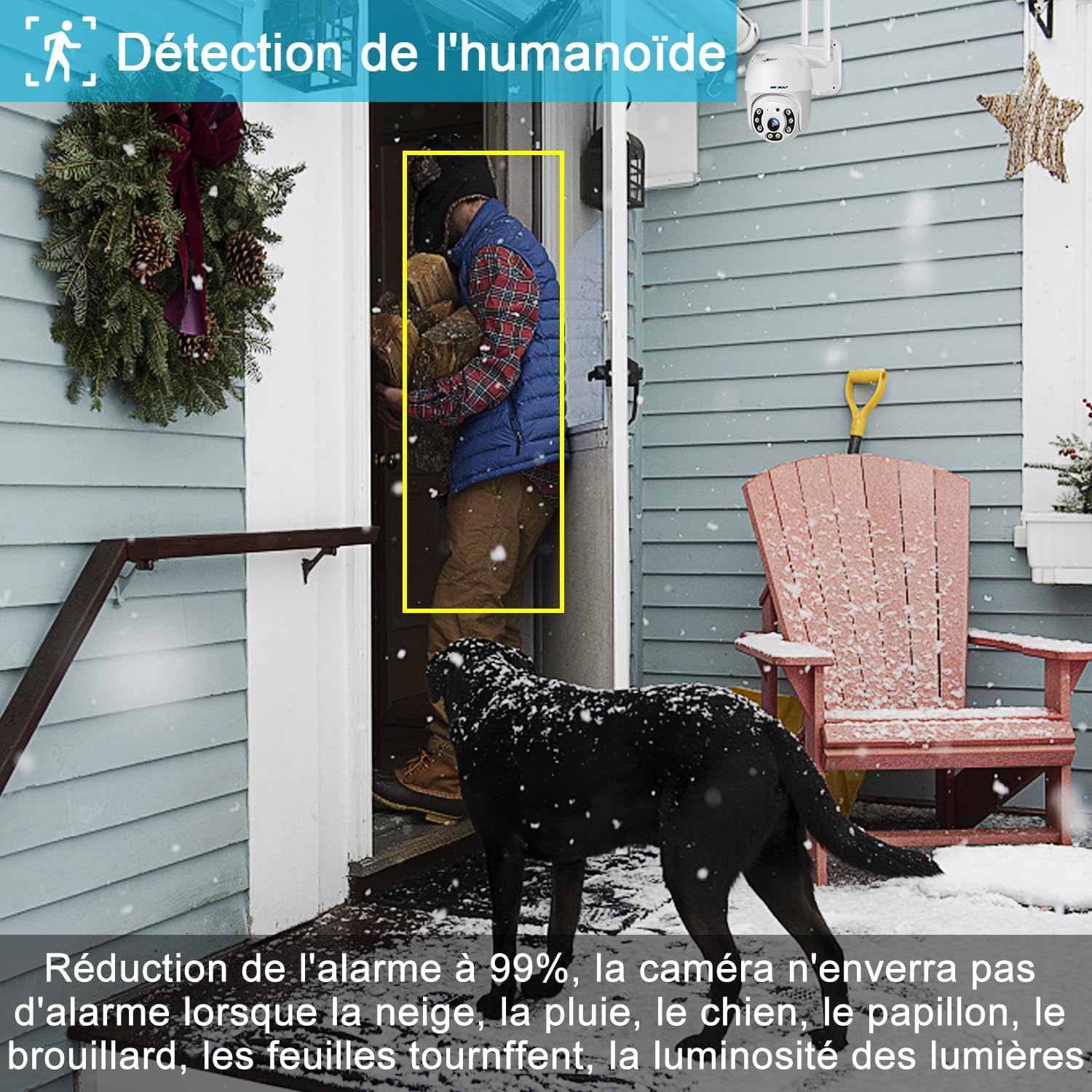
Figure 6: Visual comparison demonstrating the clarity and detail provided by infrared night vision, full-color night vision, and standard daytime vision.
Humanoid Detection and Auto-Tracking
The camera features advanced humanoid detection, which can distinguish human shapes from other moving objects (like animals or swaying branches), significantly reducing false alarms. When a human is detected, the camera can automatically track their movement across its 355° horizontal pan and 90° vertical tilt range, ensuring continuous surveillance of the subject.
- Customizable Detection Zones: Define specific areas (1 to 4 zones) within the camera's view where motion detection will be active, further minimizing irrelevant alerts.
- 4X Digital Zoom: Use the digital zoom feature to get closer details of detected subjects.

Figure 7: The camera's humanoid detection feature accurately identifying a person, reducing false alarms from other movements.

Figure 8: Demonstration of the automatic tracking function, where the camera follows the path of a detected human, providing continuous coverage.
Active Alarm and Light Defense
Upon detection of an intruder, the camera can activate a customizable siren and turn on its spotlights to deter unwanted visitors. Simultaneously, an alert notification will be sent to your smartphone, allowing you to view the live feed and recorded footage remotely.

Figure 9: The camera's active defense system, showing how the siren and spotlights are used to deter intruders upon detection.
Preset Points and Pan/Tilt Control
You can set multiple preset points within the camera's field of view. This allows for quick navigation to specific areas without manually adjusting the camera. The camera offers a wide pan range of 355° and a tilt range of 90°, providing extensive coverage of your surveillance area.
Dual-Band WiFi (2.4GHz/5GHz) and 24/7 Recording
The camera supports both 2.4GHz and 5GHz WiFi bands, offering flexibility for network connectivity. The 5GHz band provides faster speeds for smoother live viewing, while the 2.4GHz band offers a wider range. The camera supports continuous 24/7 recording to a TF card (up to 128GB, FAT32 format) with intelligent loop recording, including audio. It also supports multi-device connectivity, allowing access from smartphones, tablets, and PCs.
Two-Way Audio
Equipped with a high-power 3W/40mm speaker and a microphone, the camera enables clear two-way audio communication. This allows you to speak to visitors or deter intruders directly through the camera from your mobile device.
Maintenance
Cleaning and Care
To ensure optimal performance and image clarity, regular cleaning of your camera is recommended:
- Gently wipe the camera lens with a soft, lint-free cloth. Avoid abrasive materials or harsh chemicals that could scratch the lens.
- Clean the camera body with a damp cloth. Do not spray water directly onto the camera.
- Periodically check the mounting bracket and screws to ensure they remain secure.
Firmware Updates
GENBOLT regularly releases firmware updates to improve camera performance, add new features, and enhance security. It is recommended to keep your camera's firmware updated:
- Check for available updates within the GENBOLT mobile application or PC client.
- Follow the on-screen instructions to download and install updates. Ensure a stable power supply during the update process to prevent interruption.
Storage Management (TF Card)
If you are using a TF card for local storage, manage it periodically:
- The camera supports intelligent loop recording, automatically overwriting the oldest footage when the card is full.
- For optimal performance, it is recommended to format the TF card periodically through the camera settings in the app.
- Ensure the TF card is FAT32 formatted and has a capacity of 32GB, 64GB, or 128GB.
Troubleshooting
This section addresses common issues you might encounter and provides solutions.
| Problem | Possible Cause | Solution |
|---|---|---|
| Camera not powering on. | No power supply; faulty adapter/cable; loose connection. | Check power outlet. Ensure power adapter is securely connected. If using PoE, verify PoE switch/injector is active and Ethernet cable is functional. |
| Cannot connect camera to WiFi. | Incorrect WiFi password; camera too far from router; incorrect WiFi band selected; network interference. | Double-check WiFi password. Move camera closer to router. Ensure your router supports 2.4GHz or 5GHz and you are connecting to the correct band. Try restarting the camera and router. |
| Frequent false alarms. | Sensitive motion detection; non-human movement triggering alerts; detection zones too wide. | Adjust motion detection sensitivity in the app. Configure specific detection zones to exclude areas with frequent non-human movement (e.g., trees, busy roads). Ensure humanoid detection is enabled. |
| Poor image quality at night. | Lens obstruction; insufficient ambient light for color night vision; camera mode setting. | Clean the camera lens. Ensure spotlights are enabled for color night vision. Check if the camera is set to "Color Night Vision" or "Smart Night Vision" mode in the app. |
| Cannot access camera remotely. | Internet connection issue; app/firmware outdated; firewall settings. | Verify your home internet connection. Ensure your phone has a stable internet connection. Update the app and camera firmware to the latest versions. Check router firewall settings if necessary (advanced users). |
| Auto-tracking not working correctly. | Obstructions in camera's view; tracking feature disabled; software glitch. | Ensure there are no physical obstructions blocking the camera's movement. Verify that auto-tracking is enabled in the app settings. Restart the camera. |
Specifications
Below are the technical specifications for the GENBOLT 2.5K WiFi Outdoor Surveillance Camera (Model GB213K):
| Feature | Detail |
|---|---|
| Brand | GENBOLT |
| Model Name | GB213H (Note: Product model number is GB213K) |
| Video Recording Resolution | 1080p (Effective video resolution: 4MP) |
| Effective Fixed Resolution | 2 Megapixels |
| Connectivity Technology | Wi-Fi (2.4GHz & 5GHz Dual-Band) |
| Special Features | Motion Detector, Humanoid Detection, Auto-Tracking, Color Night Vision, Two-Way Audio, Active Alarm |
| Pan Angle | 355 degrees |
| Tilt Angle | 90 degrees |
| Installation Type | Wall Mount |
| Material | Metal |
| Power Source | Electric Cable (DC 12V) / Power over Ethernet (PoE) |
| Power Consumption | 5 Watt-hours |
| Dimensions (L x W x H) | 12 x 6 x 15 centimeters |
| Recommended Use | Outdoor Security |
| Compatible Devices | Smartphone (iOS/Android), PC (Windows/Mac) |
| Storage Support | TF Card (32/64/128 GB, FAT32) |
Warranty and Support
Warranty Information
GENBOLT products are backed by a commitment to quality and customer satisfaction:
- 30-Day Money Back Guarantee: If you are not satisfied with your purchase, you may be eligible for a refund or exchange within 30 days of receipt.
- 1-Year Limited Warranty: The camera is covered by a 1-year limited warranty from the date of purchase, covering manufacturing defects.
Customer Support
For any technical assistance, questions, or concerns regarding your GENBOLT camera, please contact our customer support team:
- 24/7 Lifetime Free Technical Support: Our dedicated support team is available around the clock to assist you.
- Refer to the GENBOLT official website or the contact information provided in the product packaging for the most up-to-date support channels (e.g., email, phone, live chat).

Figure 10: GENBOLT customer support team ready to assist with product inquiries.


