
1. Introduction
The ISWEEP X5 Robot Vacuum and Mop Cleaner is designed to provide comprehensive floor cleaning with both vacuuming and mopping capabilities. Featuring smart navigation for efficient path planning, high-frequency vibration mopping, and app control, the X5 ensures a thorough clean for various floor types, including carpets and hard floors. Its ultra-slim design allows it to clean under furniture, making it an ideal solution for daily maintenance of your home.
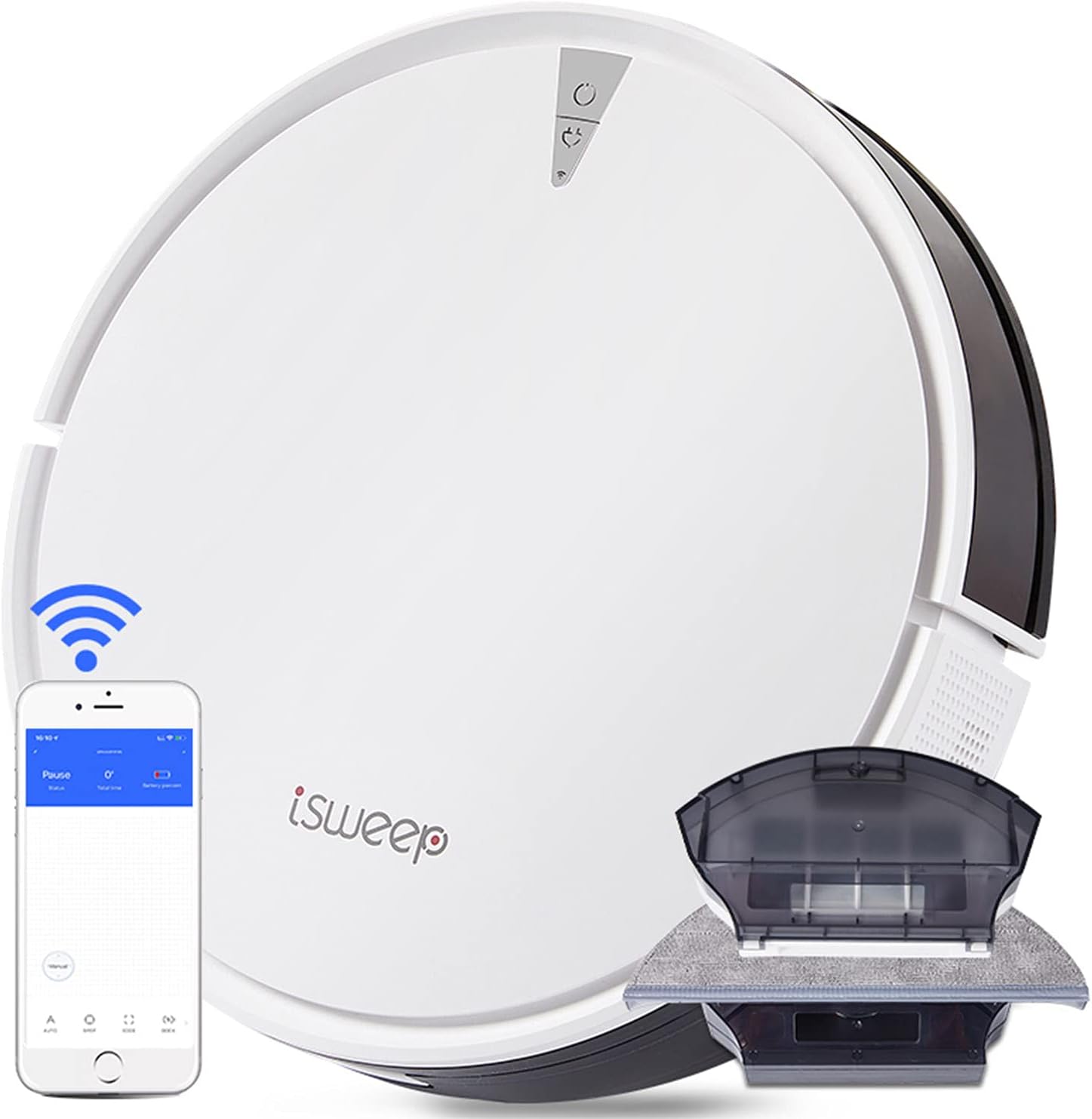
The ISWEEP X5 Robot Vacuum and Mop Cleaner, showcasing its sleek design and app connectivity.
2. What's in the Box
Upon unboxing your ISWEEP X5, please ensure all the following components are present:
- 1* X5 robot vacuum cleaner
- 1* Docking station
- 2* Side brushes
- 1* 350ML Water tank
- 1* 600ML dustbin
- 1* Washable Mop Pads
- 1* Sponge filter
- 1* Filter in the dustbin
- 1* Instruction manual

All components included with the ISWEEP X5 Robot Vacuum Cleaner.
Unboxing Video
This video demonstrates the unboxing process and highlights the contents of the ISWEEP X5 package.
3. Setup
Initial Charging
Place the docking station against a wall in an open, uncluttered area. Connect the power adapter to the docking station and plug it into a power outlet. Place the X5 robot vacuum onto the docking station to charge. Ensure the charging contacts on the robot align with those on the station. A full charge typically takes 4-6 hours.
Installing the Water Tank and Mop Cloth
The X5 offers both vacuuming and mopping functions. To use the mopping feature, you will need to install the water tank and mop cloth.
- Remove the dustbin from the robot.
- Fill the 350ML water tank with clean water.
- Attach the washable mop pad securely to the water tank.
- Insert the filled water tank with the attached mop pad into the robot until it clicks into place.

Easily switch between the dustbin and water tank for vacuuming or mopping.
Mop Function Installation Video
This video provides a step-by-step guide on how to install and use the mop function of the X5.
App Connection (TUYA Smart App)
The ISWEEP X5 can be controlled via a mobile application for enhanced functionality and scheduling. Please note that the robot requires a 2.4GHz Wi-Fi network for connection. 5GHz networks are not supported.
- Scan the QR code in the included App manual or search for "TUYA Smart" in your device's app store (available for Android and iPhone).
- Register an account and log in.
- Add a new device. Select "Small home appliances" then "Robot Vacuum (WIFI)".
- Turn on the robot vacuum. Press and hold both the power and recharge buttons for 3-5 seconds until the Wi-Fi light flashes, indicating it's ready for pairing.
- Follow the on-screen instructions in the app to complete the connection process.

Control your ISWEEP X5 with ease using the dedicated mobile application.
App Connection Video
This video guides you through the process of connecting your X5 robot vacuum to the mobile app.
4. Operating Instructions
The ISWEEP X5 offers various cleaning modes and features to ensure your home is spotless.
Cleaning Modes
- Auto Cleaning: The robot intelligently maps its surroundings and plans a zigzag path to clean an entire level of your home, ensuring comprehensive coverage and avoiding missed spots.
- Spot Cleaning: Ideal for concentrated dirty areas. The robot will clean in a spiral pattern around a specific spot.
- Edge Cleaning: The robot cleans along walls and furniture edges to ensure thorough cleaning of corners and perimeters.

The X5's smart navigation system plans an efficient zigzag cleaning path.
Vacuuming and Mopping
The X5 combines vacuuming and mopping functions. The vacuuming mode provides up to 2000Pa max suction, effective for pet hair and food fragments. The mopping mode utilizes a high-frequency vibration system (500 times per minute) for effective wet cleaning.

The intelligent mopping system with high-frequency vibration ensures thorough floor cleaning.
General Operation Video
This video provides an overview of the ISWEEP X5's sweeping and mopping capabilities, including various cleaning scenarios.
Additional Features
- Anti-Falling Sensor: Prevents the robot from falling down stairs or off elevated surfaces.
- Anti-Collision Design: Helps the robot navigate around obstacles without damaging furniture.
- Self-Charging: The robot automatically returns to its docking station when battery is low.
- Carpet Cleaning: Designed to easily transition and clean both carpets and hard floors.
- Ultra-Slim Body: At 3.5 inches high, it can clean under most furniture.

The X5 is designed to clean various floor types, including carpets.

Its ultra-thin design allows the X5 to clean effectively under furniture.
5. Maintenance
Regular maintenance ensures optimal performance and extends the lifespan of your ISWEEP X5.
Dustbin Cleaning
It is recommended to clean the dust/dirt bin after every vacuuming session, especially if you have pets. This prevents clogging and maintains suction power.
Mop Pad and Water Tank Care
After mopping, remove the mop pad and wash it thoroughly. Empty any remaining water from the water tank and allow it to air dry to prevent mold or odors.
Filter Maintenance
Regularly check and clean the sponge filter and the main filter in the dustbin. Replace filters as needed to maintain air quality and cleaning efficiency.
6. Troubleshooting
Here are solutions to common issues you might encounter with your ISWEEP X5:
- Wi-Fi Connectivity Issues: Ensure your router is broadcasting a 2.4GHz Wi-Fi signal. The X5 does not support 5GHz networks. If you have a dual-band router, you may need to temporarily disable the 5GHz band during setup or configure a separate 2.4GHz network.
- Robot Speaking in a Foreign Language: The robot's voice prompt language can be changed through the TUYA Smart App. Navigate to the robot's settings within the app to select your preferred language.
- Mop Function Not Working: Ensure the water tank is properly filled and installed. Check that the mop pad is securely attached. If the issue persists, verify that the water tank is correctly recognized by the robot. Refer to the "Installing the Water Tank and Mop Cloth" section for proper installation.
- Robot Getting Stuck: The X5 is designed to navigate around obstacles. If it frequently gets stuck, identify the specific areas (e.g., under low furniture, thick rugs) and consider placing virtual barriers or adjusting furniture to prevent recurrence.
- Robot Returns to Dock Immediately: This usually indicates a low battery. Ensure the docking station is properly powered and the robot's charging contacts are clean and aligned.
7. Specifications
| Feature | Detail |
|---|---|
| Brand | ISWEEP |
| Model | X5 |
| Special Feature | 2-in-1 Vacuuming and Mopping, Auto Recharge, Anti-Falling Sensor, Anti-Collision Design, Multiple Cleaning Modes, Cordless |
| Color | White |
| Product Dimensions | 12.6"L x 12.6"W x 3.5"H |
| Filter Type | Cartridge |
| Battery Life | 1000 Hours |
| Voltage | 14.4 Volts |
| Capacity (Dustbin) | 0.6 Liters |
| Capacity (Water Tank) | 0.35 Liters |
| Power Source | Battery Powered |
| Batteries Included | Yes (1 Lithium Ion) |
| Control Method | App |
| Item Weight | 13.2 pounds |
| Charging Time | 4-6 hours |
8. Warranty and Support
The ISWEEP X5 Robot Vacuum and Mop Cleaner comes with a worry-free 12-month warranty. For any technical support, troubleshooting assistance beyond this manual, or warranty claims, please refer to the contact information provided in your product's packaging or visit the official ISWEEP website.


