Introduction
The Govee H6003 Smart RGB Color Changing Wi-Fi LED Light Bulbs offer versatile lighting control for your home. These 9W A19 bulbs are 60W equivalent, providing 800 lumens of brightness. They feature RGB color changing capabilities, tunable white light (2700K-6500K), and dimmable functionality from 1% to 100%. Control is available via the Govee Home app, voice commands with Alexa and Google Assistant, and various preset scene modes. No additional hub is required for operation.
What's in the Box
- Govee H6003 Smart RGB Color Changing Wi-Fi LED Light Bulbs (2-pack)
- User Manual
Setup
1. Installation
Screw the Govee H6003 Smart LED Bulb into any standard E26 or E27 light socket. Ensure the power is off before installation.

Image: Govee H6003 Smart LED Bulb being screwed into a lamp socket.
2. App Download & Wi-Fi Connection
Download the Govee Home app from your smartphone's app store. Ensure your smartphone is connected to a 2.4GHz Wi-Fi network. 5GHz bands are not supported.
Video: Instructions on how to connect the Govee Smart Light Bulb to a 2.4GHz Wi-Fi network using the Govee Home app.
3. Pairing the Bulb
After installing the bulb, turn the light switch on and off five times. The bulb will slowly pulse warm white, indicating it has entered pairing mode. Open the Govee Home app, tap the '+' icon in the top right corner, and search for "H6003". Follow the in-app instructions to connect the bulb to your Wi-Fi network.

Image: Govee Home app interface displaying the Wi-Fi connection process for the smart bulb.
4. Voice Assistant Integration (Optional)
To connect with Alexa or Google Assistant, open the respective voice assistant app (Amazon Alexa or Google Home). Search for the "Govee Home" skill and enable it. Log in with your Govee Home account credentials. Once linked, discover devices, and your Govee bulbs will appear, ready for voice control.
Video: Guide on how to connect Govee Smart Light Bulbs with Amazon Alexa for voice control.
Operating
1. App Control
The Govee Home app provides comprehensive control over your smart bulbs. You can adjust brightness, change colors, select tunable white options, and apply various scene modes.

Image: Govee Home app interface demonstrating color and brightness adjustments for the smart bulb.
2. Color & Brightness Adjustment
- RGB Color Changing: Choose from over 16 million vivid colors to match your mood or decor.
- Tunable White: Adjust the white light from soft warm (2700K) to cool daylight (6500K).
- Dimmable: Adjust brightness from 1% to 100% to create the desired ambiance.
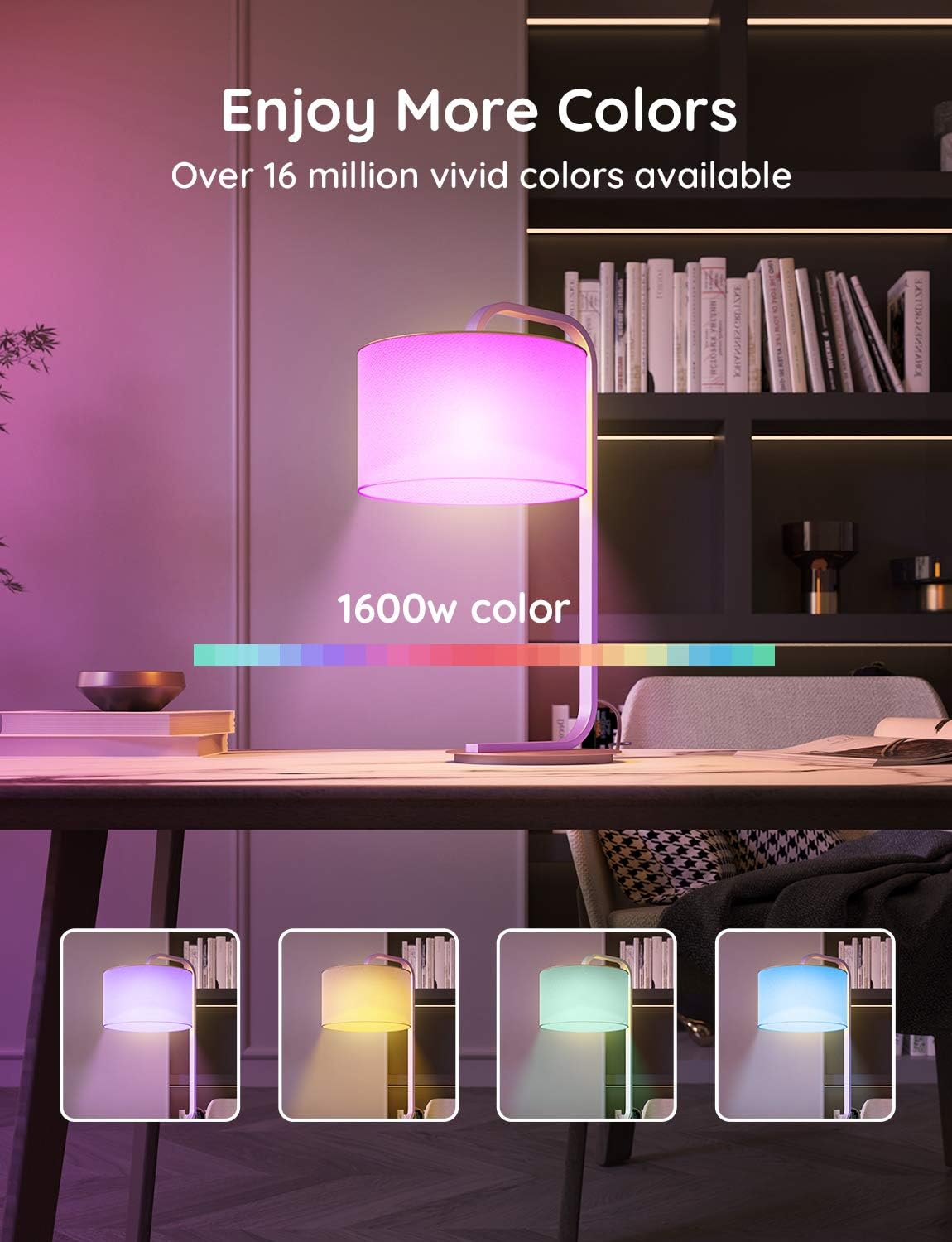
Image: Govee Smart Light Bulb showcasing its ability to display a wide range of colors and tunable white light.
3. Scene Modes & DIY
The app includes 8 preset scene modes for various occasions. You can also create and save your own custom DIY lighting effects.

Image: Govee Home app interface highlighting the selection of preset scene modes and the option to create custom DIY lighting effects.
4. Timer and Schedule
Set schedules for your bulbs to automatically turn on/off or adjust brightness at specific times. Utilize modes like Sunrise to gradually brighten the room for waking up, or Sunset to dim the lights for sleep.

Image: Govee Home app interface demonstrating how to set timers and schedules for the smart light bulbs, including wake-up and sleep modes.
5. Group Control
If you have multiple Govee smart bulbs, you can create groups within the app to control them simultaneously. This allows for synchronized lighting across different areas of your home.
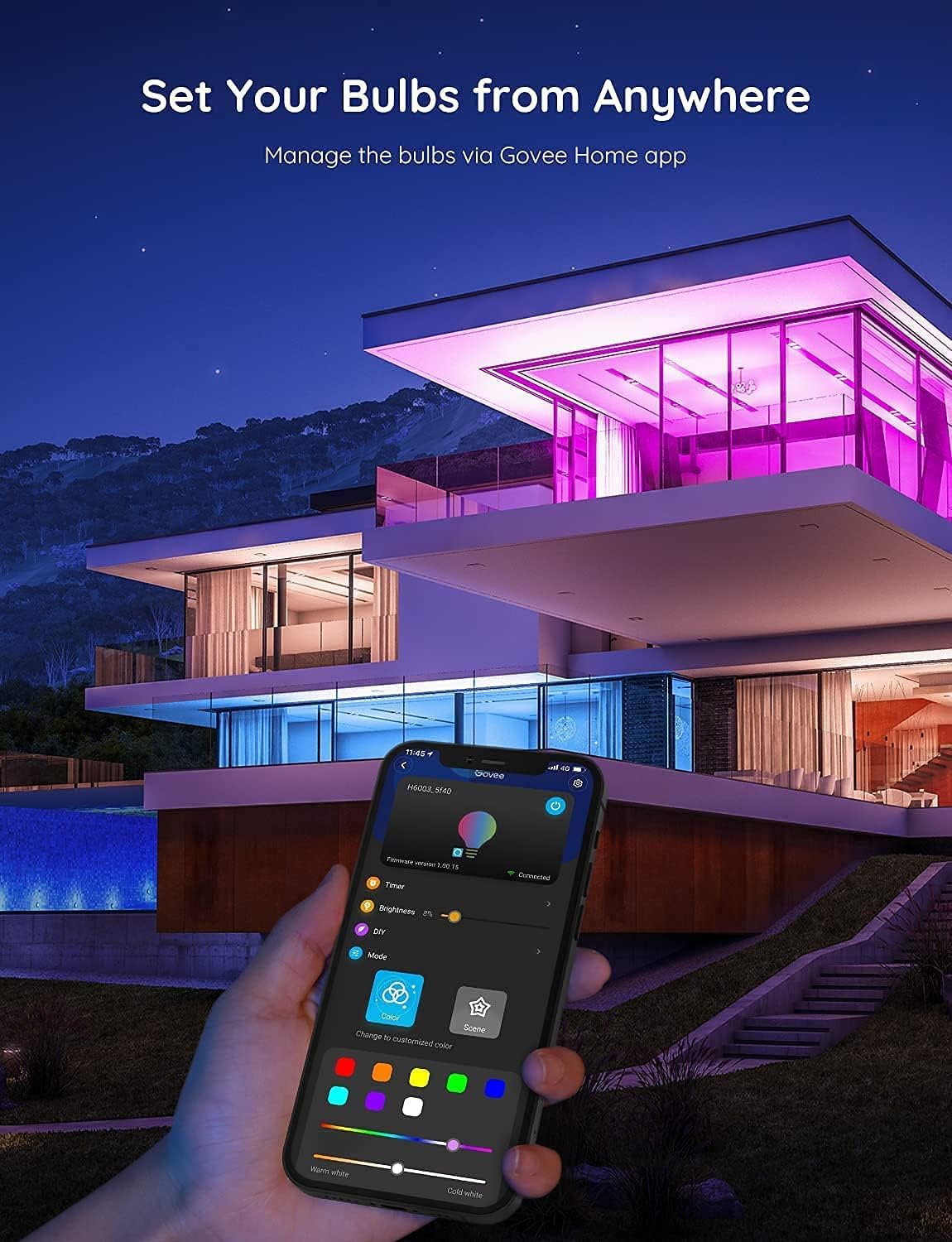
Image: Govee Home app interface illustrating the group control feature, allowing simultaneous management of multiple smart bulbs.
Maintenance
To maintain optimal performance and longevity of your Govee Smart LED Bulbs:
- Ensure the bulbs are used within their specified voltage range (120 Volts AC).
- Clean the bulbs with a soft, dry cloth. Do not use liquid cleaners.
- Avoid exposing the bulbs to extreme temperatures or high humidity, as they are designed for indoor use only.
- Do not disassemble the bulbs, as this will void the warranty.
Troubleshooting
1. Bulb Not Connecting to Wi-Fi
- Ensure your Wi-Fi network is 2.4GHz. 5GHz networks are not supported.
- Confirm the bulb is in pairing mode (slowly pulsing warm white) by cycling the power switch on and off five times.
- Verify your Wi-Fi password is entered correctly in the Govee Home app.
- Move your smartphone closer to the bulb during the connection process.
- Restart your Wi-Fi router and try connecting again.
2. Voice Control Issues
- Ensure your Govee Home account is correctly linked to your Alexa or Google Assistant app.
- Check that your voice assistant device is online and functioning correctly.
- Try rediscovering devices in your Alexa or Google Assistant app.
- Use the exact commands specified in the Govee Home skill description.
Specifications
| Feature | Detail |
|---|---|
| Brand | Govee |
| Model Number | H6003 |
| Light Type | RGBWW (Color Changing) |
| Wattage | 9 Watt-hours |
| Incandescent Equivalent | 60 Watts |
| Bulb Shape Size | A19 |
| Bulb Base | E26 |
| Brightness | 800 Lumens |
| Color Temperature | 2700K - 6500K |
| Voltage | 120 Volts (AC) |
| Control Method | Voice, App |
| Connectivity | 2.4GHz Wi-Fi (No Hub Required) |
| Indoor/Outdoor Usage | Indoor |
| Average Life | 50000 Hours |
Warranty and Support
Govee products typically come with a limited warranty. For specific warranty details, product support, or technical assistance, please refer to the official Govee website or contact Govee customer service directly. You can often find support contact information within the Govee Home app or on the product packaging.


