
VENTION CHL-1
VENTION 4-Port USB 3.0 Hub (Model CHL-1) Instruction Manual
Model: CHL-1 | Brand: VENTION
1. Introduction
Thank you for choosing the VENTION 4-Port USB 3.0 Hub. This ultra-slim data USB splitter is designed to expand your device's connectivity, offering high-speed data transfer and charging support. Please read this manual carefully to ensure proper use and optimal performance.
2. Product Features
- 4 USB 3.0 Ports: Expands one USB port into four, supporting various USB peripherals.
- High-Speed Data Transfer: Up to 5Gbps, 10 times faster than USB 2.0.
- Charging Supported: Provides power to connected devices.
- Plug and Play: No drivers required for most operating systems.
- Compact and Portable Design: Easy to carry for travel or daily use.
- Wide Compatibility: Supports Windows, Mac OS, Linux, and ChromeOS.
3. Package Contents
Ensure all items are present in the package:
- VENTION 4-Port USB 3.0 Hub (Model CHL-1)
- Instruction Manual (this document)
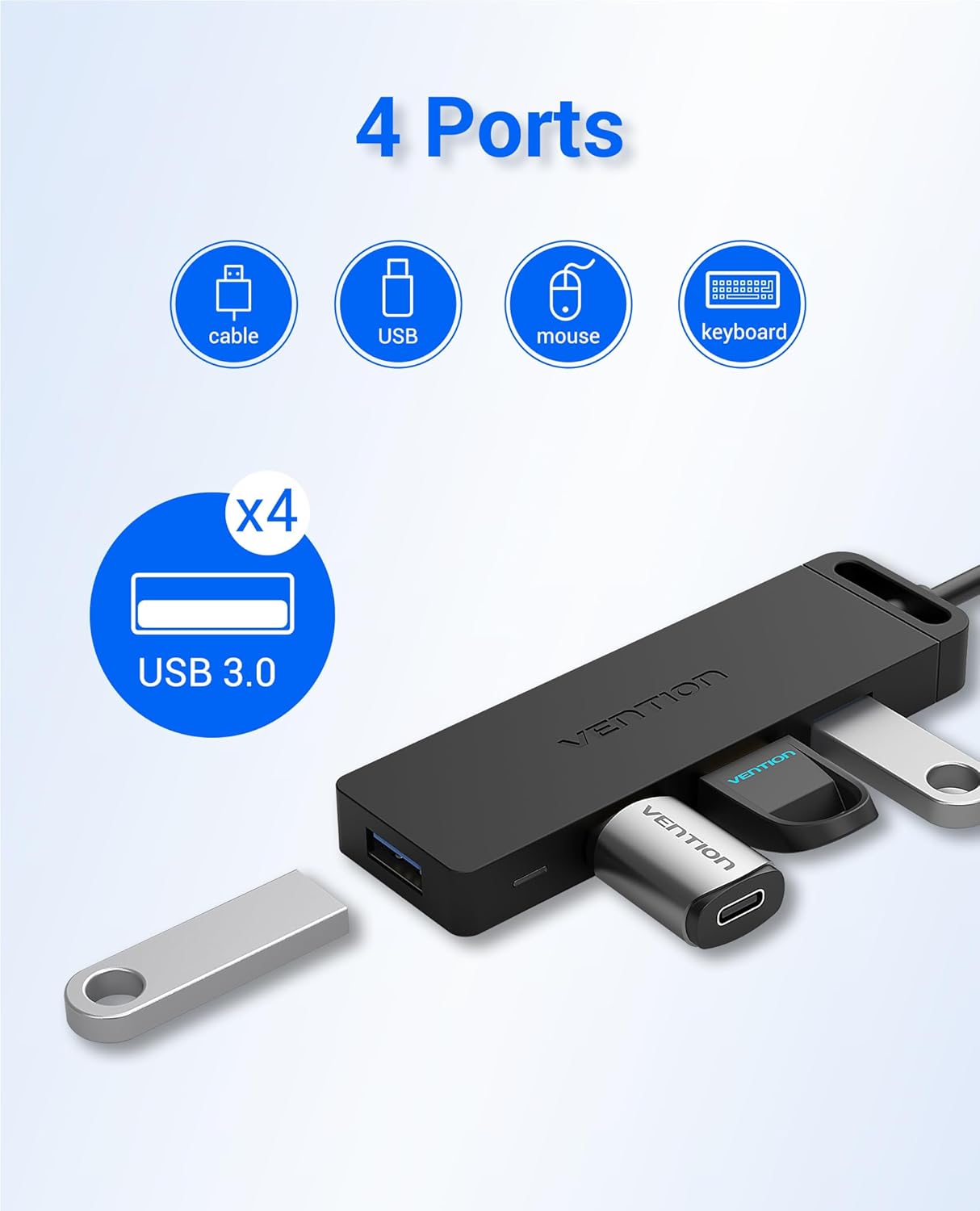
Image: The VENTION 4-Port USB 3.0 Hub, showcasing its compact design and four blue USB 3.0 ports. The integrated USB-A cable is visible.
4. Setup Instructions
- Connect the Hub to Your Device:
Plug the USB-A connector of the VENTION Hub into an available USB 3.0 port on your computer (laptop, desktop, etc.).
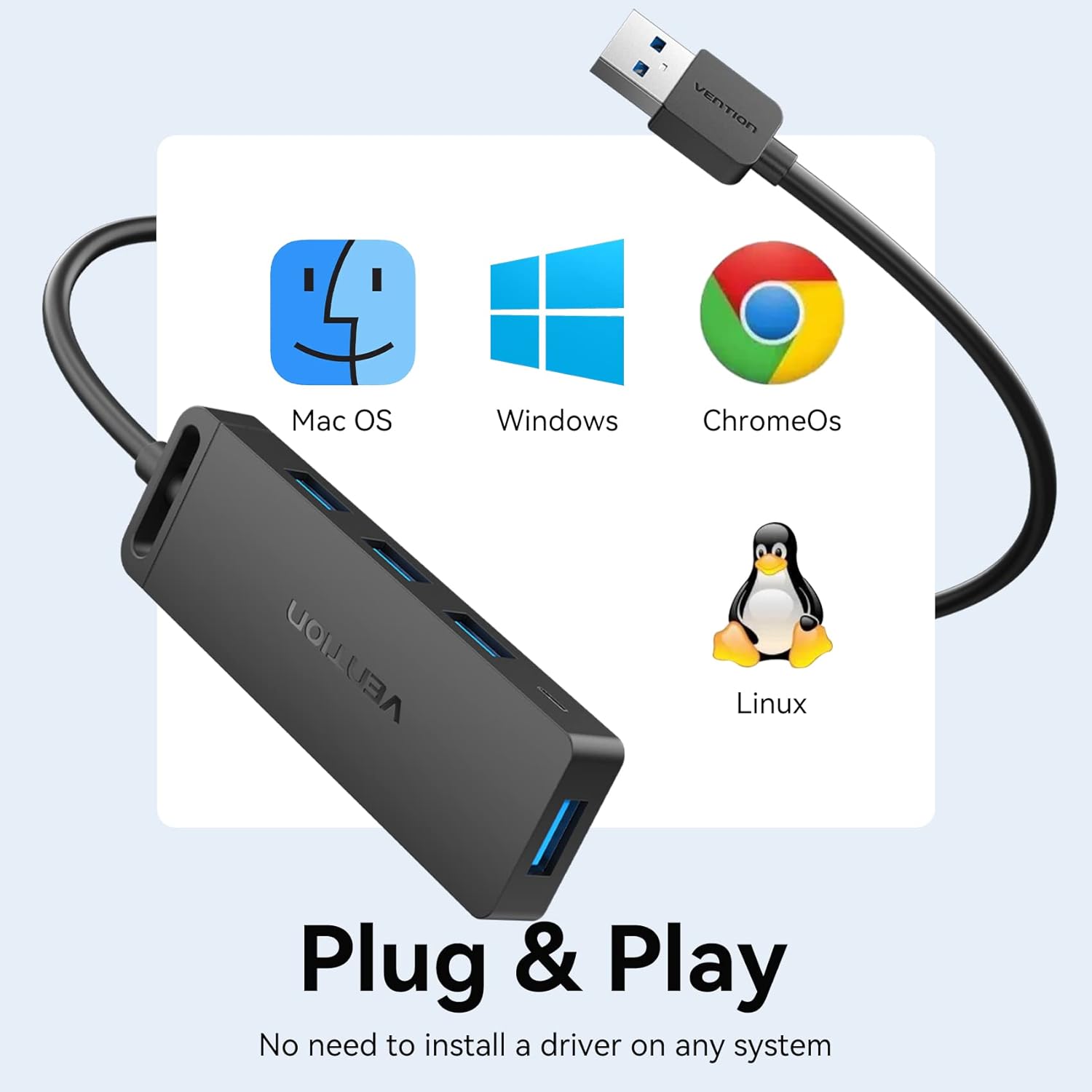
Image: The VENTION USB Hub connected to a laptop, illustrating the plug-and-play setup. A blue LED indicator light confirms power and connection.
- Power Indicator:
A blue LED indicator light on the hub will illuminate, confirming that the hub is powered and ready for use.

Image: A close-up view of the VENTION USB Hub, highlighting the blue LED indicator light when the device is active.
- Optional External Power (for high-power devices):
For power-hungry devices (e.g., external 8TB hard drives, printers), connect an external 5V/2A power adapter (not included) to the Micro USB port on the side of the hub. Do not connect power adapters exceeding 5V/2A.

Image: The VENTION USB Hub facilitating connections to a laptop and an external hard drive, with an additional Micro USB cable providing supplementary power to the hub for high-power devices.
5. Operating Instructions
- Connecting USB Devices:
Insert your USB devices (flash drives, mouse, keyboard, printer, etc.) into the available USB 3.0 ports on the hub. The hub supports simultaneous connection of multiple devices.

Image: The VENTION USB Hub with various USB devices plugged in, demonstrating its ability to expand connectivity for multiple peripherals.
- Data Transfer:
The hub supports data transfer speeds of up to 5Gbps. When transferring large files, ensure both the source and destination devices support USB 3.0 for optimal performance.

Image: A visual representation of the 5Gbps data transfer capability of the USB 3.0 hub, highlighting its speed advantage over USB 2.0.
- Charging Functionality:
The USB 3.0 ports on the hub can provide power to charge compatible devices. For faster charging or multiple devices, consider using the optional external power supply.
Video: This video demonstrates the VENTION 4-Port USB 3.0 Hub's ability to expand USB ports and support data transfer and charging. It shows the hub connected to a laptop, with a blue indicator light, and a flash drive being used for data transfer. It also illustrates the hub providing stable power for charging multiple devices like smartphones.
6. Compatibility
The VENTION 4-Port USB 3.0 Hub is widely compatible with:
- Operating Systems: Windows 10, 8, 7, Vista, XP, Mac OS x 10.6-10.12 or later, Linux 2.6.14 or later, ChromeOS.
- Devices: MacBook, Laptops, Surface Pro, PS4, PC, Flash Drives, Mobile HDDs, Keyboards, Mice, Printers, and other USB peripherals.

Image: The VENTION USB Hub displayed alongside logos for Mac OS, Windows, ChromeOS, and Linux, emphasizing its broad operating system compatibility.
7. Maintenance and Care
- Keep the hub away from water, fire, and corrosive substances.
- Avoid dropping or subjecting the hub to strong impacts.
- Clean the device with a soft, dry cloth. Do not use liquid cleaners.
- Store in a cool, dry place when not in use.
8. Troubleshooting
| Problem | Possible Cause | Solution |
|---|---|---|
| Device not recognized. | Loose connection, incompatible device, or insufficient power. | Ensure the hub is securely plugged into a USB 3.0 port. Try a different USB port on your computer. If connecting a high-power device, use an external 5V/2A power adapter. |
| Slow data transfer speed. | Connected device is USB 2.0, or the computer's port is USB 2.0. | Ensure both the hub and the connected device are plugged into USB 3.0 ports for optimal 5Gbps speeds. |
| Charging is slow or not working. | Insufficient power from the host device, or high-power devices connected. | Connect an external 5V/2A power adapter to the Micro USB port on the hub. |
9. Specifications
| Feature | Detail |
|---|---|
| Brand | VENTION |
| Model Number | CHL-1 (0.5MZZ) |
| Hardware Interface | USB 3.0 |
| Total USB Ports | 4 |
| Data Transfer Speed | Up to 5Gbps |
| Input Voltage | 5 Volts (DC) |
| Item Weight | 48 Grams |
| Cable Length (Current Variant) | 1.5FT |
| UPC | 616859493230 |
10. Warranty and Support
VENTION products typically come with a 1-year warranty. For any questions about our product, please feel free to contact our reliable customer service. We aim to reply within 24 hours.
Contact Information: Refer to the product packaging or the official VENTION website for the most up-to-date customer support details.
Related documentsCHL-1


Ask a question about this manual
Ask about setup, troubleshooting, compatibility, parts, safety, or missing instructions. Manuals+ will review the question and use this page’s manual context to help answer it.