1. Product Overview
The VENTION USB 3.0 Hub (Model CHL) is a compact and portable 4-port USB splitter designed to expand the connectivity of your laptop or PC. It offers high-speed data transfer and broad compatibility with various USB devices.
Key Features:
- 4-Port Expansion: Provides four additional USB ports for connecting multiple peripherals simultaneously.
- High-Speed Data Transfer: Utilizes USB 3.0 technology for data sync speeds up to 5Gbps, which is up to 10 times faster than USB 2.0.
- Plug and Play: Requires no driver installation for immediate use.
- External Power Support: Includes a micro USB port for optional external power supply when connecting power-hungry devices. Avoid power adapters exceeding 5V/2A.
- Compact and Portable: Ultra-slim and lightweight design for easy transport and use on the go.
- Wide Compatibility: Supports Windows 10/8/7/Vista/XP, Mac OS x 10.6-10.12 or later, and Linux 2.6.14 or later.
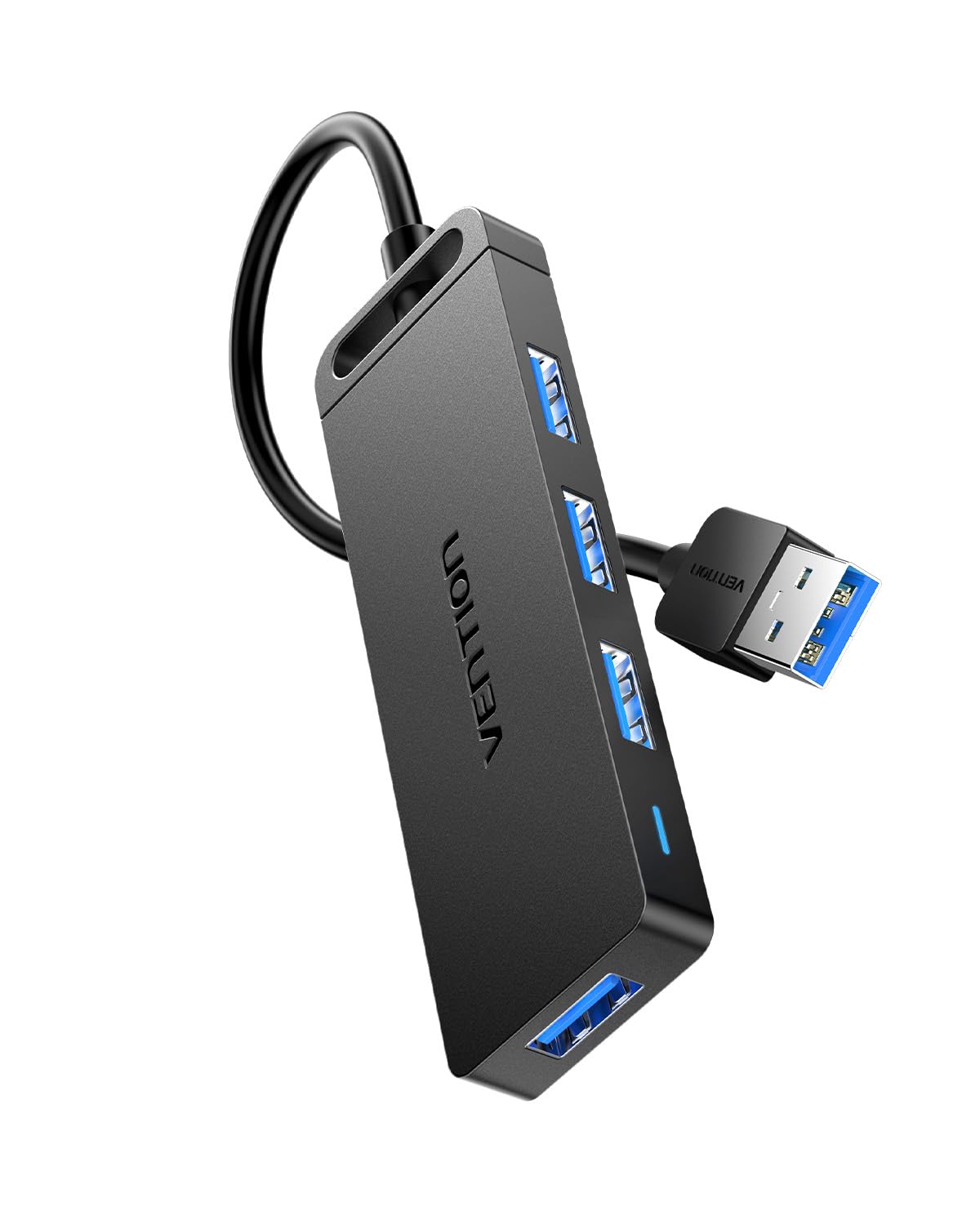
Figure 1: VENTION USB 3.0 Hub (Model CHL)
2. Setup Instructions
Follow these steps to set up your VENTION USB 3.0 Hub:
- Connect to Host Device: Plug the USB-A connector of the VENTION USB 3.0 Hub into an available USB 3.0 port on your laptop, PC, or other compatible host device. The hub is plug-and-play, so no additional drivers are required.
- Observe Indicator Light: Once connected, a blue indicator light on the hub will illuminate, signifying that the device is powered and operational.
- Optional External Power: If you plan to connect power-hungry devices such as external hard drives, connect a micro USB power adapter (not included) to the micro USB port on the hub. Ensure the power adapter does not exceed 5V/2A to prevent damage.

Figure 2: Connecting the USB Hub to a laptop.
Video 1: Demonstrates connecting the VENTION USB 3.0 Hub to a laptop, showing the indicator light, internal chip, data transfer capabilities, and smart phone charging support.
3. Operating Instructions
Once the hub is connected, you can begin using its ports:
- Connecting Devices: Insert your USB devices (e.g., flash drives, external hard drives, mouse, keyboard, printer) into any of the four available USB 3.0 ports on the hub.
- Data Transfer: The hub supports high-speed data transfer up to 5Gbps. This allows for quick transfer of large files, such as a 1GB file in approximately 3 seconds.
- Charging: The USB 3.0 ports can also support charging for smart phones and other compatible devices, especially when the hub is connected to an external power source.
- Backward Compatibility: The hub is backward compatible with USB 2.0 and USB 1.0 devices, ensuring versatility with older peripherals, though data transfer speeds will be limited to the device's capabilities.
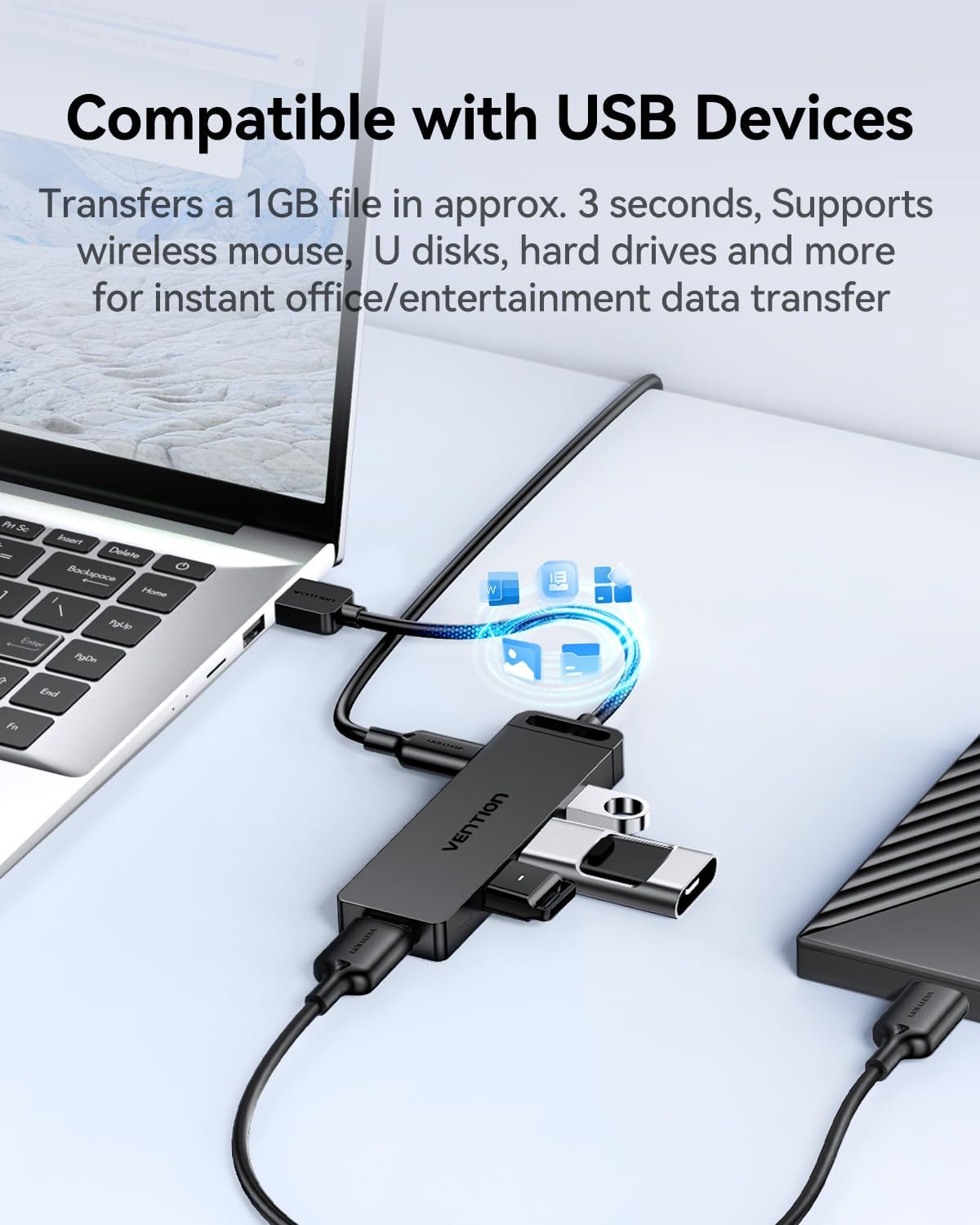
Figure 3: The VENTION USB 3.0 Hub connected to a laptop with multiple USB devices.

Figure 4: The 4-in-1 USB 3.0 Multiport Hub helps maintain a tidy workspace by consolidating connections.
Video 2: Shows the VENTION USB 3.0 Hub in use, connecting multiple devices to a tablet and demonstrating its utility.
4. Maintenance
To ensure the longevity and optimal performance of your VENTION USB 3.0 Hub, follow these maintenance guidelines:
- Cleaning: Use a soft, dry cloth to wipe the exterior of the hub. Avoid liquid cleaners or abrasive materials that could damage the surface or internal components.
- Storage: When not in use, store the hub in a cool, dry place away from direct sunlight and extreme temperatures.
- Cable Care: Avoid bending or twisting the integrated USB cable excessively to prevent internal wire damage.
- Heat Dissipation: The hub features a durable, scratch-resistant ABS shell designed to improve heat dissipation. Ensure it is not covered or placed in an enclosed space during operation to allow for proper airflow.

Figure 5: The durable ABS shell of the VENTION USB 3.0 Hub is designed for effective heat dissipation.
5. Troubleshooting
If you encounter issues with your VENTION USB 3.0 Hub, refer to the following common problems and solutions:
- Device Not Recognized:
- Ensure the hub is securely plugged into your computer's USB port.
- Try connecting the hub to a different USB port on your computer.
- Restart your computer and reconnect the hub.
- If connecting a power-hungry device (e.g., external HDD), ensure an external micro USB power adapter (5V/2A max) is connected to the hub.
- Slow Data Transfer Speed:
- Verify that both the hub and your connected device support USB 3.0 for optimal speeds. If either is USB 2.0, speeds will be limited to USB 2.0 rates.
- Ensure the hub is connected to a USB 3.0 port on your computer (often identified by a blue interior).
- Avoid connecting too many power-hungry devices simultaneously without an external power supply.
- Intermittent Connection:
- Check all cable connections for looseness.
- Ensure the USB cable of the hub is not damaged.
- Test with different USB devices to isolate if the issue is with a specific peripheral.
If these steps do not resolve the issue, please contact VENTION customer service for further assistance.
6. Specifications
| Feature | Detail |
|---|---|
| Brand | VENTION |
| Model Number | CHL |
| Product Dimensions | 3.9 x 1.2 x 0.4 inches |
| Item Weight | 1.38 ounces |
| Hardware Interface | USB 3.0 |
| Data Transfer Speed | Up to 5Gbps |
| Special Features | Fast Data Transfer, Heat Resistant, Indicator Light, Lightweight, Portable |
| Compatible Devices | Computers, Laptops, Keyboards, Mouse, USB sound cards, Flash Drives, HDDs, Printers |
| Power Supply | USB Bus-powered; Micro USB for optional external power (5V/2A max) |
| Operating Systems | Windows 10/8/7/Vista/XP, Mac OS x 10.6-10.12+, Linux 2.6.14+ |
7. Warranty and Support
The VENTION USB 3.0 Hub (Model CHL) comes with a 1-year warranty from the date of purchase. This warranty covers manufacturing defects and ensures the product meets its specified performance standards under normal use.
For any questions, technical support, or warranty claims, please contact VENTION customer service. You can typically find contact information on the product packaging or the official VENTION website.