
1. Product Overview
The EDUP 2.5Gbps USB to Ethernet Adapter provides a stable and high-speed wired network connection for your desktop or laptop. It converts a USB 3.0 port into an RJ45 Ethernet port, offering data transfer rates up to 2.5Gbps. This adapter is ideal for situations where wireless connections are unstable or insufficient for demanding tasks like large file transfers or high-definition streaming.

Image 1.1: The EDUP 2.5Gbps USB to Ethernet Adapter connected to a laptop, illustrating its compact design and function.
2. Package Contents
Please verify that all items are present in your package:
- 1x EDUP 2.5Gbps Network Adapter
3. Setup
3.1 Driver Installation
For Windows 10/8.1/8/7/Vista/XP, driver installation is required. The adapter includes a virtual CD-ROM with the necessary drivers. Alternatively, you can download the latest drivers from the manufacturer's website for optimal performance and compatibility.
- Connect the adapter to your computer's USB port.
- If prompted, open the virtual CD drive that appears in 'My Computer' or 'This PC'.
- Locate and run the driver setup file (e.g., 'Autorun' or 'USB to RJ45 driver').
- Follow the on-screen instructions to complete the installation.
- Restart your computer if required.

Image 3.1: Visual guide for driver installation from the included virtual CD.
3.2 Physical Connection
- Ensure your computer is powered on.
- Connect the USB 3.0 connector of the adapter into an available USB 3.0 port on your computer. For optimal performance, use a USB 3.0 port (typically blue inside).
- Connect a Cat6 or higher Ethernet cable from your router or network switch to the RJ45 port on the EDUP adapter. Using Cat6 or higher cables is essential to achieve 2.5Gbps speeds.

Image 3.2: The adapter connected to a laptop's USB port and an Ethernet cable, ready for network access.

Image 3.3: Illustrates the straightforward connection process for the adapter, ensuring a stable internet experience.
Video 3.1: An official product video demonstrating the connection of the 2.5G USB C & USB 3.0 to Ethernet Adapter.
4. Operating Instructions
Once the drivers are installed and the adapter is physically connected, your computer should automatically detect the network adapter and establish a wired network connection. You can verify the connection status through your operating system's network settings.
4.1 LED Indicators
The adapter features LED indicators to provide visual feedback on its status:
- Signal Indicator (Yellow): Indicates network activity. A blinking yellow light signifies data transmission.
- Connection Indicator (Green): Indicates a successful link to the network. A solid green light means a stable connection.

Image 4.1: A close-up view of the adapter's RJ45 port showing the Signal (yellow) and Connection (green) LED indicators.
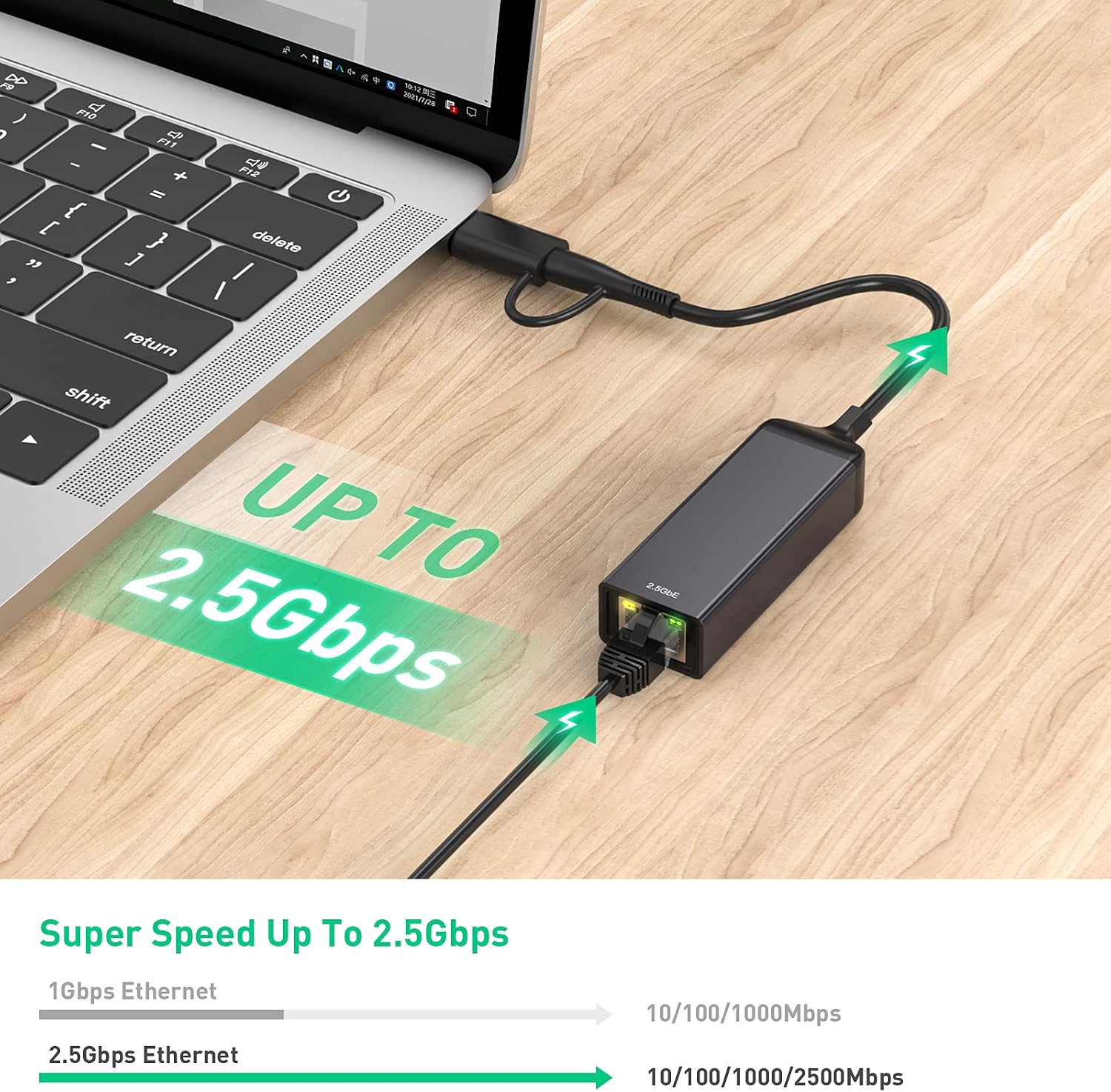
Image 4.2: A graphic illustrating the potential for super speed up to 2.5Gbps with the adapter.
5. Compatibility
The EDUP 2.5Gbps USB to Ethernet Adapter is designed for wide compatibility with various operating systems:
- Windows 10 / 8.1 / 8 / 7 / Vista / XP
- Mac OS
- Linux
Please note that driver installation may be required for some operating systems, particularly older Windows versions.

Image 5.1: A graphic indicating universal compatibility with Windows, Mac OS, and Linux operating systems.
6. Maintenance
To ensure the longevity and optimal performance of your EDUP 2.5Gbps USB to Ethernet Adapter, follow these maintenance guidelines:
- Keep the adapter clean and free from dust. Use a soft, dry cloth for cleaning.
- Avoid exposing the adapter to extreme temperatures, direct sunlight, or high humidity.
- Do not bend or twist the cable excessively.
- Store the adapter in a safe place when not in use, away from potential damage.
7. Troubleshooting
If you encounter issues with your EDUP 2.5Gbps USB to Ethernet Adapter, refer to the following troubleshooting steps:
7.1 No Network Connection
- Check Physical Connections: Ensure the adapter is securely plugged into a USB port on your computer and the Ethernet cable is firmly connected to both the adapter and your router/switch.
- Verify Driver Installation: Confirm that the correct drivers are installed for your operating system. If unsure, try reinstalling the drivers or downloading the latest version from the manufacturer's website.
- Test with Another Port/Cable: Try connecting the adapter to a different USB port on your computer. Also, test with a different Ethernet cable to rule out cable issues.
- Check Network Settings: Ensure your operating system's network settings are configured to obtain an IP address automatically (DHCP).
7.2 Slow Network Speed
- Use USB 3.0 Port: Ensure the adapter is connected to a USB 3.0 port on your computer. USB 2.0 ports will limit the speed significantly.
- Use Cat6 or Higher Ethernet Cable: For 2.5Gbps speeds, a Cat6 or higher rated Ethernet cable is required. Older Cat5e cables may not support these speeds.
- Update Drivers: Outdated drivers can sometimes cause performance issues. Ensure you have the latest drivers installed.
- Check Network Infrastructure: Verify that your router, switch, and internet service provider (ISP) support 2.5Gbps speeds.
7.3 Frequent Disconnects
- Driver Issues: This is a common cause. Reinstalling or updating to the latest drivers often resolves this.
- USB Power Management: In Windows, go to Device Manager, find your USB Root Hubs, right-click, select Properties, then Power Management. Uncheck "Allow the computer to turn off this device to save power." Repeat for the network adapter itself.
- Physical Connection: Ensure the adapter is not loose in the USB port.
8. Specifications
| Brand | EDUP |
| Model | B08GY17WLJ |
| Hardware Interface | Ethernet, USB |
| Color | Black |
| Compatible Devices | Desktop, Laptop |
| Data Link Protocol | USB |
| Data Transfer Rate | 10 Megabits Per Second (up to 2.5Gbps with compatible setup) |
| Compatible Operating System Family | MacOS, Windows |
| UPC | 793420183650 |
9. Warranty and Support
9.1 Warranty Information
This EDUP 2.5Gbps USB to Ethernet Adapter comes with a one-year manufacturer replacement warranty. Additionally, a 45-day no-questions-asked return policy is offered.
9.2 Technical Support
For technical assistance or further inquiries, please refer to the contact information provided with your product packaging or visit the official EDUP support website.
