1. Introduction
This manual provides comprehensive instructions for the CableCreation HDMI Cable (Model: CC1025). This high-quality HDMI cable supports 4K@60Hz resolution, HDR, and 3D, delivering crystal-clear audio and video signals. With a high-speed 18Gbps bandwidth, it ensures stable and reliable data transfer. Its durable design features a braided nylon jacket for extra strength and gold-plated connectors for optimal signal transfer and corrosion resistance. It is universally compatible with all HDMI-enabled devices, including TVs, monitors, projectors, and gaming consoles.

Figure 1: CableCreation HDMI Cable (Model: CC1025). This image shows the two ends of the grey braided HDMI cable, highlighting the gold-plated connectors and the "4K" and "CableCreation" branding on the connector housings.
2. Features
- High-Quality Audio & Video: Supports 4K@60Hz resolution, HDR (High Dynamic Range), and 3D for superior visual and audio experiences.
- Fast Data Transfer: Achieves a high-speed bandwidth of 18Gbps, ensuring stable and reliable signal transmission without lag or interruption.
- Durable Construction: Features a flexible braided nylon jacket for enhanced durability and resistance to wear and tear. The connectors are gold-plated to resist corrosion and ensure optimal signal transfer.
- Universal Compatibility: Designed to work seamlessly with a wide range of HDMI-enabled devices, including televisions, computer monitors, gaming consoles (PS4/PS5, Xbox One), and projectors.
- Plug & Play: No additional software or drivers are required for operation. Simply connect the cable to your devices.

Figure 2: Key features of the CableCreation HDMI Cable, including Audio & Video Sync (4K@60Hz), Flexible Braided Jacket, Premium Aluminum housing, and 24k Gold-plated Connector.
3. Setup and Connection
Connecting your CableCreation HDMI cable is a straightforward process. Ensure both devices you intend to connect are powered off before proceeding.
- Identify HDMI Ports: Locate the HDMI input port on your display device (e.g., TV, monitor, projector) and the HDMI output port on your source device (e.g., PS4/PS5, Xbox One, Blu-ray player, PC). HDMI ports are typically rectangular with a slightly wider side.
- Connect Cable: Carefully insert one end of the CableCreation HDMI cable into the HDMI output port of your source device. Ensure it is fully seated.
- Connect to Display: Insert the other end of the HDMI cable into an available HDMI input port on your display device. Note the HDMI input number (e.g., HDMI 1, HDMI 2) for later selection.
- Power On Devices: Power on your display device first, then your source device.
- Select Input: Using your display device's remote control or on-screen menu, select the corresponding HDMI input (e.g., HDMI 1) that you connected the cable to.
The display should now show the output from your source device. If no signal is detected, refer to the Troubleshooting section.
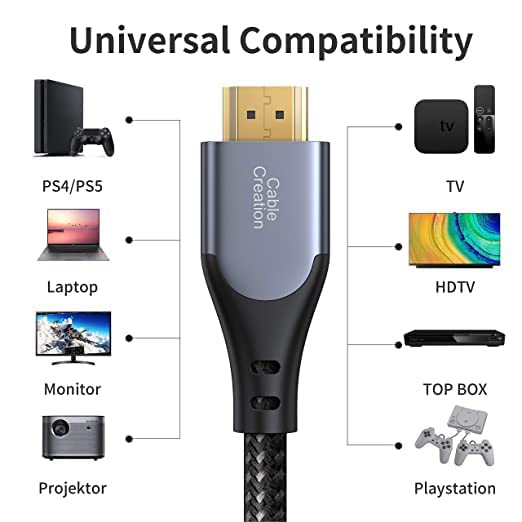
Figure 3: This image illustrates the universal compatibility of the CableCreation HDMI cable, showing connections to various devices such as PS4/PS5, Laptops, Monitors, Projectors, TVs, HDTVs, Top Boxes, and Playstations.
Video 1: Official CableCreation 4K HDMI Cable overview. This video demonstrates the cable's features, including its 24K gold-plated connector, gray aluminum shell, flexible braided jacket, and plug-and-play functionality. It also highlights its 18Gbps data capacity and compatibility with various devices like PS4/PS3, Xbox One, Switch, Apple TV, and Fire TV Cube.
4. Operating Instructions
Once connected, the CableCreation HDMI cable operates automatically. It transmits both audio and video signals digitally between your source and display devices.
- Resolution and Refresh Rate: The cable supports up to 4K (3840x2160) resolution at 60Hz. Ensure your source device and display are also capable of these specifications to achieve optimal performance.
- HDR and 3D Support: If your devices support HDR or 3D content, the cable will automatically pass these signals through. Verify that HDR or 3D settings are enabled on both your source and display devices.
- Audio Passthrough: The cable supports various audio formats, including uncompressed LPCM, DTS Digital, Dolby Digital, DTS-HD Master Audio, and Dolby TrueHD. No separate audio cables are needed.
- Extended and Mirror Modes: When connecting to a computer monitor, you can configure your display settings for either "Mirror Mode" (duplicate display) or "Extended Mode" (extend desktop) as needed.

Figure 4: This image illustrates the two primary display modes when connecting a computer to a monitor via HDMI: Mirror Mode, where the same content is shown on both screens, and Extended Mode, where the desktop is expanded across both screens.
5. Maintenance and Care
To ensure the longevity and optimal performance of your CableCreation HDMI cable, follow these simple maintenance guidelines:
- Handle with Care: Avoid bending the cable sharply or putting excessive strain on the connectors. Always grasp the connector housing when plugging or unplugging, not the cable itself.
- Keep Clean: If the connectors become dusty, gently wipe them with a dry, lint-free cloth. Do not use liquid cleaners directly on the connectors.
- Storage: When not in use, coil the cable loosely. Avoid tight coiling or kinking, which can damage the internal wires. Store in a cool, dry place away from direct sunlight and extreme temperatures.
- Avoid Overstretching: Do not stretch the cable beyond its natural length, as this can damage the internal conductors.
6. Troubleshooting
If you encounter issues with your CableCreation HDMI cable, try the following troubleshooting steps:
| Problem | Possible Cause | Solution |
|---|---|---|
| No picture or sound | Incorrect input selected on display; Loose cable connection; Device power off; Incompatible resolution. |
|
| Flickering or distorted image | Cable interference; Damaged cable; Resolution/refresh rate mismatch. |
|
| No audio | Audio settings incorrect; Display volume low/muted. |
|
If the problem persists after trying these steps, please contact CableCreation customer support.
7. Specifications
- Model: CC1025
- Brand: CableCreation
- Connector Type: HDMI Male to HDMI Male
- Cable Type: HDMI
- Supported Resolution: Up to 4K@60Hz (3840x2160)
- Bandwidth: 18Gbps High-Speed
- Features: HDR, 3D, Ethernet Support
- Compatible Devices: TVs, Monitors, PS4/5, Xbox One, Projectors, Blu-ray Players, etc.
- Jacket Material: Braided Nylon
- Connector Material: Gold-plated
- Available Lengths: 3FT, 6FT, 10FT, 15FT (refer to product variants for specific lengths)
8. Warranty and Support
CableCreation stands behind the quality of its products. This HDMI cable is backed by a 2-year warranty from the date of purchase.
For any quality-related concerns, technical assistance, or support, please contact CableCreation customer service through the following channels:
- Website: Visit the official CableCreation website for FAQs and support resources.
- Email: Refer to your product packaging or the CableCreation website for customer support email addresses.
- Online Retailer Support: If purchased from an online retailer like Amazon, you can also utilize their customer service channels for assistance.
Please have your purchase receipt and product model number (CC1025) ready when contacting support.


