
1. Introduction
This manual provides instructions for the setup, operation, maintenance, and troubleshooting of your JUQITECH Backlit Keyboard Case. Please read this manual thoroughly before using the product to ensure proper function and longevity.

Image 1.1: JUQITECH Backlit Keyboard Case with a tablet in an upright position, showcasing the backlit keyboard.
2. Package Contents
Verify that all items are present in your package:
- 1 x Smart Case for Galaxy Tab S8/S7 11"
- 1 x Wireless Backlit Keyboard
- USB Cable (for charging)
- 1 x User Manual
3. Compatibility
This keyboard case is designed for the following Samsung Galaxy Tab models:
- Samsung Galaxy Tab S8 11-inch (2022 models: SM-X700, SM-X706)
- Samsung Galaxy Tab S7 11-inch (2020 models: SM-T870, SM-T875, SM-T876)
Please verify your tablet's model number in the tablet's 'Settings' before use. This product is not compatible with other tablet models, including Samsung Galaxy Tab S7+, S7 FE, S8+, or 12.4-inch models.

Image 3.1: Visual guide to compatible Samsung Galaxy Tab models and their model numbers.
4. Setup
4.1 Installing the Tablet
- Align your Samsung Galaxy Tab with the case's inner shell.
- Gently press the tablet into the flexible TPU inner shell until it is securely seated. Ensure all edges are protected and cutouts align with ports and buttons.
4.2 Charging the Keyboard
Before initial use, fully charge the wireless keyboard.
- Connect the provided USB cable to the keyboard's charging port.
- Connect the other end of the USB cable to a USB power adapter (not included) or a computer's USB port.
- The charging indicator light will illuminate. Once fully charged, the light will change or turn off.

Image 4.1: Keyboard charging port with USB cable connection.
4.3 Bluetooth Pairing
To connect the wireless keyboard to your tablet:
- Ensure the keyboard is charged and powered on using the ON/OFF switch.
- Press the 'Connect' button on the keyboard. The Bluetooth indicator light will flash, indicating it is in pairing mode.
- On your Samsung Galaxy Tab, go to 'Settings' > 'Connected devices' > 'Bluetooth'.
- Turn on Bluetooth and search for available devices.
- Select 'Bluetooth Keyboard' (or similar name) from the list of devices.
- Follow any on-screen prompts to complete the pairing process. The Bluetooth indicator light on the keyboard will stop flashing once connected.
4.4 Switching Operating Systems
The keyboard supports iOS, Android, and Windows operating systems. To switch between systems:
- Press the Fn key simultaneously with the corresponding system key:
- Fn + Q for Android
- Fn + W for Windows
- Fn + E for iOS

Image 4.2: Keyboard layout showing system switching keys (Fn + Q/W/E).
5. Operating the Keyboard Case
5.1 Backlight Control
The keyboard features 7-color backlighting with stable and breathing modes.
- Press the bulb key to cycle through stable backlight mode, breathing backlight mode, or turn the backlight off.
- Press the RGB key to change the backlight color in stable mode (Blue, Green, Red, Light Blue, Purple, Yellow, White).
5.2 Shortcut Keys
The keyboard includes a row of dedicated shortcut keys for enhanced productivity:
- Esc: Escape
- Search: Access search function
- Select All
- Copy
- Paste
- Cut
- Previous (media control)
- Play/Pause (media control)
- Next (media control)
- Volume -
- Volume +
- Screen Lightness -
- Screen Lightness +
- Screen Lock

Image 5.1: Overview of dedicated shortcut keys.
5.3 Adjusting Viewing Angles
The case allows for multiple viewing angles. The keyboard is magnetically attached and can be detached to adjust the tablet's position for optimal viewing, reading, working, or gaming.
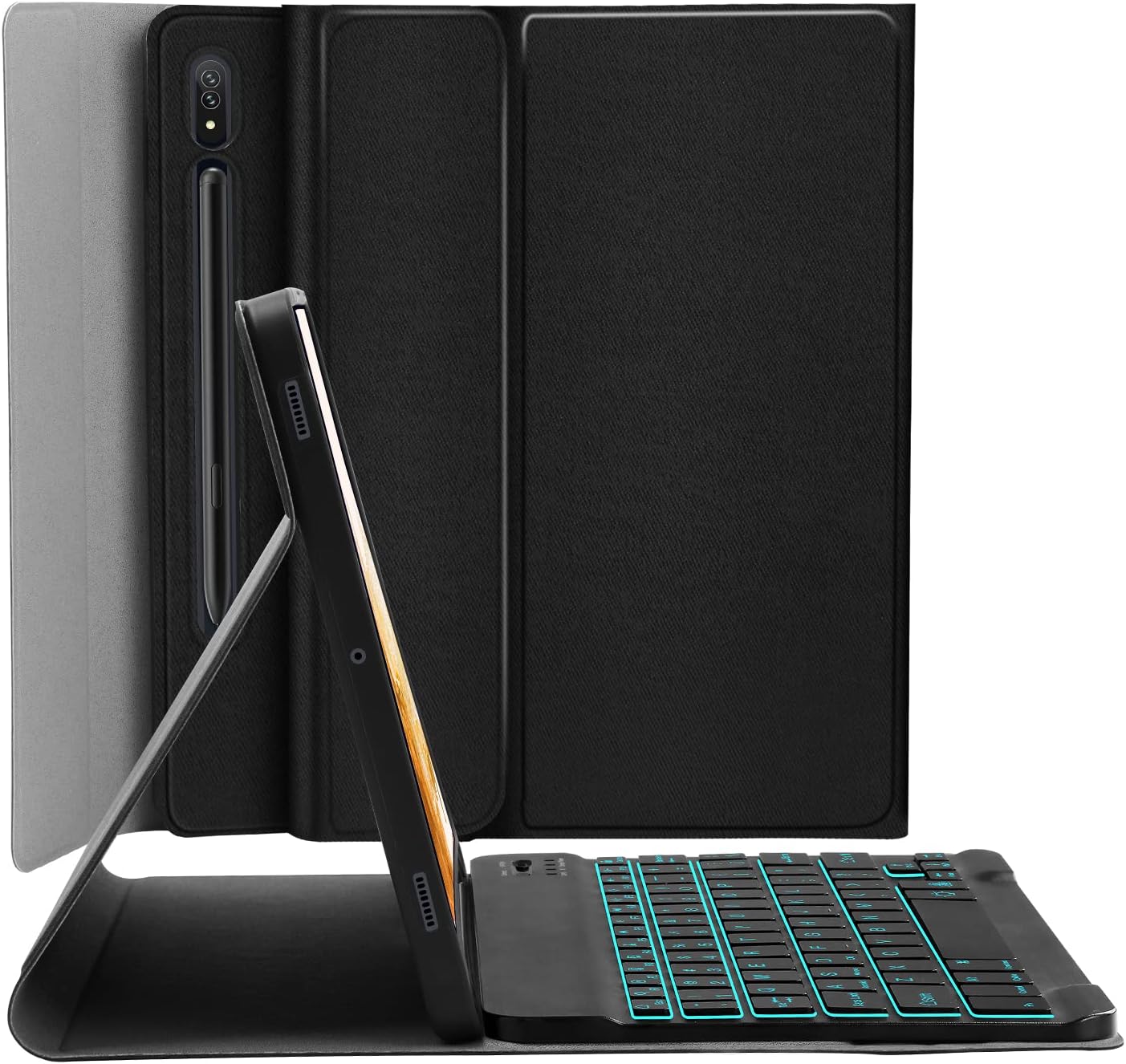
Image 5.2: Tablet case in a propped-up position with the keyboard, illustrating a common viewing angle.

Image 5.3: Illustration of various adjustable viewing angles.
5.4 S Pen Integration
The case includes a built-in slot for the S Pen, ensuring it is stored securely and is readily available. The design also supports magnetic attachment and wireless charging of the S Pen on the tablet's side without removing the case.

Image 5.4: S Pen holder and magnetic charging area.

Image 5.5: Detailed view of the S Pen slot and magnetic attachment.
5.5 Auto Sleep/Wake Function
The magnetic auto sleep/wake feature helps conserve battery life. The tablet will automatically wake up when the lid is opened and go to sleep when the lid is closed.

Image 5.6: Features including auto sleep/wake, soft TPU, and precise cutouts.
6. Maintenance
6.1 Cleaning
- Wipe the case exterior with a soft, damp cloth. Avoid harsh chemicals.
- For the keyboard, use a dry, soft cloth. Do not immerse the keyboard in water.
6.2 Battery Care
- Charge the keyboard regularly to maintain battery health.
- Avoid extreme temperatures, which can affect battery performance.
7. Troubleshooting
7.1 Keyboard Not Connecting
- Ensure the keyboard is powered on and fully charged.
- Verify Bluetooth is enabled on your tablet.
- Press the 'Connect' button on the keyboard to enter pairing mode.
- Forget the device in your tablet's Bluetooth settings and attempt to re-pair.
7.2 Keys Not Responding
- Check if the keyboard is connected via Bluetooth.
- Ensure the correct operating system mode is selected (Fn + Q/W/E).
- Recharge the keyboard battery.
7.3 Backlight Not Working
- Press the bulb key to cycle through backlight modes.
- Ensure the keyboard battery has sufficient charge.
8. Specifications
| Model Number | JU2011BTB |
| Product Dimensions | 10.2 x 7.37 x 0.78 inches |
| Item Weight | 1.28 pounds |
| Connectivity Technology | Bluetooth |
| Keyboard Type | Wireless, Detachable, 7 Colors Backlit |
| Backlight Colors | RGB (Blue, Green, Red, Light Blue, Purple, Yellow, White) |
| Battery | 1 Lithium Ion battery (included) |
| Special Features | Backlit, Built-in S Pen Holder, Multi-Angle Adjustable, Rechargeable, Auto Sleep/Wake |
9. Warranty and Support
JUQITECH offers a 24-hour after-sales service guarantee for any issues with your purchase. Please contact JUQITECH customer support for assistance.

