
TP-Link TL-WA801N
TP-Link TL-WA801N N300 Wireless Access Point User Manual
Model: TL-WA801N | Brand: TP-Link
1. Introduction
The TP-Link Wireless Access Point TL-WA801N is designed to establish or expand a scalable high-speed wireless N network or to connect multiple Ethernet-enabled devices such as game consoles, digital media adapters, printers, or network-attached storage devices to a wireless network. The AP supports a host of different functions that makes your wireless networking experience more flexible than ever before.
Key Features:
- Multiple Modes: Supports WiFi Access Point, Range Extender/Bridge, Multi-SSID, and Client modes to meet various network needs.
- Flexible Deployment: Supports Passive PoE to carry electrical power and data simultaneously. Up to 30 meters (100 feet) of flexible deployment with included Passive Power over Ethernet Injector.
- Fast WiFi: 300 Mbps wireless speed ideal for smooth HD video and voice streaming.
- MIMO Technology: Transfers more data at a time with advanced MIMO technology.
- Security: Protects your home network with WPA2 encryption and enables quick connection with the push of a button.
2. Package Contents
Verify that your package contains the following items:
- TP-Link TL-WA801N Wireless Access Point
- Passive PoE Power Injector
- RJ45 Ethernet Cable
- Quick Installation Guide
- Power Adapter
3. Product Overview
The TL-WA801N is a compact wireless access point designed for versatile network expansion. It features two fixed antennas for enhanced signal coverage and a streamlined design.

Figure 3.1: Front angled view of the TP-Link TL-WA801N Wireless Access Point, showcasing its two fixed antennas and sleek white design.
Physical Interface:
The rear panel of the TL-WA801N includes essential ports and buttons for connectivity and control.

Figure 3.2: Rear view of the TL-WA801N, displaying the ON/OFF button, Power port, Ethernet port, WPS button, and Reset button, flanked by the two fixed antennas.
- ON/OFF Button: Powers the device on or off.
- Power Port: Connects to the included power adapter or Passive PoE injector.
- Ethernet Port: A 10/100 Mbps port for wired network connections.
- WPS Button: Initiates Wi-Fi Protected Setup for quick and secure wireless connections.
- Reset Button: Restores the device to factory default settings when pressed and held.
4. Setup
Follow these steps to set up your TL-WA801N Wireless Access Point:
- Power Connection: Connect the included power adapter to the Power port of the TL-WA801N and plug it into a power outlet. Alternatively, use the Passive PoE Injector for flexible placement.
- Network Connection: Connect an Ethernet cable from your router or network switch to the Ethernet port on the TL-WA801N. If using Passive PoE, connect the Ethernet cable from the PoE injector's 'PoE' port to the AP's Ethernet port, and the injector's 'LAN' port to your router/switch.
- Configuration: Access the device's web-based management interface via a web browser on a computer connected to the network. Refer to the Quick Installation Guide for default IP address and login credentials.
- Initial Setup: Follow the on-screen wizard to configure the desired operating mode (Access Point, Range Extender, Client, or Multi-SSID) and wireless settings.
Flexible Deployment with Passive PoE:
The TL-WA801N supports Passive Power over Ethernet (PoE), allowing both power and data to be transmitted over a single Ethernet cable. This enables flexible placement of the access point up to 30 meters (100 feet) from the power source.

Figure 4.1: Diagram illustrating how the Passive PoE Injector provides both data and electricity to the TL-WA801N, enabling flexible placement away from a direct power outlet.
5. Operating Modes
The TL-WA801N offers multiple operating modes to suit various networking requirements:

Figure 5.1: Visual representation of the four main operating modes: Access Point, Range Extender, Client, and Multi-SSID, showing how the TL-WA801N integrates into different network setups.
- Access Point (AP) Mode: This is the default mode. The device connects to a wired network and transforms it into a wireless network, allowing wireless devices to connect.
- Range Extender Mode: The device wirelessly connects to an existing wireless network and extends its coverage, eliminating Wi-Fi dead zones.
- Client Mode: The device acts as a wireless adapter to connect a wired device (e.g., a smart TV, game console) to an existing wireless network.
- Multi-SSID Mode: The device supports up to four separate SSIDs (wireless networks) to enable different wireless networks for different users or purposes, each with its own security and VLAN settings.
Boosted Coverage:
The two fixed smart antennas are designed to extend wireless coverage and minimize interference and signal degradation, providing a more stable and widespread Wi-Fi signal.
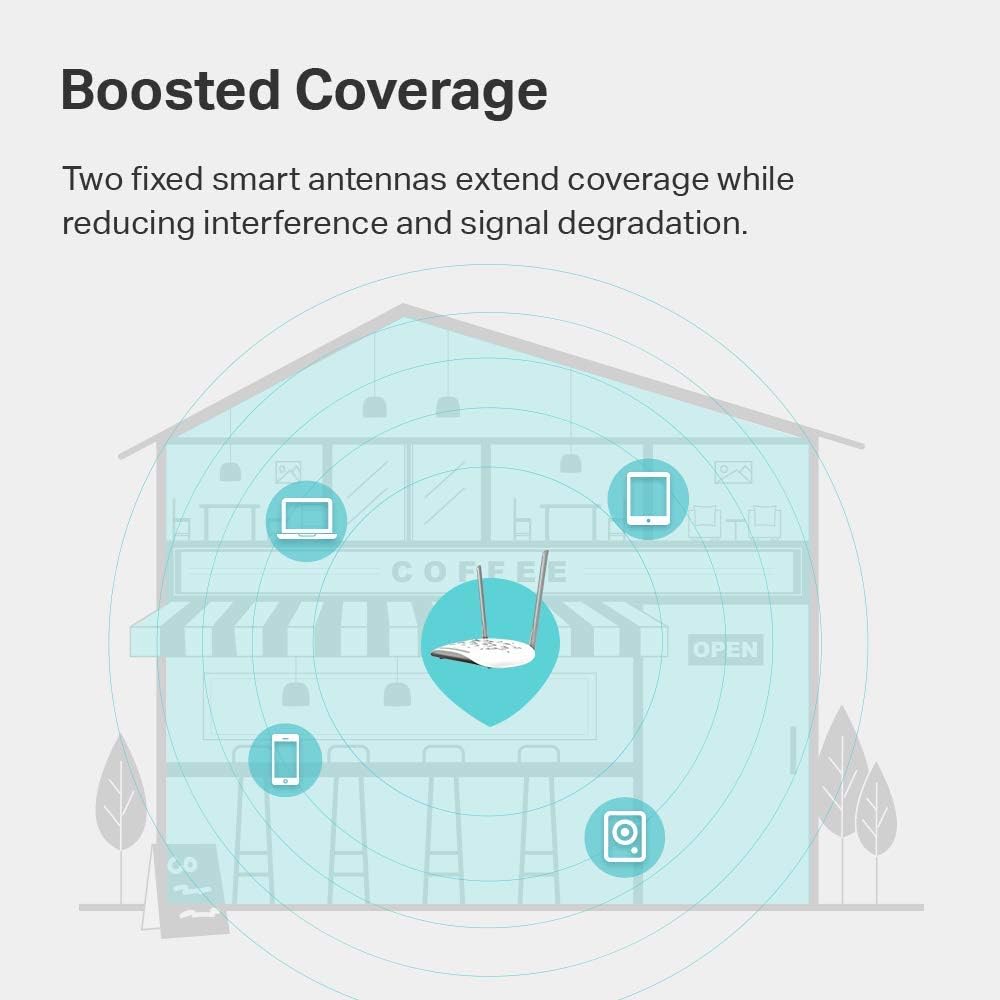
Figure 5.2: Illustration of the TL-WA801N providing boosted Wi-Fi coverage throughout a multi-level environment, indicating extended signal reach to various devices.
6. Specifications
| Feature | Detail |
|---|---|
| Brand | TP-Link |
| Model Name | TL-WA801N |
| Wireless Type | 802.11n |
| Frequency Band Class | Single-Band (2.4 GHz) |
| Wireless Communication Standard | 802.11n |
| Max Wireless Speed | 300 Mbps |
| Special Feature | WPS |
| Connectivity Technology | Wi-Fi |
| Compatible Devices | Gaming Console, Printer |
| Item Weight | 5.9 ounces |
| Product Dimensions | 12.2 x 2.76 x 8.78 inches |
| Color | White |
| Voltage | 100-240 Volts |
| Operating System | Windows (compatible) |
7. Troubleshooting
If you encounter issues with your TL-WA801N, consider the following common troubleshooting steps:
- No Power: Ensure the power adapter is securely connected to the device and a working power outlet. If using PoE, verify the PoE injector is powered and connected correctly.
- No Internet Access: Check the Ethernet cable connection between the AP and your router/modem. Verify that your main internet connection is active.
- Weak Wi-Fi Signal: Try repositioning the access point to a central location, away from obstructions and interference sources (e.g., microwaves, cordless phones).
- Cannot Access Management Page: Ensure your computer is connected to the AP's network (wired or wireless). Verify the IP address and login credentials. Try clearing your browser's cache or using a different browser.
- Forgot Password: If you forget your login password, you can perform a factory reset by pressing and holding the Reset button on the rear panel for approximately 5-10 seconds while the device is powered on. This will revert all settings to default.
- Firmware Update: Regularly check the TP-Link official website for firmware updates to ensure optimal performance and security.
For more detailed troubleshooting and advanced configurations, please refer to the official User Manual (PDF).
8. Warranty and Support
The TP-Link TL-WA801N comes with an industry-leading 2-year warranty. TP-Link also provides free 24/7 technical support for this product.
For technical assistance, product registration, or to download the latest drivers and firmware, please visit the official TP-Link support website or contact their customer service.
Additional resources can be found in the comprehensive User Manual (PDF).
9. Legal Disclaimer
1. Maximum wireless transmission rates are the physical rates derived from IEEE Standard 802.11 specifications. Range and coverage specifications are based upon test results under normal usage conditions. Actual wireless transmission rate and wireless coverage are not guaranteed and will vary as a result of 1) environmental factors, including building materials, physical objects and obstacles, 2) network conditions, including local interference, volume and density of traffic, product location, network complexity, and network overhead and 3) client limitations, including rated performance, location, connection quality, and client condition.
2. Actual network speed may be limited by the rate of the product's Ethernet WAN or LAN port, the rate supported by the network cable, Internet service provider factors and other environmental conditions.
Related documentsTL-WA801N


Ask a question about this manual
Ask about setup, troubleshooting, compatibility, parts, safety, or missing instructions. Manuals+ will review the question and use this page’s manual context to help answer it.