
Seagate STKC4000401
Seagate One Touch 4TB External Hard Drive User Manual
Model: STKC4000401
1. Introduction
The Seagate One Touch 4TB External Hard Drive provides portable storage for your digital files. This device is designed for easy use with both PC and Mac computers, offering a simple solution for backing up and accessing your data.

Image 1.1: Seagate One Touch 4TB External Hard Drive. This image displays the silver-colored external hard drive with its minimalist design, suitable for various environments.
2. Package Contents
Verify that all items are present in the package:
- Seagate One Touch 4TB External Hard Drive
- USB 3.0 Cable
- Quick Start Guide (this document)
3. Setup and Connection
The Seagate One Touch drive is designed for plug-and-play operation. Follow these steps to connect your device:
- Connect the small end of the included USB 3.0 cable to the USB port on the Seagate One Touch drive.
- Connect the larger end of the USB 3.0 cable to an available USB port on your computer (PC or Mac).
- The drive will automatically power on and be detected by your operating system.
Note: For Mac users, reformatting may be required for full compatibility with Time Machine backup software. Refer to your Mac's documentation for reformatting instructions.

Image 3.1: Universal Compatibility. This image illustrates the connection of the USB 3.0 cable to the drive and highlights its compatibility with both Windows and Mac operating systems.
4. Operating the Device
4.1 Data Storage and Transfer
Once connected, the Seagate One Touch drive will appear as an external storage device on your computer. You can drag and drop files to and from the drive, or use your operating system's file management tools to organize your data.
4.2 Backup Features
The drive supports various backup methods:
- Single-Click Backup: Utilize the included software (if applicable) or your operating system's backup utility for immediate data backup.
- Scheduled Backups: Configure automatic daily, weekly, or monthly backups to ensure your data is regularly protected.
4.3 Included Software Features
The Seagate One Touch drive may include access to software subscriptions designed to enhance your digital experience:
- Mylio Create: A one-year complimentary subscription to Mylio Create is included, allowing you to organize and protect your photos and videos across multiple devices.
- Adobe Creative Cloud Photography Plan: A four-month membership to the Adobe Creative Cloud Photography plan is included, providing access to photo editing tools like Adobe Photoshop and Lightroom.
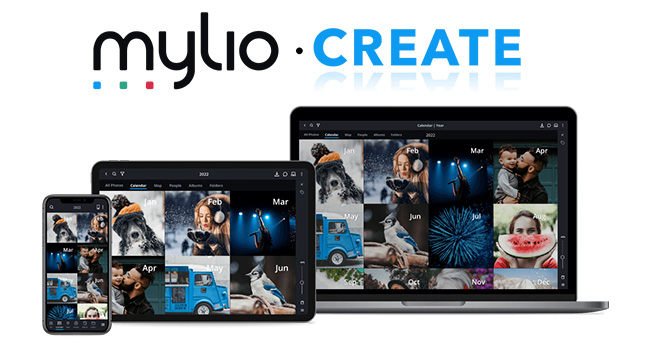
Image 4.1: Mylio Create Interface. This image shows the Mylio Create application running on various devices, demonstrating its capability to organize and display photos.
5. Maintenance and Care
To ensure the longevity and optimal performance of your Seagate One Touch drive, follow these guidelines:
- Physical Handling: Handle the drive with care. Avoid dropping it or subjecting it to strong impacts, as this can damage internal components.
- Environmental Conditions: Keep the drive away from extreme temperatures, direct sunlight, and high humidity.
- Cleaning: Use a soft, dry cloth to clean the exterior of the drive. Do not use liquid cleaners or solvents.
- Safe Ejection: Always safely eject the drive from your computer's operating system before disconnecting the USB cable to prevent data corruption.
6. Troubleshooting
If you encounter issues with your Seagate One Touch drive, refer to the following common solutions:
6.1 Drive Not Detected
- Check Cable Connection: Ensure the USB cable is securely connected to both the drive and your computer.
- Try a Different USB Port: Connect the drive to another USB port on your computer.
- Try a Different Cable: If available, use a different USB 3.0 cable to rule out a faulty cable.
- Restart Computer: Sometimes a simple computer restart can resolve detection issues.
- Check Disk Management (Windows) / Disk Utility (Mac): Verify if the drive appears in your operating system's disk management tools. If it appears but is unformatted, you may need to format it (this will erase all data).
6.2 Slow Transfer Speeds
- Use USB 3.0 Port: Ensure the drive is connected to a USB 3.0 port on your computer for optimal speeds. USB 2.0 ports will result in slower transfers.
- Avoid Other USB Devices: Disconnect other high-bandwidth USB devices during large transfers.
- Check Drive Health: Run a disk check utility on your computer to identify any potential issues with the drive.
For further assistance, please visit the official Seagate support website.
7. Specifications
| Feature | Detail |
|---|---|
| Model Number | STKC4000401 |
| Storage Capacity | 4TB (4000 GB) |
| Hard Drive Type | Mechanical Hard Disk |
| Interface | USB 3.0 |
| Compatibility | PC, Mac |
| Dimensions (LxWxH) | 5.59 x 4.02 x 1.65 inches |
| Item Weight | 9.5 ounces |
| Color | Silver |
8. Warranty and Support
8.1 Limited Warranty
Your Seagate One Touch drive is covered by a limited warranty. Please refer to the warranty information provided with your product or visit the official Seagate website for details regarding warranty terms and conditions.
8.2 Data Recovery Services
Most Seagate drives include Rescue Data Recovery Services with their warranty. These services are designed to help protect against data loss due to power outages, natural disasters, user error, viruses, and other unforeseen events. With an industry-leading success rate, these services provide peace of mind for your stored files.

Image 8.1: Seagate Rescue Data Recovery Services. This image highlights the availability of data recovery services to protect against data loss.
8.3 Technical Support
For technical assistance, product registration, or to access additional resources, please visit the official Seagate support website: www.seagate.com/support
Related documentsSTKC4000401


Ask a question about this manual
Ask about setup, troubleshooting, compatibility, parts, safety, or missing instructions. Manuals+ will review the question and use this page’s manual context to help answer it.