
Linsoul BT20S PRO
Linsoul TRN BT20S PRO Bluetooth 5.0 HiFi Earphone Module User Manual
Model: BT20S PRO | Brand: Linsoul
Product Overview
The Linsoul TRN BT20S PRO is a high-fidelity Bluetooth 5.0 earphone module designed to convert your wired MMCX-compatible in-ear monitors (IEMs) into wireless headphones. Featuring the Qualcomm QCC3020 chipset, it supports APT-X, AAC, and SBC audio codecs, providing stable and high-quality wireless audio transmission. The module incorporates DSP noise reduction for clear calls and an ergonomic design with flexible earhooks for comfortable wear during various activities.

Image: The TRN BT20S PRO modules shown inside their compact charging case, highlighting their total wireless design.
Key Features
- Bluetooth 5.0 Connectivity: Ensures stable and efficient wireless connection.
- Qualcomm QCC3020 Chipset: Provides advanced audio processing and reliable performance.
- Audio Codec Support: Compatible with APT-X, AAC, and SBC for high-quality audio streaming.
- DSP Noise Reduction: Enhances call clarity by reducing ambient noise.
- MMCX Connector: Designed for compatibility with a wide range of MMCX-interfaced in-ear monitors.
- Flexible Earhooks: Made from Thermoplastic Elastomer (TPE) for comfortable and secure fit.
- Long Battery Life: Up to 72 hours of non-stop music playback with the charging case.
- USB Type-C Charging: Modern and convenient charging interface.
- Water Resistant: Suitable for exercising, outdoor running, and light rain use.
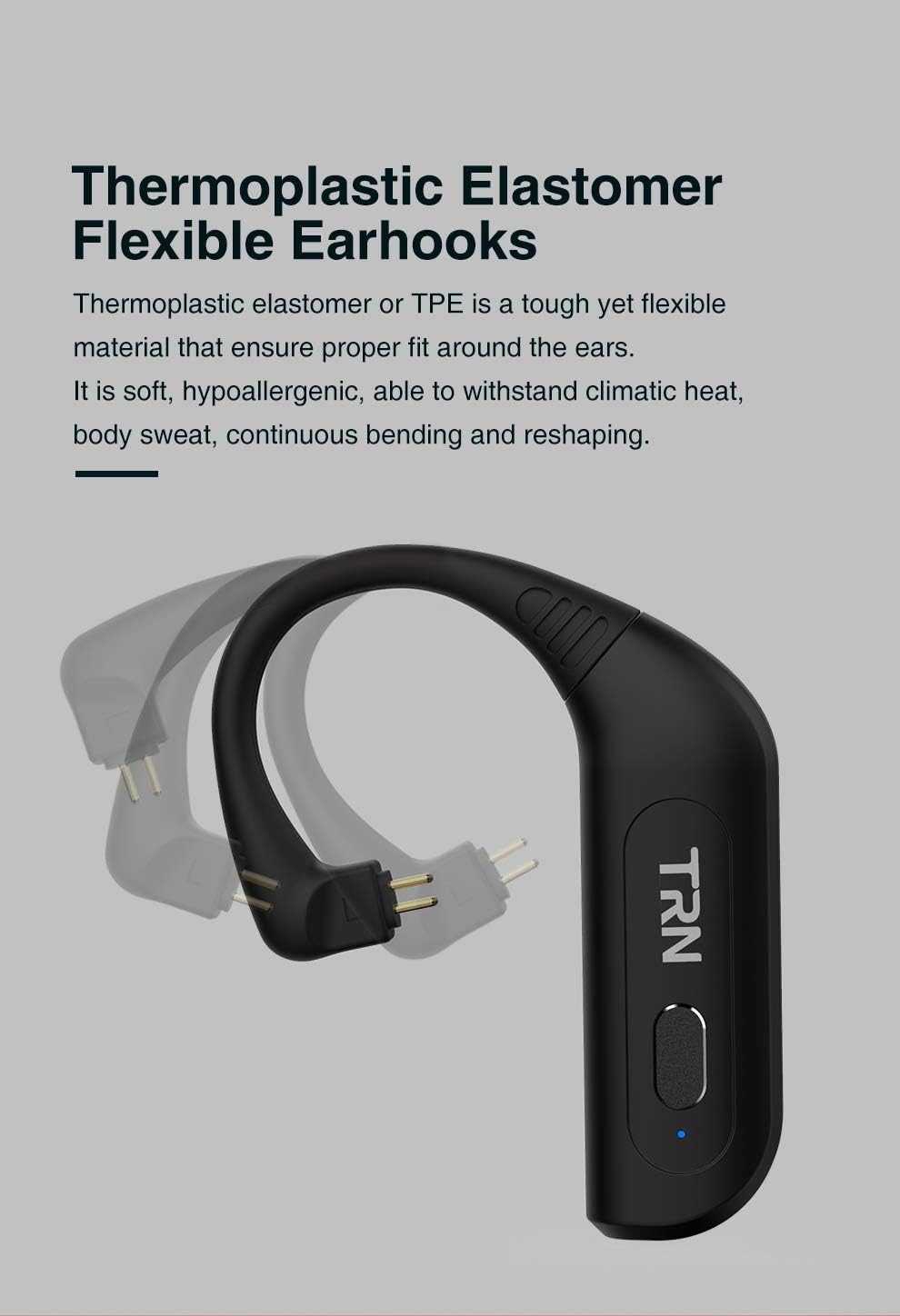
Image: A detailed view of the flexible thermoplastic elastomer earhooks, demonstrating their ability to bend and conform for a comfortable fit.

Image: The TRN BT20S PRO charging case, highlighting the USB Type-C charging port and indicating up to 72 hours of non-stop music playback.
Setup Guide
1. Package Contents
Before you begin, please ensure all items are present in the package:
- TRN BT20S PRO Bluetooth Earphone Modules (Left and Right)
- Charging Case
- USB Type-C Charging Cable ([POSSIBLY] Cable)
- User Manual (this document)
- [POSSIBLY] Ear Cushions (if included with your specific package)
2. Charging the Modules and Case
For optimal performance, fully charge the modules and the charging case before first use.
- Charge the Charging Case: Connect the provided USB Type-C cable to the charging port on the case and plug the other end into a USB power source (e.g., computer USB port, wall adapter). The indicator light on the case will show charging status.
- Charge the Modules: Place the left and right TRN BT20S PRO modules into their respective slots in the charging case. Ensure the connectors align properly. The modules will begin charging automatically when placed in the powered case. Indicator lights on the modules will show their charging status (e.g., red for charging, blue for fully charged).
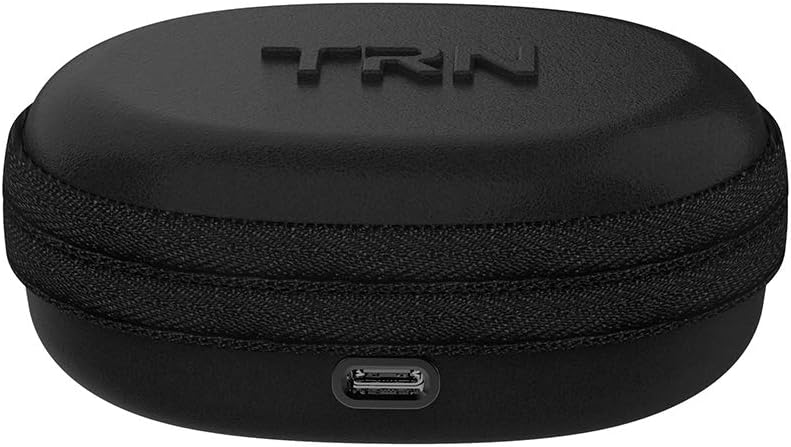
Image: The compact charging case for the TRN BT20S PRO, showing the USB Type-C charging port located at the front.
3. Connecting to In-Ear Monitors (IEMs)
The TRN BT20S PRO modules are designed for use with MMCX-compatible IEMs.
- Identify the MMCX connectors on your IEMs and on the TRN BT20S PRO modules. The module connectors are typically gold-plated.
- Gently align the MMCX connector of your IEM with the corresponding connector on the TRN BT20S PRO module.
- Push the IEM connector firmly into the module connector until you feel a click. Ensure a secure connection.
- Repeat for the other module and IEM.
Note: Ensure the correct left (L) and right (R) modules are connected to their respective IEMs for proper stereo sound.
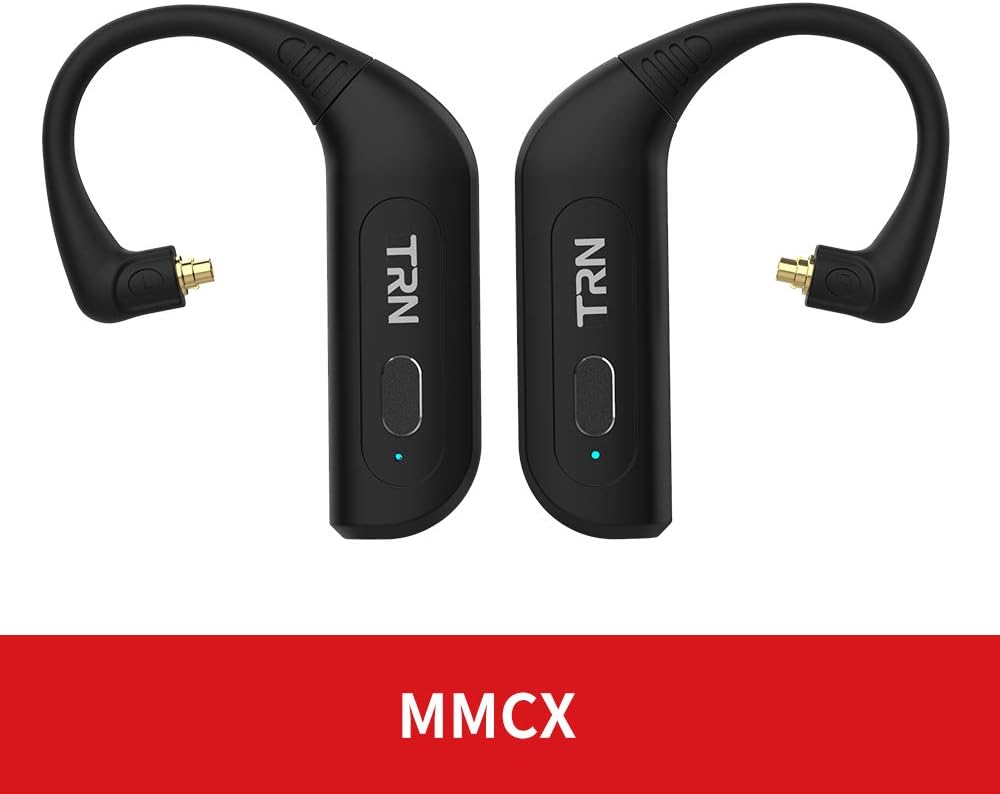
Image: The TRN BT20S PRO modules, clearly displaying their MMCX connectors, indicating compatibility with MMCX-interfaced earphones.

Image: The TRN BT20S PRO modules with in-ear monitors attached, placed within their charging case, demonstrating how they fit together for storage and charging.
4. Bluetooth Pairing
To connect your TRN BT20S PRO modules to a Bluetooth-enabled device:
- Power On: Take the modules out of the charging case. They will automatically power on and enter pairing mode. The indicator lights will flash (e.g., blue and red alternately) to indicate pairing mode.
- Activate Bluetooth: On your device (smartphone, tablet, computer), enable Bluetooth.
- Search for Devices: In your device's Bluetooth settings, search for available devices.
- Select "TRN BT20S PRO": From the list of found devices, select "TRN BT20S PRO" to initiate pairing.
- Confirm Connection: Once successfully paired, the indicator lights on the modules will typically turn solid blue or stop flashing. You may hear an audible confirmation.
Note: The modules should automatically reconnect to the last paired device when powered on and within range.
Operating Instructions
Power On/Off
- Power On: The modules automatically power on when removed from the charging case. Alternatively, press and hold the multi-function button on each module for approximately 3 seconds until the indicator light illuminates.
- Power Off: Place the modules back into the charging case. They will automatically power off and begin charging. Alternatively, press and hold the multi-function button on each module for approximately 5 seconds until the indicator light turns off.
Wearing the Modules
The TRN BT20S PRO modules are designed to be worn over the ear, with the earhook conforming to the shape of your ear.
- With your IEMs attached, gently loop the earhook portion of the module over the top of your ear.
- Adjust the IEM into your ear canal for a comfortable and secure fit.
- Ensure the module body rests comfortably behind your ear.
Controls (Touch/Button)
The TRN BT20S PRO features a multi-function button and touch controls for various operations:
| Function | Action |
|---|---|
| Play/Pause Music | Single press the multi-function button on either module. |
| Next Track | Double press the multi-function button on the Right module. |
| Previous Track | Double press the multi-function button on the Left module. |
| Answer/End Call | Single press the multi-function button on either module during an incoming call. |
| Reject Call | Press and hold the multi-function button on either module for 2 seconds during an incoming call. |
| Activate Voice Assistant | Triple press the multi-function button on either module. |
| Volume Up | (Specific touch control gesture, refer to product documentation if available, otherwise controlled via connected device) |
| Volume Down | (Specific touch control gesture, refer to product documentation if available, otherwise controlled via connected device) |
Note: Volume control may primarily be managed through your connected Bluetooth device. The product specifications mention "Control Type: Media Control" and "Control Method: Touch", "Controller Type: Touch Controller", but specific volume gestures are not detailed in the provided data. Please refer to the official product manual for precise touch control gestures if available.
Maintenance
Proper maintenance ensures the longevity and optimal performance of your TRN BT20S PRO modules.
- Cleaning: Use a soft, dry, lint-free cloth to wipe the modules and charging case. Do not use abrasive cleaners, solvents, or strong chemicals.
- Connectors: Keep the MMCX connectors and charging contacts clean and free of dust or debris. Use a dry cotton swab if necessary.
- Storage: When not in use, store the modules in their charging case to protect them from dust and physical damage. Store in a cool, dry place away from direct sunlight and extreme temperatures.
- Battery Care: To preserve battery life, avoid fully discharging the modules frequently. If storing for an extended period, charge them to about 50% every few months.
- Water Resistance: While water resistant, avoid submerging the modules in water. Dry them thoroughly if they come into contact with sweat or light rain before placing them back in the charging case.
Troubleshooting
If you encounter issues with your TRN BT20S PRO modules, refer to the following common problems and solutions:
| Problem | Possible Cause / Solution |
|---|---|
| Modules do not power on. |
|
| Cannot pair with device. |
|
| No sound or intermittent sound. |
|
| Poor sound quality or noise. |
|
| Charging case not charging. |
|
Specifications
| Feature | Detail |
|---|---|
| Model Name | BT20S PRO |
| Brand | Linsoul |
| Connectivity Technology | Wireless (Bluetooth) |
| Bluetooth Version | 5.0 |
| Bluetooth Range | 10 Meters (approx. 33 feet) |
| Frequency Range | 20 Hz - 20,000 Hz |
| Chipset | Qualcomm QCC3020 |
| Supported Codecs | APT-X, AAC, SBC |
| Connector Type | MMCX |
| Control Type | Media Control, Touch |
| Water Resistance Level | Water Resistant |
| Material | Aluminum (module body), Thermoplastic Elastomer (earhooks) |
| Item Weight | 5.3 ounces (approx. 150 grams) |
| Manufacturer | TRN |
| Compatible Devices | Bluetooth-enabled devices |
| Special Features | Microphone Included, DSP Noise Reduction |
Warranty and Support
Warranty Information: Specific warranty terms and conditions for the Linsoul TRN BT20S PRO are typically provided by the seller or manufacturer at the time of purchase. Please refer to your purchase documentation or contact the retailer/Linsoul directly for detailed warranty coverage.
Customer Support: For technical assistance, troubleshooting beyond this manual, or warranty claims, please contact the seller from whom you purchased the product. You may also visit the official Linsoul website for support resources or contact their customer service department.
Disclaimer: This manual provides general instructions. Product features and specifications are subject to change without notice. For the most up-to-date information, please refer to the manufacturer's official website or contact their support.
Ask a question about this manual
Ask about setup, troubleshooting, compatibility, parts, safety, or missing instructions. Manuals+ will review the question and use this page’s manual context to help answer it.