
1. Introduction
The iStorage datAshur BT is a high-security USB 3.2 (Gen 1) flash drive designed to protect your sensitive data. It features secure wireless authentication via Bluetooth, allowing users to unlock the drive using a smartphone (Android or iOS) with a 7-15 character password or biometric methods like Face ID, fingerprint, or IRIS scanning. All data stored on the drive is encrypted in real-time using FIPS certified 256-bit AES-XTS hardware encryption. The datAshur BT is operating system and host independent, ensuring compatibility with a wide range of devices and operating systems that support USB mass storage.
For enhanced security and management in corporate environments, datAshur BT drives can be provisioned and remotely managed through the optional iStorage datAshur BT Remote Management Web Console (annual subscription required).

Image 1.1: The iStorage datAshur BT 64 GB secure flash drive with its protective cap removed, showing the USB connector.
2. Key Features
- Secure Authentication: Unlock the drive using the datAshur BT app on your mobile device with a 7-15 character password or biometric unlock (Face ID, facial recognition, Touch ID, fingerprint, IRIS scanning).
- Bluetooth Security: The Bluetooth channel for user authentication is protected by a FIPS validated encryption layer, used exclusively for connection purposes.
- Hardware Encryption: All data is encrypted in real-time using military-grade 256-bit AES-XTS hardware encryption, certified to FIPS 140-2 Level 3 standards. This ensures compliance with strict data protection regulations such as GDPR, HIPAA, SOX, and CCPA.
- OS and Host Independent: Compatible with any operating system (Windows, Mac, Linux, Chrome, etc.) and any host or embedded system that supports USB mass storage, including computers, medical devices, TVs, drones, printers, and scanners.
- Remote Management Ready: Optional remote management capabilities are available via the iStorage Remote Management Console. datAshur BT drives can be provisioned and deployed as managed drives in minutes (additional purchase and subscription required).
3. Setup
To begin using your iStorage datAshur BT drive, follow these steps:
- Charge the Drive: Before initial use, ensure the datAshur BT drive is charged. Connect it to any powered USB port for approximately 60-90 minutes. The LED indicator will show charging status.
- Download the App: Download the "datAshur BT" app from your smartphone's app store (available for Android and iOS).
- Pair the Drive: Open the datAshur BT app and follow the on-screen instructions to pair your drive via Bluetooth. You will need to enter the unique pairing code found on the drive's connector.
- Set Up Password/Biometrics: Once paired, the app will guide you through setting up your 7-15 character password. You can also enable biometric unlock options (Face ID, fingerprint, IRIS scanning) if supported by your smartphone.
- Initial Unlock: After setup, the drive is ready for use. Connect it to a USB port on your computer and unlock it using the app.
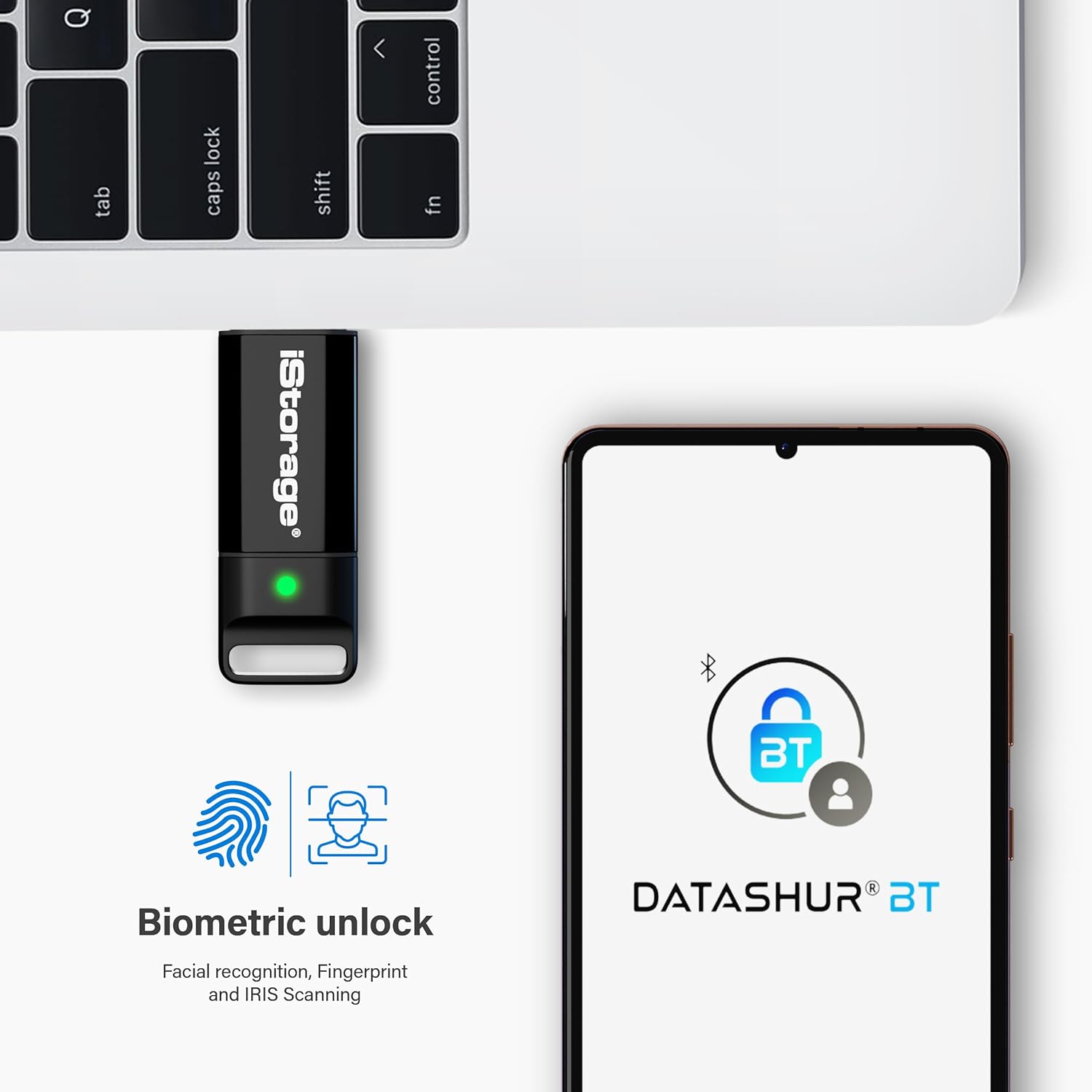
Image 3.1: The datAshur BT drive connected to a laptop, with a smartphone displaying the datAshur BT app and biometric unlock options.
4. Operating Instructions
Using your datAshur BT drive is straightforward once it has been set up and paired with your smartphone.
4.1 Unlocking the Drive
- Connect the datAshur BT drive to an available USB port on your computer or host device.
- Ensure Bluetooth is enabled on your paired smartphone and open the datAshur BT app.
- The app will detect the drive. Enter your password or use your configured biometric method to unlock it.
- Once successfully authenticated, the drive's LED will indicate it is unlocked, and it will appear as a standard removable storage device on your computer.
4.2 Transferring Data
After unlocking, the datAshur BT functions like any standard USB flash drive. You can drag and drop files, copy, paste, and delete data as needed. All data written to the drive is automatically encrypted in real-time.
4.3 Locking the Drive
To secure your data, always lock the drive when not in use:
- Safely eject the datAshur BT drive from your computer's operating system (e.g., "Safely Remove Hardware" on Windows, "Eject" on Mac).
- Once ejected, the drive will automatically lock. You can also manually lock it via the datAshur BT app.
- Disconnect the drive from the USB port.
5. Maintenance
Proper care and maintenance will ensure the longevity and optimal performance of your datAshur BT drive.
- Physical Care: Keep the drive clean and free from dust and debris. Avoid dropping or subjecting it to excessive force.
- Environmental Conditions: Store and operate the drive within recommended temperature and humidity ranges. Avoid extreme heat or cold.
- Water and Dust Resistance: The datAshur BT is IP57 certified, meaning it is protected against dust ingress and immersion in water up to 1 meter for 30 minutes. While robust, avoid intentional submersion or exposure to harsh chemicals.
- Data Backup: Regularly back up critical data stored on the drive to another secure location. While the drive offers strong security, no storage device is immune to all forms of data loss.
- Firmware Updates: Periodically check the iStorage website or the datAshur BT app for any available firmware updates to ensure your drive has the latest security enhancements and features.
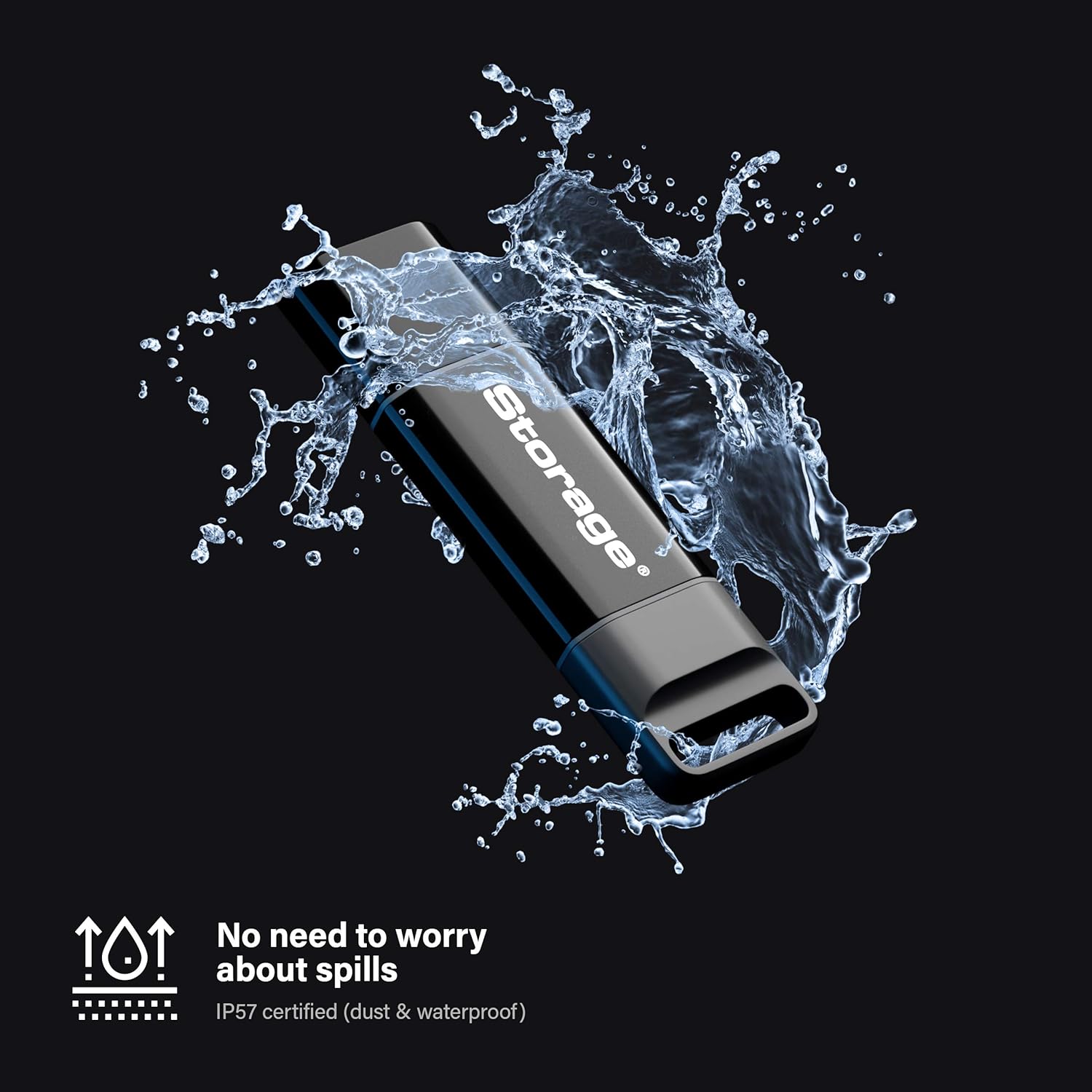
Image 5.1: The datAshur BT drive being splashed with water, illustrating its IP57 dust and waterproof certification.
6. Troubleshooting
If you encounter issues with your datAshur BT drive, refer to the following common problems and solutions:
- Drive Not Recognized by Computer:
- Ensure the drive is fully inserted into the USB port.
- Try a different USB port on your computer.
- Test the drive on another computer to rule out a computer-specific issue.
- Confirm the drive is unlocked via the datAshur BT app. It will not be recognized by the OS until unlocked.
- Authentication Failure in App:
- Double-check your password for accuracy, paying attention to case sensitivity.
- Ensure Bluetooth is enabled on your smartphone and the datAshur BT app has the necessary permissions.
- Make sure the drive is within Bluetooth range of your smartphone.
- If using biometrics, ensure your finger/face is clean and properly positioned.
- Try re-pairing the drive with the app if connection issues persist.
- Slow Data Transfer Speeds:
- Ensure you are connecting the drive to a USB 3.0 compatible port for optimal performance. USB 2.0 ports will result in slower speeds.
- Large file transfers can naturally take longer.
- Drive Not Charging:
- Ensure the USB port you are using provides power. Try a different port or a wall adapter.
- Check the USB cable for damage.
7. Specifications
| Brand | iStorage |
| Model Name | iStorage datAshur BT |
| Model Number | IS-FL-DBT-256-64 |
| Memory Storage Capacity | 64 GB |
| Hardware Interface | USB 3.0 |
| Connectivity Technology | USB, Bluetooth |
| Flash Memory Type | USB |
| Hardware Connectivity Technology | USB Type A |
| Compatible Devices | Any device with a USB port or Bluetooth connection |
| Write Speed | 130 MB/s |
| Special Feature | Lightweight, IP57 Dust & Waterproof |
| Color | Black |
| Item Weight | 16.5 Grams |
8. Warranty and Support
For detailed warranty information regarding your iStorage datAshur BT drive, please refer to the official iStorage website or the documentation included with your purchase. Warranty terms and conditions may vary by region and retailer.
If you require technical assistance, have questions about product features, or need to report an issue, please visit the official iStorage support page. You can typically find FAQs, troubleshooting guides, and contact information for customer support there.
Please note that remote management features require an optional annual subscription and are not included with the standard purchase of the drive.


