
1. Introduction
Thank you for choosing the Wixann 40W Smart WiFi RGB Flood Light. This manual provides essential information for the safe and efficient use of your new flood light. Please read these instructions carefully before installation and operation, and retain them for future reference.
2. Safety Information
- Ensure the power supply is disconnected before installation or maintenance.
- This product is rated IP66 waterproof, suitable for outdoor use in various weather conditions including rain, sleet, or snow. However, avoid submerging the light in water.
- Do not attempt to disassemble or modify the flood light. This may void the warranty and pose safety risks.
- Ensure the installation surface is stable and can support the weight of the flood light.
- Keep the flood light away from flammable materials.
3. Package Contents
- Wixann 40W Smart WiFi RGB Flood Light (2 units if purchased as a 2-pack)
- Mounting Bracket (pre-attached)
- User Manual
4. Product Overview
Features:
- Multi-Color & DIY Modes: Offers 16 million colors, tunable white light (2700K-6500K), dimmable brightness, and 8 preset lighting scenes. Create custom scene modes for various occasions.
- Smart Control: Control via the 'Smart Life' app (2.4GHz WiFi only) from anywhere, anytime. Voice control compatible with Alexa and Google Home.
- IP66 Waterproof: Constructed with high-quality die-cast aluminum housing and tempered glass, ensuring durability in harsh weather conditions.
- Timing Setting & Music Sync: Schedule automatic on/off times. Colors can change in rhythm with music.
- Energy Saving: 40W flood light produces up to 4000lm white light, equivalent to a 140W traditional light, saving up to 80% on electricity.
- Easy Installation: Plug-in design with a 180° adjustable lamp body for flexible mounting on ceilings, walls, or ground.
Specifications:
| Specification | Value |
|---|---|
| Brand | Wixann |
| Power Source | AC |
| Wattage | 40W |
| Luminous Flux | 4000LM |
| Color Temperature | 2700K-6500K (Tunable White) |
| Waterproof Rating | IP66 |
| Material | Aluminum Glass |
| Color | Black |
| Product Dimensions | 17.5L x 4.1W x 12.4H Centimetres |
| Item Weight | 1 Pound |
| Indoor/Outdoor Usage | Outdoor |
| Assembly Required | No |
| Batteries Required | No |
5. Setup
5.1 Physical Installation
The flood light features a 180° adjustable bracket for versatile mounting. Choose a suitable location outdoors, such as a garden, yard, patio, or wall. Secure the bracket firmly to the desired surface using appropriate screws (not included).

Image: This image displays the dimensions of the Wixann flood light, highlighting its 180° adjustable angle bracket and advanced heatsink design for better heat diffusion. It also shows the antenna for enhanced WiFi signal.
5.2 App Installation and Pairing
- Download the 'Smart Life' app from your smartphone's app store (iOS or Android).
- Register or log in to your Smart Life account.
- Plug in the flood light. If the light is not blinking rapidly, you may need to reset it. To reset, turn the light off and on three times until it blinks rapidly.
- In the app, tap 'Add Device' or the '+' icon. Select 'Lighting' and then 'Light Source (Wi-Fi)'.
- Confirm the light is blinking rapidly. Enter your 2.4GHz WiFi network password. Note: The device only supports 2.4GHz WiFi networks.
- The app will begin connecting to the device. Once connected, you can rename the flood light for easier control.
5.3 Voice Assistant Integration (Alexa/Google Home)
To enable voice control, link your Smart Life account with your Amazon Alexa or Google Home app. Follow the instructions within the respective voice assistant app to add the 'Smart Life' skill/service and discover devices.

Image: This image shows a woman using an Amazon Alexa device to control outdoor lights, illustrating the convenience of voice control for the Wixann flood light.

Image: This image depicts a smart home environment where Wixann flood lights are controlled via voice commands using Alexa and Google Assistant, demonstrating scheduling capabilities.
6. Operating Instructions
6.1 Basic On/Off
Turn the flood light on or off using the Smart Life app or a connected voice assistant (e.g., "Alexa, turn on the flood light").
6.2 Color Changing and Brightness Adjustment
Use the Smart Life app to select from 16 million colors or adjust the white light temperature between 2700K (warm white) and 6500K (cool white). The app also allows you to dim the brightness from 1% to 100%.

Image: This image illustrates the Wixann flood light's capability to produce dimmable RGBCW colors, including soft white (2700K) and cool white (6500K), showcasing its versatility.
6.3 Scene Modes
The app provides 8 preset lighting scenes for different moods or events. You can also create and save your own custom scene modes by selecting desired colors and effects.
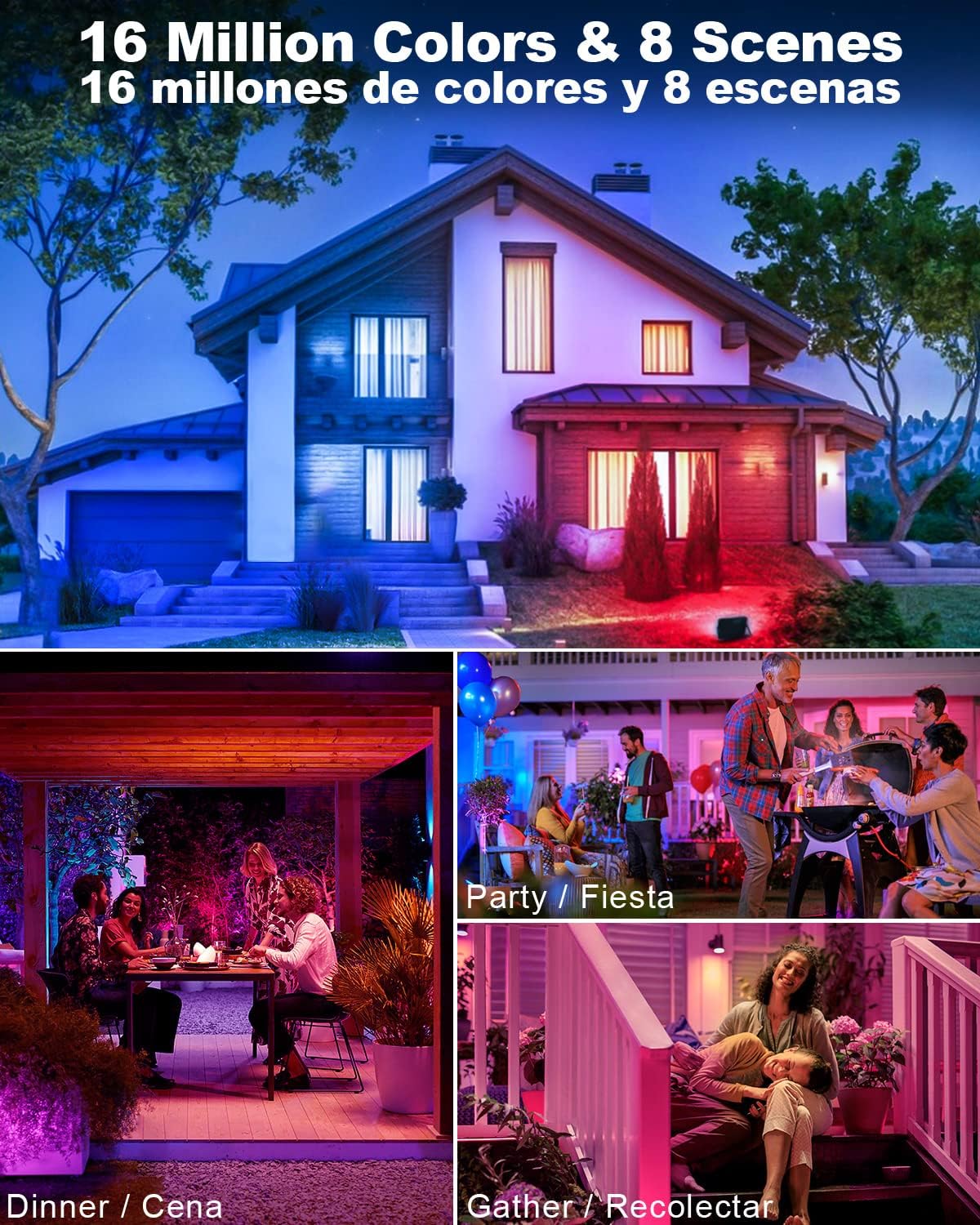
Image: This image demonstrates the Wixann flood light's ability to display 16 million colors and utilize 8 preset scenes, enhancing the ambiance for various outdoor activities like parties, dinners, and gatherings.
6.4 Timing and Scheduling
Set schedules within the Smart Life app for the flood light to automatically turn on or off at specific times. This feature helps automate your lighting and conserve energy.
6.5 Music Sync
Activate the music sync feature in the app to make the flood light's colors change in rhythm with your music. Choose between dynamic or soft music modes based on your preference.
7. Maintenance
- Regularly clean the surface of the flood light with a soft, damp cloth to remove dirt and debris. Do not use harsh chemicals or abrasive cleaners.
- Periodically check all connections and mounting points to ensure they are secure.
- Ensure the antenna is securely attached for optimal WiFi signal.
8. Troubleshooting
| Problem | Possible Cause | Solution |
|---|---|---|
| Light does not turn on. | No power, loose connection, faulty unit. | Check power outlet and connections. Ensure the light is plugged in. If still not working, contact support. |
| Cannot connect to WiFi. | Incorrect WiFi band, wrong password, too far from router. | Ensure your router is 2.4GHz. Verify WiFi password. Move the flood light closer to the router. Reset the device and try pairing again. |
| Voice control not working. | Smart Life account not linked, device not discovered. | Ensure Smart Life skill/service is enabled and linked in your Alexa/Google Home app. Redo device discovery. |
| Colors are not accurate or responsive. | App glitch, poor WiFi signal. | Restart the Smart Life app. Check WiFi signal strength. Reset the device if issues persist. |
9. Warranty and Support
Wixann provides a 24-Month Product Warranty for this flood light. Additionally, Lifetime Technical Support is available. If you have any questions, require assistance, or encounter any issues, please do not hesitate to contact Wixann customer support. Refer to the product packaging or Wixann's official website for contact details.
