
Introduction
This manual provides comprehensive instructions for the Lexmark MS431dw Monochrome Laser Printer. It covers setup, operation, maintenance, and troubleshooting to ensure optimal performance and longevity of your device. The Lexmark MS431dw is designed for efficient monochrome printing, offering speeds up to 40 pages per minute and automatic duplex printing.

Image: Front-right view of the Lexmark MS431dw Monochrome Laser Printer.
Setup
1. Unpacking the Printer
Carefully remove the printer from its packaging. Ensure all packing materials, tapes, and protective films are removed from the exterior and interior of the printer. Retain the packaging for future transport if needed.
2. Installing the Toner Cartridge
- Open the front cover of the printer.
- Remove the new toner cartridge from its packaging and gently shake it to distribute the toner.
- Insert the toner cartridge into the designated slot until it clicks into place.
- Close the front cover.
3. Loading Paper
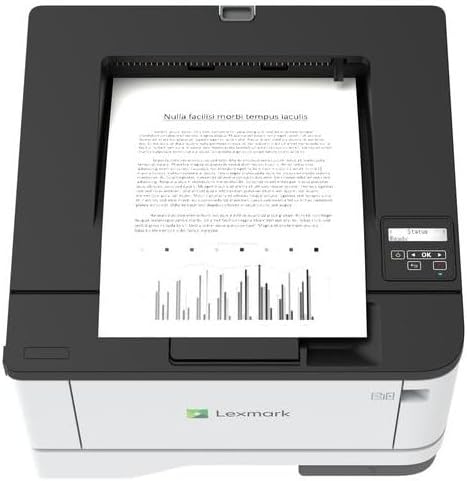
Image: Top view of the Lexmark MS431dw with paper loaded in the input tray.
Open the paper tray and adjust the paper guides to fit the size of your paper. Load the paper stack into the tray, ensuring it is flat and below the maximum fill line. Close the paper tray. The printer supports various media types, including card stock.
4. Connecting Power
Connect the power cord to the printer's power input and then to a grounded electrical outlet.
5. Connecting to a Network/Computer
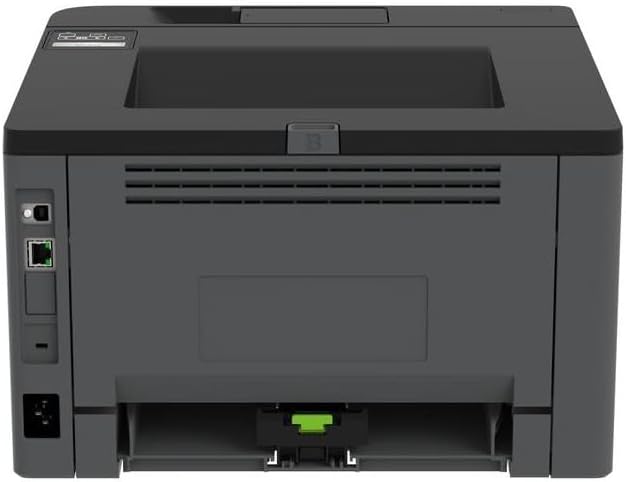
Image: Rear view of the Lexmark MS431dw, highlighting the Ethernet and power connection ports.
The Lexmark MS431dw supports Ethernet connectivity. Connect an Ethernet cable from your network router or switch to the Ethernet port on the back of the printer. For direct connection to a computer, use a USB cable (not included) if available, or configure network printing.
6. Driver Installation
Turn on the printer. Insert the driver CD (if provided) into your computer, or download the latest drivers from the official Lexmark support website. Follow the on-screen instructions to complete the driver installation.
Operating Instructions
1. Control Panel Overview

Image: Top view of the Lexmark MS431dw, showing the printer's control panel with display and buttons.
The control panel features a display screen and navigation buttons (Up, Down, OK, Back) to access printer settings, status, and functions. Refer to the on-screen menus for specific options.
2. Basic Printing
- Ensure the printer is powered on and connected to your computer or network.
- Open the document you wish to print on your computer.
- Select Print from the application's menu (e.g., File > Print).
- Choose the Lexmark MS431dw from the list of available printers.
- Adjust print settings as desired (e.g., number of copies, paper size).
- Click Print.
3. Automatic Duplex Printing
The MS431dw supports automatic two-sided (duplex) printing. To enable this feature:
- In the print dialog box on your computer, navigate to the printer properties or preferences.
- Look for an option related to "Two-sided printing" or "Duplex printing."
- Select the desired duplex option (e.g., long-edge binding, short-edge binding).
- Confirm your selection and proceed with printing.
Maintenance
1. Replacing the Toner Cartridge
When the toner level is low, the printer's display will indicate a warning. To replace the cartridge:
- Ensure the printer is powered on.
- Open the front cover.
- Remove the old toner cartridge by pulling it out.
- Unpack a new Lexmark-compatible toner cartridge and gently shake it.
- Insert the new cartridge until it locks into place.
- Close the front cover.
2. Cleaning the Printer
Regular cleaning helps maintain print quality and extends printer life.
- Exterior: Wipe the exterior surfaces with a soft, damp, lint-free cloth. Do not use abrasive cleaners or solvents.
- Interior: Periodically open the front cover and gently remove any dust or paper debris from accessible areas using a dry, lint-free cloth. Avoid touching the fuser unit.
Troubleshooting
This section addresses common issues you might encounter. For more detailed troubleshooting, refer to the Lexmark support website.
1. Paper Jams
- If a paper jam occurs, the printer display will show an error message indicating the location of the jam.
- Carefully open the indicated covers or trays.
- Gently pull the jammed paper in the direction of the paper path. Avoid tearing the paper.
- Close all covers and trays. The printer should resume printing.
2. Poor Print Quality
- Faded Prints: The toner cartridge may be low. Replace it if necessary.
- Streaks or Spots: Clean the printer's interior as described in the Maintenance section. Ensure the toner cartridge is properly seated.
- Blank Pages: Verify the toner cartridge is installed correctly and has toner. Check printer drivers and print settings.
3. Connectivity Issues
- Printer Not Found: Ensure the Ethernet cable is securely connected to both the printer and the network. Verify network settings on the printer and computer.
- Offline Status: Check the printer's power and network connection. Restart both the printer and your computer.
Specifications
| Feature | Detail |
|---|---|
| Model Number | 29S0110 |
| Printing Technology | Laser |
| Printer Output | Monochrome |
| Maximum Print Speed (Monochrome) | Up to 40 ppm (pages per minute) |
| Connectivity Technology | Ethernet |
| Special Feature | Auto-Duplex (Automatic Two-sided Printing) |
| Max Input Sheet Capacity | 900 sheets |
| Print Media Support | Card stock, Plain paper |
| Item Weight | 9300 Grams (approx. 20.5 lbs) |
| Wattage | 570 watts |
| UPC | 734646695558 |
Note: Specifications are subject to change without notice.
Warranty and Support
Warranty Information
Your Lexmark MS431dw printer is covered by a standard manufacturer's warranty. For specific terms, conditions, and duration of your warranty, please refer to the documentation included with your product or visit the official Lexmark website. Keep your proof of purchase for warranty claims.
Customer Support
For technical assistance, driver downloads, or further support, please visit the official Lexmark support portal.
Visit the Lexmark Store for Support


