
1. Product Overview
The SMONET SMUS-MD-SIL-KIT-HUB is a smart WiFi keyless entry door lock designed for enhanced home security and convenience. It integrates multiple unlocking methods including a touchscreen keypad, smartphone app control via Bluetooth and WiFi, and traditional mechanical keys. This lock is compatible with smart home ecosystems like Amazon Alexa and Google Home, allowing for voice control and remote management.
2. Key Features
- Multiple Unlocking Methods: Unlock using a smartphone (via TTLock App), touchscreen keypad, or mechanical key.
- Remote Control: Lock and unlock your door from anywhere using the app, provided the WiFi Gateway is connected.
- Smart Home Integration: Compatible with Amazon Alexa and Google Home for voice commands (Gateway required).
- Temporary Access Codes: Generate timed, permanent, one-time, or customized passcodes for guests, visitors, or service providers.
- Operation Log: Monitor all lock operation records in real-time for enhanced security.
- Auto-Lock Function: Automatically locks the door after a set period for added peace of mind.
- Adjustable Deadbolt: Features an adjustable deadbolt length to fit various door types.
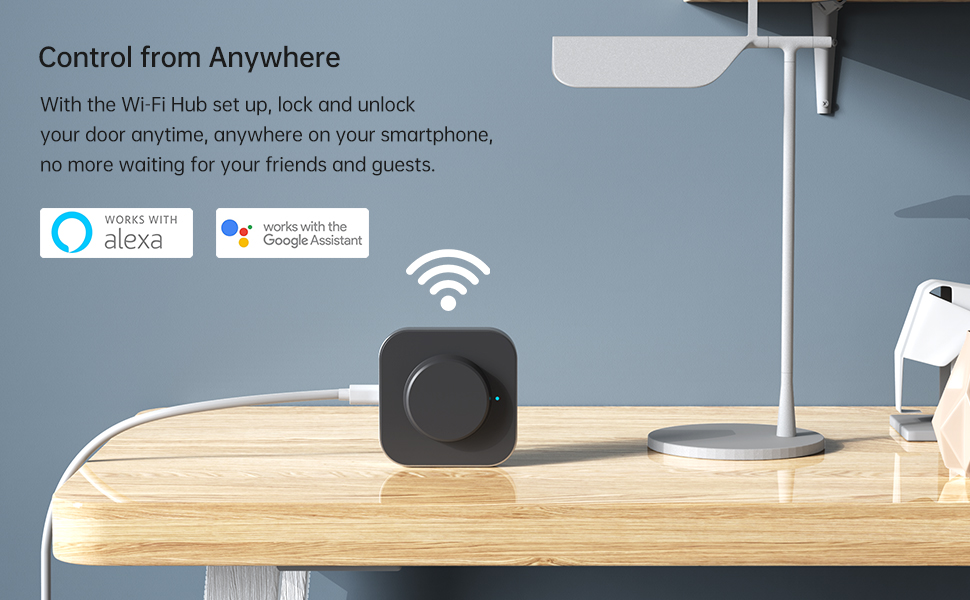
Image: Overview of SMONET smart lock functions including passcode, smartphone control, mechanical key, remote control, auto-lock, and voice control.
3. Package Contents
Ensure all components are present before beginning installation:
- 1 x Exterior Assembly
- 1 x Interior Lock
- 1 x Radius square corner strike (with latch box)
- 1 x Diagram template for installation
- 1 x Screwdriver
- Mechanical Keys
- Mounting Hardware (screws, bolts)
4. Installation
Follow these steps carefully for proper installation. A detailed video guide is also available.
4.1. Preparation
- Determine door handing (left-handle or right-handle).
- Use the provided template to mark the door and drill necessary holes.
4.2. Installing the Deadbolt
- Adjust the deadbolt length if necessary. The deadbolt is adjustable to fit different backsets.
- Ensure the arrow on the deadbolt mechanism is facing upwards when inserted into the door.
- Secure the deadbolt with the provided screws.

Image: Demonstrates the adjustable deadbolt mechanism, showing how to extend or retract it to fit the door's backset.
4.3. Installing Exterior and Interior Assemblies
- Route the IC wire through the latch mechanism.
- Install the exterior front panel.
- Adjust the toggle button on the interior assembly to match your door's handing (L for left-handle, R for right-handle).
- Carefully connect the IC wire to the interior assembly.
- Secure the interior assembly to the door.

Image: An exploded view showing the various components of the smart deadbolt, illustrating how they fit together during DIY installation.
4.4. Installation Video Guide
For a visual guide on the installation process, please refer to the official video below:
Video: Official SMONET guide on how to install the WiFi Smart Door Lock. This video covers step-by-step instructions for mounting the lock on your door.
5. Initial Setup
5.1. Battery Installation
- Open the battery cover on the interior assembly.
- Insert 4 AA batteries, ensuring correct polarity.
- Close the battery cover securely.
5.2. App Download and Pairing
- Download the TTLock App or ScienerSmart App from your smartphone's app store.
- Create an account and follow the in-app instructions to pair your smart lock via Bluetooth.
- If using the WiFi Gateway (included with some kits), follow the app instructions to connect the gateway to your home WiFi network and link it to your lock for remote access.

Image: A smartphone screen showing the SMONET lock control application, illustrating remote control capabilities.
6. Operating Instructions
6.1. Keyless Entry (Passcode)
- To unlock: Enter your programmed passcode on the touchscreen keypad, then press the '#' key.
- To lock: Long press the '#' key on the keypad for 2 seconds. No password is required for locking.
- Virtual Passcode: You can enter random digits before or after your actual passcode to prevent others from guessing your code based on finger smudges.

Image: Illustration of the virtual passcode feature, allowing users to enter random digits before or after their actual code for enhanced security.
6.2. Smartphone App Control
- Open the TTLock/ScienerSmart App on your smartphone.
- Tap the lock icon to unlock or lock the door.
- The app also allows you to generate various types of access codes (timed, one-time, permanent) for guests.
- View the operation log to see who entered and when.
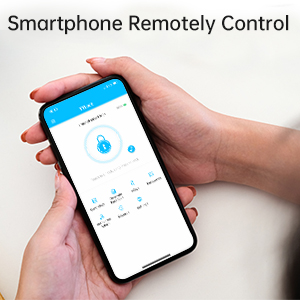
Image: A hand holding a smartphone, demonstrating the remote control functionality of the SMONET smart lock via the app.
6.3. Voice Control (Alexa/Google Home)
- Ensure your WiFi Gateway is properly set up and linked to your Alexa or Google Home device.
- Use voice commands such as "Alexa, lock the front door" or "Hey Google, unlock the front door." (Note: Unlocking via voice may require a verbal PIN for security).
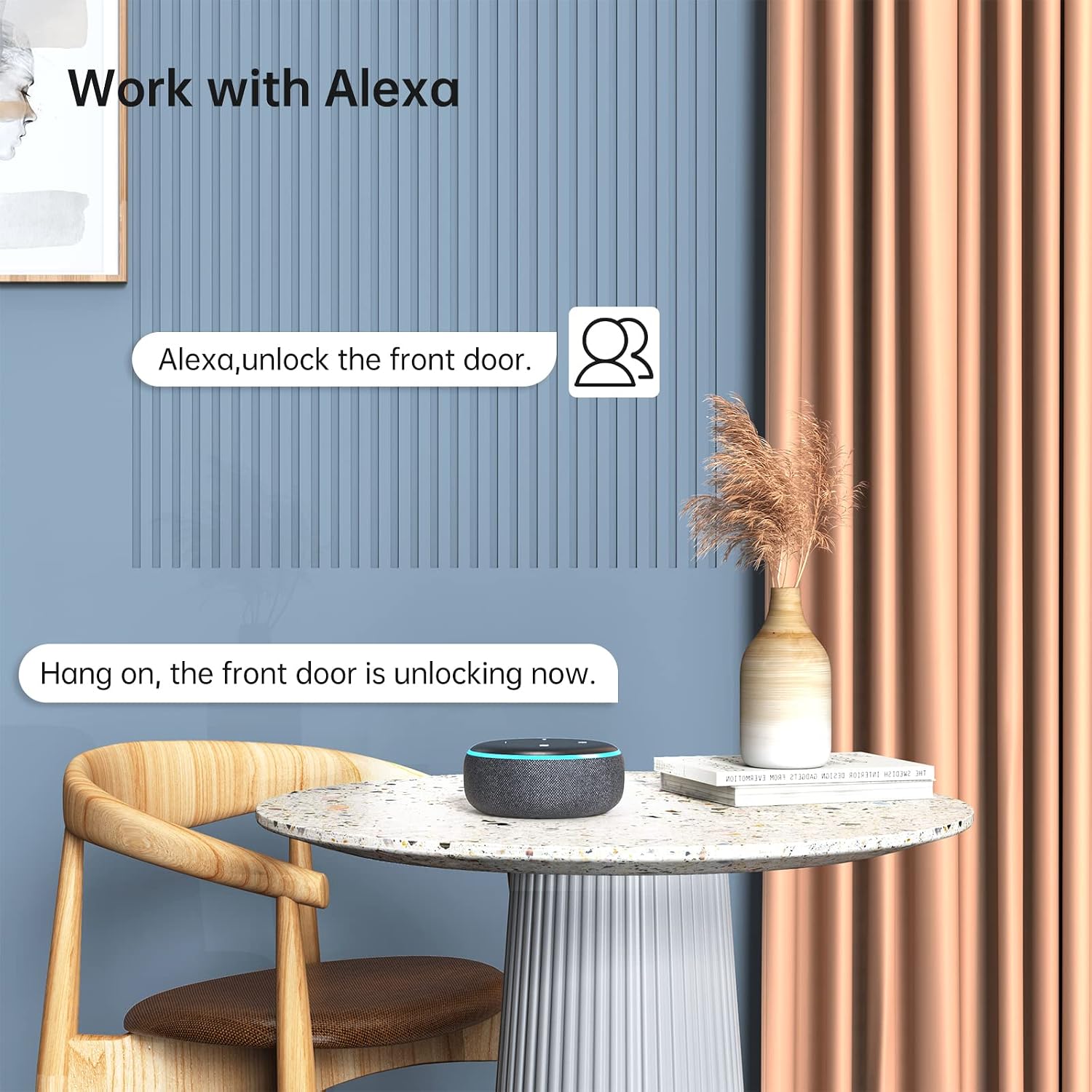
Image: An Amazon Echo Dot device on a table, with a speech bubble indicating a voice command to unlock the front door, demonstrating Alexa compatibility.
6.4. Mechanical Key
- In case of battery depletion or electronic malfunction, the lock can always be opened using the provided mechanical keys.
- To access the keyhole, use a pin to press the dot on the left or right side of the keyhole cover to reveal the key cylinder.

Image: A hand inserting a mechanical key into the smart lock, illustrating the traditional backup unlocking method.
6.5. Auto-Lock Feature
- The lock can be configured via the app to automatically lock after a user-defined period (e.g., 5 seconds, 30 seconds, 1 minute).

Image: A person carrying boxes, with a smart lock on the door, illustrating the convenience of the smart auto-lock feature.
6.6. Product Features Overview Video
Watch this video for a quick overview of the SMONET Smart Lock's features and functionalities:
Video: An introductory video showcasing the various features of the SMONET WiFi Door Lock, including different unlocking methods and smart capabilities.
7. Maintenance
- Battery Replacement: The lock will provide a low battery warning. Replace all 4 AA batteries promptly to ensure continuous operation.
- Cleaning: Use a soft, dry cloth to clean the touchscreen and lock body. Avoid abrasive cleaners or solvents that could damage the finish or electronics.
- Mechanical Check: Periodically check the deadbolt and latch for smooth operation. Ensure no obstructions prevent the bolt from fully extending or retracting.
8. Troubleshooting
- Lock Not Responding: Check battery levels and replace if necessary. Ensure the IC wire connection is secure.
- Keypad Not Working: Verify batteries are installed correctly. If the keypad is unresponsive, try using the mechanical key or app to unlock.
- App Connection Issues: Ensure Bluetooth is enabled on your phone. If using WiFi, check the WiFi Gateway's connection to your router and the internet. Restart the app and the lock (by removing and reinserting batteries) if necessary.
- Deadbolt Not Extending/Retracting Fully: Check for any physical obstructions in the door frame or strike plate. Ensure the deadbolt is correctly aligned and the toggle button for door handing is set appropriately.
- Voice Control Not Working: Confirm the WiFi Gateway is online and linked to your Alexa/Google Home account. Check your smart assistant app for any connection errors or skill enablement issues.
If issues persist, refer to the detailed troubleshooting section in the full product manual or contact customer support.
9. Specifications
| Feature | Detail |
|---|---|
| Brand | SMONET |
| Model Name | SMUS-MD-SIL-KIT-HUB |
| Lock Type | Keypad |
| Special Feature | Touchscreen, Smart Lock, Wi-fi |
| Material | Metal |
| Color | Silver |
| Item Dimensions L x W x H | 9.45 x 8.45 x 4.33 inches |
| Item Weight | 3.89 pounds |
| Power Source | Battery-Powered |
| Batteries Required | 4 AA batteries (not included) |
| Controller Type | Amazon Alexa, Android, iOS |
| Connectivity Protocol | Bluetooth, Wi-Fi |
| Recommended Uses | For home security |
10. Warranty and Support
SMONET provides a 12-month warranty and replacement policy, along with lifetime technical support for this product.
- Toll Free: +1 (888) 308 5626
- Email: aftersaleservice@smonet.com
- Online Phone Calls Service: MON-SUN, 12 pm-8 pm, 9 pm-6 am (EDT)
For any questions or assistance, please contact SMONET customer service.


