
1. Introduction
The FODSPORTS M1-S Plus is a motorcycle Bluetooth intercom system designed for clear communication and entertainment while riding. It features Bluetooth 5.0, supports up to 10 riders, includes an FM radio, and offers universal compatibility with various helmets and devices. This manual provides detailed instructions for installation, operation, and maintenance to ensure optimal performance.

Figure 1: FODSPORTS M1-S Plus Intercom Unit
2. Package Contents
Verify that all items listed below are included in your package:
- FODSPORTS M1-S Plus Intercom Unit
- USB Type-C Charging Cable
- Earphones
- Cord Microphone
- Boom Microphone
- Mounting Base (Clip-on and Adhesive options)
- Japanese Instruction Manual (also available in English)
- Velcro Pads for Speakers and Microphones
- Alcohol Prep Pads

Figure 2: Package Contents
3. Setup and Installation
Follow these steps to install the M1-S Plus unit onto your helmet.
3.1 Choosing a Mounting Method
The M1-S Plus offers two mounting options: a clip-on base and an adhesive base. Select the method most suitable for your helmet type and preference.
3.2 Installing the Mounting Base
- Clip-on Base: Slide the clip-on base between the helmet shell and the inner padding on the left side of your helmet. Ensure it is securely fastened.
- Adhesive Base: Clean the desired mounting area on the left side of your helmet with an alcohol prep pad and let it dry. Peel off the protective film from the adhesive base and firmly press it onto the helmet for at least 30 seconds. Allow the adhesive to cure for 24 hours before attaching the intercom unit.
3.3 Attaching the Intercom Unit
Once the base is installed, slide the M1-S Plus unit onto the mounting base until it clicks securely into place.
3.4 Installing Speakers and Microphone
- Speaker Placement: Attach the speakers to the inside of your helmet using the provided Velcro pads, positioning them directly over your ears for optimal sound. Route the speaker wires neatly under the helmet padding.
- Microphone Selection and Placement:
- Boom Microphone: Recommended for open-face or modular helmets. Attach it to the inside of the helmet near your mouth using Velcro.
- Cord Microphone: Recommended for full-face helmets. Attach it to the inside of the chin bar, close to your mouth.
- Connecting Components: Plug the speaker and microphone cables into the appropriate ports on the M1-S Plus unit. The unit features a unified USB Type-C port for both charging and headset connection.

Figure 3: Helmet Installation Guide
4. Operating Instructions
4.1 Power On/Off
- Power On: Press and hold the Power button for approximately 3 seconds until the indicator light turns on.
- Power Off: Press and hold the Power button for approximately 3 seconds until the indicator light turns off.
4.2 Bluetooth Pairing with Mobile Devices
The M1-S Plus uses Bluetooth 5.0 for stable connections.
- Ensure the M1-S Plus is powered off.
- Press and hold the Power button for approximately 5-7 seconds until the indicator light flashes red and blue alternately, indicating pairing mode.
- On your mobile device, enable Bluetooth and search for "FODSPORTS M1-S Plus".
- Select the device to pair. Once connected, the indicator light will flash blue slowly.
The unit supports simultaneous connection to two Bluetooth devices (e.g., phone and GPS), but only one can be actively used at a time.
4.3 Intercom Communication (Group Pairing)
The M1-S Plus supports one-button automatic pairing for up to 10 riders.
- Ensure all M1-S Plus units are powered on and not connected to other devices.
- On one unit (the host), press and hold the Intercom button until the indicator light flashes rapidly.
- On the other units, briefly press the Intercom button. They will automatically search and connect to the host unit.
- Repeat for all units. Once connected, the indicator lights will flash blue slowly.
The communication range between two riders can reach over 500 meters in ideal conditions. If communication is lost due to distance, it will automatically reconnect when units are back within range.

Figure 4: Group Intercom Communication
4.4 Music Sharing
Two M1-S Plus users can share and listen to the same music simultaneously.
- Ensure both units are paired and connected.
- Start music playback on one of the connected mobile devices.
- Activate the music sharing function (refer to the specific button press in the quick start guide if available, otherwise assume automatic or a dedicated button).
Note: Music sharing is not available during active intercom calls between M1-S Plus units.

Figure 5: Music Sharing Function
4.5 FM Radio
The M1-S Plus includes a built-in FM radio (76MHz-108MHz).
- Turn On/Off FM Radio: Briefly press the FM button.
- Scan Stations: Press and hold the Volume Up or Volume Down button to scan for the next/previous available station.

Figure 6: FM Radio Operation
4.6 AUX Function
Connect external audio devices (smartphone, MP3 player, GPS, radar detector) via a 2.5mm to 3.5mm conversion cable to listen to audio while using intercom communication.
- Connect your external device to the M1-S Plus using the appropriate AUX cable.
- Ensure the AUX function is enabled on the M1-S Plus (refer to the quick start guide for specific activation steps).

Figure 7: AUX Connectivity Options
4.7 Microphone Mute Function
During an intercom call, you can mute your microphone to prevent others from hearing unwanted sounds.
- Activate/Deactivate Mute: Briefly press the Mute button (refer to the quick start guide for button location).
4.8 Volume Adjustment
- Increase Volume: Briefly press the Volume Up button.
- Decrease Volume: Briefly press the Volume Down button.
4.9 Voice Prompts
The M1-S Plus provides female Japanese voice prompts to confirm operations, simplifying user interaction.
5. Key Features
5.1 Enhanced Sound Quality
The M1-S Plus utilizes high-output speakers with silk diaphragms, selected by industry experts, to deliver clear and vivid stereo sound. This design ensures audio is not overwhelmed by wind noise, even at high speeds. The sound resolution is significantly enhanced, providing a superior listening experience comparable to leading brands.

Figure 8: Advanced Speaker Design for High-Fidelity Audio
5.2 Triple Noise Reduction
Equipped with CVC & ENC noise-canceling technology and an intelligent microphone, the M1-S Plus effectively eliminates call echo and reduces ambient noise such as engine sounds and wind noise. This ensures clear voice communication even in challenging riding conditions.

Figure 9: Triple Noise Reduction for Clear Communication
5.3 Universal Compatibility
The M1-S Plus features Universal Connection Mode and HFP Connection Mode, allowing it to connect not only with other Fodsports intercoms but also with intercoms from various other manufacturers. This broad compatibility enhances its versatility for group rides. Note: A small number of devices from other manufacturers may not be compatible.
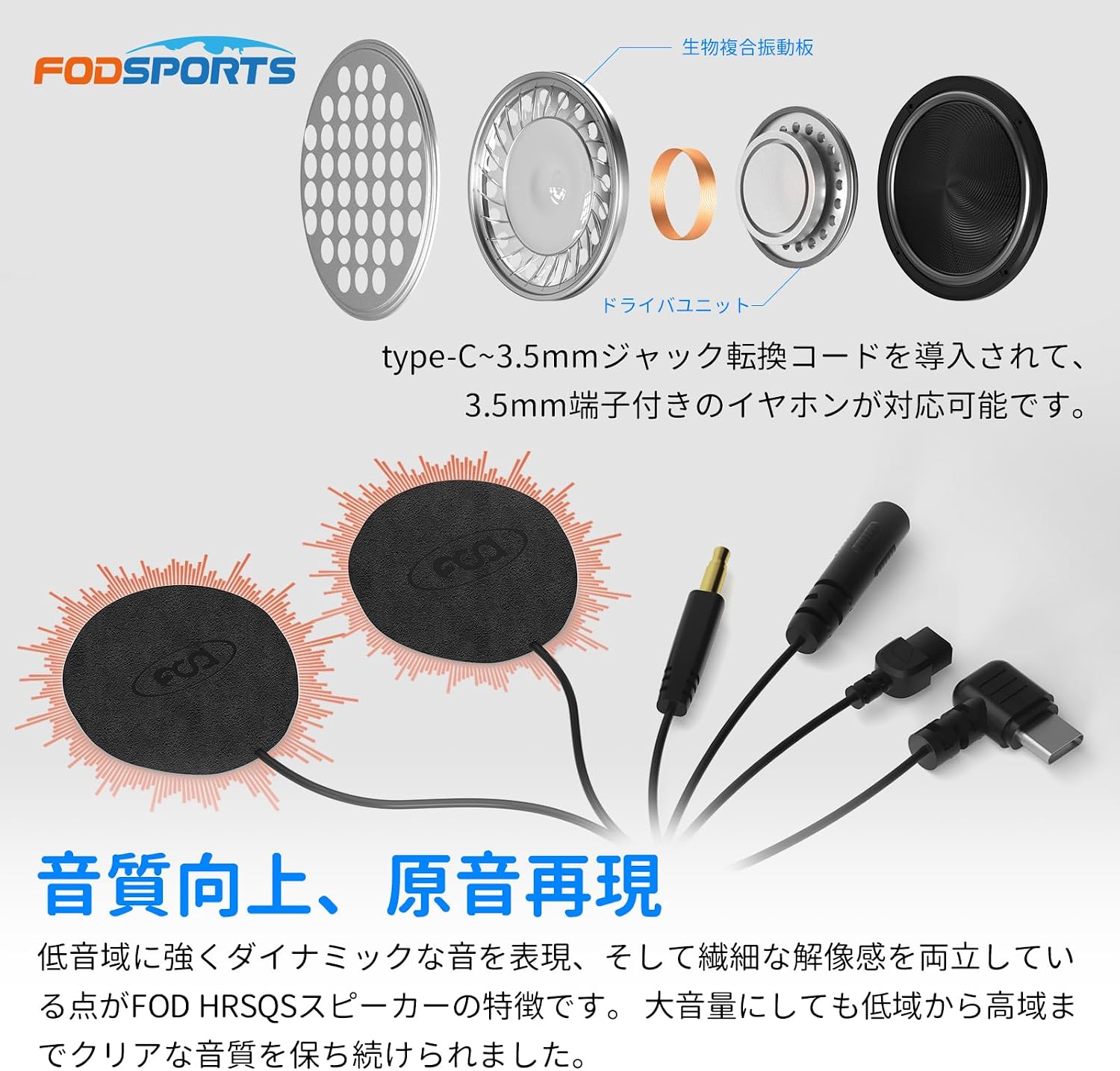
Figure 10: Universal Connectivity
5.4 Long-Lasting Battery
The unit is equipped with a built-in 900mAh large-capacity lithium battery, certified with international UN38.3 standards. This provides over 20 hours of continuous use on a single charge. Features include a battery level display, detection function, and low power notification. Note: The device cannot be used while charging.
5.5 Waterproof and Dustproof Design
The M1-S Plus is rated IP65 for dust and water resistance, allowing for confident use even in sudden rain. Note: It is not recommended for prolonged use in light rain or mist due to potential effects from wind pressure.
6. Specifications
| Brand | Fodsports |
| Model Number | M1-S Plus |
| Color | Blue |
| Bluetooth Version | 5.0 |
| Communication Range | Up to 500m (between 2 riders, ideal conditions) |
| Max Intercom Riders | 10 |
| Battery Capacity | 900mAh Lithium Battery |
| Continuous Use Time | Over 20 hours |
| Charging Port | USB Type-C (2-in-1 for charging/headset) |
| FM Radio Frequency | 76MHz-108MHz |
| Waterproof Rating | IP65 |
| Noise Control | Active Noise Cancellation (CVC & ENC) |
| Item Weight | 45 grams |
| Impedance | 32 Ohm |
7. Maintenance
To ensure the longevity and optimal performance of your FODSPORTS M1-S Plus, follow these maintenance guidelines:
- Cleaning: Wipe the unit with a soft, damp cloth. Do not use harsh chemicals or abrasive cleaners.
- Storage: Store the intercom in a cool, dry place away from direct sunlight and extreme temperatures when not in use.
- Charging: Charge the battery fully before long periods of storage to maintain battery health. Avoid overcharging.
- Water Exposure: While the unit is IP65 waterproof, avoid submerging it in water. If it gets wet, ensure it is completely dry before charging or using.
8. Troubleshooting
If you encounter issues with your M1-S Plus, refer to the following common problems and solutions:
- No Power:
- Ensure the battery is charged. Connect the unit to a power source using the provided USB Type-C cable.
- Press and hold the Power button for 3 seconds to power on.
- Cannot Pair with Phone/Intercom:
- Ensure the unit is in pairing mode (flashing red and blue alternately for phone pairing, rapid flashing for intercom host).
- Make sure other Bluetooth devices are not interfering. Turn off Bluetooth on nearby unused devices.
- Clear previous pairing records on both the M1-S Plus and your mobile device, then attempt pairing again.
- No Sound/Low Volume:
- Check the volume level on both the M1-S Plus and your connected device.
- Ensure speakers are correctly plugged into the unit and positioned over your ears.
- Verify that the microphone is not muted.
- Intercom Disconnects Frequently:
- Ensure units are within the effective communication range (up to 500m in ideal conditions).
- Minimize obstacles between units.
- External radio interference can affect communication. Move to an area with less interference if possible.
9. Warranty and Support
The FODSPORTS M1-S Plus comes with a standard 1-year manufacturer's warranty for the main unit. Consumable parts such as speakers and microphones are covered by a 6-month warranty.
You can extend the main unit warranty by an additional 6 months by registering your product on the official FODSPORTS website.
For any questions, concerns, or technical support during use, please contact us through one of the following methods:
- Amazon Customer Service: Navigate to "Account Services" > "Order History" > "Contact Seller" for your purchase.
- Official Support Email: Refer to the contact information provided on the official FODSPORTS website or in your product packaging.
Please have your purchase details and product model number ready when contacting support.