
1. Introduction
The Samsung Galaxy Tab A7 is a versatile tablet designed for entertainment and productivity. It features a 10.4-inch ultra-widescreen display, Dolby Atmos surround sound, and a long-lasting battery, making it ideal for streaming, browsing, and video calls.
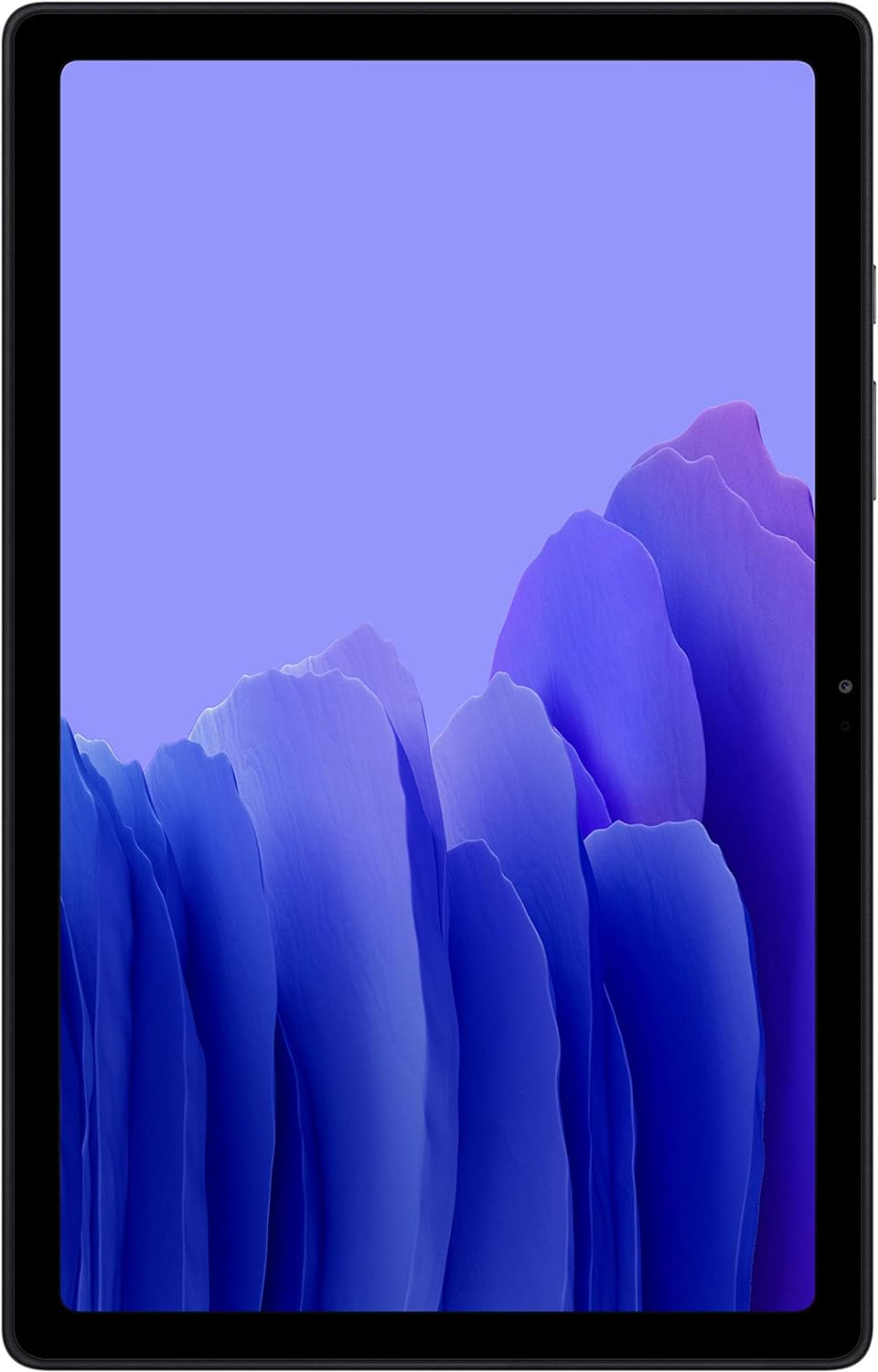
Figure 1.1: Front view of the Samsung Galaxy Tab A7 tablet.
This image displays the sleek, gray Samsung Galaxy Tab A7 tablet from the front, showcasing its large display and thin bezels. It highlights the device's modern and minimalist design.
2. Setup
2.1. What's in the Box
Before you begin, ensure all components are present:
- Samsung Galaxy Tab A7 Tablet
- Charger
- Quick Start Guide (this manual provides detailed instructions)
2.2. Charging the Device
For optimal performance, fully charge your tablet before first use. The Galaxy Tab A7 features a 7,040 mAh battery with 15W fast charging support.
- Connect the charger to the USB-C port on the tablet.
- Plug the charger into a power outlet.
- The charging indicator will appear on the screen.

Figure 2.1: The Samsung Galaxy Tab A7 displaying a battery charging graphic.
This image illustrates the tablet's screen showing a large battery icon with a lightning bolt, indicating that the device is actively charging. The text "7,040 mAh" and "15W Fast charging support" are visible below the tablet, highlighting its battery capacity and charging capabilities.
2.3. Powering On/Off
- To power on: Press and hold the Power button until the Samsung logo appears.
- To power off: Press and hold the Power button, then tap 'Power off' on the screen.
2.4. Initial Setup Wizard
Follow the on-screen prompts to complete the initial setup:
- Select your language and region.
- Connect to a Wi-Fi network.
- Review and accept the End User License Agreement.
- Sign in with your Google account or create a new one.
- Set up screen lock (PIN, pattern, password, or face recognition).
3. Operating Your Galaxy Tab A7
3.1. Navigation and Gestures
The Galaxy Tab A7 uses intuitive touch gestures for navigation:
- Tap: Select an item or open an app.
- Swipe: Scroll through pages or content.
- Pinch-to-zoom: Zoom in or out on images and web pages.
- Long press: Access contextual menus or move icons.
3.2. App Management
Install new applications from the Galaxy Store or Google Play Store.
- Open the 'Galaxy Store' or 'Play Store' app.
- Search for the desired app.
- Tap 'Install' or 'Get' to download and install.

Figure 3.1: The Samsung Galaxy Tab A7 showcasing popular entertainment apps.
This image features two Samsung Galaxy Tab A7 tablets, one displaying the YouTube Premium interface with various video thumbnails, and the other showing the Spotify Premium interface with music playback. This illustrates the tablet's capability for rich entertainment consumption.
3.3. Display and Audio Settings
Customize your viewing and listening experience:
- Brightness: Adjust from the Quick Panel or Display settings.
- Dolby Atmos: Enhance audio quality for movies and music. Go to Settings > Sound and vibration > Sound quality and effects and toggle Dolby Atmos on.

Figure 3.2: The Samsung Galaxy Tab A7 demonstrating Dolby Atmos surround sound.
This image illustrates the Samsung Galaxy Tab A7 displaying a dramatic scene from a movie, with sound waves emanating from the tablet's sides, visually representing the immersive Dolby Atmos surround sound experience. The "Quad Speaker" and "Dolby Atmos" logos are prominently displayed below the tablet.
3.4. Multi-Device Experience
Connect your Galaxy Tab A7 with other Samsung Galaxy devices for a seamless experience. This allows for easy logging into your Samsung account to synchronize data and activities across devices like a Galaxy Watch.

Figure 3.3: The Samsung Galaxy Tab A7 interacting with a Galaxy Watch.
This image depicts the Samsung Galaxy Tab A7 displaying a workout tracking application, positioned next to a Samsung Galaxy Watch showing synchronized fitness data. This illustrates the seamless integration and multi-device experience offered by Samsung products.
3.5. Easy Share
Share content quickly and simply with family members' devices. The Galaxy Tab A7 supports easy exchange of photos, reminders, notes, and calendar events. A data connection is required for sharing. The reminder app may require download from Galaxy Store. All shared content must be linked to a Samsung Account.

Figure 3.4: The Samsung Galaxy Tab A7 showcasing its Easy Share functionality.
This image illustrates the Easy Share feature of the Samsung Galaxy Tab A7, showing content being shared across multiple devices: a smartphone, the tablet itself displaying a photo gallery, and a television screen. This highlights the convenience of sharing media within the Samsung ecosystem.
4. Maintenance
4.1. Cleaning Your Device
To keep your tablet in good condition:
- Use a soft, lint-free cloth to wipe the screen and body.
- Avoid using harsh chemicals or abrasive materials.
- Do not spray cleaners directly onto the screen.
4.2. Software Updates
Regularly check for software updates to ensure optimal performance and security:
- Go to Settings > Software update.
- Tap 'Download and install'.
- Follow the on-screen instructions.
4.3. Battery Care
To prolong battery life:
- Avoid extreme temperatures.
- Do not let the battery drain completely before recharging.
- Unplug the charger once the battery is full.
5. Troubleshooting
This section addresses common issues you might encounter with your Galaxy Tab A7.
5.1. Device Not Turning On
- Ensure the battery is charged. Connect the charger and wait a few minutes before attempting to power on.
- Perform a forced restart: Press and hold the Power button and Volume Down button simultaneously for more than 7 seconds.
5.2. Wi-Fi Connection Issues
- Restart your Wi-Fi router and the tablet.
- Forget the network and reconnect: Go to Settings > Connections > Wi-Fi, tap the gear icon next to your network, then 'Forget'. Re-enter the password.
- Ensure you are within range of the Wi-Fi signal.
5.3. Apps Crashing or Freezing
- Close and reopen the app.
- Clear the app's cache: Go to Settings > Apps, select the app, then Storage > Clear cache.
- Update the app to its latest version via the Play Store or Galaxy Store.
5.4. Factory Data Reset
If issues persist, a factory data reset can resolve many software-related problems. Warning: This will erase all data on your tablet. Back up important data before proceeding.
- Go to Settings > General management > Reset.
- Tap 'Factory data reset'.
- Review the information and tap 'Reset device'.
- Enter your screen lock credentials if prompted, then tap 'Delete all'.
6. Specifications
| Feature | Detail |
|---|---|
| Brand | Samsung Electronics |
| Model Name | Samsung Galaxy Tab A7 |
| Item Model Number | SM-T500NZAAXAR |
| Screen Size | 10.4 Inches |
| Screen Resolution | 2000 x 1200 Pixels |
| RAM | 3 GB |
| Hard Drive / Storage | 32 GB |
| Operating System | Android 10 |
| Processor Brand | Qualcomm |
| Wireless Type | 802.11a/b/g/n/ac, Bluetooth |
| Battery Life (Average) | 2 days |
| Item Weight | 1.04 pounds |
| Product Dimensions (LxWxH) | 0.28 x 6.2 x 9.75 inches |
| Color | Gray |
| Rear Webcam Resolution | 8 MP |
7. Warranty and Support
7.1. Product Warranty
For detailed warranty information, please refer to the warranty card included with your product or visit the official Samsung website. Warranty terms and conditions may vary by region.
7.2. Customer Support
If you require further assistance or have questions not covered in this manual, please contact Samsung Customer Support or visit their official support website. You can also refer to the official PDF user manual for additional details:


