
1. Introduction
This manual provides essential information for setting up, operating, and maintaining your SAMSUNG Galaxy Tab A7. Please read through these instructions carefully to ensure optimal performance and longevity of your device.
The Galaxy Tab A7 is designed for a seamless digital experience, offering a vibrant display and rich audio for all your media needs. Its portable design makes it ideal for on-the-go use, while its processing power supports various applications and tasks.
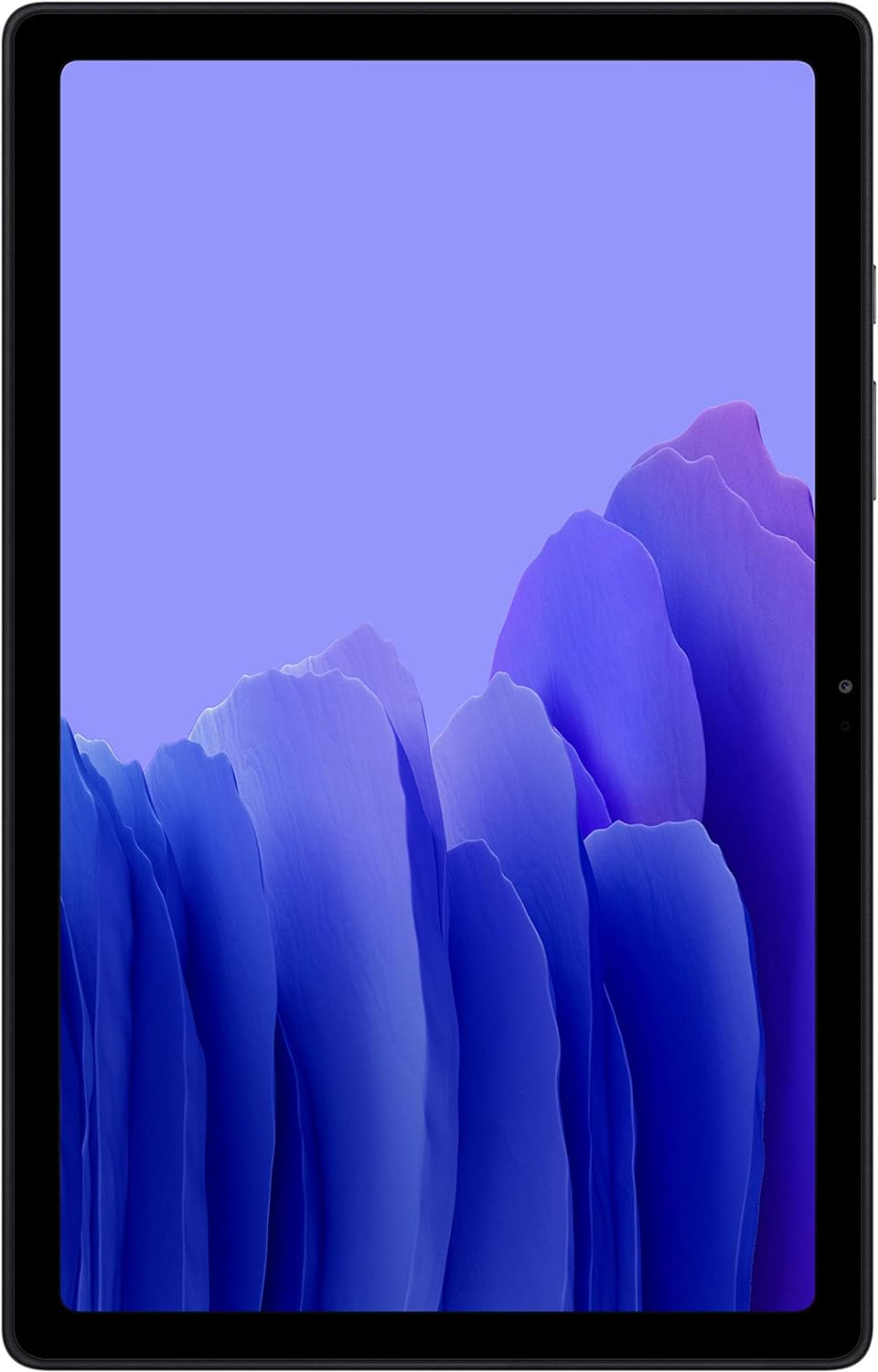
Figure 1: Front view of the SAMSUNG Galaxy Tab A7 tablet.
2. Setup
2.1. Unboxing and Initial Charge
Upon unboxing your Galaxy Tab A7, locate the tablet and the included charger. Connect the charger to the tablet's USB-C port and plug it into a power outlet. It is recommended to fully charge the device before its first use.
The tablet features a slim and stylish design, making it easy to handle and transport.

Figure 2: The slim profile of the Galaxy Tab A7, highlighting its design.
2.2. Power On and Initial Configuration
- Press and hold the Power button located on the side of the tablet until the Samsung logo appears.
- Follow the on-screen prompts to select your language, connect to a Wi-Fi network, and agree to the terms and conditions.
- Sign in with your Google account or create a new one to access the Google Play Store and other services.
- Set up security features such as a PIN, pattern, password, or face recognition.
3. Operating
3.1. Navigating the Interface
The Galaxy Tab A7 runs on the Android operating system. Navigation is primarily done through touch gestures:
- Tap: Select an item or open an application.
- Swipe: Scroll through screens, menus, or web pages.
- Pinch-to-zoom: Enlarge or reduce the view of images or web pages.
- Long press: Access contextual menus or move icons.
3.2. Media Consumption and Audio
The tablet features an enhanced quad speaker system with Dolby Atmos surround sound, providing an immersive audio experience for movies, music, and games.

Figure 3: The Galaxy Tab A7's quad speakers and Dolby Atmos support for enhanced sound.
3.3. Enhanced Performance and Storage
The Galaxy Tab A7 is equipped with a fast processor and upgraded memory, allowing for smooth multitasking and application usage. The device comes with 64GB of internal storage, which can be expanded up to 1TB using a microSD card (sold separately).

Figure 4: Visual representation of the tablet's internal storage and expandable microSD card slot.
3.4. Multi-Device Experience and Easy Share
Samsung devices are designed to work together seamlessly. You can connect your tablet with other Samsung Galaxy devices, such as a Galaxy Watch, by logging into your Samsung account. The Easy Share feature allows for quick and simple content sharing with family members' devices, including photos, reminders, notes, and calendar events. A data connection is required for sharing.

Figure 5: The Galaxy Tab A7 interacting with a Galaxy Watch for a multi-device experience.

Figure 6: Illustrates the Easy Share feature for sharing content across devices.
4. Maintenance
4.1. Battery Care
The Galaxy Tab A7 features a 7,040 mAh battery with 15W fast charging support. To maximize battery life:
- Avoid extreme temperatures.
- Do not leave the tablet fully charged or fully discharged for extended periods.
- Use the original charger provided with the device.

Figure 7: The Galaxy Tab A7's 7,040 mAh battery and fast charging capability.
4.2. Cleaning Your Tablet
To clean your tablet, use a soft, lint-free cloth. For stubborn smudges, slightly dampen the cloth with water or a screen cleaner designed for electronics. Avoid using harsh chemicals or abrasive materials.
4.3. Software Updates
Regularly check for and install software updates to ensure your tablet has the latest features, security patches, and performance improvements. You can usually find this option in the device's Settings menu under Software update.
5. Troubleshooting
5.1. Device Not Powering On
- Ensure the battery is sufficiently charged. Connect the charger and wait a few minutes before attempting to power on again.
- Press and hold the Power button for at least 10 seconds to perform a forced restart.
5.2. Wi-Fi Connectivity Issues
- Toggle Wi-Fi off and on in the Settings menu.
- Restart your Wi-Fi router.
- Forget the network and reconnect, re-entering the password.
5.3. Slow Performance
- Close unused applications running in the background.
- Clear cache data for frequently used apps.
- Ensure sufficient storage space is available. Consider uninstalling unused apps or moving media to a microSD card.
- Perform a factory reset as a last resort (Note: This will erase all data on the device. Back up important data before proceeding.)
6. Specifications
| Feature | Specification |
|---|---|
| Standing screen display size | 10.4 Inches |
| Screen Resolution | 2000x1200 |
| RAM | 3 GB |
| Hard Drive / Flash Memory Size | 64 GB |
| Graphics Coprocessor | Qualcomm SDM865 Plus |
| Chipset Brand | Qualcomm |
| Wireless Type | 802.11a/b/g/n/ac, Bluetooth |
| Operating System | Android 10 |
| Item Weight | 1.04 pounds |
| Product Dimensions | 0.28 x 6.2 x 9.75 inches |
| Color | Gray |
| Rear Webcam Resolution | 8 MP |
| Number of Processors | 8 |
| Batteries | 1 Lithium Polymer batteries required. (included) |
7. Warranty and Support
For warranty information and technical support, please refer to the official Samsung Electronics website or contact their customer service. Keep your purchase receipt as proof of purchase for warranty claims.
You can visit the Samsung Store on Amazon for additional product information and accessories.


